Restrict built-in actions for a role
AI summary
Restrict which built-in actions users of a role can run when not everyone should be able to change objects in Microsoft 365. Use the Roles settings to select or deselect actions for each role.
By default, any user can run built-in actionsBuilt-in actionA built-in action is a ready-made operation you run directly on inventory objects without building an automation, for example adding a user to a Team.Read more in the EnvironmentEnvironmentAn Environment is the connected Microsoft 365 tenant inside a Workspace.Read more. Restrict which built-in actions the users of a roleRoles and teamsRoles and teams control what each user can do and see in a Workspace. Each user is assigned a role, which grants permissions, and a team, which grants access to inventory objects.Read more can run when not everyone should be able to change objects in Microsoft 365Microsoft 365Microsoft 365 is the Microsoft cloud suite of Teams, SharePoint, OneDrive, Exchange and the Office apps.Read more.
Before you begin
- Your Rencore role includes the Manage roles permission. Only the Owner role has it. See Rencore roles.
Steps
-
Go to Settings > Users & Roles > Roles.
-
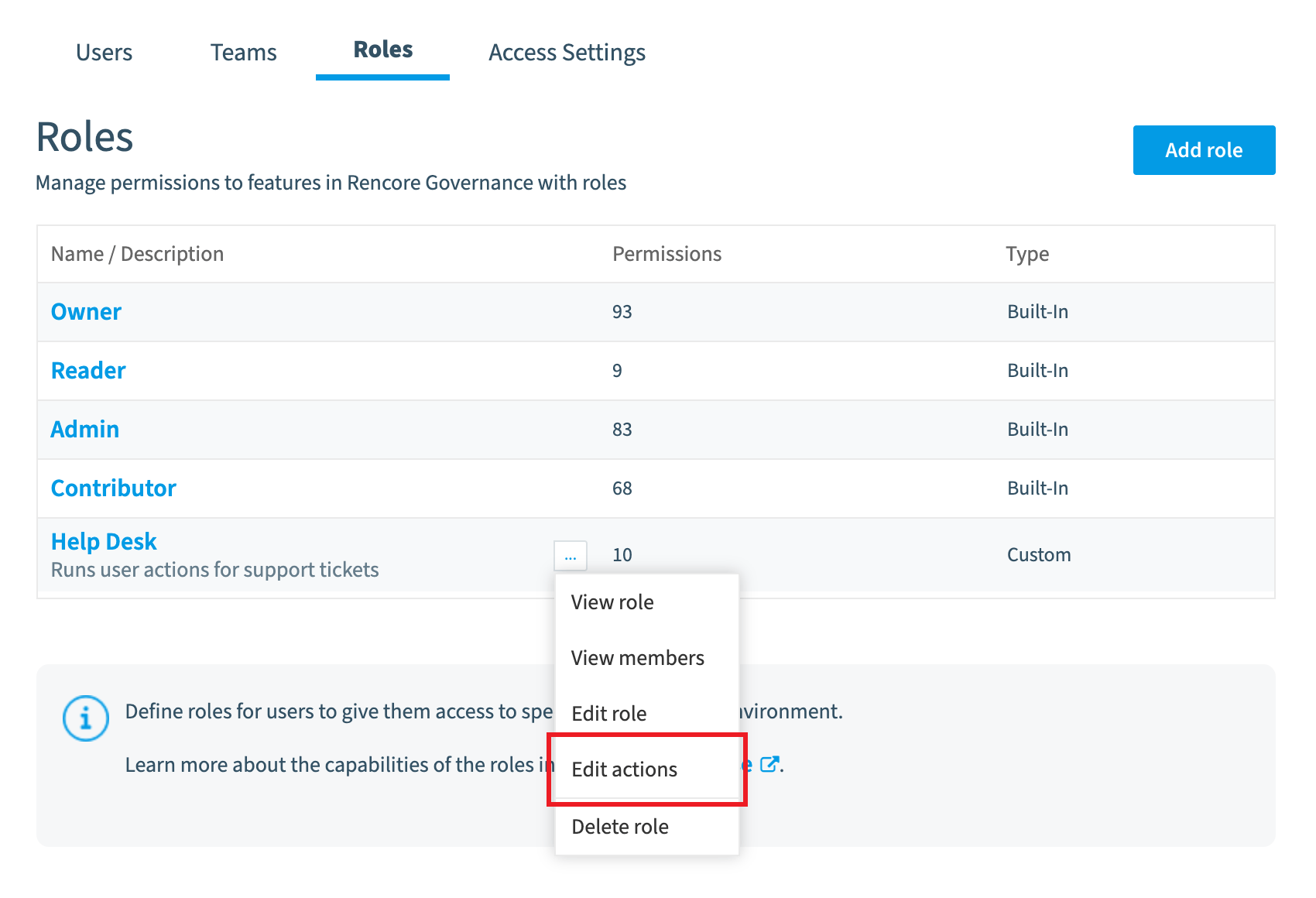
Click the Action Menu ([…]) next to a role.
-
Click Edit actions.
-
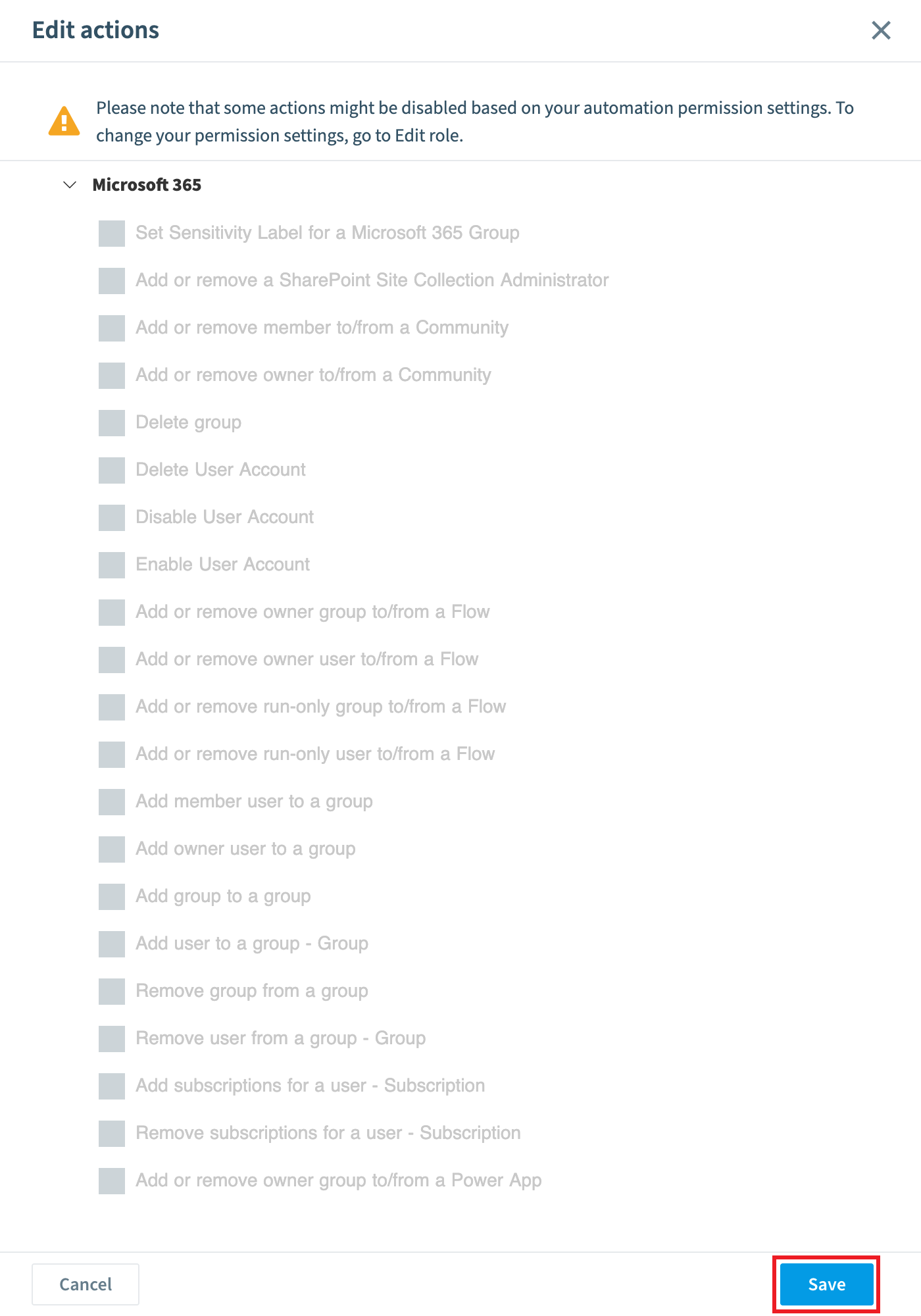
In the dialog, select or clear the box for each available action.
-
Click Save.
What you see
The users of the role can run only the actions you selected.
Frequently asked questions
How do I limit which built-in actions the users of a role can run?
Go to Settings > Users & Roles > Roles, click the Action Menu ([...]) next to the role, and click Edit actions. Select or clear the box for each available action, then click Save.
Which Rencore role permission do I need to restrict built-in actions for a role?
You need the Manage roles permission. Only the Owner role has this permission.
What can users run after I restrict the built-in actions of their role?
The users of the role can run only the actions you selected. By default, before you restrict anything, any user can run built-in actions in the Environment.
Was this page helpful?
Thanks for the feedback.
Thanks. What was wrong?