Support Portal
AI summary
Create a Support Portal account to open support conversations, add ticket details, and track status. If you need to view colleague tickets, request company-wide access from Support.
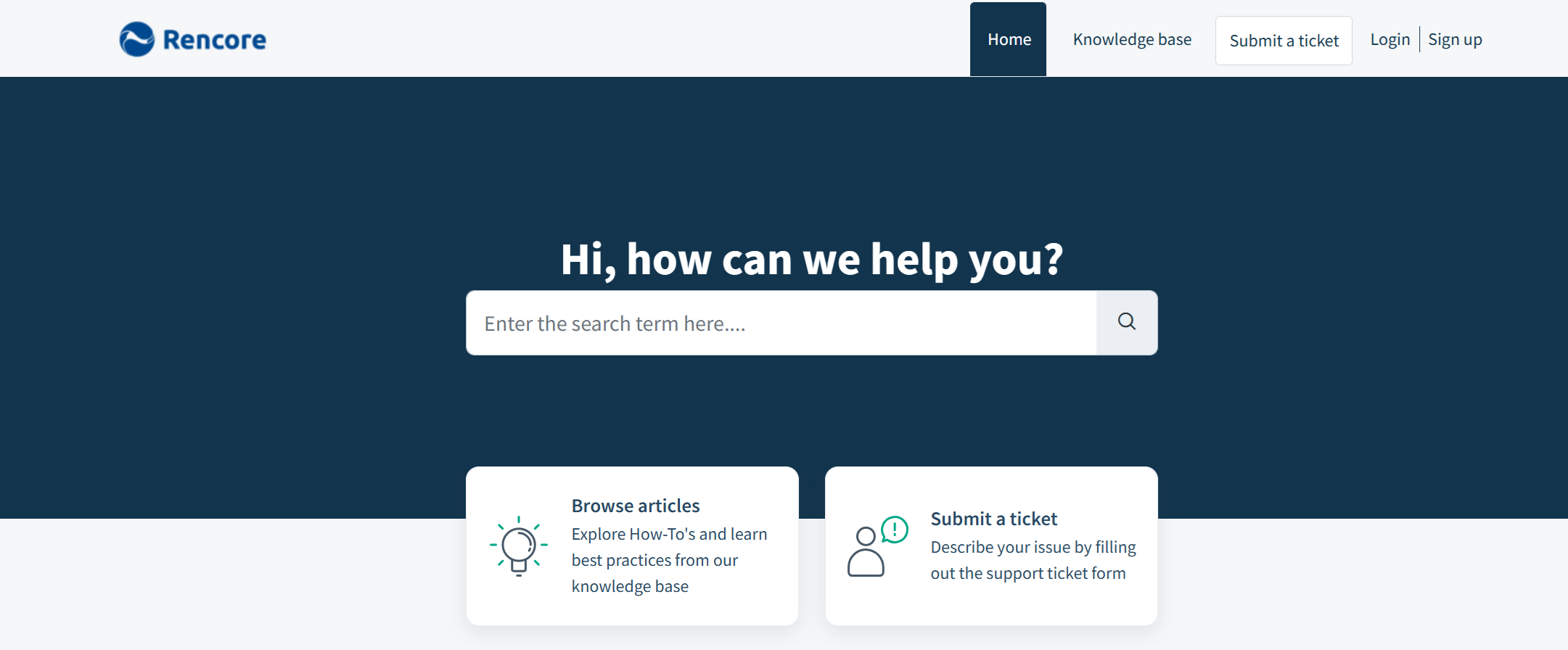
How to create a Support PortalSupport Portalcom is where you raise a support ticket with Rencore and follow its progress.Read more account and use it to raise and track support conversations. The Rencore Support Portal is where you open a conversation with the Support team, add details to a ticket and see its status. If you have never signed in, create your account first; if you need to see the tickets of colleagues, ask Support for the company-wide view.
Start with
- Create a Support Portal account Sign up for the Rencore Support Portal so you can raise and follow your own support conversations.
- Create a support conversation Open a new support conversation with the Rencore Support team from the Support Portal.
- Update a support ticket Add details to a ticket you already sent, from the Support Portal or from the notification email.
All pages in Support Portal
Your Support Portal account 3 pages
Sign up, sign in and reset your password.
-
Access the Rencore Support Portal
Where to sign in to the Support Portal and what you can do there.
Before you begin: A Support Portal account.
-
Create a Support Portal account
Sign up for the Rencore Support Portal so you can raise and follow your own support conversations.
Before you begin: A company email address.
-
Reset your Support Portal password
Reset a forgotten Support Portal password.
Before you begin: You know the email address of your Support Portal account.
Support conversations 3 pages
Open a conversation, add to it, and let colleagues see your company's conversations.
-
Open a new support conversation with the Rencore Support team from the Support Portal.
Before you begin: A Support Portal account.
-
Add details to a ticket you already sent, from the Support Portal or from the notification email.
Before you begin: A Support Portal account.
-
Access company support conversations
Ask Support to let chosen colleagues see every support conversation from your company.
Before you begin: You are the main point of contact for your company with Rencore. (+1 more)
Frequently asked questions
What can I do in the Rencore Support Portal?
In the Rencore Support Portal, you open a conversation with the Support team, add details to a ticket and see its status.
I have never signed in to the Support Portal. What should I do first?
Create your Support Portal account first. After that you can raise and follow your own support conversations.
Can I add details to a support ticket I already sent?
Yes. You can add details to an existing ticket from the Support Portal or from the notification email.
How can I see the support tickets of my colleagues?
Ask Support to give you the company-wide view. Support can let chosen colleagues see every support conversation from your company.
What should I do if I forgot my Support Portal password?
Reset it by using the Reset Support Portal password steps. The Support Portal account section also covers signing up and signing in.