Use a PnP provisioning template
AI summary
PnP (Patterns and Practices) provisioning templates automatically apply owners, members, channels, and settings to every team or SharePoint site you provision. Upload your PnP template file and add it to your team or site template to standardize workspace setup across your organization.
Add a Microsoft PnP provisioning templateProvisioning templateA provisioning template defines how a new Microsoft 365 workspace is created through Rencore Governance.Read more to a team or SharePoint site template, so every workspace you provision gets the owners, members, channels and settings it defines. PnP (Patterns and Practices) is a Microsoft and community initiative that provides templates and tools for Microsoft 365Microsoft 365Microsoft 365 is the Microsoft cloud suite of Teams, SharePoint, OneDrive, Exchange and the Office apps.Read more, including the PnP provisioning schema.
Before you begin
- Your Rencore role includes the Edit Provisioning permission. Owner, Admin and Contributor have it. See Rencore roles.
- Provisioning is part of the Premium and Enterprise PlansPlanA Plan is the edition of Rencore Governance in your Subscription: Professional, Premium or Enterprise.Read more.
- You have a PnP template saved as an XML file. A basic example is shown under Example PnP template below.
- PnP templates work with team templates and SharePoint site templates. Microsoft 365 groupMicrosoft 365 groupA Microsoft 365 Group is the membership object behind many Microsoft 365 workspaces.Read more, PlannerMicrosoft PlannerMicrosoft Planner is the Microsoft 365 app for task plans and boards. The Planner connector of Rencore Governance, part of the Digital Workplace module, inventories plans.Read more and Viva EngageViva EngageViva Engage, formerly Yammer, is the Microsoft 365 app for company-wide communities.Read more templates have no PnP setting.
Steps
- Upload the PnP template to your library, then add it to a provisioning template, as described below.
Upload the PnP template
-
Click Provisioning on the Nav Panel.
-
Click Manage Provisioning Templates.
-
Click the Ellipse menu ([…]) in the top-right corner.
-
Select Edit managed entities.
-
Select PnP Templates.
-
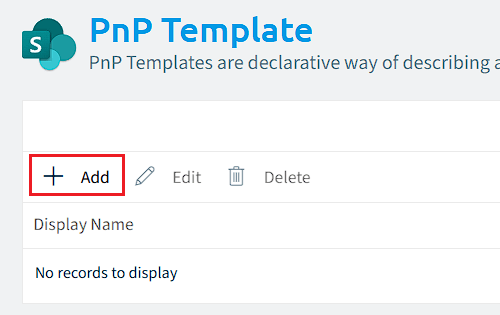
Click + Add.
-
Click Browse.
-
Go to the .pnp template file, select it, and click Open.
-
Enter a Display Name and a Description for the template.
-
Click Save.
<figure><img alt="Insert New Record panel with display name, description and the uploaded PnP file, Save highlighted" src="/images/docs/idApYnOqhGR397BibJAu.png"></figure>Add the PnP template to a provisioning template
- Open the team or SharePoint site template in the template builder.
- Go to 2. Provisioning Settings.
- In the PnP Template section, turn on Use custom template.
- In Custom PnP Template, select the PnP template you uploaded.
- Save the template.
Example PnP template
With a PnP template, you can force some actions without showing them in the provisioning template. This example always adds certain people as owners and members, and adds a standard and a private channelPrivate channelA private channel is a Microsoft Teams channel that only some members of the team can see.Read more:
<?xml version="1.0" encoding="utf-8"?>
<pnp:Provisioning xmlns:pnp="http://schemas.dev.office.com/PnP/2022/09/ProvisioningSchema"
    Author="Your name"
    Description="Example Provisioning Template for Teams"
    DisplayName="Teams Provisioning">
    <pnp:Teams>
    <!-- Displayname, Description and Visibility will be taken from Rencore Governance settings and not be changed to your template settings-->
        <pnp:Team DisplayName="Placeholder" Description="Placeholder" Visibility="Private">
            <pnp:Security>
                <pnp:Owners>
                    <pnp:User UserPrincipalName="[email protected]"/>
                </pnp:Owners>
                <pnp:Members>
                    <pnp:User UserPrincipalName="[email protected]"/>
                </pnp:Members>
            </pnp:Security>
            <pnp:Channels>
                <pnp:Channel
                    DisplayName="General"
                    Description="General">
                </pnp:Channel>
                <pnp:Channel
                    DisplayName="Standard Channel"
                    Description="This is just a standard channel">
                </pnp:Channel>
                <pnp:Channel
                    DisplayName="Secret Channel"
                    Description="This is a private channel"
                    MembershipType="Private">
                </pnp:Channel>
            </pnp:Channels>
        </pnp:Team>
    </pnp:Teams>
</pnp:Provisioning>
The display name, description and visibility are taken from the Rencore Governance settings, not from the PnP template.
What you can do with a PnP template
- Add certain users as members or owners
- Add standard and private channels
- Add apps and tabs to a channel
- Change settings, and more
Limits
PnP does not support the creation of shared channels yet.
Frequently asked questions
Which template types can use a PnP provisioning template?
Team templates and SharePoint site templates can use a PnP template. Microsoft 365 group, Planner and Viva Engage templates have no PnP setting.
How do I upload a PnP template to Rencore Governance?
Click Provisioning on the Nav Panel, then Manage Provisioning Templates. Open the Ellipse menu, select Edit managed entities, choose PnP Templates, and click + Add. Browse to the file, enter a Display Name and Description, and click Save.
How do I add an uploaded PnP template to a team template?
Open the template in the template builder and go to 2. Provisioning Settings. In the PnP Template section, turn on Use custom template, select the uploaded template in Custom PnP Template, and save.
Will the display name and visibility in my PnP template be applied to the new team?
No. The display name, description and visibility are taken from the Rencore Governance settings, not from the PnP template.
Can a PnP template create shared channels?
No. PnP does not support the creation of shared channels yet. It can add standard and private channels, though.
Was this page helpful?
Thanks for the feedback.
Thanks. What was wrong?