Workspaces
AI summary
The Workspaces page gives you a single view of all the Microsoft 365 workspaces you own or belong to: Teams, SharePoint sites, Viva Engage communities, and Microsoft 365 Groups. Service tabs let you switch between types, while filters and search help you find what you need. You can view detailed information about each workspace, including owners, members, access levels, and file sharing, replacing the deprecated My Objects feature from Rencore Nova.
The Workspaces page gives you a centralized view of all the Microsoft 365 workspaces you own or belong to. Instead of checking each admin centerAdmin centerAn admin center is the web portal where administrators manage one Microsoft service, such as the Microsoft 365 admin center, the Teams admin center or the Microsoft Entra admin center.Read more separately, you can browse your TeamsMicrosoft TeamsMicrosoft Teams is the Microsoft 365 app for chat, meetings and team collaboration.Read more, SharePoint sites, Viva Engage communitiesViva Engage communityA Viva Engage community is a group in Viva Engage where people share posts, files and events around a team, project or interest.Read more, and Microsoft 365 GroupsMicrosoft 365 groupA Microsoft 365 Group is the membership object behind many Microsoft 365 workspaces.Read more in one place.
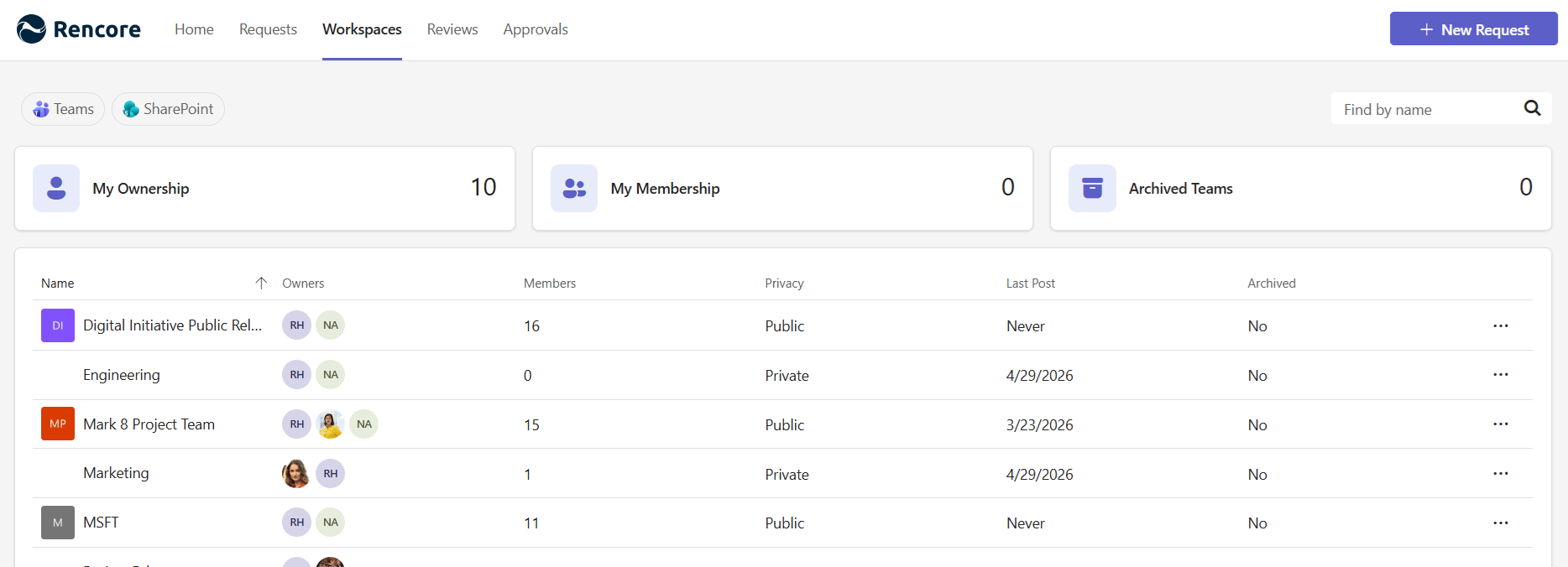
Browsing your workspaces
Service tabs
At the top of the page, tabs let you switch between service types:
- Teams - Your Microsoft Teams workspaces
- SharePoint - Your SharePoint Online sites
- Viva EngageViva EngageViva Engage, formerly Yammer, is the Microsoft 365 app for company-wide communities.Read more - Your Viva Engage communities
- Groups - Your Microsoft 365 Groups
The app opens the first available service tab. Click any tab to switch views.
Filter tiles
Below the service tabs, filter tiles help you narrow down your workspaces. Each tile shows a count of matching workspaces. Click a tile to filter the list - only one filter can be active at a time.
For example, the Teams service offers these filters:
Filter | Shows |
|---|---|
My Ownership | Teams where you are an owner |
My Membership | Teams where you are a member (but not an owner) |
Archived TeamsArchivingArchiving puts a Team or SharePoint site into a read-only state when it is no longer in active use, without deleting it.Read more | Archived Teams you own or belong to |

Searching
Use the search bar to find workspaces by name. Results update as you type. The search applies within whatever service tab and filter you currently have selected.
Workspace list
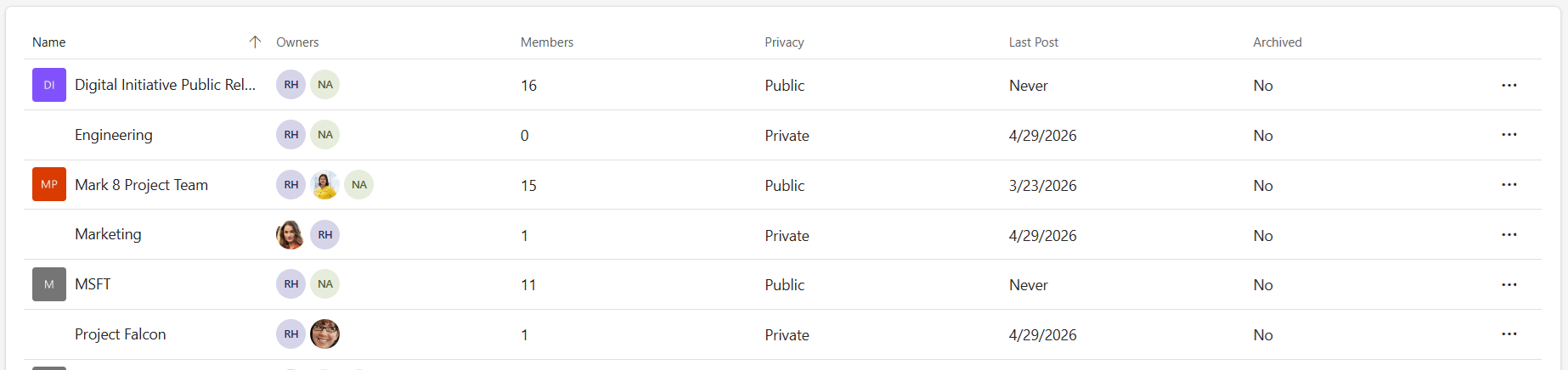
Workspaces are displayed in a sortable list. Click any column header to sort. The columns shown depend on the service type.
For Teams, you’ll see:
Column | Description |
|---|---|
Name | Team name with icon |
Owners | Profile pictures of workspace ownersWorkspace ownerA workspace owner is an owner of a Microsoft 365 workspace, such as a Team, a SharePoint site or a group.Read more (hover for full names) |
Members | Total member count |
Privacy | Public, Private, or Org-wide |
Last Post | Date of the most recent activity |
Archived | Whether the workspace is archived |
Workspace details
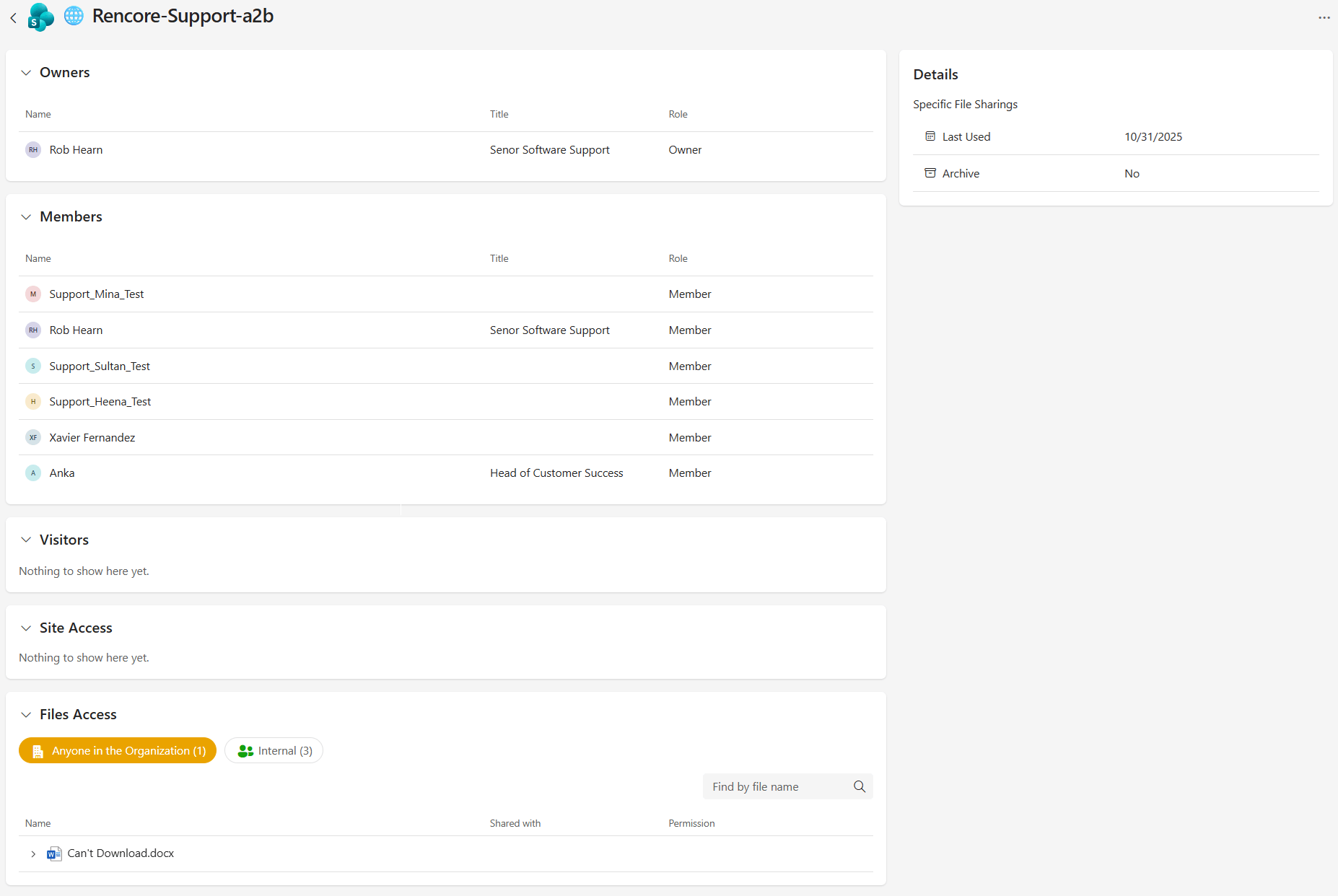
Click any workspace in the list to open its details page. The details page shows comprehensive information about the workspace in collapsible sections.
People
- Owners - Name, job title, and role for each owner
- Members - Name, job title, and role for each member. Guest usersExternal userAn external user is an account whose home tenant belongs to another organization, invited into your tenant to work with you.Read more are marked with a distinct icon.
- Visitors (SharePoint sites only) - Users with visitor-level access
Access information
- Site Access (SharePoint sites only) - A hierarchical view of who has access to the site, organized by groups and individual users. Filter by access type: External, Organization-wide, or Internal.
- File Access (Teams and SharePoint) - Shows sharing linksSharing linkA sharing link is a link in SharePoint or OneDrive that grants access to a file or folder, sometimes to people outside your organization.Read more and direct access permissions for files and folders. Filter by sharing type: External, Anonymous, Anyone in the Organization, or Internal.
Workspace properties
A side panel displays key metadata about the workspace:
Property | Availability |
|---|---|
Privacy | Teams |
Last Post | Teams |
Last Used | SharePoint |
Archived | Teams, SharePoint |
Description | All services |
Sensitivity LabelSensitivity labelA sensitivity label is a Microsoft Purview classification, such as Confidential or Internal, that an organization applies to content and to containers such as Teams and SharePoint sites.Read more | When configured |
Start with
All guides in Workspaces
-
Turn on services for Teams App workspaces
Choose which workspace types owners may manage in the Rencore Teams App.
Before you begin: Your Rencore Governance role needs the Manage Teams App settings permission.
-
Add or remove owners and members and change settings of your workspaces in the app.
Before you begin: You own the workspace (the owner role in Microsoft 365). (+1 more)
Frequently asked questions
Which types of workspaces can I see on the Workspaces page?
You can see your Teams, SharePoint sites, Viva Engage communities, and Microsoft 365 Groups. Each type has its own tab, so you can browse them in one place instead of checking each admin center.
Why is a service tab missing on the Workspaces page?
That service has not been enabled for the Teams App in your organization. Your admin controls which services are visible.
Can I use more than one filter tile at the same time?
No. Only one filter can be active at a time. Click a tile to filter the list, and the search bar then applies within the service tab and filter you selected.
What information does a workspace details page show?
The details page shows the people (owners, members, and for SharePoint sites also visitors), access information such as site access and file access, and a side panel with properties like privacy, archived status, description, and sensitivity label.
What role do I need to turn on the Workspaces tab and choose which workspaces are shown?
You need the Owner or Admin role in Rencore Governance. Workspaces replaces My Objects from Rencore Nova, which is deprecated.