Review template end user experience
AI summary
Reviewers receive review assignments via Teams notification and see them as cards in the Rencore Teams App. The complete review process includes viewing workspace information and guidelines, managing owners and members, removing access permissions, reviewing all changes, and submitting or rejecting the review.
Reviewers never see the Review BuilderReviewA Review is a recurring or one-off check in which workspace owners confirm who has access to their Microsoft 365 workspaces, directly in the Rencore Teams App.Read more. When a cycle starts, they get the notification email from the Communication tab and a review card in the Rencore Teams App in Microsoft TeamsMicrosoft TeamsMicrosoft Teams is the Microsoft 365 app for chat, meetings and team collaboration.Read more. This page follows one review from the card to completion.
To see how the review is set up, see Configuration.
Before you begin
- The Rencore Teams AppRencore Teams AppThe Rencore Teams App (formerly Rencore Nova) brings Rencore Governance into Microsoft Teams for the people who own and use workspaces.Read more is installed in your tenant. See Install the Rencore Teams App.
- No Rencore Governance role is needed to complete a review assigned to you.
The review card
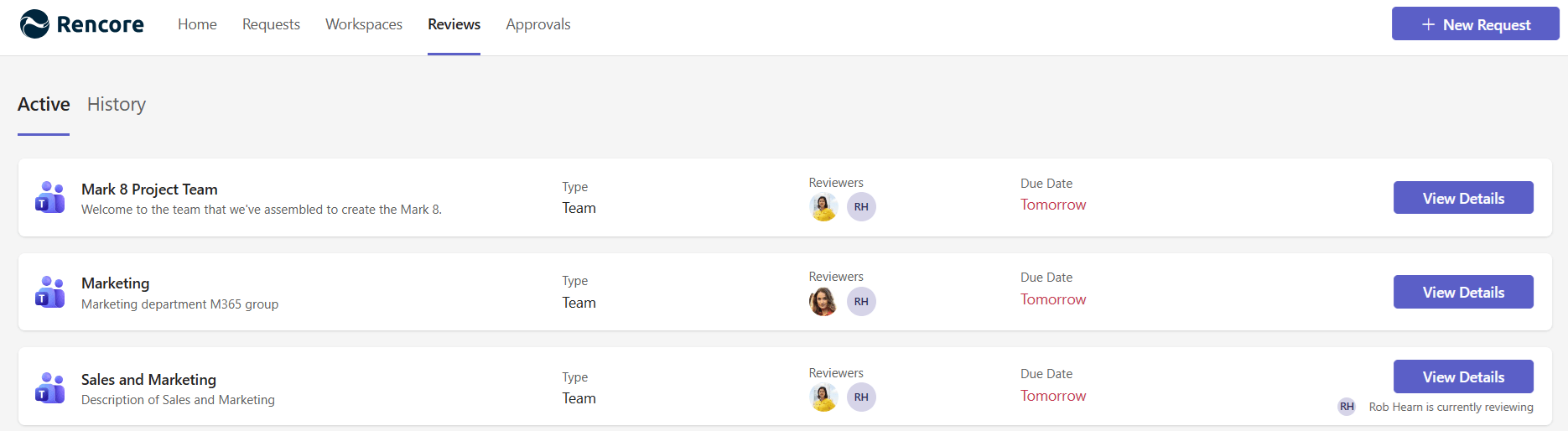
The Active tab of Reviews lists every review assigned to the reviewer, the ones due soonest first. Each card shows the service icon, the workspace name and type, the other reviewers and the due date. The due date comes from Review duration.
The start page
The reviewer clicks Review on a card. The start page shows the reviewers and due date, the workspace details and the guidelines from the Guidelines tab.
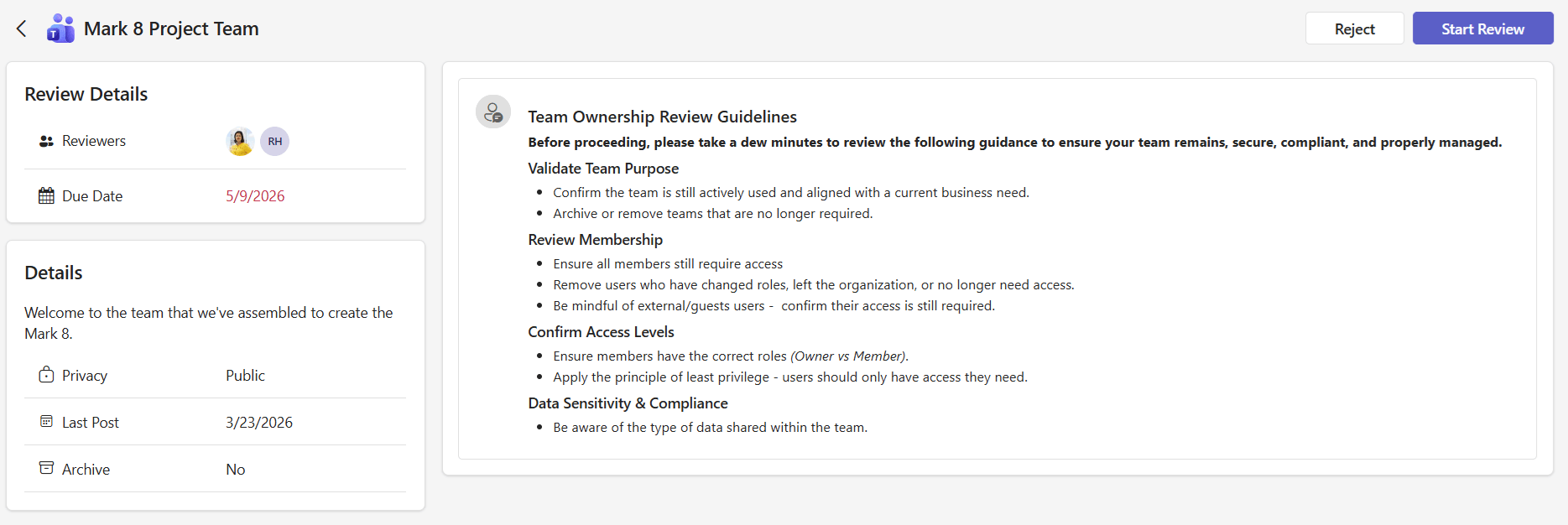
The reviewer clicks Start Review. A progress bar shows the current step.
The review steps
The steps come from Review scope. Changes are kept between steps, and nothing is final until the review is completed.
Owners
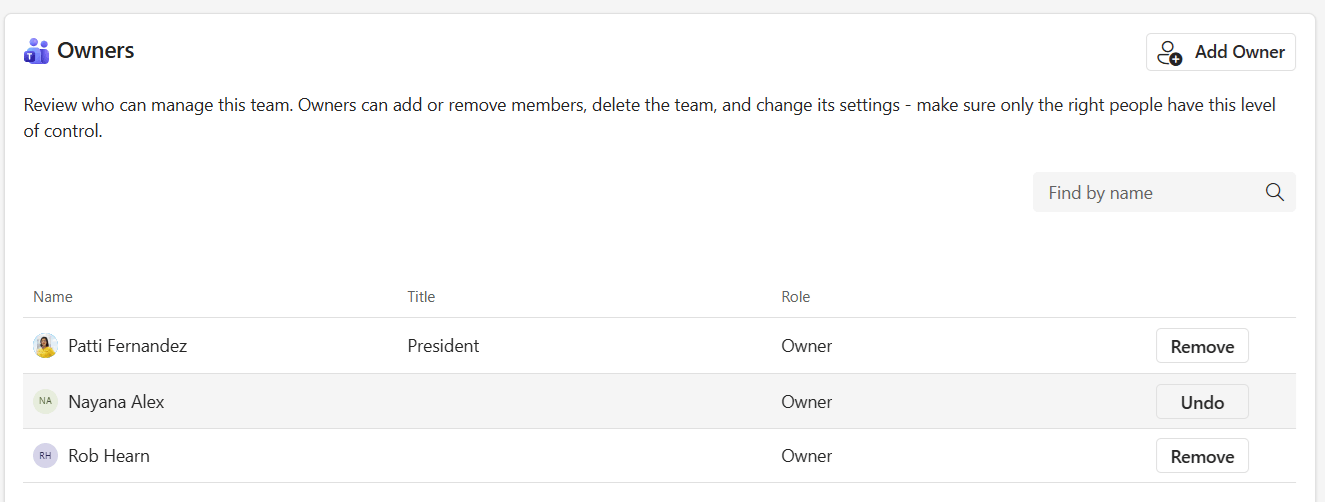
The reviewer adds or removes owners. At least one owner always remains.
Members
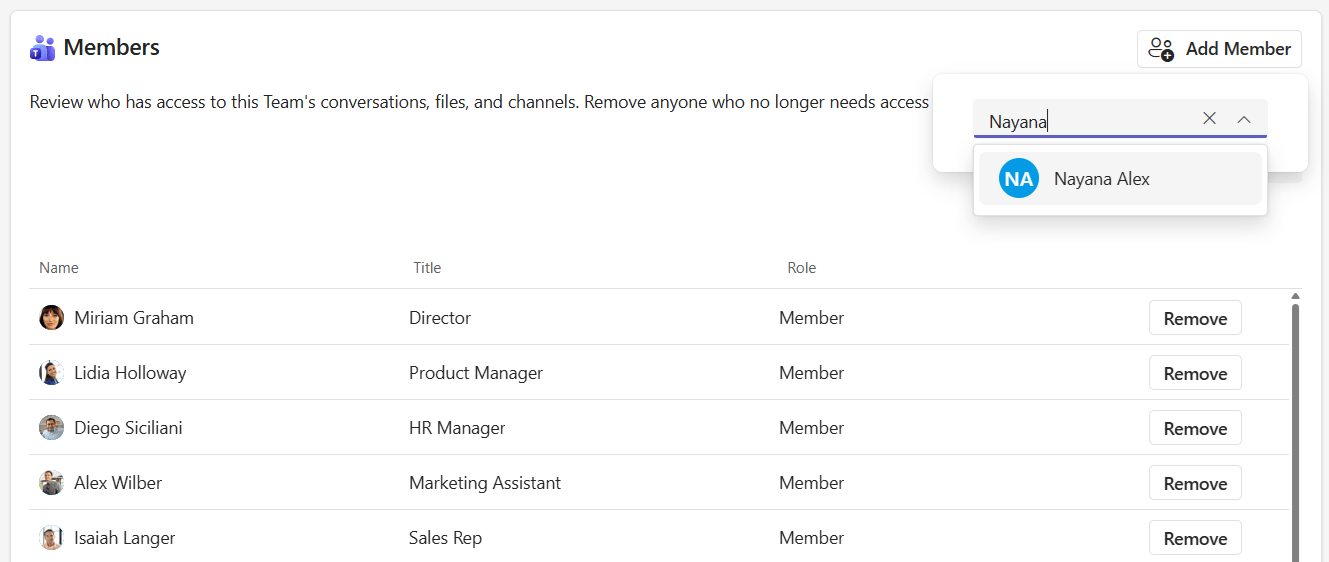
The reviewer adds or removes members. Guests carry their own icon.
 Visitors and site access (SharePoint only)
The reviewer removes visitors, and removes groups and users with site permissions. Filter pills narrow site access to External, Organization-wide or Internal.
 File access (Teams and SharePoint)
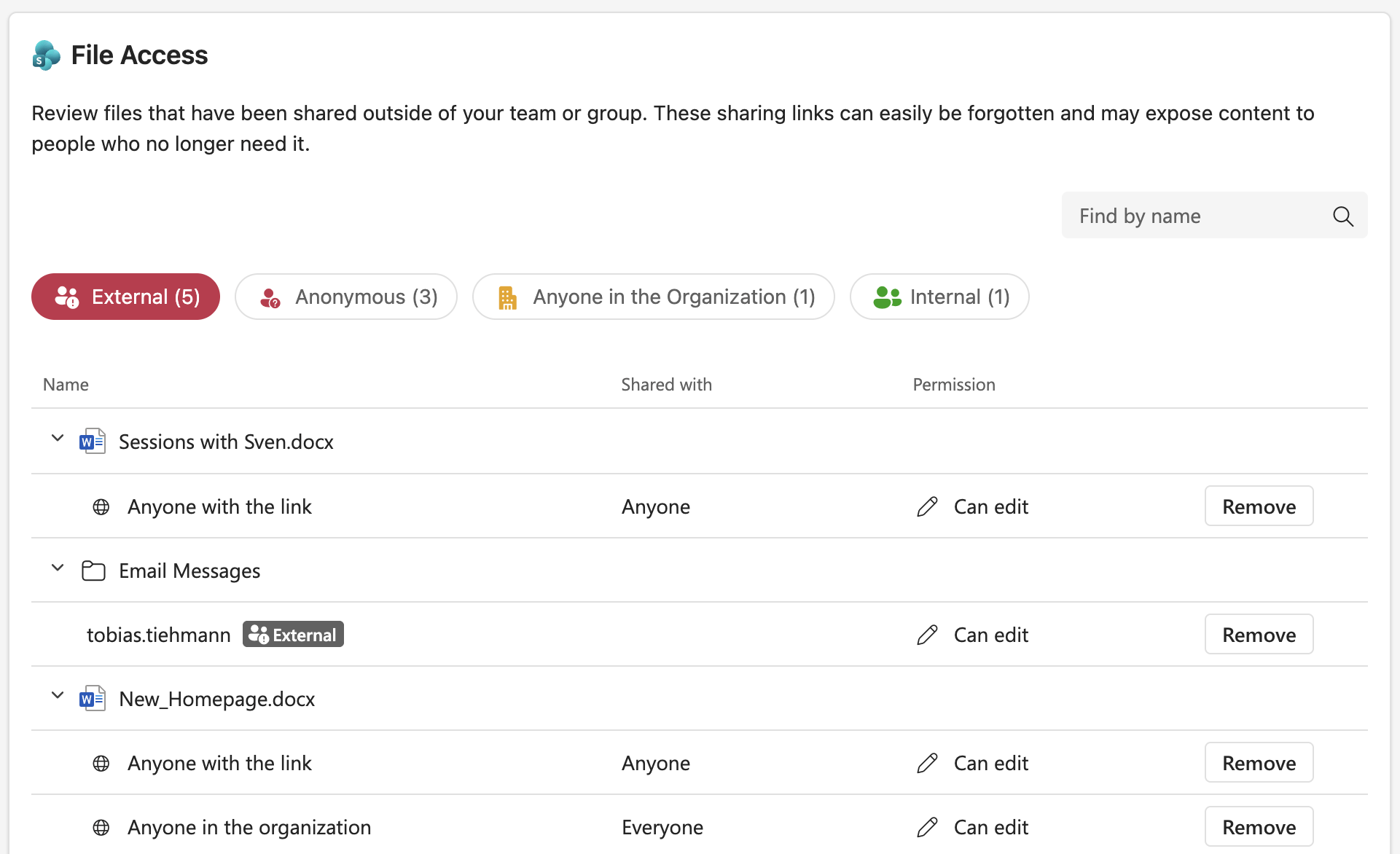
The reviewer removes sharing linksSharing linkA sharing link is a link in SharePoint or OneDrive that grants access to a file or folder, sometimes to people outside your organization.Read more or direct access. Filter pills narrow the list to External, Anonymous, Anyone in the Organization or Internal.
Summary and completion
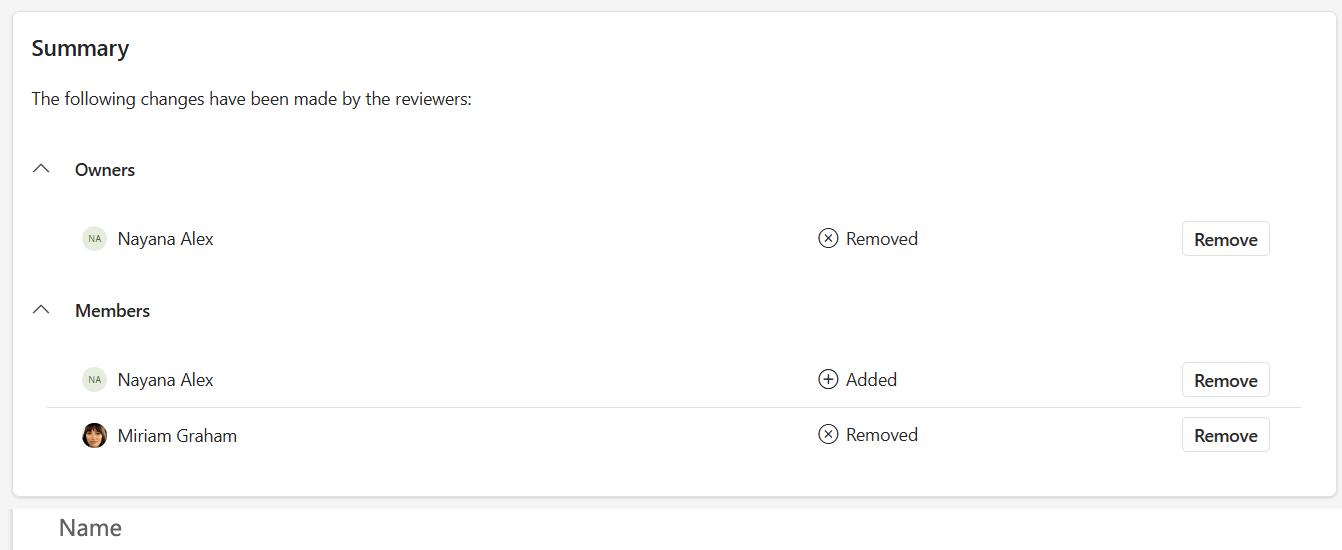
The Summary page lists every change by step. Remove undoes a change before submitting.
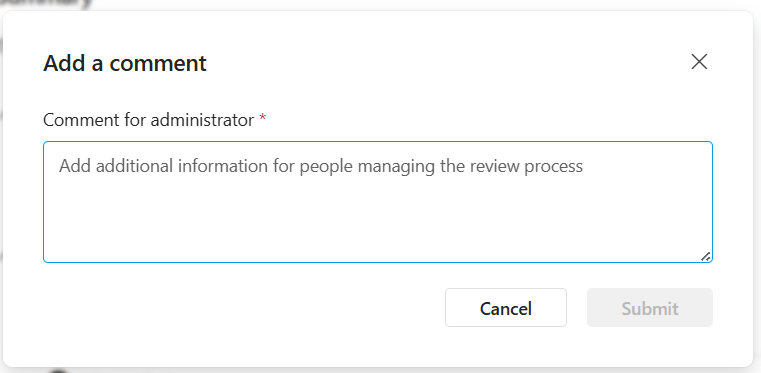
The reviewer clicks Complete. If Require a comment on completion is on, they enter a comment and click Submit. The changes are applied to the workspace.
If the review has automations, the Complete button has a drop-down with further actions, such as archiving the workspace.
Reject or continue later
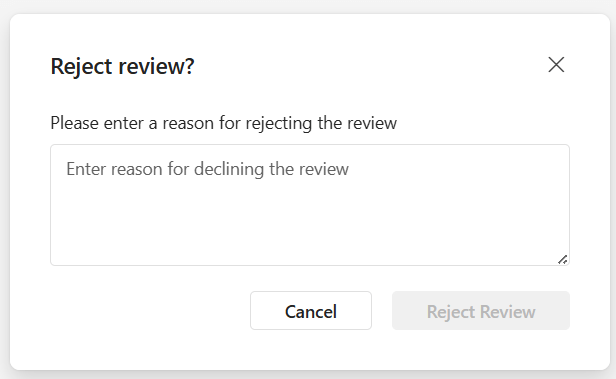
Where the review allows it, the reviewer clicks Reject Review and enters a reason. They are removed as a reviewer of this workspace.
A review stopped midway stays on the Active tab. The reviewer clicks View Details and then Continue Review.

Frequently asked questions
What appears on a review card in the active tab?
Each card shows the service icon, workspace name and type, other reviewers, and due date. The due date comes from the Review duration setting.
Can reviewers save their progress and complete the review later?
Yes. Changes are kept between steps, and incomplete reviews stay on the Active tab. Reviewers can click View Details and then Continue Review to resume.
What happens if a reviewer rejects the review?
They enter a reason and are removed as a reviewer of that workspace.
Do reviewers need a Rencore Governance role to complete their assigned reviews?
No. Reviewers do not need a Rencore Governance role to complete assigned reviews.
What changes can a reviewer make to the workspace during the review?
Depending on Review scope, reviewers can add or remove owners and members (keeping at least one owner), remove visitors and site permissions, and remove sharing links and direct access.
Was this page helpful?
Thanks for the feedback.
Thanks. What was wrong?