Rencore Teams App
AI summary
Workspace owners and members use the Rencore Teams App in Microsoft Teams to complete reviews, approve requests and manage workspaces. Administrators install it once from Rencore Governance.
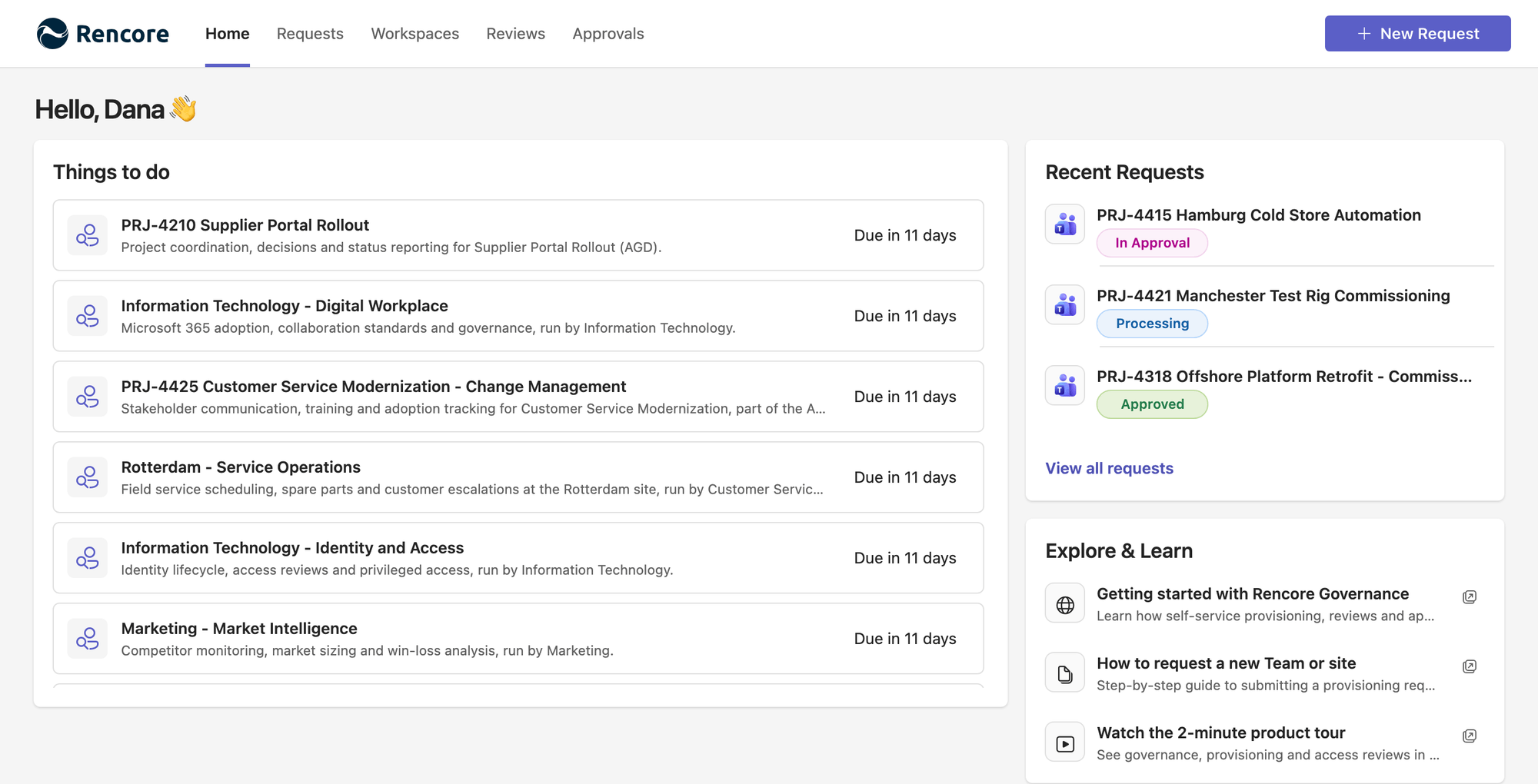
The Rencore Teams AppRencore Teams AppThe Rencore Teams App (formerly Rencore Nova) brings Rencore Governance into Microsoft Teams for the people who own and use workspaces.Read more (formerly Rencore NovaRencore NovaRencore Nova is a deprecated end-user app, replaced by the Rencore Teams App, that shuts down on 31 December 2026.Read more) brings Microsoft 365Microsoft 365Microsoft 365 is the Microsoft cloud suite of Teams, SharePoint, OneDrive, Exchange and the Office apps.Read more governance into Microsoft TeamsMicrosoft TeamsMicrosoft Teams is the Microsoft 365 app for chat, meetings and team collaboration.Read more, where your people already work. Workspace ownersWorkspace ownerA workspace owner is an owner of a Microsoft 365 workspace, such as a Team, a SharePoint site or a group.Read more and members use it to complete reviews, request new workspaces, approve requests and manage the workspaces they own. Administrators install and set it up once from Rencore Governance; the guides below cover both sides.
Start with
- Install the Rencore Teams App Add the Rencore Teams App to Microsoft Teams for your organization.
- Configure the Rencore Teams App Choose whether all users or only selected users get the Rencore Teams App.
- Open the Rencore Teams App and find your way around How to open the Rencore Teams App in Microsoft Teams and navigate between its features using the main navigation bar.
- Start a review Open a review assigned to you and work through its steps.
All guides in Rencore Teams App
Install and set up 3 guides
Add the app to Microsoft Teams, choose who gets it, and keep it current.
-
Add the Rencore Teams App to Microsoft Teams for your organization.
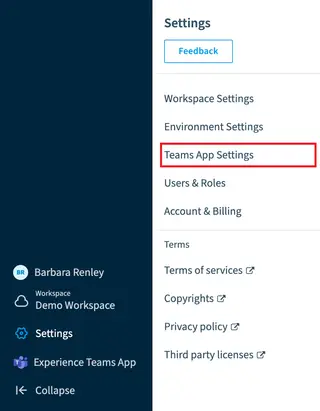
Before you begin: To set up the Rencore Teams App in Rencore Governance, you need the Owner or Admin role. (+1 more)
-
Configure the Rencore Teams App
Choose whether all users or only selected users get the Rencore Teams App.
Before you begin: Your Rencore Governance role needs the Manage Teams App settings permission. (+1 more)
-
Install a newer version of the Rencore Teams App in Microsoft Teams.
Before you begin: To download the manifest in Teams App Settings, you need the Owner or Admin role in Rencore Governance. (+2 more)
Find your way around 2 guides
Open the app and know what the Home page shows.
-
Open the Rencore Teams App and find your way around
How to open the Rencore Teams App in Microsoft Teams and navigate between its features using the main navigation bar.
Before you begin: No Rencore Governance role is needed: any user who has the Rencore Teams App in Microsoft Teams can do this. (+1 more)
-
Use the Rencore Teams App home page
The Home page is your personal dashboard in the Rencore Teams App.
Before you begin: No Rencore Governance role is needed: every user of the Rencore Teams App has a Home page.

Requests 2 guides
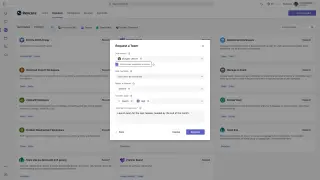
Request a new workspace from a template in the Rencore Teams App and follow its status.
-
Request provision of a workspace
Request a new workspace (Microsoft 365 Group, Team or SharePoint site) in the Rencore Teams App, from a template or a…
Before you begin: No Rencore Governance role is needed: any user of the Rencore Teams App can request a workspace from the templates… (+2 more)
-
See the status of every workspace request you have sent.
Before you begin: No Rencore Governance role is needed: you see the requests you submitted yourself.
Workspaces 2 guides
The Workspaces page gives you a centralized view of all the Microsoft 365 workspaces you own or belong to.
-
Turn on services for Teams App workspaces
Choose which workspace types owners may manage in the Rencore Teams App.
Before you begin: Your Rencore Governance role needs the Manage Teams App settings permission.
-
Add or remove owners and members and change settings of your workspaces in the app.
Before you begin: You own the workspace (the owner role in Microsoft 365). (+1 more)
Review 4 guides
Reviews help keep your Microsoft 365 workspaces secure and well-managed.
-
Open a review assigned to you and work through its steps.
Before you begin: No Rencore Governance role is needed: you can start reviews that are assigned to you as a reviewer. (+1 more)
-
The History tab shows all your past reviews.
Before you begin: No Rencore Governance role is needed: you see the reviews that were assigned to you as a reviewer.
-
Reject a review you cannot complete.
Before you begin: No Rencore Governance role is needed: you can decline reviews that are assigned to you as a reviewer. (+1 more)
-
Continue a review once started
Pick up a review you stopped halfway, while it is still open.
Before you begin: No Rencore Governance role is needed: you can continue reviews that are assigned to you as a reviewer. (+1 more)
Approvals 2 guides
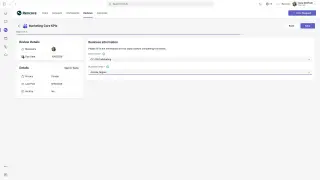
The Approvals pageApprovalAn approval is a decision Rencore Governance asks a person to make before it goes ahead.Read more of the Rencore Teams App lists the decisions waiting for you: workspace provisioning requestsProvisioning requestA provisioning request is a request to create a new Microsoft 365 workspace, such as a Team, from a provisioning template.Read more and approvals sent by automations.
-
Approve or decline a workspace request that waits for you.
Before you begin: No Rencore Governance role is needed: you act on requests where you are set as an approver in the template.
-
See every request you approved or declined before.
Before you begin: No Rencore Governance role is needed: you see the approvals that were sent to you as an approver in the Rencore Teams…
Make it your own 5 guides
Name, icons, language, the Home page banner and your own guidance links.
-
Change the appearance of the Rencore Teams App
Change the app name, icons and branding your users see in Microsoft Teams.
Before you begin: Your Rencore Governance role needs the Manage Teams App settings permission. (+1 more)
-
Change the language and date format of the Rencore Teams App
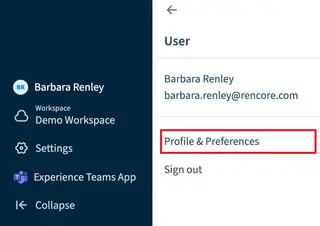
The Rencore Teams App shows text in your browser language and dates in the format of your profile.
Before you begin: No Rencore Governance role is needed: every user can change their own browser language and profile format. (+1 more)
-
Configure the home page banner
Show an announcement banner at the top of the Rencore Teams App home page.
Before you begin: You need the same permission that lets you change other Teams App Settings, Manage Teams App settings, which the Admin…
Show 2 guides more
-
Add links to your own governance guidance on the Teams App Home page.
Before you begin: Your Rencore Governance role needs the Manage Teams App settings permission.
-
Update the Explore and Learn links on the Rencore Teams App Home page, up to five links to guidance inside or outside…
Before you begin: Your Rencore Governance role needs the Manage Teams App settings permission.
Fix problems 1 guide
What the error messages mean and what to do.
-
Fix Rencore Teams App connection messages
What the Rencore Teams App error messages mean and how to fix them.
Before you begin: To change the Teams App settings in Rencore Governance, you need the Owner or Admin role. (+1 more)
Frequently asked questions
What is the Rencore Teams App used for?
The Rencore Teams App brings Microsoft 365 governance into Microsoft Teams. Workspace owners and members use it to complete reviews, request new workspaces, approve requests and manage the workspaces they own.
Which Rencore Governance role do I need to install the Rencore Teams App?
You need the Owner or Admin role to set up the Rencore Teams App in Rencore Governance. Administrators install and set it up once from Rencore Governance.
Can I choose which users get the Rencore Teams App?
Yes. You can choose whether all users or only selected users get the Rencore Teams App. Your Rencore Governance role needs the Manage Teams App settings permission.
Do users need a Rencore Governance role to start a review in the Rencore Teams App?
No. Any user who is assigned to a review as a reviewer can start it in the Rencore Teams App. No Rencore Governance role is needed.
Can I add links to my own governance guidance in the Rencore Teams App?
Yes. You can add Explore and Learn links to your own governance guidance on the Home page, up to five links, inside or outside Microsoft 365. You need the Manage Teams App settings permission.