Approve or decline a request
AI summary
You can approve or decline workspace requests if you are set as an approver in the request template. Approving allows the team to be created; declining requires you to provide a reason.
Approve a workspace requestProvisioning requestA provisioning request is a request to create a new Microsoft 365 workspace, such as a Team, from a provisioning template.Read more, or decline it with a reason when it does not meet your organization’s governance, compliance and business requirements. A workspace requested through Rencore Governance or the Rencore Teams AppRencore Teams AppThe Rencore Teams App (formerly Rencore Nova) brings Rencore Governance into Microsoft Teams for the people who own and use workspaces.Read more is only provisioned after it is approved, so submitting a request does not guarantee approval.
Before you begin
- No Rencore Governance role is needed: you act on requests where you are set as an approver in the template.
Steps
-
Click Approvals on the navigation bar, then click View Details on the request. Alternatively, click the relevant item under Things to do on the home page.
-
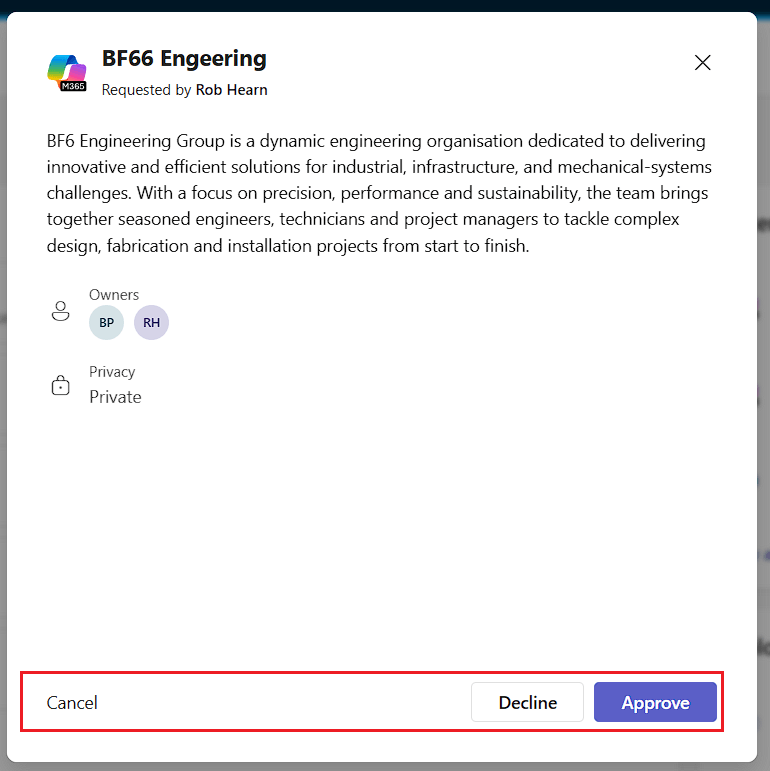
Check the details of the team.
-
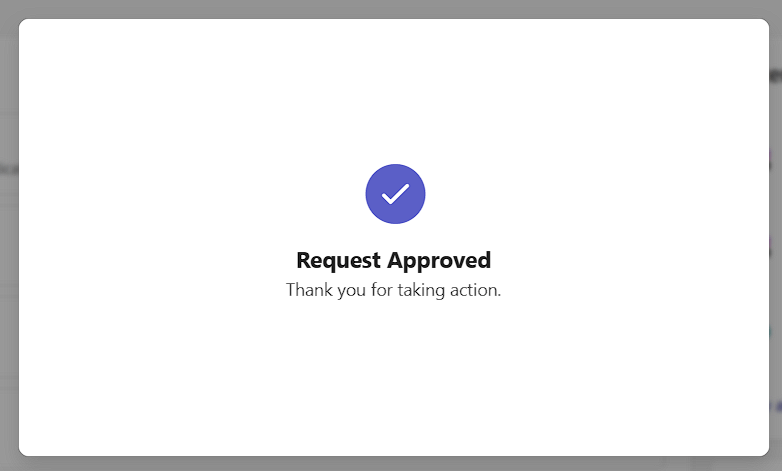
Click Approve to approve the creation of the team. A dialog confirms the approval. Depending on the setup of the template, the team is provisioned, or it waits for other approvers to confirm before it is provisioned.
Decline the request
-
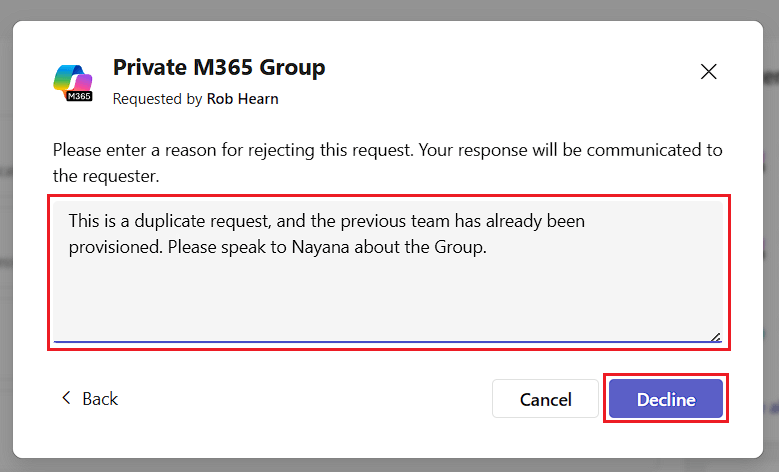
Click Decline.
-
Enter a reason for declining the request and click Decline.
Stop for now
-
Click Cancel to stop the approval process at this moment.
-
Click Leave to stop for now, or Do Not Leave to continue with the approval.
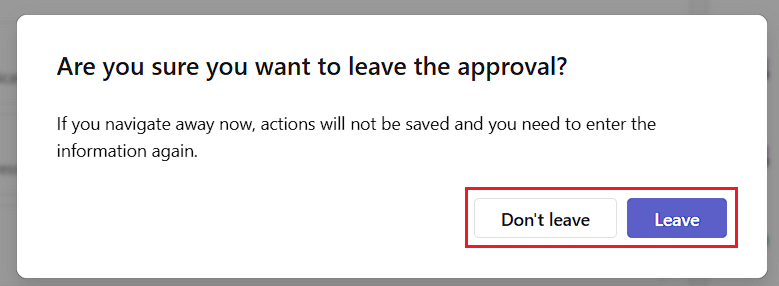 Cancelling the approval process does not save the progress. When you resume, the process starts from the beginning.
Frequently asked questions
Do I need a Rencore Governance role to approve a workspace request?
No. You do not need a Rencore Governance role. You can act on a request when you are set as an approver in the template.
How do I find a workspace request that I need to approve?
Click Approvals on the navigation bar, then click View Details on the request. You can also click the relevant item under Things to do on the home page.
What happens if I cancel while approving a request?
Cancelling stops the approval process for now, but it does not save your progress. When you resume, the process starts from the beginning. Click Leave to stop or Do Not Leave to continue with the approval.
Was this page helpful?
Thanks for the feedback.
Thanks. What was wrong?
Next steps
- Interactive guide: Approving a Request