Decline a review
AI summary
You can reject a review assigned to you when unable to complete it by providing a reason in the Rencore Teams App. You are then removed as a reviewer for that workspace, and the review shows as Rejected in your History.
Reject a review assigned to you in the Rencore Teams AppRencore Teams AppThe Rencore Teams App (formerly Rencore Nova) brings Rencore Governance into Microsoft Teams for the people who own and use workspaces.Read more when you are unable to complete it. You give a reason, and you are then removed as a reviewer for this workspace.
Before you begin
- No Rencore Governance role is needed: you can decline reviews that are assigned to you as a reviewer.
- The Reject option is only available if it was set during configuration of the review scheduleReviewA Review is a recurring or one-off check in which workspace owners confirm who has access to their Microsoft 365 workspaces, directly in the Rencore Teams App.Read more. If the Reject option is not present, contact your Rencore Governance Admin team.
Steps
-
Open the review and click Reject Review in the top-right corner.
-
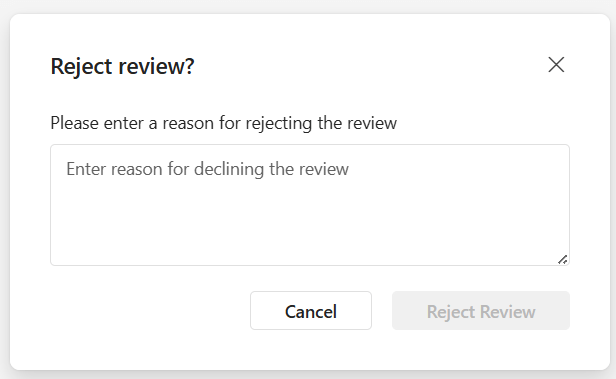
Enter the reason why you are declining the review.
-
Click Reject Review.
What you see
You are removed as a reviewer for this workspace. The review shows as Rejected on your History tab.
Frequently asked questions
How do I decline a review that is assigned to me?
Open the review in the Rencore Teams App and click Reject Review in the top-right corner. Enter the reason why you are declining the review, then click Reject Review again.
Why can I not see the reject option on my review?
The Reject option is only available if it was set during configuration of the review schedule. If the Reject option is not present, contact your Rencore Governance Admin team.
What happens after I reject a review?
You are removed as a reviewer for this workspace. The review shows as Rejected on your History tab.
Was this page helpful?
Thanks for the feedback.
Thanks. What was wrong?