Start a review
AI summary
As a reviewer assigned to a workspace, work through steps in the Rencore Teams App to add or remove owners, members, and access permissions. Review all your changes on a summary page before completing the review to apply them. Your admin may have configured additional actions like archiving or escalation that you can select during completion.
Work through a reviewReviewA Review is a recurring or one-off check in which workspace owners confirm who has access to their Microsoft 365 workspaces, directly in the Rencore Teams App.Read more of a workspace in the Rencore Teams AppRencore Teams AppThe Rencore Teams App (formerly Rencore Nova) brings Rencore Governance into Microsoft Teams for the people who own and use workspaces.Read more, step by step, and apply your changes when you complete it. Use this when a review is assigned to you.
Before you begin
- No Rencore Governance role is needed: you can start reviews that are assigned to you as a reviewer.
- Reviews are part of the Premium and Enterprise plansPlanA Plan is the edition of Rencore Governance in your Subscription: Professional, Premium or Enterprise.Read more.
Steps
-
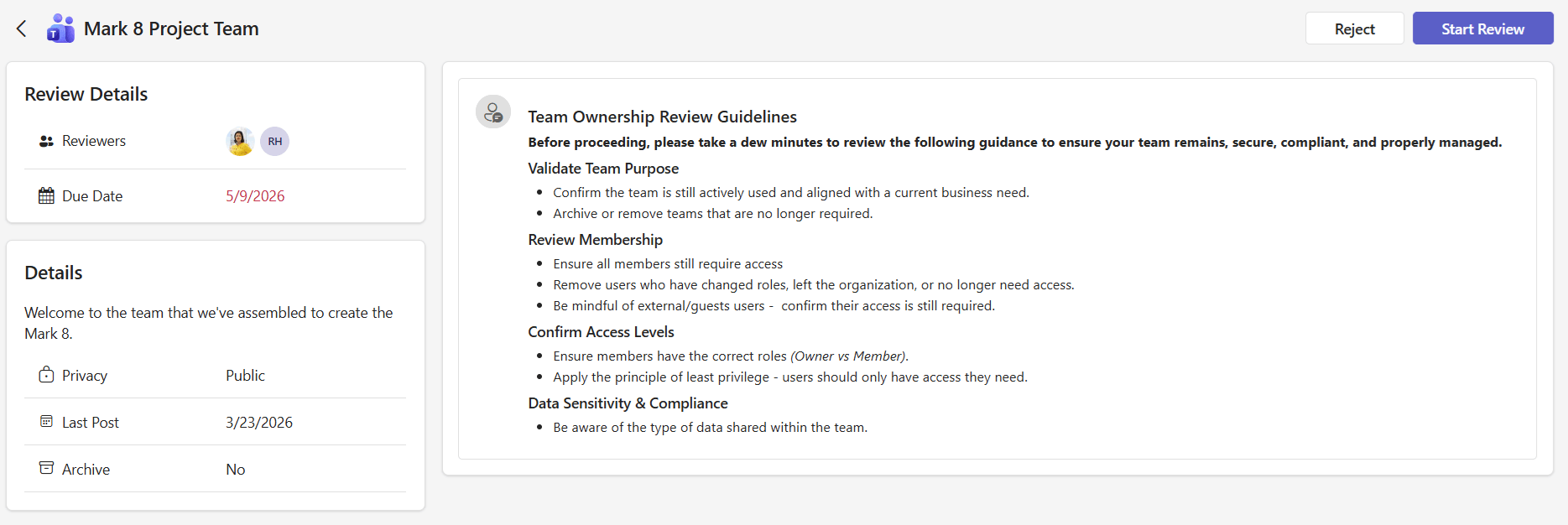
Go to Reviews in the Rencore Teams App and click Review on a card to open the review start page.
-
Check the start page. It shows the review details (assigned reviewers and due date), the workspace details (description, privacy setting, sensitivity labelSensitivity labelA sensitivity label is a Microsoft Purview classification, such as Confidential or Internal, that an organization applies to content and to containers such as Teams and SharePoint sites.Read more and last activity date) and the company guidelines (instructions from your admin about how to approach this review). If your admin has configured additional actions (like archiving or escalation), a tip notes that these options are available on the final step.
-
Click Start Review. A progress bar at the top shows which step you are on and how many remain.
-
On each step, add or remove people and access as needed, then click Next. You do not have to make changes on every step. Use Back to return to an earlier step. Changes you make are kept as you move between steps, and nothing is final until you complete the review.
-
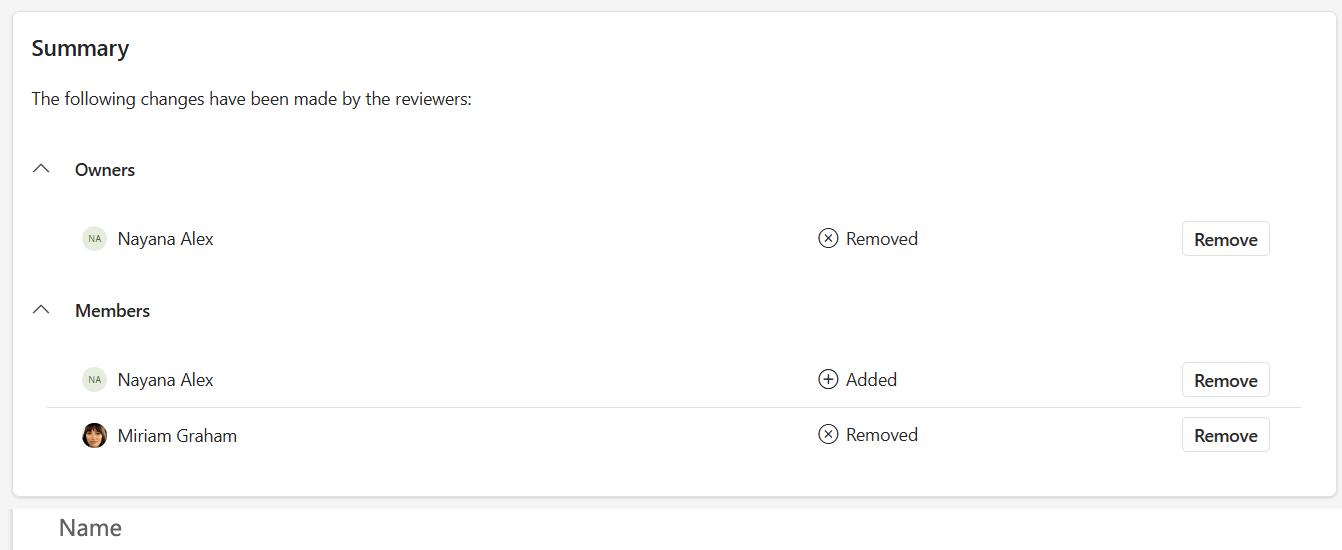
On the Summary page, check all the changes you have made across every step. Click Remove next to a change to undo it before submitting.
-
Click Complete to finish the review. Your changes are applied to the workspace.
-
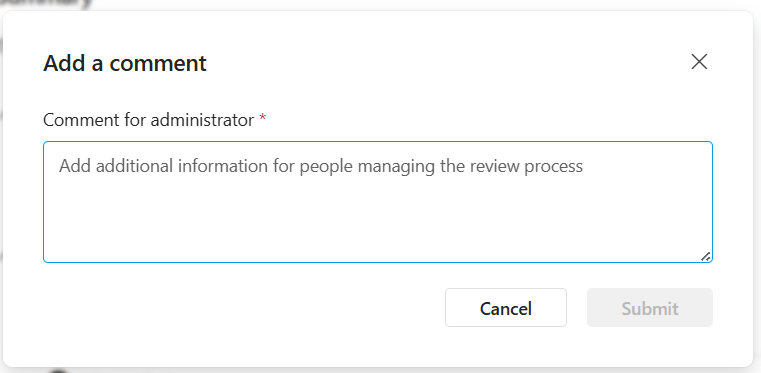
If your admin has configured a comment requirement, enter the comment and click Submit.
Complete with an additional action
If your admin has configured custom actions for the review, the Complete button includes a drop-down with additional options. These might include actions like archiving the workspace, deleting the workspace, escalating to another team or triggering a custom workflow (for example a ServiceNow ticket).
- On the Summary page, open the drop-down on the Complete button.
- Select an action.
- Confirm your choice in the confirmation dialog.
Review steps
The steps shown depend on the workspace type and your organization’s configuration. Your admin selects which steps to include for each review schedule.
Step | Available for | What you review |
|---|---|---|
Owners | TeamsMicrosoft TeamsMicrosoft Teams is the Microsoft 365 app for chat, meetings and team collaboration.Read more, SharePoint, M365 Groups, Viva EngageViva EngageViva Engage, formerly Yammer, is the Microsoft 365 app for company-wide communities.Read more | People with owner-level access |
Members | Teams, SharePoint, M365 Groups, Viva Engage | People with member-level access |
Visitors | SharePoint | People with visitor-level access |
Site Access | SharePoint | Groups and users with site permissions |
File Access | Teams, SharePoint | Sharing links and direct file permissions |
Reviewing owners
The Owners step lists everyone with owner access to the workspace.
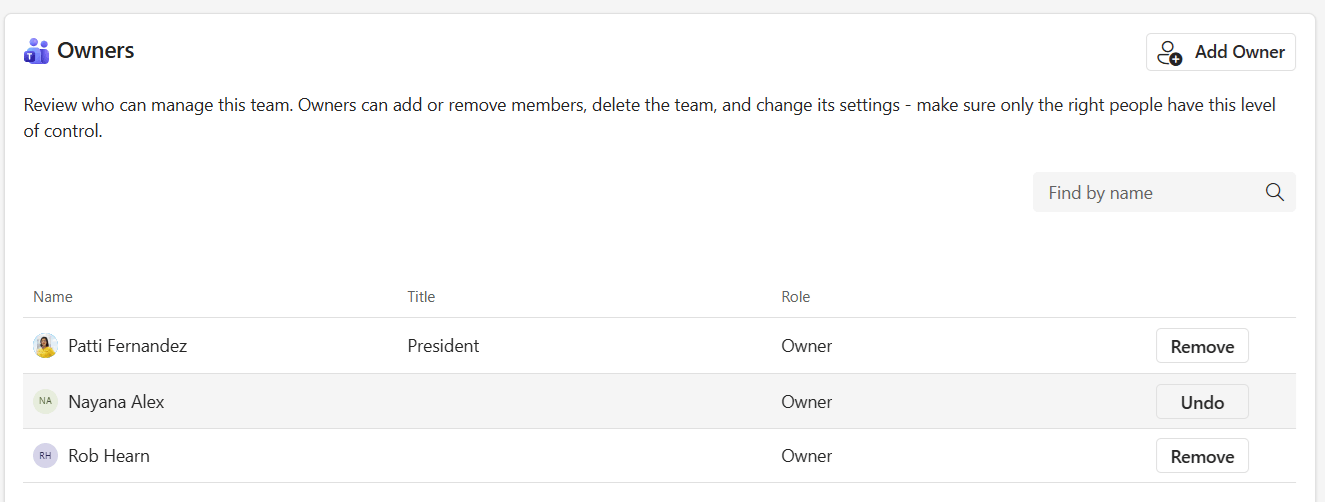
You can:
- Add an owner: click Add Owner and search for a person.
- Remove an owner: click Remove next to a person. They are marked for removal, with an option to Undo if you change your mind.
At least one owner must remain at all times. When only one owner is left, the remove and role change options are hidden.
Reviewing members
The Members step lists everyone with member access.
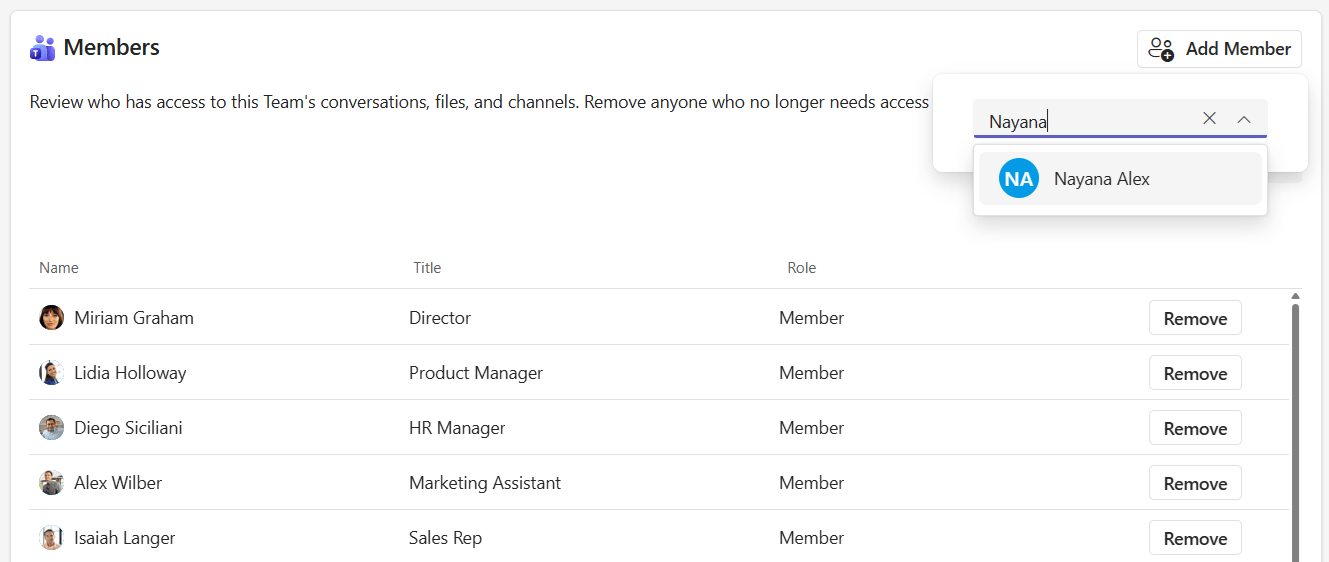
You can:
- Add a member: click Add Member and search for a person.
- Remove a member: click Remove next to a person. They are marked for removal, with an option to Undo if you change your mind.
Guest usersExternal userAn external user is an account whose home tenant belongs to another organization, invited into your tenant to work with you.Read more are shown with a distinct icon next to their name.
 Reviewing visitors (SharePoint only)
The Visitors step lists users with visitor-level access to the SharePoint site. You can remove visitors, but cannot add new ones or change their role.
Reviewing site access (SharePoint only)
The Site Access step shows who has permissions to the SharePoint site, organized across three tabs:
- Groups: Entra IDMicrosoft Entra IDMicrosoft Entra ID, formerly Azure Active Directory, is the Microsoft identity service behind every Microsoft 365 tenant.Read more and Microsoft 365 groupsMicrosoft 365 groupA Microsoft 365 Group is the membership object behind many Microsoft 365 workspaces.Read more with access
- SharePoint Groups: classic SharePoint groups (for example Site Members, Site OwnersWorkspace ownerA workspace owner is an owner of a Microsoft 365 workspace, such as a Team, a SharePoint site or a group.Read more), each with its permission levelPermission levelA permission level is a named set of SharePoint permissions, such as Full Control, Edit or Read, that you grant to a user or a SharePoint group.Read more
- Users: individual users with direct site permissions
Use the filter pills to focus on specific access types:
- External: users from outside your organization
- Organization-wide: permissions shared with everyone in your organization
- Internal: standard internal users
Each filter shows a count of matching entries. Groups can be expanded to see their individual members. You can remove access at the group level.
 Reviewing file access (Teams and SharePoint)
The File Access step shows how files and folders in the workspace are shared. The view is organized as a tree:
- Files and folders: the shared item
- Sharing linksSharing linkA sharing link is a link in SharePoint or OneDrive that grants access to a file or folder, sometimes to people outside your organization.Read more or direct access: how it is shared (for example “Anyone with the link”, “Specific people”)
- Users within sharing links: who has access through each link
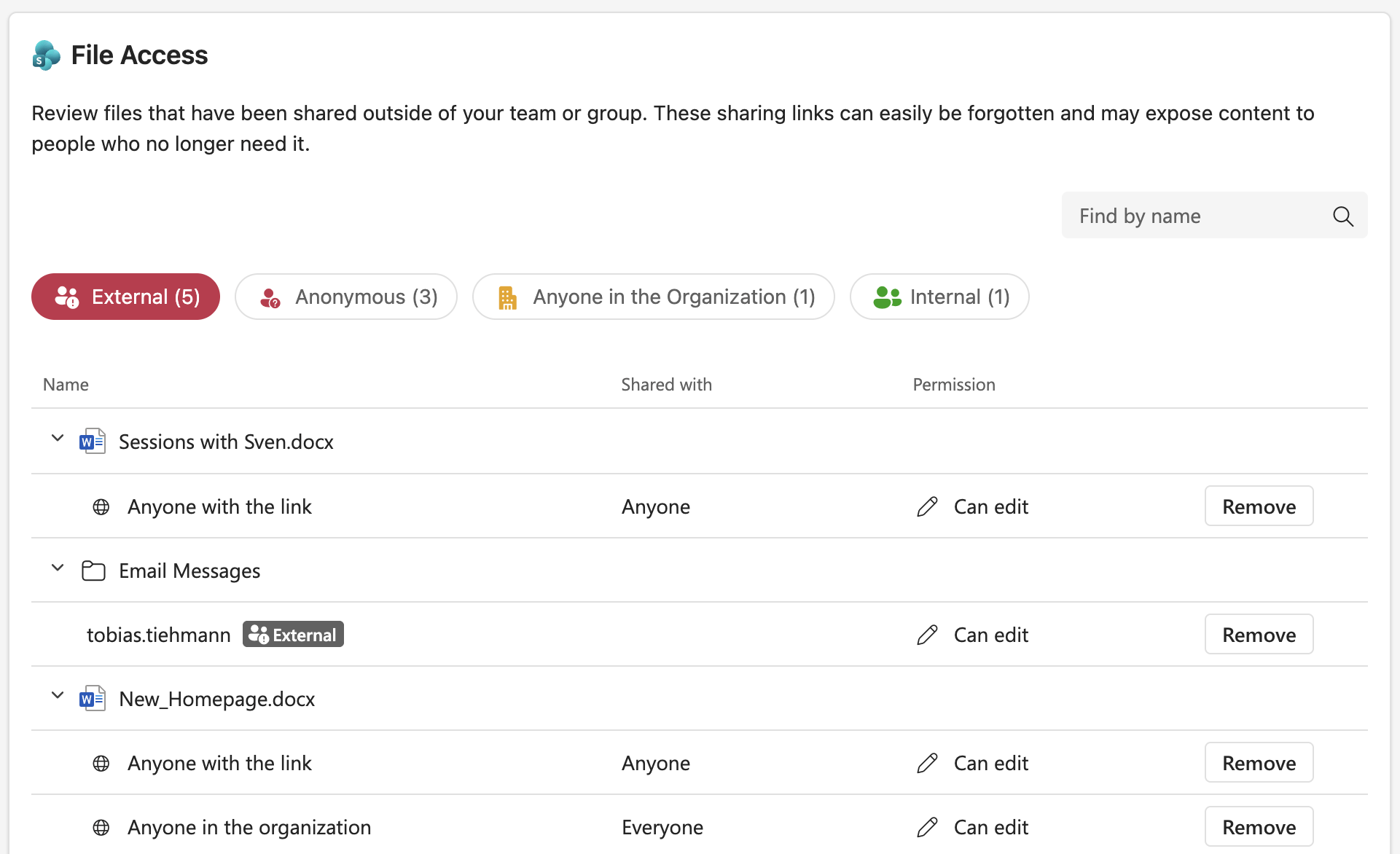
Use the filter pills to focus on specific sharing types:
- External: shared with people outside your organization
- Anonymous: anyone-links without a sign-in requirement
- Anyone in the Organization: organization-wide sharing links
- Internal: shared with specific internal users
To remove a sharing link, click Remove next to it. This removes access for all users on that link. For direct access entries, removal applies to the specific user or group. Removed items are marked and can be reversed with the Undo button.
What you see
On the Summary page, changes are organized by step (Owners, Members, Site Access and so on) in collapsible sections. Only the steps where you made changes are shown. Each change displays the person or item and the action taken (Added, Removed, role change).
After you complete the review, a success message confirms it. You are returned to the Active reviews tab, where the completed review is no longer listed.
Frequently asked questions
Do I need a Rencore Governance role to start a review?
No. You can start reviews that are assigned to you as a reviewer without any Rencore Governance role.
Can I undo changes before completing a review?
Yes. While working through steps, use the Back button to return to earlier steps, and changes you make are kept. On the Summary page, click Remove next to any change to undo it before submitting.
Can I remove all owners from a workspace during a review?
No. At least one owner must remain at all times. When only one owner is left, the remove and role change options are hidden.
Do I have to make changes on every review step?
No. You do not have to make changes on every step.
What happens to my workspace after I complete a review?
Your changes are applied to the workspace. The completed review is no longer listed on the Active reviews tab.
Was this page helpful?
Thanks for the feedback.
Thanks. What was wrong?