Set up Rencore Governance
AI summary
To set up Rencore Governance, you will sign in, create a Workspace, connect your Microsoft 365 tenant, give consent, and start your first scan. The initial inventory scan takes up to 24 hours depending on your tenant size and runs continuously afterward.
This guide takes you from your first sign-in to the results of your first scan. At the end you have a WorkspaceWorkspaceA Workspace is the top-level container in Rencore Governance. It holds the settings, users, roles and connected apps for exactly one Environment, the connected Microsoft 365 tenant.Read more connected to your Microsoft 365 tenantMicrosoft 365 tenantA Microsoft 365 tenant is the dedicated instance of Microsoft 365 that holds an organization's users, groups, data and settings.Read more, with an inventory that fills up as the scan runs. Signing in and creating the Workspace takes a few minutes. The first scan can take up to 24 hours, depending on the size of your tenant.
Before you begin
You will need:
- A Microsoft work or school account to sign in. It is only used to sign you in to Rencore Governance.
- A Microsoft 365Microsoft 365Microsoft 365 is the Microsoft cloud suite of Teams, SharePoint, OneDrive, Exchange and the Office apps.Read more administrator account for the tenant you want to govern, or someone who has one, to give consent in stage 4.
- For Power AppsPower AppsPower Apps is the Microsoft low-code tool for building business apps. Rencore Governance covers it with the Power Apps connector, part of the Apps, Automation & BI module.Read more and Power AutomatePower AutomatePower Automate, formerly Microsoft Flow, is the Microsoft low-code tool for automated workflows called flows.Read more, a dedicated Power Platform AdministratorPower Platform administratorPower Platform Administrator is a Microsoft Entra admin role that can manage Power Platform environments, Power Apps, flows and data loss prevention policies in the tenant.Read more account. For Power BIPower BIPower BI is the Microsoft service for reports and dashboards over business data.Read more, Copilot StudioCopilot StudioCopilot Studio is the Microsoft tool for building your own AI agents. Rencore Governance covers it with the Copilot Studio connector, part of the AI & Agents module.Read more, AzureMicrosoft AzureMicrosoft Azure is the Microsoft cloud platform for virtual machines, web apps and other cloud resources.Read more, Microsoft FoundryMicrosoft FoundryMicrosoft Foundry, formerly Azure AI Foundry, is the Microsoft Azure platform for building AI apps and agents with large language models.Read more, Claude EnterpriseClaude EnterpriseClaude Enterprise is the business plan of the Claude AI assistant by Anthropic.Read more and ChatGPT EnterpriseChatGPT EnterpriseChatGPT Enterprise is the business plan of the ChatGPT AI assistant by OpenAI.Read more, extra setup in that service. You can add these later, see Connect a service.
If you have been invited to an existing Workspace, you only need to sign in. Skip to After your first scan.
Stage 1: Sign in
To sign in for the first time, you will need to:
- Go to app.rencore.com.
- Click “Work or school account” and sign in with your Microsoft account.
- In the consent dialog, review the permissions requested, select “Consent on behalf of your organization” and click “Accept”.
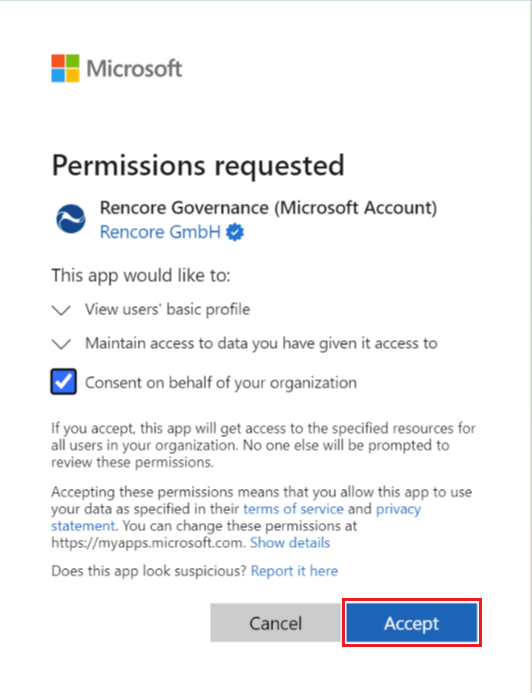
You should now see the first step of the Workspace setup.
Stage 2: Create a Workspace
The first time you sign in, you create a Workspace in three steps. To create it, you will need to:
-
On “1. Workspace settings”, enter the “Workspace / Organization name” and accept the Terms of Service. Click “Next”.
-
On “2. Module selection”, choose your governance focus area: “Digital Workplace”, “AI & AgentsAdd-on moduleAn add-on module extends Rencore Governance with a group of connectors.Read more” or “Code”. Choosing a module turns on its connectors. To choose single connectors instead, click “Pick the services yourself”. No module is selected at the start, so you have to pick one before you can continue. Click “Next”.
If a connector you need is not listed, let us know. -
On “3. Data locationData centerThe data center is the Microsoft Azure region where Rencore Governance stores all data of a Workspace.Read more”, choose one of the supported Azure data centers where your data and governance portal are hosted. All data of the Workspace is stored there. Rencore Governance becomes available in more regions over time, based on customer demand. See Data residency.
-
Click “Finish setup”.
You should now see the home page of your new Workspace. To explore Rencore Governance with demo dataDemo environment and Demo ModeA demo environment is an Environment filled with demo data instead of tenant data.Read more instead, see Get a demo Environment. To try Rencore Governance on your own tenant before you buy it, see Start a Rencore Lite trial.
Stage 3: Connect your tenant
To govern your own data, you connect your Microsoft 365 tenant. It becomes the EnvironmentEnvironmentAn Environment is the connected Microsoft 365 tenant inside a Workspace.Read more of the Workspace. To connect it, you will need to:
- Click “Connect tenant now” on the banner at the top of the screen. Or click “Settings”, then “Workspace Settings”, then “Environments”, and click “Connect now”.
- On the “Connect your tenant” screen, click “Connect” in Stage 1 and sign in to your tenant with an admin account. Rencore Governance reads the tenant details and the current consent status.
You should now see the tenant you connected and the account you used. The full steps, with screenshots, are in Connect a tenant to a Workspace.
Stage 4: Give consent
Consent lets Rencore Governance scan your tenant. It needs an administrator account. Connecting a service needs an admin of that service. Give consent with an account that holds the admin role for it, for example a Power Platform Administrator for Power Apps and Power Automate, or a Fabric Administrator for Power BI.
To give consent, you will need to:
- In Stage 2 of the “Connect your tenant” screen, choose between global consentConsent and reconsentConsent is the permission a Microsoft 365 administrator grants Rencore Governance to scan a tenant.Read more and consent per service. Consent per service gives you more control over which apps and permissions you grant.
- Click “Give Consent” next to each service and sign in with an administrator account. Click the [?] next to a service to see the permissions it needs.
- If you do not have an administrator account, click “Ask Admin for consent” and send the link to your administrator.
Power PlatformPower PlatformPower Platform is the Microsoft low-code platform where users build their own apps, flows, reports, agents and websites.Read more, Power BI, Copilot Studio and Azure need extra steps before you can give consent. You can do them now or later, see Connect a service.
Stage 5: Start the first scan
- In Stage 3 of the “Connect your tenant” screen, click “Explore Rencore Governance”, or click “Done” at the top of the page.
The first scan starts and builds your initial inventory. You do not start or schedule scans yourself. Rencore Governance scans continuously from now on.
Check the first scan
While the scan runs, you should see:
- Under “InventoryInventoryThe inventory is the record of every object Rencore Governance scans from your tenant, with their properties and the relations between them.Read more”, the connector tiles fill with objects. With partial scanningPartial scanningPartial scanning is the Rencore Governance scanning engine that updates the inventory while a scan is still running.Read more, the counts update batch by batch while the scan is still running.
- Under “Inventory”, “Inventory Options” ([…]), “All scans”, the scan jobsScanA scan is how Rencore Governance reads metadata from a connected tenant into the inventory.Read more that have completed and the ones still running. See View scan job history.
- Under “Policies”, results for any policy you turn on, based on the data of the last scan.
Depending on the size of your tenant, it can take up to 24 hours before the first data is shown. ConnectorsConnectorA connector is the part of Rencore Governance that reads one service, such as Teams or SharePoint, into the inventory.Read more are not scanned in one fixed order. Connectors that use the same Microsoft API share a scan bucketScan bucketA scan bucket is a group of connectors that never scan at the same time because they share the same Microsoft APIs.Read more and scan one after the other, while different buckets can scan at the same time. See In which order do the connectors of a tenant get scanned?
What you see
You have a Workspace with one Environment, your Microsoft 365 tenant, connected and scanned with the connectors you gave consent for. Your inventory keeps itself up to date from now on.
Frequently asked questions
How long does the first scan take in Rencore Governance?
The first scan can take up to 24 hours, depending on the size of your tenant. Signing in and creating the Workspace takes only a few minutes.
 Who needs to give consent to scan my Microsoft 365 tenant?
Who needs to give consent to scan my Microsoft 365 tenant?An administrator account must give consent. For a service, use an account with the admin role for it, for example a Power Platform Administrator for Power Apps and Power Automate, or a Fabric Administrator for Power BI.
What can I do if I do not have an administrator account to give consent?
Click "Ask Admin for consent" on the "Connect your tenant" screen and send the link to your administrator. They can then give the consent for you.
Do I need to start or schedule the scans myself?
No. The first scan starts when you click "Explore Rencore Governance" or "Done" on the "Connect your tenant" screen. After that, Rencore Governance scans continuously, and you do not start or schedule scans yourself.
Where can I see the progress of the first scan?
Under "Inventory", the connector tiles fill with objects as the scan runs. Under "Inventory", "Inventory Options", "All scans", you can see completed and running scan jobs.
Was this page helpful?
Thanks for the feedback.
Thanks. What was wrong?
Next steps
- After your first scan: what to look at first, the first policies to turn on and a first automation.
- Connect a service for Power Platform, Power BI, Copilot Studio, Azure, Microsoft Foundry, Claude Enterprise or ChatGPT Enterprise.
- Invite users to a Workspace and give them a role and team.
- Product basics explains how the parts of Rencore Governance fit together.