Connect a tenant to a Workspace
AI summary
Connect your Microsoft 365 tenant to your Workspace to allow Rencore Governance to scan your data and start governing it. Admin accounts with the appropriate service permissions (like Power Platform Administrator for Power Apps) must grant consent during the process. You can grant permission globally or per service, with per-service granting providing more control over application access.
After creating a WorkspaceWorkspaceA Workspace is the top-level container in Rencore Governance. It holds the settings, users, roles and connected apps for exactly one Environment, the connected Microsoft 365 tenant.Read more, connect your Microsoft 365 tenantMicrosoft 365 tenantA Microsoft 365 tenant is the dedicated instance of Microsoft 365 that holds an organization's users, groups, data and settings.Read more so Rencore Governance scans your own data and you can start governing it.
Before you begin
- You sign in to your tenant with an admin account. Connecting a service needs an admin of that service: give consent with an account that holds the admin role for it, for example a Power Platform Administrator for Power AppsPower AppsPower Apps is the Microsoft low-code tool for building business apps. Rencore Governance covers it with the Power Apps connector, part of the Apps, Automation & BI module.Read more and Power AutomatePower AutomatePower Automate, formerly Microsoft Flow, is the Microsoft low-code tool for automated workflows called flows.Read more, or a Fabric Administrator for Power BIPower BIPower BI is the Microsoft service for reports and dashboards over business data.Read more.
- Some services require additional steps to grant consent: Power Platform, Copilot Studio, Power BI and Azure.
Steps
-
Click Connect tenant now on the banner at the top of the screen.

-
On the Connect your tenant screen, click Connect in Stage 1.
-
Sign in to your tenant with an admin account. Back on the Connect your tenant screen, you see the tenant you connected and the user account used.
-
In Stage 2 (Consent), choose to grant Global consentConsent and reconsentConsent is the permission a Microsoft 365 administrator grants Rencore Governance to scan a tenant.Read more or Consent per service. (We recommend granting permission per service, as this gives more control over the Apps and permission to your tenant at a later date.)
-
Click Give Consent next to each service, and sign in with an admin account that grants access to that service.
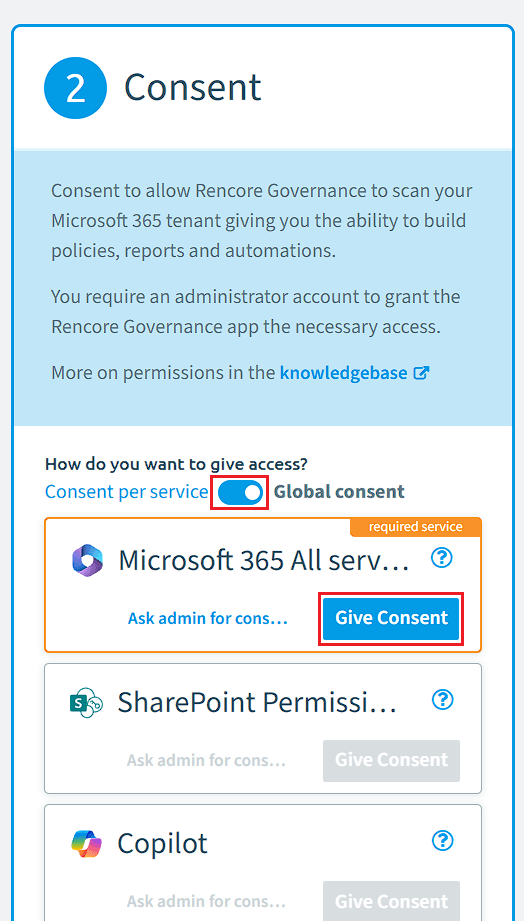 Clicking the [?] next to each service displays a dialog with the required permissions and what they allow Rencore Governance to scan.
 -
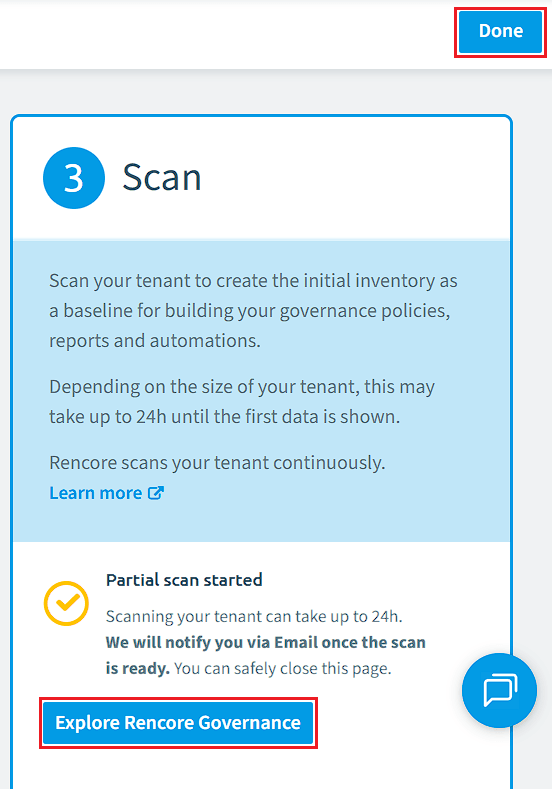
Click Done at the top of the page, or click Explore Rencore Governance in Stage 3 (Scan). Either one takes you back to the Homepage of Rencore Governance.
From the Workspace settings
-
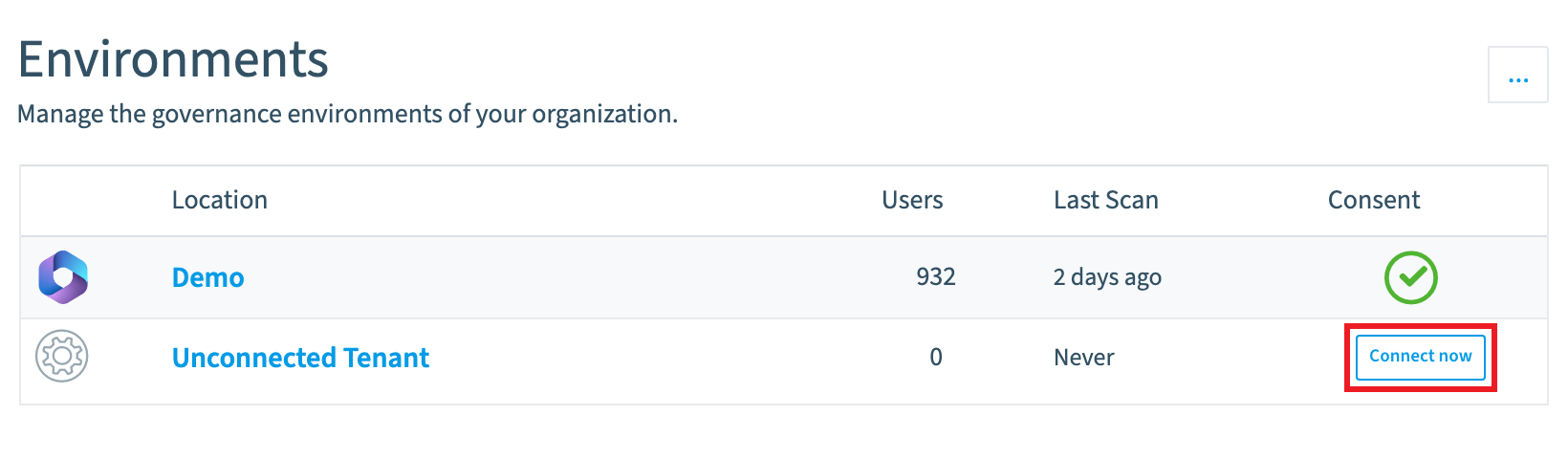
Go to Settings > Workspace Settings > EnvironmentsEnvironmentAn Environment is the connected Microsoft 365 tenant inside a Workspace.Read more.
-
Click Connect now.
-
Continue with step 2 above.
Frequently asked questions
Which admin account do I need to connect a service to my tenant?
You need an account that holds the admin role for that service. For example, use a Power Platform Administrator for Power Apps and Power Automate, or a Fabric Administrator for Power BI.
Should I grant global consent or consent per service when connecting my tenant?
Consent per service is the recommended choice. It gives you more control over the Apps and permission to your tenant at a later date. You can also choose Global consent in Stage 2 (Consent).
How can I connect a tenant if I missed the banner on the screen?
Go to Settings > Workspace Settings > Environments and click Connect now. Then continue with the Connect your tenant steps: click Connect in Stage 1, sign in with an admin account, and give consent in Stage 2.
Was this page helpful?
Thanks for the feedback.
Thanks. What was wrong?