 Dataverse and Copilot Studio
AI summary
To scan Copilot Studio, you need an Entra ID application with API permissions and a client secret. Rencore Governance automatically sets up Dataverse environments when you give consent, but you can manually configure any environments that fail to connect by creating a security role, setting permissions, and adding the application user.
Before you can give consent for Copilot StudioCopilot StudioCopilot Studio is the Microsoft tool for building your own AI agents. Rencore Governance covers it with the Copilot Studio connector, part of the AI & Agents module.Read more, you will need an Entra IDMicrosoft Entra IDMicrosoft Entra ID, formerly Azure Active Directory, is the Microsoft identity service behind every Microsoft 365 tenant.Read more application in the tenant you want to scan. This page shows how to create the app, and how to set up a Dataverse EnvironmentPower Platform environmentA Power Platform environment is a container in Microsoft Power Platform that holds apps, flows, agents and their data, often with its own Dataverse database.Read more by hand if Rencore Governance cannot set it up for you.
 Create an Entra ID app
To create the app, you will need to:
-
Go to the Microsoft Entra Admin Center.
-
In the left-hand navigation menu, go to “Entra ID”.
-
Then click on “App registrationsApp registrationAn app registration is the global definition of an application in Microsoft Entra ID.Read more”.
-
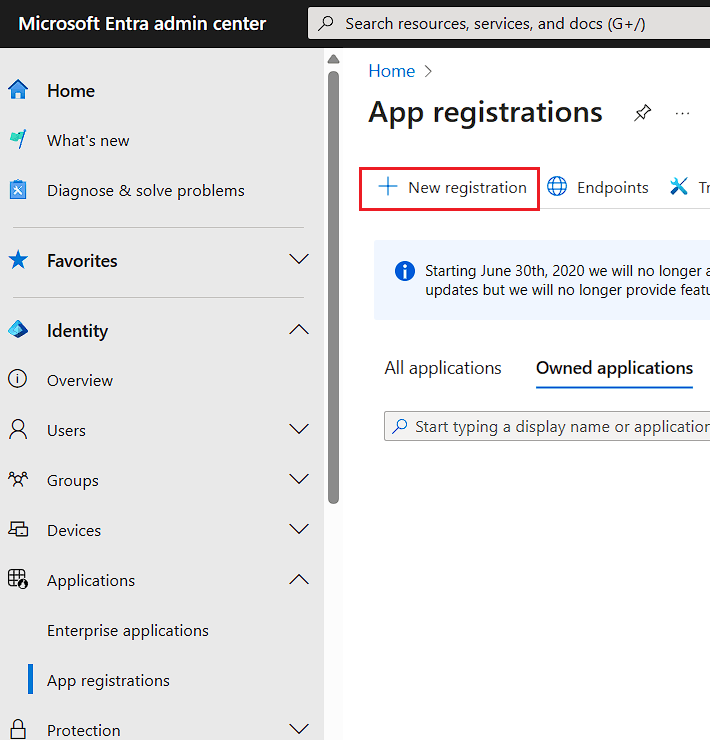
At the top of this page, click ”+ New registration”.
- In “Name” enter “Dataverse Access for Rencore Governance”.
- For “Supported account types”, select “Accounts in this organizational directory only”.
- Click “Register”.
-
On the app’s “Overview” page, copy the “Application (client) ID” and the “Directory (tenant) IDTenant IDThe tenant ID is the GUID that identifies your Microsoft Entra tenant.Read more”. You will need both when you give consent.
Create a Client Secret
To create a client secretClient secretA client secret is a password-like string that an app registration uses to prove its identity when it requests a token from Microsoft Entra ID.Read more, you will need to:
-
In the app, under “Manage”, click on “Certificates & secrets”.
-
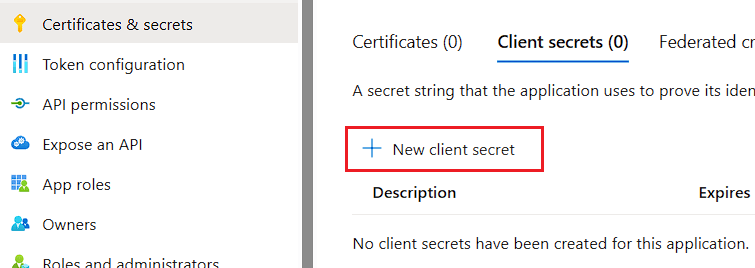
Select “Client secrets” and then click ”+ New client secret”.
- In the Description enter something like “RencoreGovernance_Copilot”.
- Set “Expires” to “Recommended: 180 days (6 months)”.
- Click “Add”.
Tip: Copy the Value immediately, as it will only be displayed once and you will need it later.Note: When the secret expires, Rencore Governance can no longer scan Copilot Studio. Create a new secret before then and give consent again with the new Value.
Set API Permissions
To add the API permission, you will need to:
-
In the app, under “Manage”, click on “API permissions”.
-
Click ”+ Add a permission”.
-
Select “Dynamics CRM”.
-
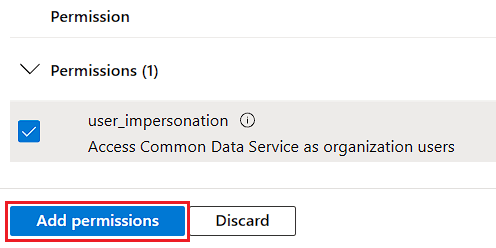
Select “user_impersonation”.
-
Click “Add permissions”.
-
Once the app is ready, give consent as described in Copilot Studio Consent.
How Environments are set up
When you give consent, you register the app as a Power PlatformPower PlatformPower Platform is the Microsoft low-code platform where users build their own apps, flows, reports, agents and websites.Read more management application with the script in the consent dialog. Rencore Governance then sets up every EnvironmentEnvironmentAn Environment is the connected Microsoft 365 tenant inside a Workspace.Read more it scans during the next Data Collection Job. In each Environment, it creates a read-only “Rencore Governance” security role and an application user for your app, and assigns the role to that user.
This works for Environments that Rencore Governance finds by itself and for Environments you list in “Environment Names”. You do not need to follow the manual steps below unless an Environment fails to connect.
Set up an Environment manually
If “See details” in “Manage consent” lists an Environment under the ones that failed to connect, you can set it up yourself. Repeat these steps for each failed Environment.
Create the Security Role
To create the security role, you will need to:
-
Go to the Power Platform Admin Center.
-
Click on the Environment that failed to connect.
-
Make sure you are a “System Administrator” of the Environment.
- Click on “Membership” on the top Navbar.
- On the new Dialogue window, click ”+ Add me”.
-
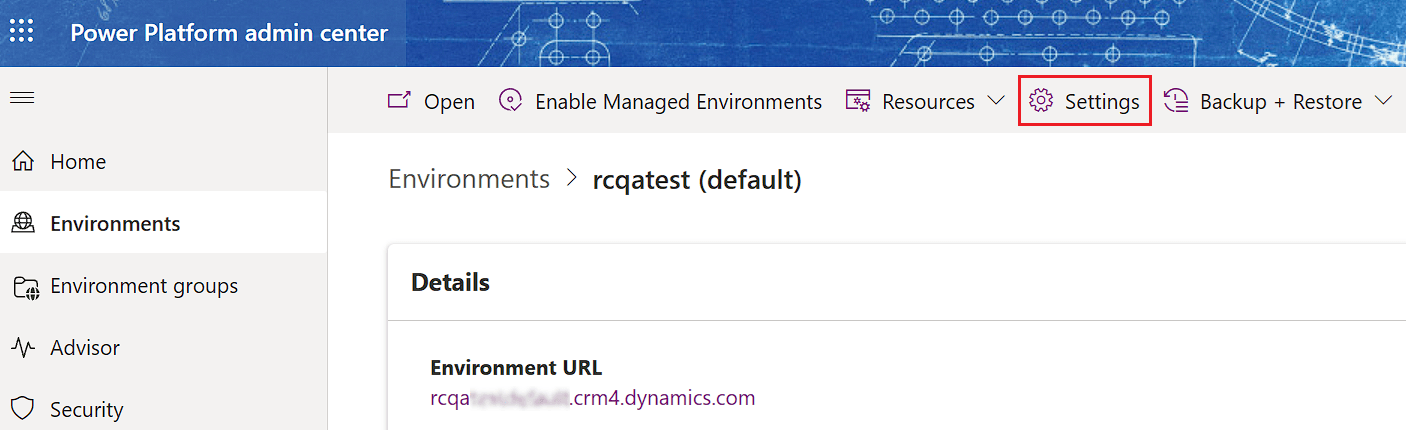
Return to the Environment details page and click on “Settings” on the top Navbar.
-
Under the “Users + permissions” heading, click “Security roles”.
-
Click ”+ New role” at the top of the page.
- Enter “Rencore Governance” for the “Role Name”.
- Select the Environment for the “Business unit”.
- Leave the other settings alone and click “Save”.
Permissions for the Security Role
On the Security Role Details page of the new role, use the search function in the top-right of the screen. Set “Read” to “Organization” for each of the following tables:
Table | Name |
|---|---|
AICopilot | aicopilot |
AIPlugin | aiplugin |
Agent | bot |
Agent component | botcomponent |
ConversationTranscript | conversationtranscript |
Process | workflow |
Organization | organization |
Team | team |
User | systemuser |
Create the Application User
To create the application user, you will need to:
-
On the Environment details page, click “See all” under the “S2S Apps” on the right.
-
Click ”+ New app user” above the Navbar.
-
On the new dialogue window, click ”+ Add an app”.
-
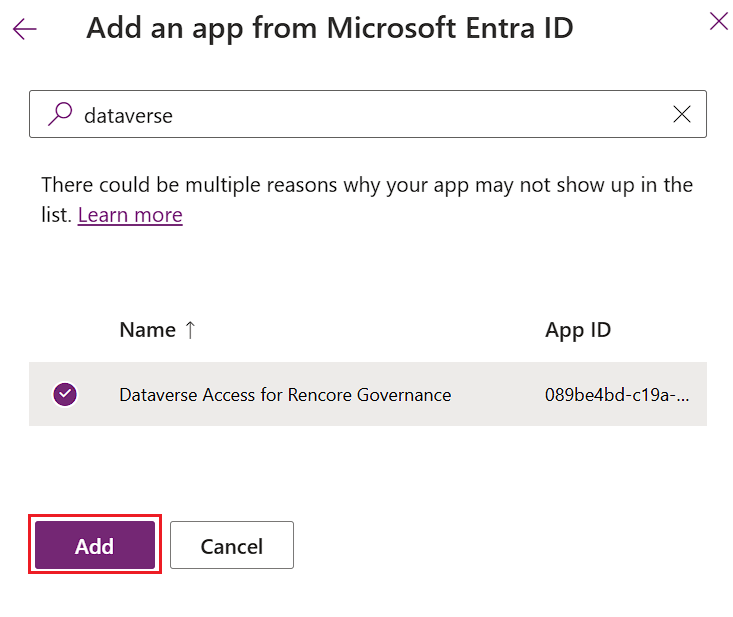
In the search, type “Dataverse Access for Rencore Governance”.
-
Select the app and click “Add”.
-
Select the Environment for the “Business unit”.
-
Click the pencil next to “Security roles”.
- Select the role “Rencore Governance”.
- Click “Save”.
-
On the “Role assignment confirmation”, click “Save”.
-
-
Click “Create”.
The next Data Collection Job tries the Environment again.
Frequently asked questions
What do I need to create before giving Copilot Studio consent?
What do I need to create before giving Copilot Studio consent?You will need to create an Entra ID application in the tenant you want to scan.
What happens when a client secret for Dataverse access expires?
When the secret expires, Rencore Governance can no longer scan Copilot Studio. Create a new secret before then and give consent again with the new Value.
Does Rencore Governance set up Dataverse environments automatically?
Yes. When you give consent, Rencore Governance sets up every Environment it scans during the next Data Collection Job. It creates a read-only security role and an application user in each Environment.
Can I manually set up a Dataverse environment if automatic setup fails?
Yes. If an Environment fails to connect, you can set it up yourself by creating a security role, configuring permissions, and creating an application user.
What read permissions does the Rencore Governance security role need?
The Rencore Governance role needs Organization level read permissions for AICopilot, AIPlugin, Agent, Agent component, ConversationTranscript, Process, Organization, Team, and User. Some of these tables only appear if Copilot Studio is provisioned.
Was this page helpful?
Thanks for the feedback.
Thanks. What was wrong?