 Copilot Studio consent
AI summary
Connect Rencore Governance to Copilot Studio by creating an Entra ID application, providing its credentials, and running a PowerShell script to register it with Power Platform. Rencore Governance then finds your Dataverse Environments and sets up read-only access for scanning Copilot Studio data. To view Daily Costs, also grant Azure consent.
Rencore Governance connects to Copilot StudioCopilot StudioCopilot Studio is the Microsoft tool for building your own AI agents. Rencore Governance covers it with the Copilot Studio connector, part of the AI & Agents module.Read more through an Entra IDMicrosoft Entra IDMicrosoft Entra ID, formerly Azure Active Directory, is the Microsoft identity service behind every Microsoft 365 tenant.Read more application that you create in your own tenant. You enter the app details in Rencore Governance, then register the app as a Power PlatformPower PlatformPower Platform is the Microsoft low-code platform where users build their own apps, flows, reports, agents and websites.Read more management application with a short PowerShell script. Rencore Governance then finds your Dataverse EnvironmentsPower Platform environmentA Power Platform environment is a container in Microsoft Power Platform that holds apps, flows, agents and their data, often with its own Dataverse database.Read more and sets up read-only access in each one.
Before you begin
To give consent for Copilot Studio, you will need:
- An Entra ID application with a client secretClient secretA client secret is a password-like string that an app registration uses to prove its identity when it requests a token from Microsoft Entra ID.Read more, created as described in Dataverse and Copilot Studio.
- The app’s Directory (tenant) IDTenant IDThe tenant ID is the GUID that identifies your Microsoft Entra tenant.Read more, Application (client) ID, and the client secret Value.
- An account with the Power Platform AdministratorPower Platform administratorPower Platform Administrator is a Microsoft Entra admin role that can manage Power Platform environments, Power Apps, flows and data loss prevention policies in the tenant.Read more role.
- A Windows device with Windows PowerShell. The setup script uses the “Microsoft.PowerAppsPower AppsPower Apps is the Microsoft low-code tool for building business apps. Rencore Governance covers it with the Power Apps connector, part of the Apps, Automation & BI module.Read more.Administration.PowerShell” module, which is supported only on Windows.
Turn on the connector
To turn on Copilot Studio, you will need to:
- Click on “Settings” and then “Environment Settings”.
- Click on “Manage Services”.
- Toggle the selector for “Copilot Studio”.
- Click “Save”.
Give consent
Copilot Studio uses the “DataverseDataverseDataverse is the Microsoft data platform behind Power Platform apps and environments.Read more” consent. To give consent, you will need to:
-
Click on “Settings” and then “Environment Settings”.
-
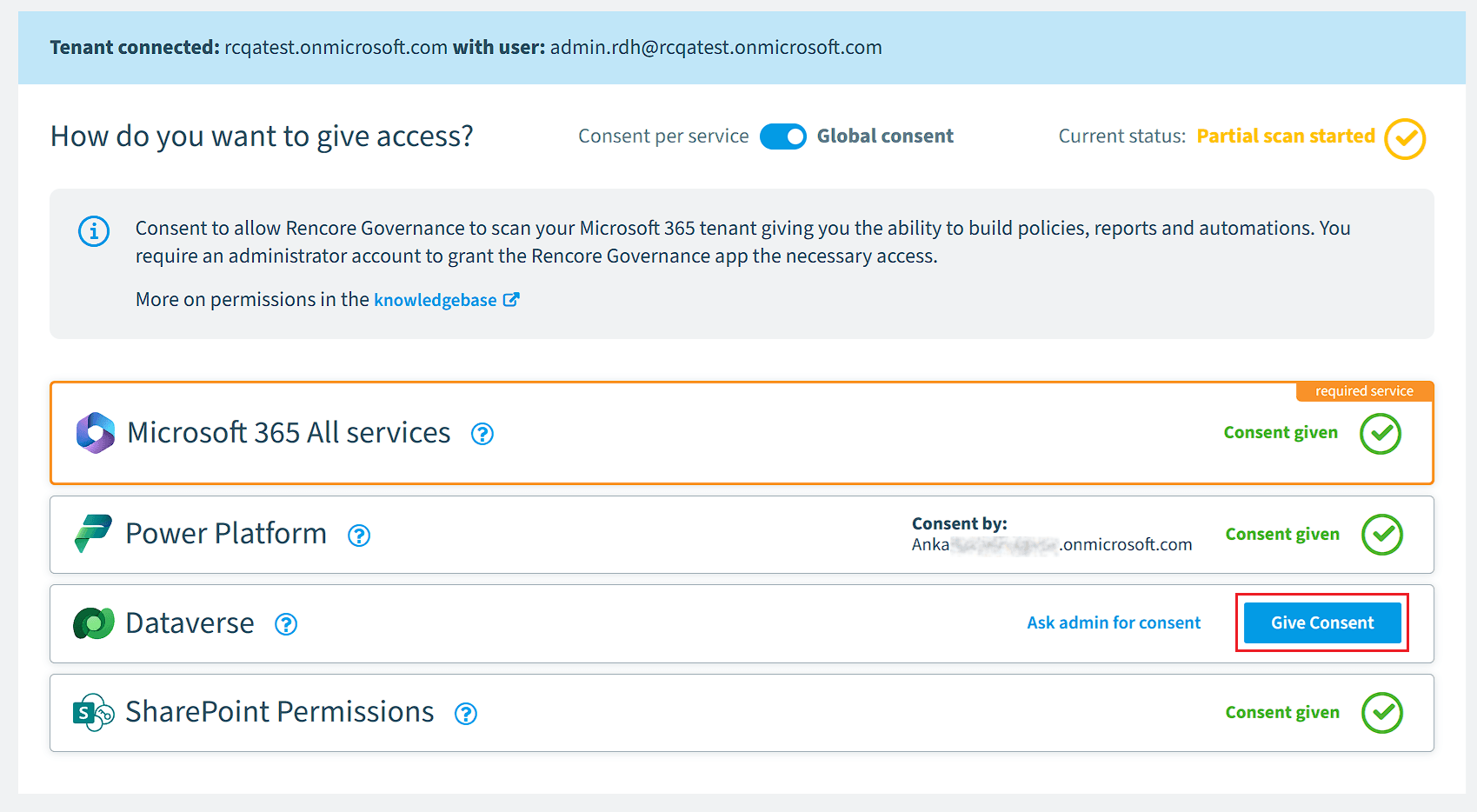
On “General Settings”, click the ellipses menu (…) and select “Manage consent”.
-
Click “Give Consent” on “Dataverse”.
-
In the “Bring your own keys” dialog, enter the following details:
-
Directory (Tenant) Id: Enter the tenant ID.
-
Client Id: Enter the application (client) ID.
-
Client Secret: Enter the Value that you copied when creating the client secret.
-
Environment Names (optional): Leave this empty to let Rencore Governance find and set up all of your Dataverse Environments. To scan only some EnvironmentsEnvironmentAn Environment is the connected Microsoft 365 tenant inside a Workspace.Read more, enter their Environment URLs separated by commas.
Tip: Use the Environment URL, not the Environment display name, for example "org12345.crm4.dynamics.com". You can find it in the Power Platform admin center on the Environment's details page.
-
-
Click “Connect”. Rencore Governance checks the credentials with Entra ID.
-
The dialog shows a PowerShell script with your tenant ID and client ID already filled in. Click “Copy” or “Download”.
-
On a Windows device, run the script in Windows PowerShell and sign in with your Power Platform Administrator account.
-
Return to Rencore Governance and click the button to confirm that you have run the script.
-
When the dialog shows “Connection Successful!”, click “Save and Close”.

What the setup script does
The script registers your Entra ID appApp registrationAn app registration is the global definition of an application in Microsoft Entra ID.Read more as a Power Platform management application. This tells Power Platform that your app may manage it, at tenant level. Rencore Governance needs this to find your Dataverse Environments, give itself read-only access in each one, and read the “Tenant Settings” and “Billing policiesPay-as-you-go planA pay-as-you-go plan links one or more Power Platform environments to an Azure subscription.Read more” inventories.
You only need to run the script once per tenant. The dialog shows the script step every time you give consent. If the app is already registered, confirm the step without running the script again.
The script looks like this, with your own IDs filled in:
# Rencore Governance - Register Power Platform management app
# Run as a Power Platform Administrator
# Run this script on a Windows device using Windows PowerShell
# This script uses a module supported only on Windows

Install-Module -Name Microsoft.PowerApps.Administration.PowerShell
Import-Module Microsoft.PowerApps.Administration.PowerShell

$tenantId = "TENANT_ID"
$clientId = "CLIENT_ID"

Add-PowerAppsAccount -Endpoint prod -TenantID $tenantId
New-PowerAppManagementApp -ApplicationId $clientId
After consent
Rencore Governance sets up each Environment during the next Data Collection Job, not in the consent dialog. In each Environment, it creates a read-only “Rencore Governance” security role and an application user for your app. The first scan can take longer than usual while this happens.
To check the result, open “Manage consent” and click “See details” on “Dataverse”. The panel lists the Environments that connected and the ones that failed. Failed Environments are skipped, and the next Data Collection Job tries them again. Click “View all errors” to see the error for each one.
If an Environment keeps failing, you can set it up yourself, as described in Dataverse and Copilot Studio.
If it does not work
What you see | What to do |
|---|---|
Connection failed | Rencore Governance could not sign in with the details you entered. Check that the tenant ID, client ID, and client secret all belong to the same app, and that the secret has not expired. Click "Review Configuration" to correct them. |
Permissions not set | The app is not registered as a Power Platform management application yet. Check that the script ran against the same tenant ID, wait a few minutes, then click "Retry". |
The tile still shows "Give Consent" | The dialog was closed before "Connection Successful!". Give consent again and complete every step. |
The client secret has expired | Create a new client secret for the app, then give consent again with the new Value. |
An Environment is connected but shows no Copilot Studio data | Copilot Studio may not be provisioned in that Environment. Check the security role permissions listed in Dataverse and Copilot Studio. |
Frequently asked questions
What prerequisites are required for Copilot Studio consent?
What prerequisites are required for Copilot Studio consent?You need an Entra ID app with a client secret, its Directory ID, Application ID, and client secret Value. You also need a Power Platform Administrator account and a Windows device, because the setup script uses a module supported only on Windows.
Where does Rencore Governance get daily costs data for Copilot Studio?
Where does Rencore Governance get daily costs data for Copilot Studio?Daily Costs is retrieved via the Azure scan, not the Copilot Studio scan. You must also grant Azure consent and assign the Reader role to the relevant Azure Subscriptions.
What does the PowerShell setup script do?
The script registers your Entra ID app as a Power Platform management application. This lets Rencore Governance find your Dataverse Environments and set up read-only access in each one.
When does Rencore Governance set up access in my Environments?
Setup happens during the next Data Collection Job, not in the consent dialog. The first scan can take longer than usual while this setup occurs.
What happens if an Environment fails to connect during setup?
Failed Environments are skipped, and the next Data Collection Job tries them again. Open Manage consent and click See details on Dataverse to view which Environments connected and which failed. If an Environment keeps failing, you can set it up yourself.
Was this page helpful?
Thanks for the feedback.
Thanks. What was wrong?