 Azure consent

AI summary
To connect Azure to Rencore Governance, you create an Entra ID application in your tenant first, then provide consent by entering its Tenant ID, Client ID, and Client Secret. Unlike other connectors that create their application for you, Azure requires manual setup.
For AzureMicrosoft AzureMicrosoft Azure is the Microsoft cloud platform for virtual machines, web apps and other cloud resources.Read more, you create the Entra ID appApp registrationAn app registration is the global definition of an application in Microsoft Entra ID.Read more yourself in the tenant you want to scan, as described in Entra ID App Creation. Then you enter its details in Rencore Governance, as described on this page. Other connectors create their app for you when you give consent.
Enabling the connector
- Click on “Settings” and then”Environment Settings”.
- Click on “Manage Services”.
- Toggle the selector for “Azure”
- Click “Save”.
Consenting to the connector.
Before you can provide consent for Azure, you will need to manually create an Entra IDMicrosoft Entra IDMicrosoft Entra ID, formerly Azure Active Directory, is the Microsoft identity service behind every Microsoft 365 tenant.Read more application as detailed in the Knowledge base article: Entra ID App Creation
Once you have set up the app and have the required details, you will need to:
-
Click on “Settings” and then “Environment Settings”.
-
On “General Settings_”, click the ellipses menu_ ([…]) and select “Manage consent”.
-
Click “Give Consent” on “Azure”.

-
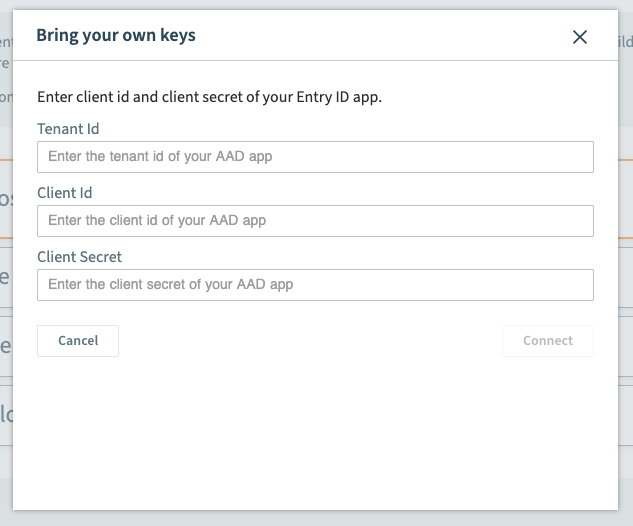
In the new Dialogue, enter the following details:
- Tenant IdTenant IDThe tenant ID is the GUID that identifies your Microsoft Entra tenant.Read more: Enter the Directory (tenant) ID.
- Client Id: Enter the application client’s ID.
- Client SecretClient secretA client secret is a password-like string that an app registration uses to prove its identity when it requests a token from Microsoft Entra ID.Read more: Enter the Value that you copied when creating the Client Secret.
-
Click “Connect”.
-
Providing all settings are correct, a confirmation dialog will state that the connection was successful.
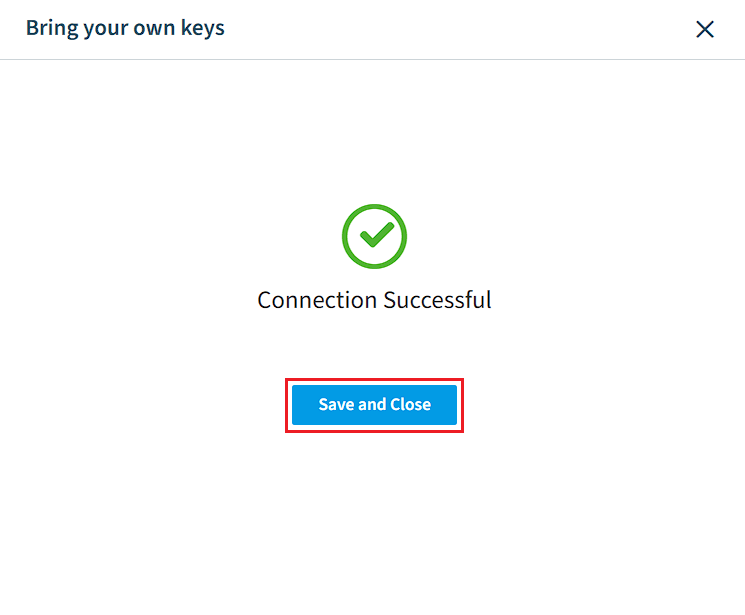
- Click “Save and Close”
Frequently asked questions
 Do I need to create the Entra ID app myself before setting up Azure in Rencore Governance?
Do I need to create the Entra ID app myself before setting up Azure in Rencore Governance?Yes. You must manually create the Entra ID application in your tenant first. Other connectors create their app for you when you give consent, but Azure requires you to do this yourself.
What credentials do I need to provide when giving Azure consent?
What credentials do I need to provide when giving Azure consent?You need the Tenant ID (Directory ID from your Entra ID app), Client ID (application client ID), and Client Secret Value, which you should copy when creating the Entra ID app because it only displays once.
Where in Rencore Governance do I give consent for Azure?
Where in Rencore Governance do I give consent for Azure?In Settings, go to Environment Settings. In General Settings, click the ellipses menu and select Manage consent. Then click Give Consent on Azure.
Was this page helpful?
Thanks for the feedback.
Thanks. What was wrong?