Get help
AI summary
You can reach Rencore support through live chat, in-app feedback, email at [email protected], or the Support Portal. Check the service status first, and include your environment information for Workspace-specific issues. All updates and responses appear in the Support Portal and via email notifications.
Get answers and support from Rencore whenever you need it. This page lists the support channels and how to use each one.
Before you begin
- Email and the Support PortalSupport Portalcom is where you raise a support ticket with Rencore and follow its progress.Read more do not depend on your Rencore Governance role.
- For an issue in a specific WorkspaceWorkspaceA Workspace is the top-level container in Rencore Governance. It holds the settings, users, roles and connected apps for exactly one Environment, the connected Microsoft 365 tenant.Read more, copy your environment information so you can include it in the request. See Copy environment information.
Steps
Check the service status
- If Rencore Governance does not load or behaves unexpectedly, open status.rencore.com.
- Check the live status of Rencore Governance (the Portal and the Rencore Teams AppRencore Teams AppThe Rencore Teams App (formerly Rencore Nova) brings Rencore Governance into Microsoft Teams for the people who own and use workspaces.Read more) for your data centerData centerThe data center is the Microsoft Azure region where Rencore Governance stores all data of a Workspace.Read more region. It shows at once whether an incident is already known.
Use the live chat
-
Click the instant live chat at the bottom right to talk to a customer support engineer directly.

Send in-app feedback
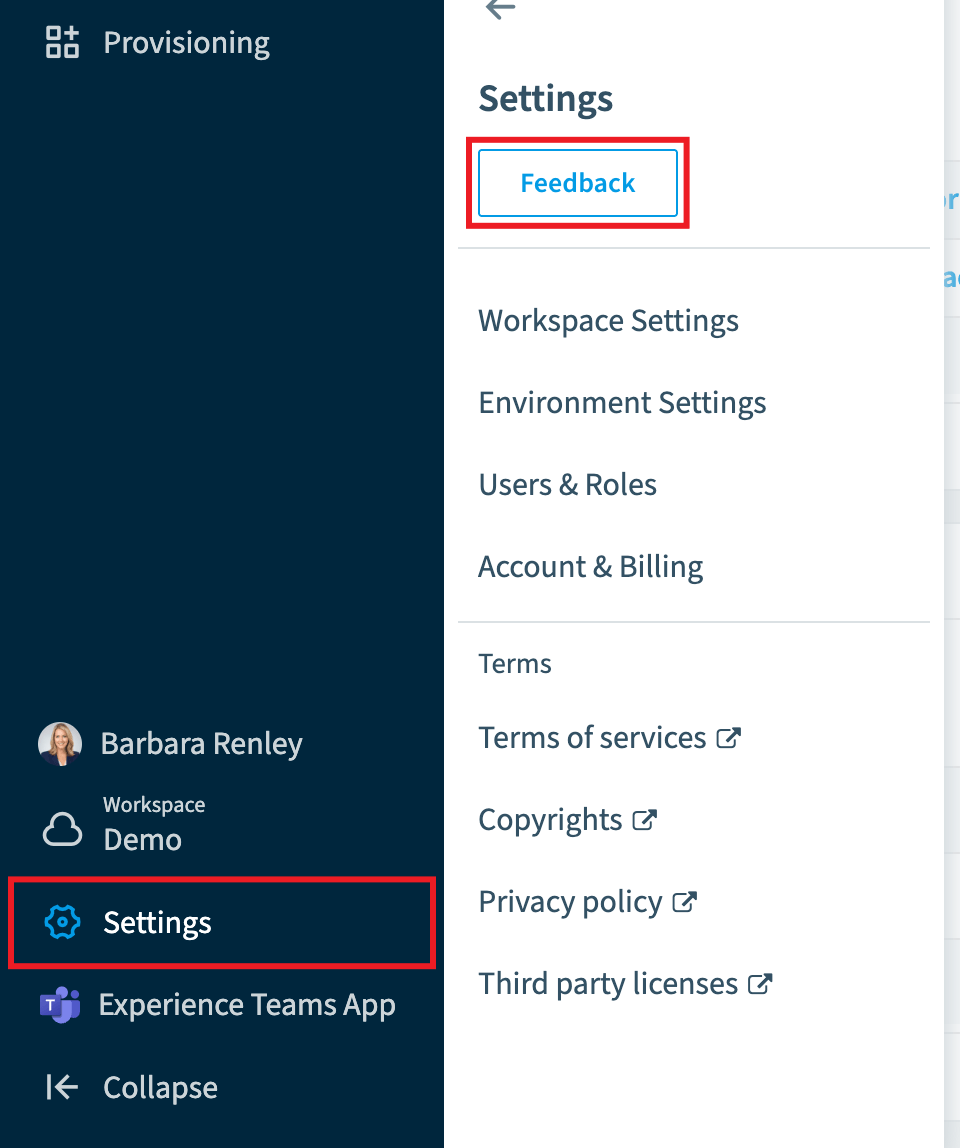
Use the feedback button to report a bug, ask for a feature or send general feedback.
-
Go to Settings > Feedback on the Nav Panel.
-
Capture and annotate the screen, or record a video.
-
Add a message and send the feedback. It creates a support ticket in the Support Portal.
Create a support conversation
- Send an email to [email protected] from your work email, or create a support conversation in the Support Portal.
- For an issue in a specific Workspace, include your environment information in the request. This helps the support team investigate the issue more efficiently.
What you see
All communication about your request takes place in the Support Portal. You see updates and responses in the support ticket and in email notifications sent to the email account that created the ticket.
If it does not work
If you do not receive updates, check that emails from [email protected] are not blocked or filtered by mail rules or spam filters.
Frequently asked questions
What should I check first if Rencore Governance does not load or behaves unexpectedly?
Open status.rencore.com and check the live status of Rencore Governance (the Portal and the Rencore Teams App) for your data center region. It shows at once whether an incident is already known.
How do I send a bug report or feature request from inside Rencore Governance?
Go to Settings > Feedback on the Nav Panel. Capture and annotate the screen or record a video, add a message, and send the feedback. This creates a support ticket in the Support Portal.
Where do I see replies to my support request, and what if I get no updates?
All communication takes place in the Support Portal. You see updates in the support ticket and in email notifications sent to the account that created the ticket. If you get none, check that emails from [email protected] are not blocked by mail rules or spam filters.
Was this page helpful?
Thanks for the feedback.
Thanks. What was wrong?