Inventory and scanning
AI summary
The inventory is the complete record of all objects Rencore Governance reads from your connected services, including their properties and relationships. Scanning continuously populates this data based on how often each object type changes and how quickly your connectors can retrieve it. All your dashboards, reports, policies, automations, and reviews depend on this inventory data to function.
The inventory is the record of every object Rencore Governance reads from your connected services, with its properties and relations. A scan is how that data gets in, continuously and as metadata only.
DashboardsDashboardA dashboard groups reports, policies and KPIs on one page as tiles, so each stakeholder sees the governance data that matters to them.Read more, reports, policies, automations, reviews and provisioning all work on inventory data.
How it works
Objects, types and relations
Each item in the inventory is an inventory objectInventory objectAn inventory object is one item Rencore Governance has scanned from a connector, such as a single Team, SharePoint site collection, user or Power App.Read more, for example one Team or one user. Every object belongs to an object type, also called an entity, with its own properties. Objects are linked by relations, so you can see, for example, the owners, members and channels of a Team. The inventory reference lists every object type and its properties for each connector.
Scanning
Rencore Governance scans your EnvironmentEnvironmentAn Environment is the connected Microsoft 365 tenant inside a Workspace.Read more continuously, so there is no fixed time when all data is updated. It adjusts how often it reads each part to the amount of data, the connector, the effort it takes to read the data and how often it changes. Data that Microsoft APIs return quickly is updated more often than data that has to be crawled. Scans stay within Microsoft 365Microsoft 365Microsoft 365 is the Microsoft cloud suite of Teams, SharePoint, OneDrive, Exchange and the Office apps.Read more throttling limits.
Each object type has an update interval: Daily, Weekly, Bi-Weekly or Monthly, and some elements also offer Never or Initial (collected once). The interval is a target, not a guarantee: the actual timing depends on the size of your tenant and on throttling. Under Configure objects you can lengthen the interval of less important objects, which leaves more capacity for the important ones. You can also turn off an object type, or a single property or relation. Turning off an object type removes its data and the policies that depend on it.
Partial scanning splits a scan into batches. Each batch is written to the inventory as soon as it is complete, and the policies, segments and reports it affects are recalculated right away. You see updated counts while a scan is still running, instead of only at the end.
You cannot start or schedule a scan yourself. Every completed and running scan jobScanA scan is how Rencore Governance reads metadata from a connected tenant into the inventory.Read more is listed under “All scans”.
The first scan
After you connect a tenant and give consent, the first scan builds the initial inventory. Depending on the size of your tenant, it can take up to 24 hours before the first data is shown.
Segments
A segmentSegmentA segment is a saved, rule-based filter over inventory objects, for example every user whose country is the United States.Read more is a saved filter over inventory objects, for example every user whose country is the United States. Segments are recalculated as scans update the inventory. You can build one in the Segment Builder or create one from a report.
The inventory page
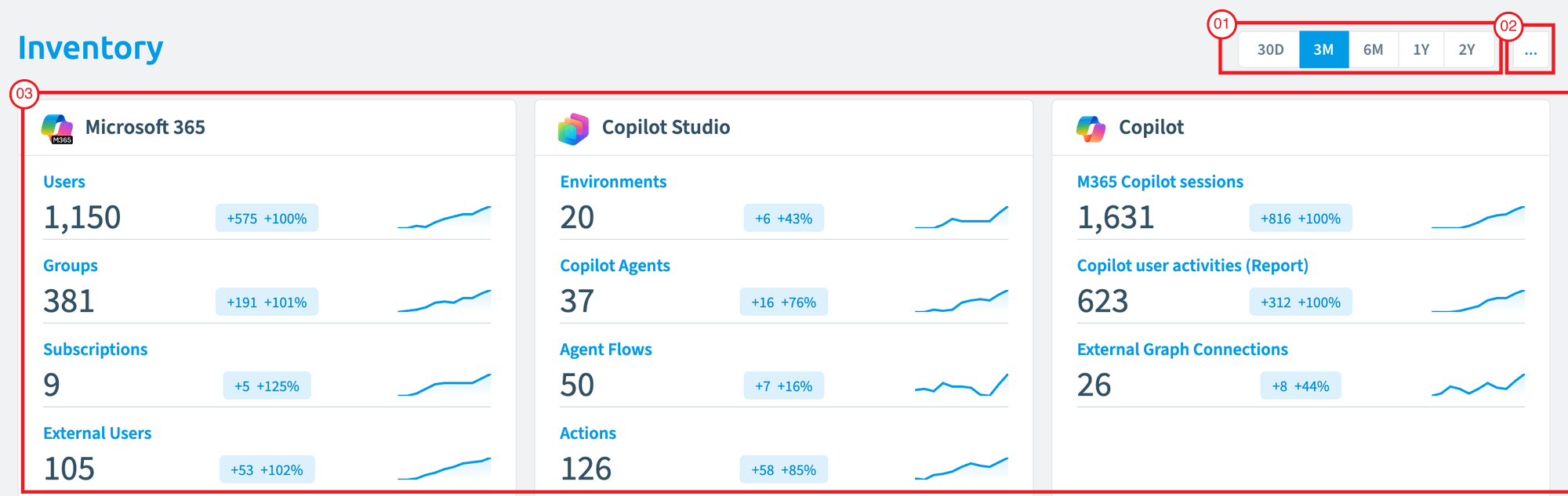
- Date filter: 30 days, 3 months, 6 months, 1 year or 2 years of tile data.
- InventoryInventoryThe inventory is the record of every object Rencore Governance scans from your tenant, with their properties and the relations between them.Read more options ([…]): configure objects, go to the inventory objects, or open “All scans”.
- ConnectorConnectorA connector is the part of Rencore Governance that reads one service, such as Teams or SharePoint, into the inventory.Read more tiles: the main objects of each connector. Hover over a tile and click “Go to Inventory” to list all objects of that connector.
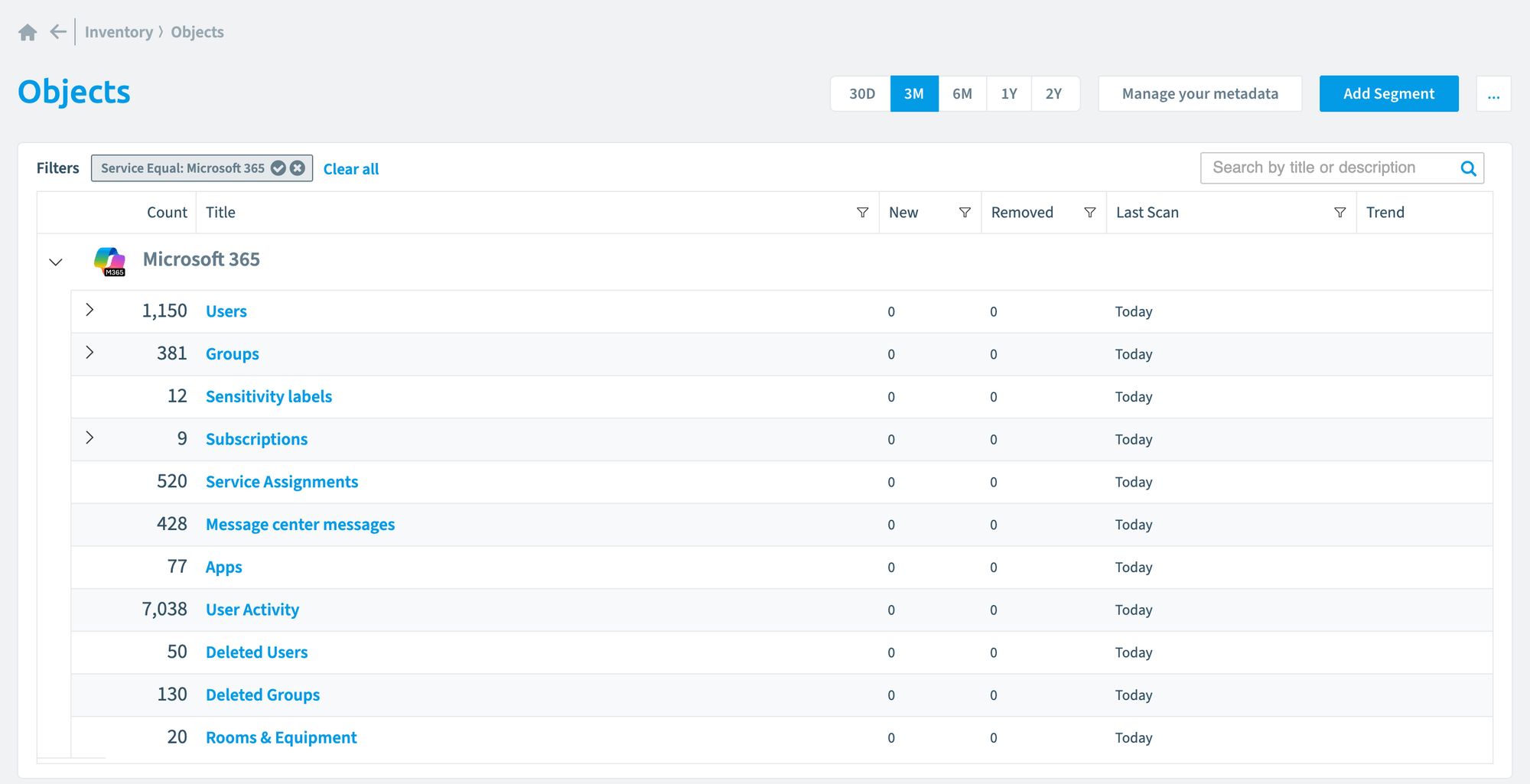
The object list shows, for each object type, the New and Removed counts, the date of the last scan and a trend for the selected period. From here you add or import segments, open “All scans” and configure objects.
Example
You turn on the TeamsMicrosoft TeamsMicrosoft Teams is the Microsoft 365 app for chat, meetings and team collaboration.Read more connector and give consent. The first scan reads every Team, with its owners, members, channels and settings, into the inventory. From then on, scanning picks up new and removed Teams on its own. The policy templatePolicyA policy is a governance rule that Rencore Governance checks against your inventory, for example Teams without owners.Read more “Teams with external usersExternal userAn external user is an account whose home tenant belongs to another organization, invited into your tenant to work with you.Read more” checks the same data and lists each Team with external users as a violation, and a segment of those Teams can feed a report or a dashboard tile.
How it relates to other concepts
- The inventory belongs to one Environment. What is scanned depends on the connectors you turn on and the consent you give.
- Policies and reports are queries over the inventory, each built on one primary object type.
- An automation triggered on a policy violationViolationA violation is an inventory object that matches the rule of an active policy, such as a Team with no owner.Read more runs after the next scan of its connector. If an object type is scanned monthly, the automation also runs monthly. See Built-in actions, automations and automation actions.
- A segment filters objects inside the inventory. A Virtual EnvironmentVirtual EnvironmentA Virtual Environment is a logical segment of the data in one Microsoft 365 tenant, for example a department, region or subsidiary.Read more splits the whole Environment. They are separate features.
- Custom MetadataCustom MetadataCustom Metadata is a Rencore Governance add-on that adds your own business fields to the inventory, such as cost centers or project codes.Read more, an add-on, adds your own properties and object types to the inventory.
Frequently asked questions
Can I start or schedule a scan myself?
No. You cannot start or schedule a scan yourself. Rencore Governance scans your Environment continuously. You can see every completed and running scan job under "All scans".
How long does the first scan take after I connect a tenant?
It can take up to 24 hours before the first data is shown, depending on the size of your tenant. The first scan builds the initial inventory after you connect the tenant and give consent.
How can I give more scan capacity to important objects?
Under Configure objects, lengthen the update interval of less important objects. This leaves more capacity for the important ones. You can also turn off an object type, or a single property or relation.
What happens when I turn off an object type in the inventory?
Turning off an object type removes its data and the policies that depend on it. You can also turn off only a single property or relation instead of the whole object type.
When does an automation triggered by a policy violation run?
An automation triggered on a policy violation runs after the next scan of its connector. If an object type is scanned monthly, the automation also runs monthly.
Was this page helpful?
Thanks for the feedback.
Thanks. What was wrong?
Learn more
- Inventory guides
- Configure inventory objects
- View scan job history
- Create a segment
- Continuous scan and Understanding scan buckets and parallel scanning
- Inventory reference
- FAQ: How often can I perform a scan?