Provisioning template end user experience
AI summary
End users see provisioning templates as cards in the Rencore Teams App template gallery. Requesters choose a template, fill in workspace details such as name, description, members and apps, then submit the request. Approvers review submissions and approve or decline them. Requesters track the status on the History tab.
End users never see the template builder. They meet a provisioning templateProvisioning templateA provisioning template defines how a new Microsoft 365 workspace is created through Rencore Governance.Read more in the Rencore Teams App in Microsoft TeamsMicrosoft TeamsMicrosoft Teams is the Microsoft 365 app for chat, meetings and team collaboration.Read more, as a card in the template gallery. This page follows one request from the requester to the approver and back.
To see how the template is set up, see Configuration.
Before you begin
- The Rencore Teams AppRencore Teams AppThe Rencore Teams App (formerly Rencore Nova) brings Rencore Governance into Microsoft Teams for the people who own and use workspaces.Read more is installed in your tenant. See Install the Rencore Teams App.
- The template is turned on and visible to the requester.
- No Rencore Governance role is needed to request a workspace or to approve one.
The requester
Choose a template
The requester clicks Requests on the navigation bar or + New Request, or picks one of the Smart Templates on the home page. The Templates tab shows every template the requester can see. Service filter chips and a search box narrow the list.
Each card shows the template name, its description, the service icon and a Request button. The title, description, icon and recommended mark come from Template Settings.
Read the template brief
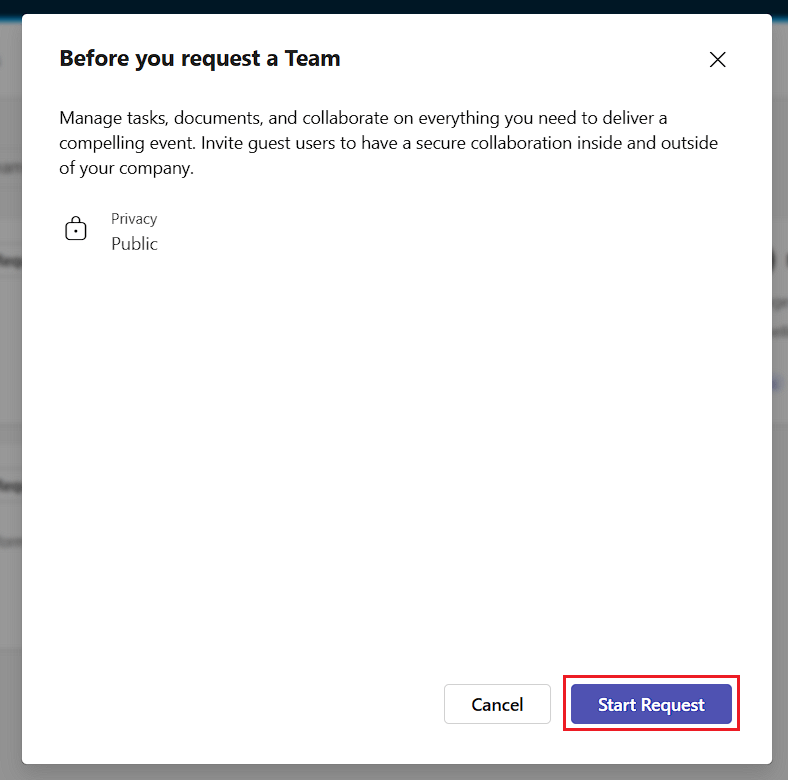
The Template Brief page shows the company guidelines from Template Settings. The requester clicks Start Request.
Fill in the request
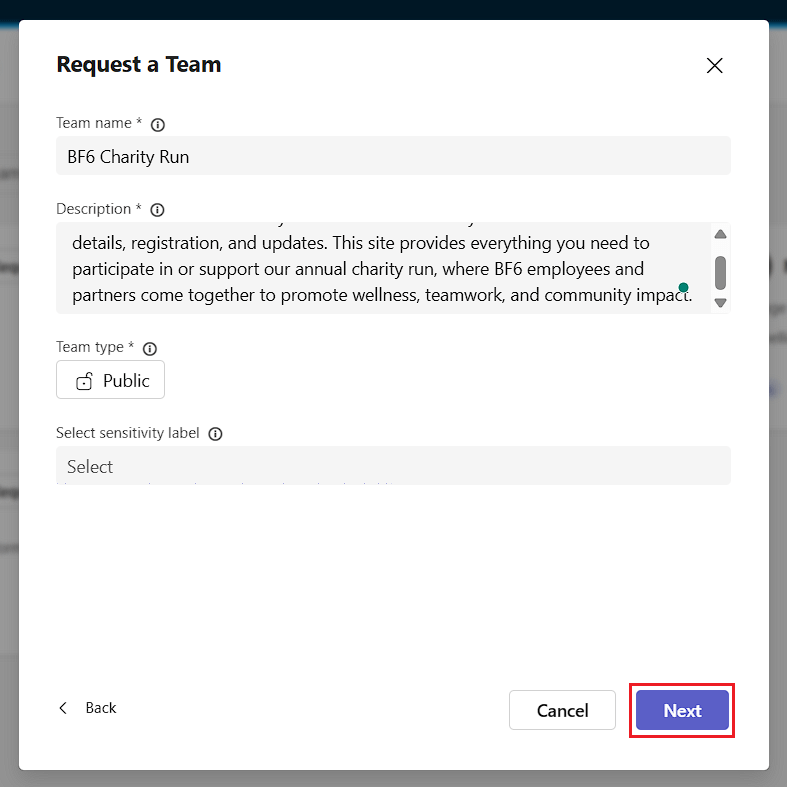
On the first page, the requester enters the Team name and Description. If the template lets them, they also choose the visibility and a sensitivity labelSensitivity labelA sensitivity label is a Microsoft Purview classification, such as Confidential or Internal, that an organization applies to content and to containers such as Teams and SharePoint sites.Read more. They click Next.
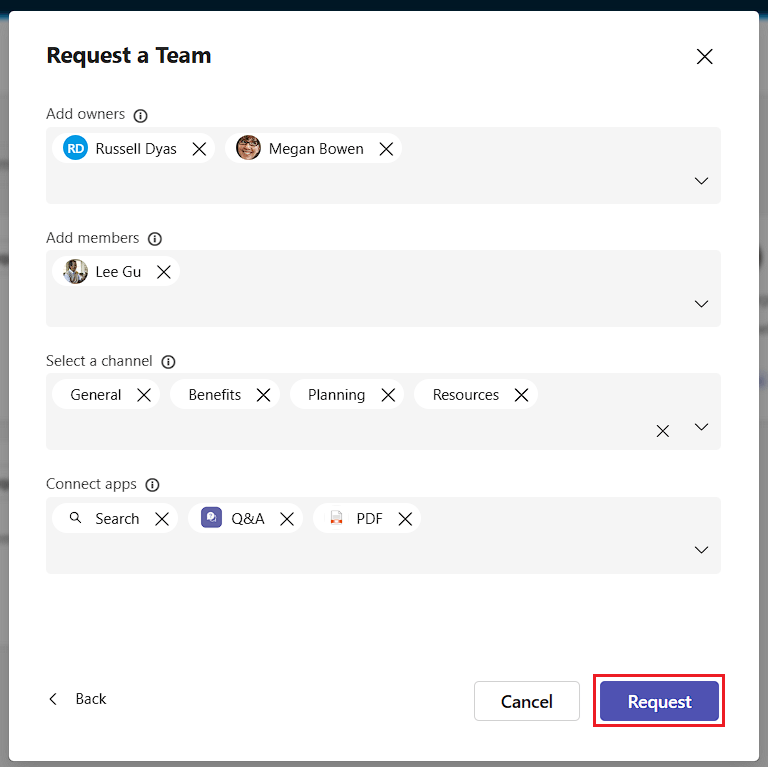
On the second page, the requester adds Owners, Members, ChannelsChannelA channel is a section inside a Microsoft Teams team where members hold conversations and share files on one topic.Read more and Apps, where the template allows changes. Values the template locks are not editable. They click Request.
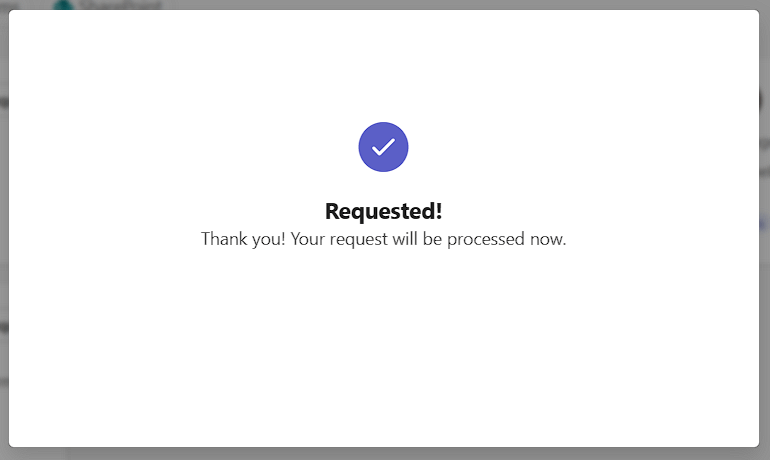
A confirmation dialog acknowledges the request.
The approver
When the template has approvals turned on, each approver gets the approval email set in the Approval step, and the request appears under Approvals and under Things to do on the home page.
The approver clicks View Details and checks the details of the workspace.
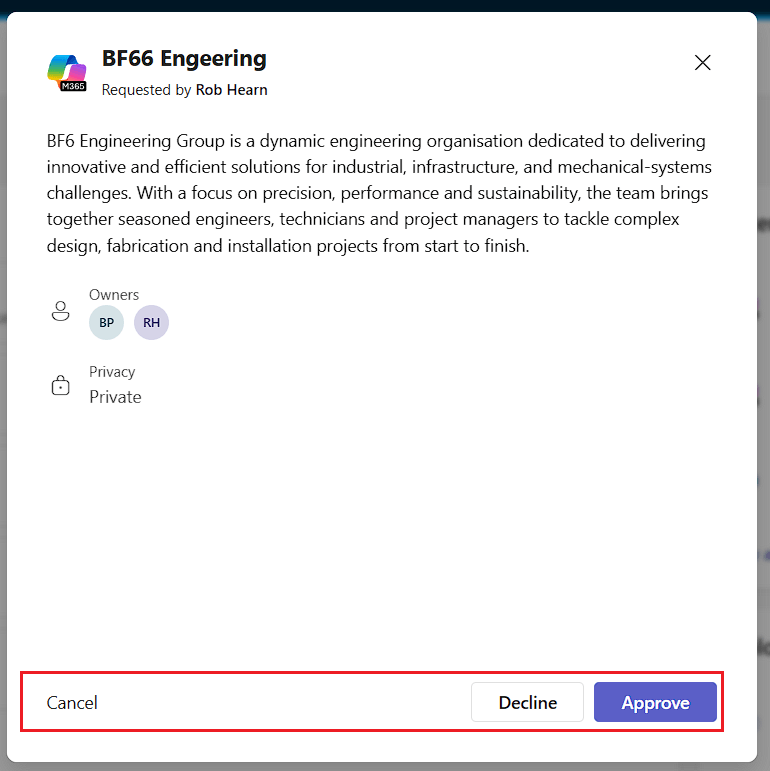
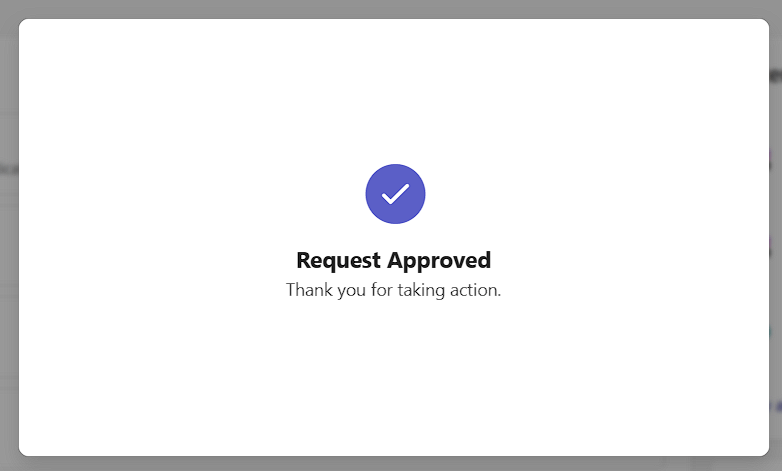
The approver clicks Approve. Depending on the template, the workspace is created now, or it waits for the other approvers.
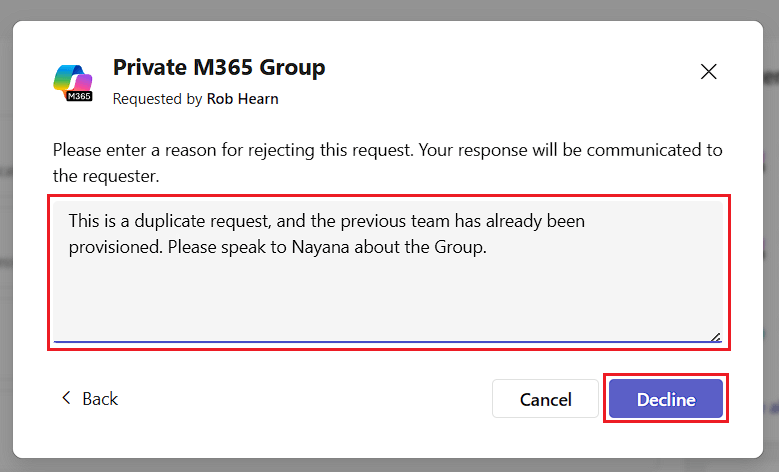
To decline, the approver clicks Decline and enters a reason.
See Approve or decline a request.
Follow the request
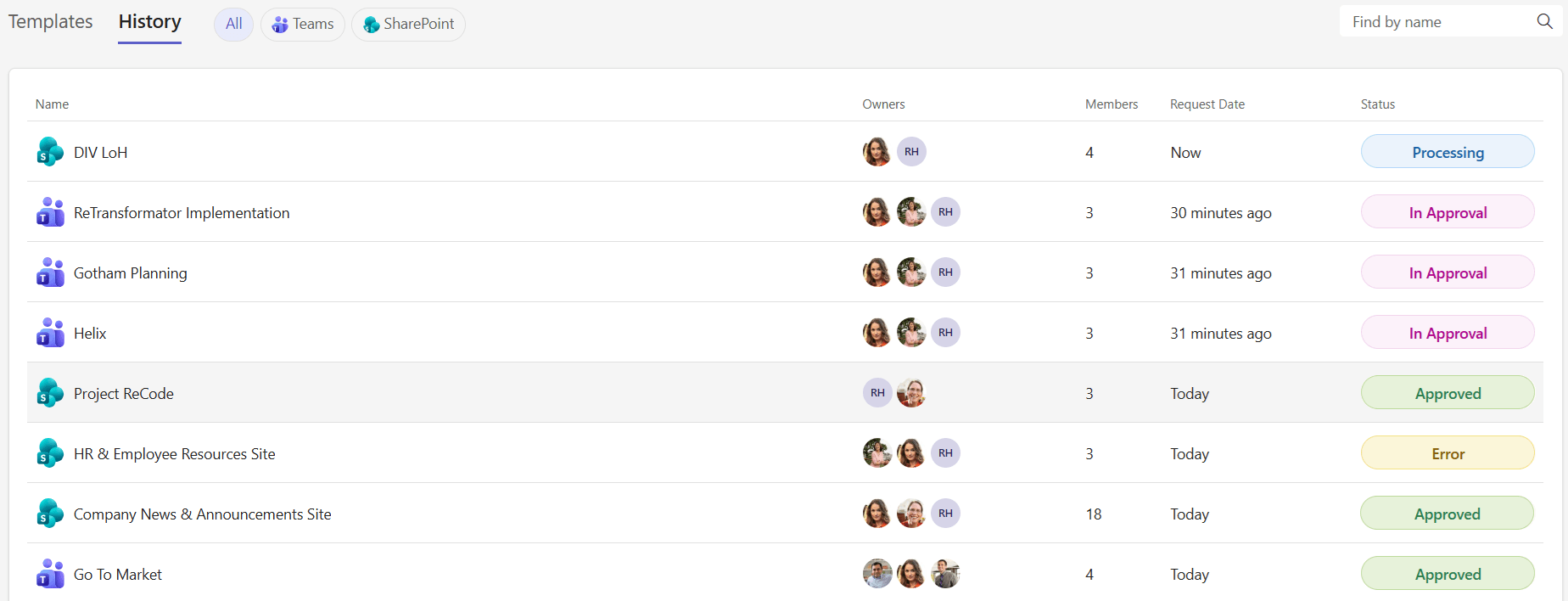
The requester follows the request on the History tab of Requests. The Status column shows Processing, In Approval, Approved, Declined or Error.
See Track your requests.
Frequently asked questions
Where do end users access provisioning templates?
In the Rencore Teams App in Microsoft Teams, where templates appear as cards in the template gallery. The Templates tab shows every template the requester can see.
Do end users need a Rencore Governance role to request or approve a workspace?
No. No Rencore Governance role is needed to request a workspace or to approve one.
What information can a requester customize when requesting a workspace?
Requesters always enter Team name and Description. They can also choose visibility and sensitivity label, and add Owners, Members, Channels, and Apps, where the template allows changes. Locked values are not editable.
How are approvers notified of pending requests?
Each approver receives the approval email set in the Approval step when the template has approvals turned on. The request also appears under Approvals and Things to do on the home page.
What statuses can a workspace request have?
Processing, In Approval, Approved, Declined, or Error.
Was this page helpful?
Thanks for the feedback.
Thanks. What was wrong?