Request provision of a workspace
AI summary
Users of the Rencore Teams App can request new workspaces (teams, SharePoint sites, Microsoft 365 groups, Planner plans, or Viva Engage communities) from templates you have created, with no special role required. They select a template, enter the workspace name and description, configure optional visibility and sensitivity settings, assign owners and members, and submit the request for provisioning. Requests can be tracked to monitor their status.
Create a Provisioning RequestProvisioning requestA provisioning request is a request to create a new Microsoft 365 workspace, such as a Team, from a provisioning template.Read more for a new workspace (a team, a SharePoint site, a Microsoft 365 groupMicrosoft 365 groupA Microsoft 365 Group is the membership object behind many Microsoft 365 workspaces.Read more, a PlannerMicrosoft PlannerMicrosoft Planner is the Microsoft 365 app for task plans and boards. The Planner connector of Rencore Governance, part of the Digital Workplace module, inventories plans.Read more plan or a Viva Engage communityViva Engage communityA Viva Engage community is a group in Viva Engage where people share posts, files and events around a team, project or interest.Read more) in the Rencore Teams AppRencore Teams AppThe Rencore Teams App (formerly Rencore Nova) brings Rencore Governance into Microsoft Teams for the people who own and use workspaces.Read more. Use this when you need a new workspace that your organization creates from a template.
Before you begin
- No Rencore Governance role is needed: any user of the Rencore Teams App can request a workspace from the templates their admin made available.
- You only see templates that your admin has made available. If you cannot find a suitable template, contact your IT team.
- Provisioning is part of the Premium and Enterprise plansPlanA Plan is the edition of Rencore Governance in your Subscription: Professional, Premium or Enterprise.Read more.
Steps
-
Click Requests on the navigation bar or click + New Request. Alternatively, click one of the three frequently used Smart Templates on the home page. The Templates tab shows all templates available to you.
-
To find a template, use the service filter chips at the top to filter by service type (for example only TeamsMicrosoft TeamsMicrosoft Teams is the Microsoft 365 app for chat, meetings and team collaboration.Read more templates, or only SharePoint templates), or search by template name. The All option shows templates across all services.
-
Click the template you want. Each template card shows the template name, a description of what the template is for, the service type icon (Teams, SharePoint or Viva EngageViva EngageViva Engage, formerly Yammer, is the Microsoft 365 app for company-wide communities.Read more) and a Request button to start the workflow.
-
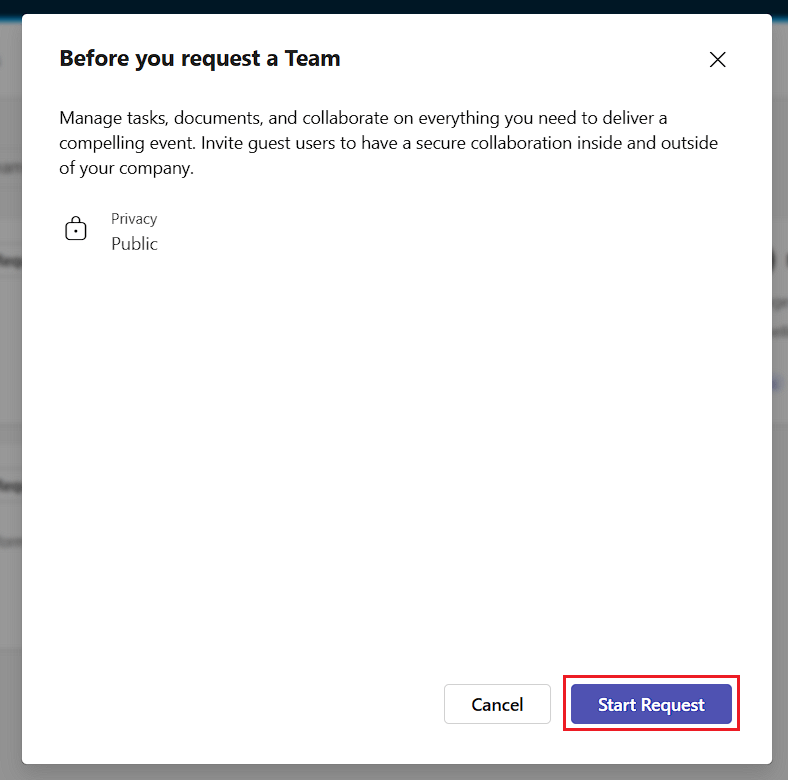
On the Template Brief page, click Start Request.
-
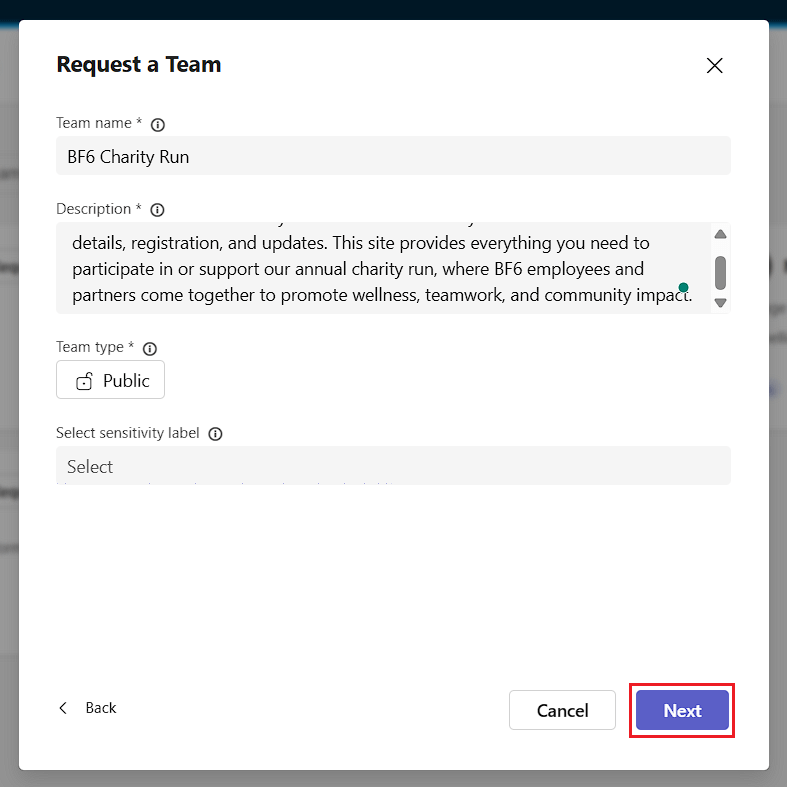
Fill in the Team name and Description fields. If the template permits, select the visibility of the team, and if required, assign a sensitivity labelSensitivity labelA sensitivity label is a Microsoft Purview classification, such as Confidential or Internal, that an organization applies to content and to containers such as Teams and SharePoint sites.Read more.
-
Click Next.
-
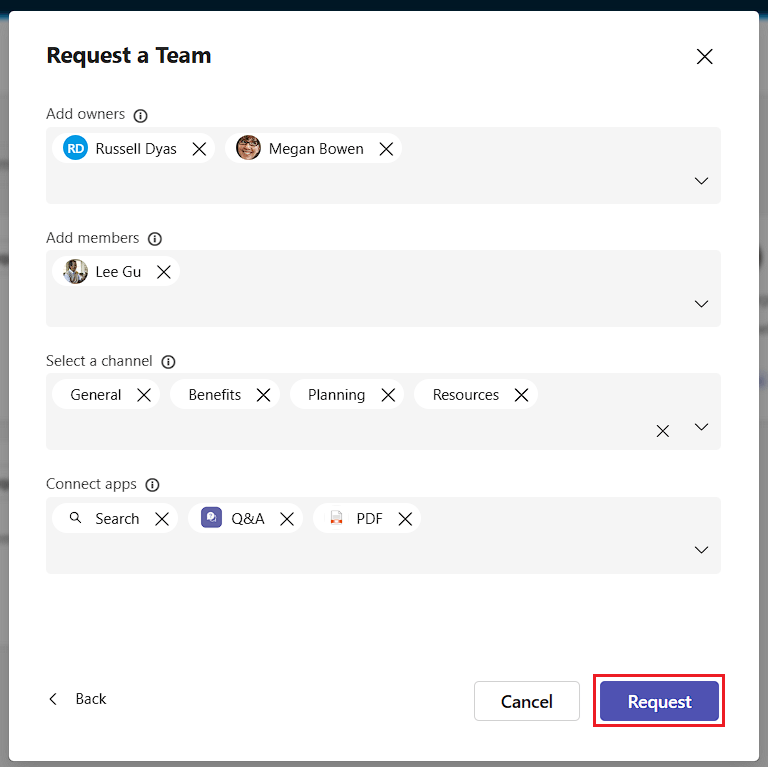
If the template permits, assign Owners, Members, ChannelsChannelA channel is a section inside a Microsoft Teams team where members hold conversations and share files on one topic.Read more and Apps using the picker boxes.
-
Click Request.
What you see
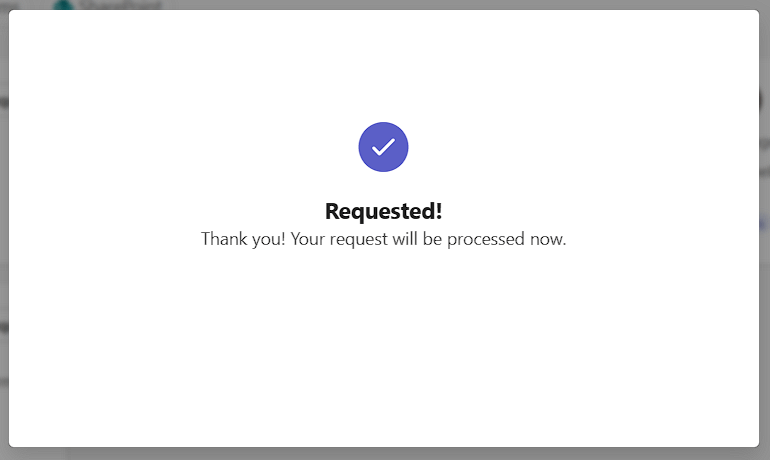
A confirmation dialog acknowledges the request.
Frequently asked questions
Do I need a Rencore Governance role to request a new workspace?
No. Any user of the Rencore Teams App can request a workspace from the templates their admin made available. You only see the templates your admin has made available to you.
How do I find the right template when requesting a workspace?
On the Templates tab, use the service filter chips to filter by service type, for example only Teams or only SharePoint templates, or search by template name. The All option shows templates across all services.
What can I set when I fill in a workspace request?
You enter the Team name and Description. If the template permits, you can also select the team visibility, assign a sensitivity label, and assign Owners, Members, Channels and Apps using the picker boxes.
What do I do if no template fits the workspace I need?
Contact your IT team. You only see templates that your admin has made available, so a suitable template may not be offered to you yet.
Was this page helpful?
Thanks for the feedback.
Thanks. What was wrong?
Next steps
- Track your requests
- Interactive guide: Performing a Request