Use the reviews dashboard
AI summary
The Reviews dashboard shows all your review schedules. You can toggle them on or off, edit, clone, trigger manual reviews, export, or delete them. Viewing requires the Read Review permission; making changes requires the Review permission (Owner, Admin and Contributor roles).
The Reviews dashboard lists every review scheduleReviewA Review is a recurring or one-off check in which workspace owners confirm who has access to their Microsoft 365 workspaces, directly in the Rencore Teams App.Read more you created. Use it to switch schedules on or off, open their settings and follow them.
Before you begin
- Your Rencore role includes the Read Review permission. Owner, Admin, Contributor and Reader have it. Switching, editing, triggering, exporting or deleting a schedule needs the matching Review permission, which Owner, Admin and Contributor have. See Rencore roles.
- Reviews are part of the Premium and Enterprise PlansPlanA Plan is the edition of Rencore Governance in your Subscription: Professional, Premium or Enterprise.Read more.
Steps
-
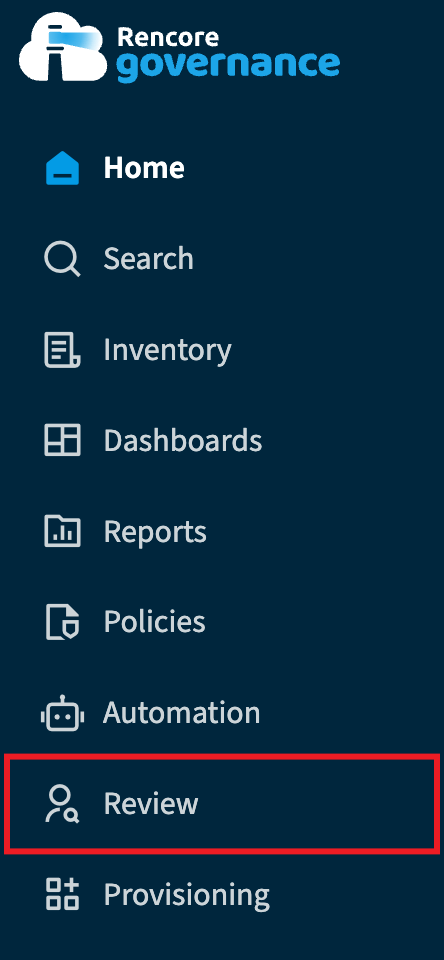
Select Reviews in the navigation panel.
-
Use the search bar to filter the schedules by title or description. Click Columns to show or hide grid columns.
-
Do one of the tasks below.
Switch a review schedule on or off
- Click the Active toggle in the row of the schedule.
- Read what will happen in the confirmation dialog, then confirm.
For scheduled reviews:
- Switching on activates the schedule. The next cycle starts on the scheduled date.
- Switching off disables the schedule. No new cycles are created, but an ongoing cycle continues to its due date.
For manual reviews:
- Switching on starts a new cycle at once. Data aggregation begins and reviewers are notified.
- The toggle cannot be used while a cycle is running.
- The schedule disables itself when the cycle finishes or is canceled.
Edit, clone, trigger, export or delete one schedule
-
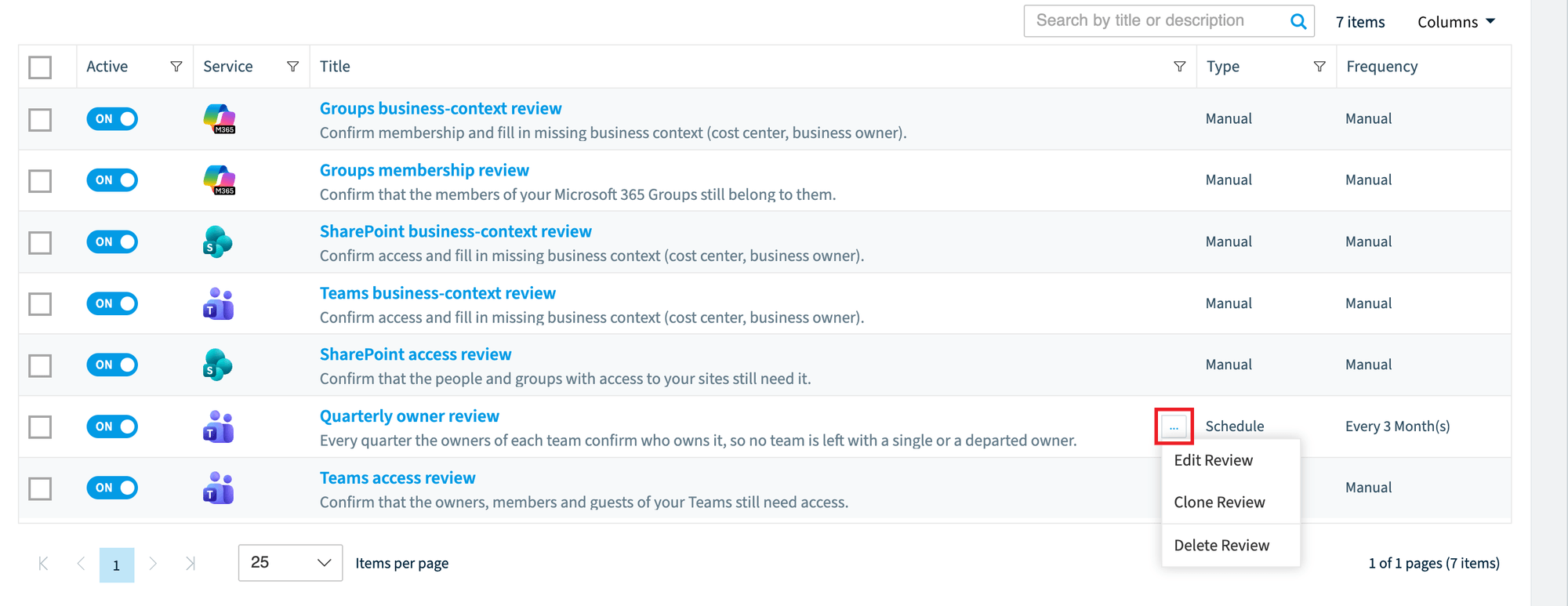
Hover over the row and click the ellipsis menu.
-
Choose the action (see the table below).
Action | Description | Availability |
|---|---|---|
Edit Review | Open the review schedule in the builder to change its configuration | Always |
Clone Review | Create a copy of the schedule as a new draft in the builder | Always |
Trigger Review | Start a new cycle immediately | Manual reviews only (when no cycle is active) |
Export Review | Export the schedule configuration | Always |
Delete Review | Permanently delete the schedule (confirmation required) | Always |
Delete or export several schedules
- Select the rows with the checkboxes. Use Select all to extend the selection across all pages.
- Click Delete (confirmation required) or Export.
Add a review schedule
-
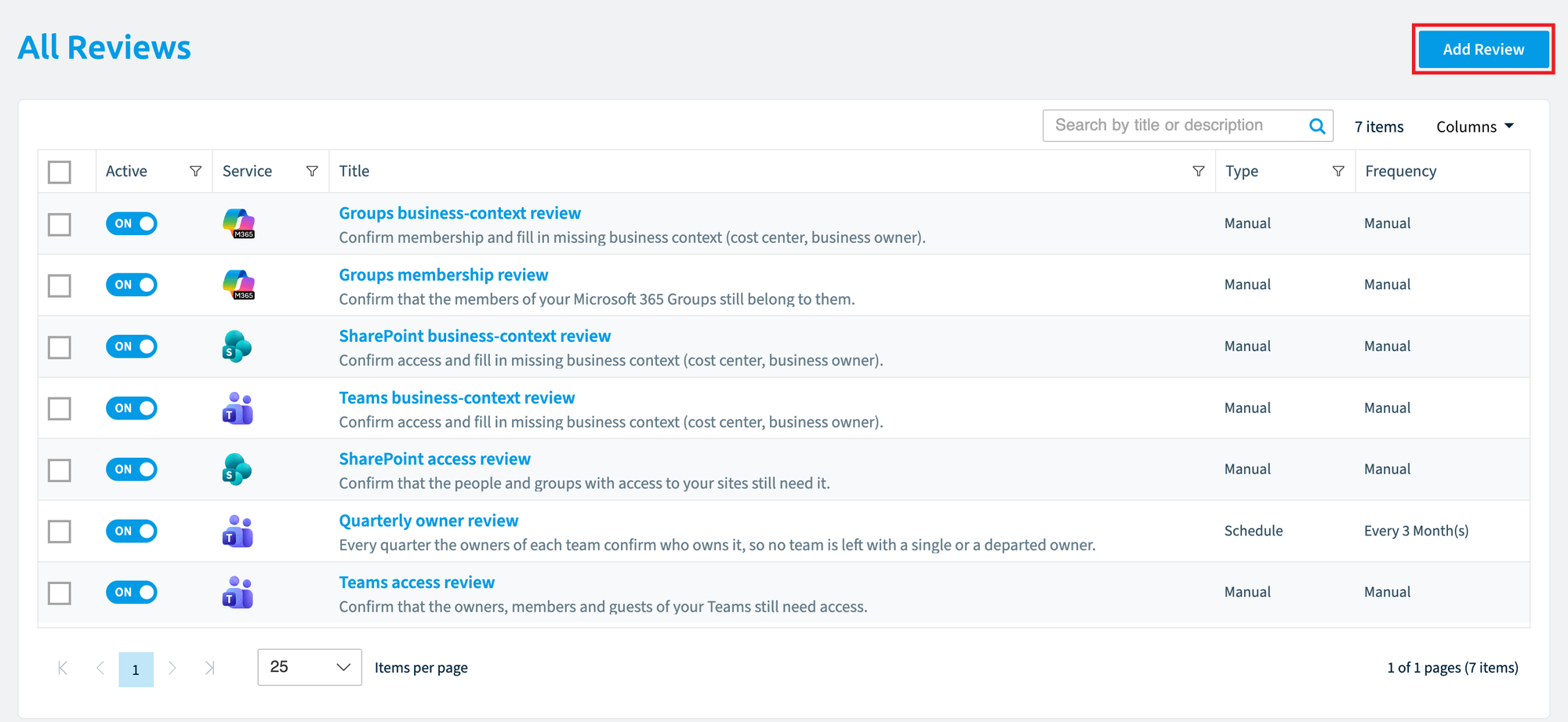
Click Add Review in the top right. The Review Builder opens. See Create a review.
What you see
Each row is one review schedule:
Column | Description |
|---|---|
Active | Toggle switch to turn the schedule on or off |
Service | Service type icon (TeamsMicrosoft TeamsMicrosoft Teams is the Microsoft 365 app for chat, meetings and team collaboration.Read more, SharePoint, etc.) |
Title | Schedule name (click to open the schedule detail page). Description shown as a subtitle. |
Type | Manual or Schedule |
Frequency | How often the review runs (e.g., "Monthly", "Every 3 months") or "Manual". |
If you have not created any reviews yet, the page shows an onboarding panel with guidance on getting started and an Add Review button.
Frequently asked questions
What happens when I switch off a scheduled review in the reviews dashboard?
Switching off disables the schedule, so no new cycles are created. A cycle that is already running continues until its due date.
How do I start a manual review cycle?
Click the Active toggle in the row of the manual review to start a new cycle at once, or choose Trigger Review from the ellipsis menu. Data aggregation begins and reviewers are notified. Trigger Review works only when no cycle is active.
Why can I not use the active toggle on a manual review?
The toggle cannot be used while a cycle is running. The manual schedule disables itself when the cycle finishes or is canceled.
Can I delete or export several review schedules at once?
Yes. Select the rows with the checkboxes, or use Select all to extend the selection across all pages. Then click Delete (confirmation required) or Export.
Which Rencore roles can switch, edit, or delete review schedules?
Owner, Admin and Contributor have the Review permissions needed to switch, edit, trigger, export or delete a schedule. Reader can only view the Reviews dashboard through the Read Review permission.
Was this page helpful?
Thanks for the feedback.
Thanks. What was wrong?