Workspace settings
AI summary
Workspace settings let you manage options that apply across your workspace and environments. Configure tenant connections, sign-in restrictions by email, product appearance, beta features, and external services.
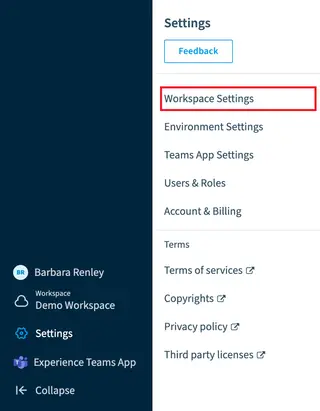
WorkspaceWorkspaceA Workspace is the top-level container in Rencore Governance. It holds the settings, users, roles and connected apps for exactly one Environment, the connected Microsoft 365 tenant.Read more settings apply to the whole workspace and every EnvironmentEnvironmentAn Environment is the connected Microsoft 365 tenant inside a Workspace.Read more in it. Here you connect a tenant, create a workspace for another organization, limit sign-in to your email domains, turn on beta featuresBeta featuresBeta features are early versions of Rencore Governance functionality that might later be released to all users.Read more, change the look of the product and turn off external services. Deleting a workspace is also done here, and it removes all of its data.
Start with
- Connect a tenant to a Workspace Connect your Microsoft 365 tenant and give consent so the first scan can start.
- Onboard a new organization Add a separate workspace for another organization, for example as a partner or service provider.
- Restrict Workspace access by domain Let only users from the email domains you choose sign in to a workspace.
All guides in Workspace settings
Set up workspaces 4 guides
Connect a tenant, add or delete a workspace, and choose what it scans.
-
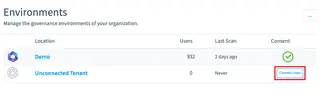
Connect a tenant to a Workspace
Connect your Microsoft 365 tenant and give consent so the first scan can start.
Before you begin: You sign in to your tenant with an admin account. (+1 more)
-
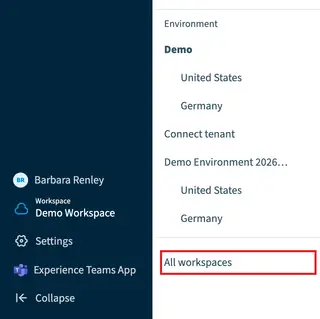
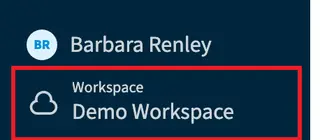
Add a separate workspace for another organization, for example as a partner or service provider.
Before you begin: The person who creates a Workspace is its first Owner. (+2 more)
-
Turn off an object or relation, or change how often an object is scanned.
Before you begin: Your role needs the permission to turn inventory objects on and off to disable an object (Admin, Contributor and Owner… (+1 more)
-
Delete a workspace and all data of its Environment.
Before you begin: Your role needs the Delete Workspace permission, which only the Owner role has. (+1 more)
Control sign-in and outside services 3 guides
Decide who may sign in, and turn off services such as the HubSpot chat.
-
Restrict Workspace access by domain
Let only users from the email domains you choose sign in to a workspace.
Before you begin: Domain access rules are ignored for users with the built-in role of Owner. (+1 more)
-
Restrict Entra ID users to Rencore Governance and Rencore Nova
Allow or block Entra ID users from signing in or signing up to Rencore Governance.
Before you begin: You sign in to the Microsoft Entra admin center with an account that can change the properties and the users and… (+1 more)
-
Turn off the HubSpot news and chat and other external services inside the product.
Before you begin: You need the Owner or Admin role.
Beta features 2 guides
Try features before they are generally available.
-
Turn on Beta Preview for a workspace so its Owners can try beta features.
Before you begin: Owners can choose to turn on beta features. (+1 more)
-
Switch on one beta feature in a workspace that has Beta Preview turned on.
Before you begin: Owners can choose to turn on beta features. (+1 more)
Look and language 2 guides
Your colours, your logo, and the language people see.
-
Change the appearance of Rencore Governance
Change the theme colours and the logo of your workspace.
Before you begin: Your role needs the Edit Workspace permission, which the Admin and Owner roles have.
-
Which languages the product supports and how the browser language decides which one you see.
Before you begin: No Rencore role or permission is needed: the language comes from your own browser. (+2 more)

Frequently asked questions
What happens to my data when I delete a Workspace?
Deleting a Workspace removes all of its data, including the data of its Environment. Your role needs the Delete Workspace permission, which only the Owner role has.
Can I limit sign-in to certain email domains?
Yes. Workspace settings let you allow only users from the email domains you choose to sign in to a Workspace. Domain access rules are ignored for users with the built-in role of Owner.
How do I add a Workspace for another organization?
Use the Onboard a new organization guide to add a separate Workspace, for example for a partner or service provider. The person who creates a Workspace is its first Owner.
Can I turn off the HubSpot chat inside the product?
Yes. You can disable external services such as the HubSpot news and chat in Workspace settings. You need the Owner or Admin role to do this.
Which role do I need to change the theme colors and logo?
You need the Edit Workspace permission, which the Admin and Owner roles have. With it you can change the theme colors and the logo of your Workspace.