Turn on beta preview
AI summary
As an Owner, you can turn on beta features in a Workspace to try new functionality before general release and share feedback with Rencore. Beta features are at your own risk and may be changed or removed without notice.
Rencore provides early access to beta featuresBeta featuresBeta features are early versions of Rencore Governance functionality that might later be released to all users.Read more, functionality that might be released in the future for all users. Turn on Beta Preview in a WorkspaceWorkspaceA Workspace is the top-level container in Rencore Governance. It holds the settings, users, roles and connected apps for exactly one Environment, the connected Microsoft 365 tenant.Read more so you can use features that are in beta and give feedback.
Before you begin
- Owners can choose to turn on beta features. See Rencore roles.
- The Rencore Governance beta features are enabled at your own risk. They might be removed or changed at the sole discretion of Rencore without prior notice, and they might not be included in the current subscription plan once rolled out into the product.
Steps
-
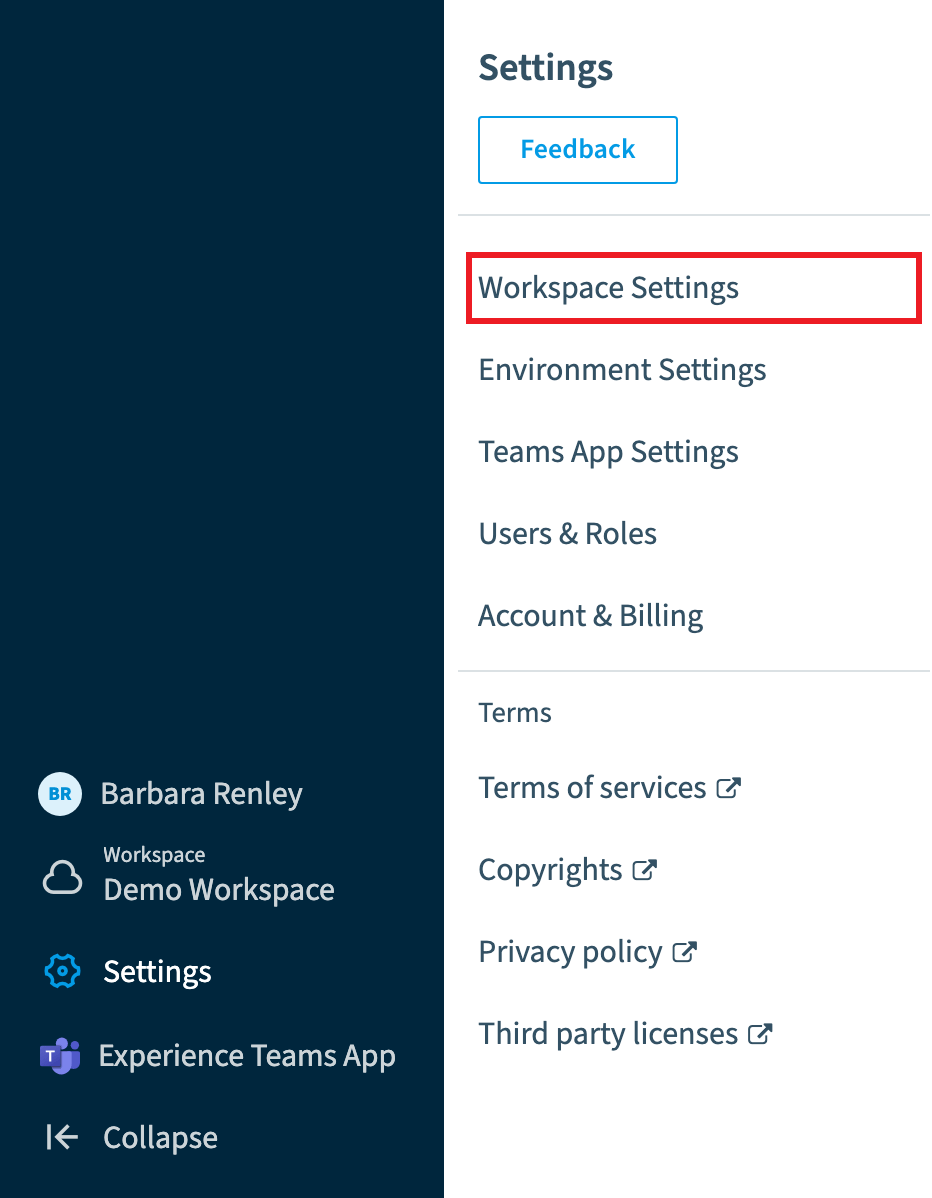
Go to Settings > Workspace Settings.
-
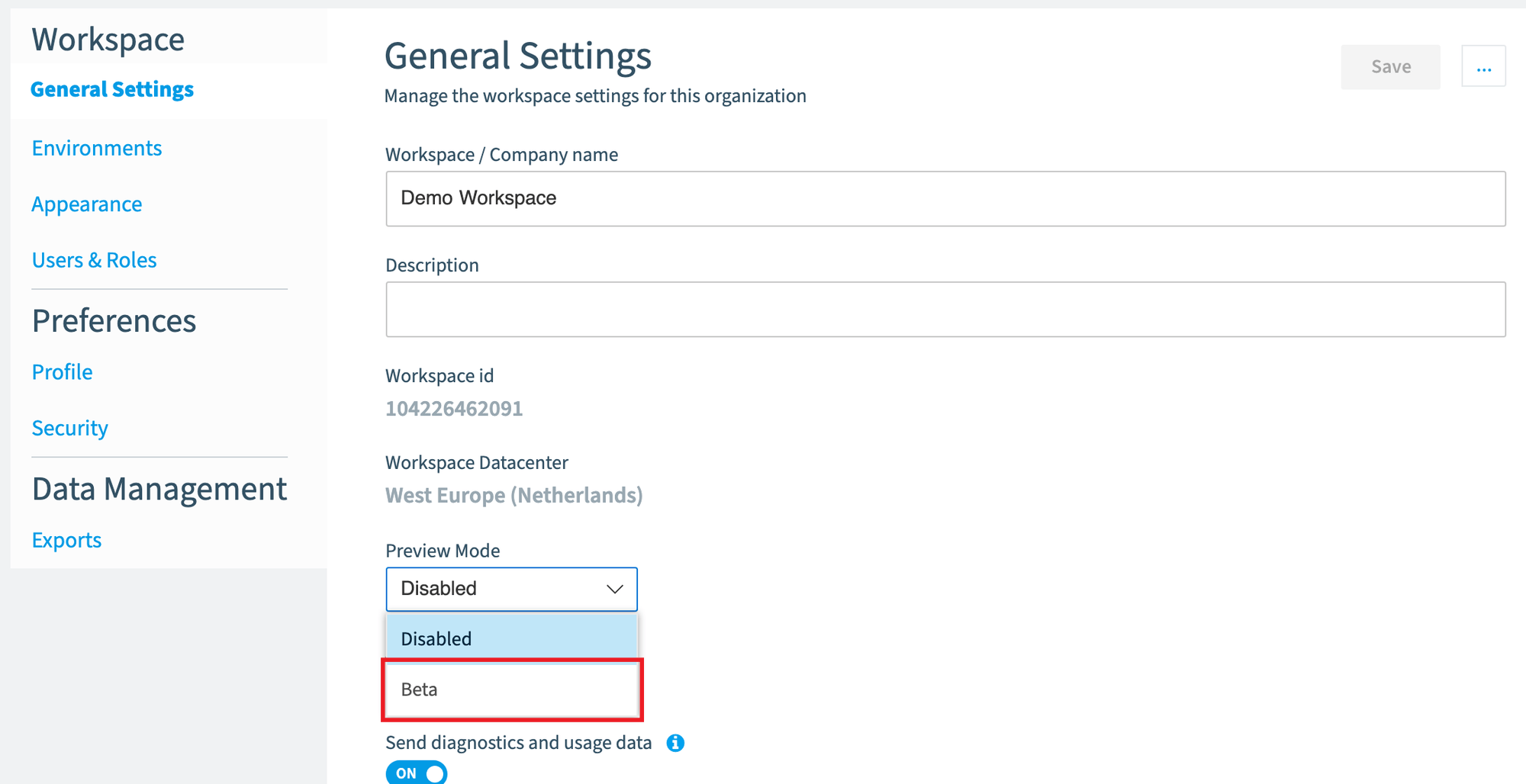
Below the Workspace ID, change Preview Mode to Beta.
-
Click Save at the top of the page.
Frequently asked questions
How do I turn on beta preview in a Workspace?
Go to Settings > Workspace Settings. Below the Workspace ID, change Preview Mode to Beta, then click Save at the top of the page.
Who can turn on beta features in Rencore Governance?
Owners can choose to turn on beta features. See Rencore roles for details on what the Owner role includes.
Are Rencore Governance beta features safe to rely on?
No. Beta features are enabled at your own risk. Rencore can remove or change them at its sole discretion without prior notice, and they might not be included in the current subscription plan once rolled out into the product.
Was this page helpful?
Thanks for the feedback.
Thanks. What was wrong?