Onboard a new organization
AI summary
To onboard a new organization in Rencore Governance, create a separate Workspace for each organization you manage, invite its users from Settings, and connect its M365 tenant. Each organization gets its own Workspace to maintain data separation so only their own tenant is visible to their users.
Create a new WorkspaceWorkspaceA Workspace is the top-level container in Rencore Governance. It holds the settings, users, roles and connected apps for exactly one Environment, the connected Microsoft 365 tenant.Read more for each organization you govern, invite its users and connect its tenant. Using multiple Workspaces is typically most relevant for consulting partners or managed service providers who manage multiple clients or environments.
Before you begin
- The person who creates a Workspace is its first Owner. To invite users, you need the Owner or Admin role in the Workspace. See Rencore roles.
- If you manage governance for multiple organizations, organize Rencore Governance as follows. Organization: a Rencore Governance Workspace. M365 tenantMicrosoft 365 tenantA Microsoft 365 tenant is the dedicated instance of Microsoft 365 that holds an organization's users, groups, data and settings.Read more: a Rencore Governance Environment in that Workspace. Each Workspace supports a single M365 tenant, and all users within a Workspace can access that tenant’s EnvironmentEnvironmentAn Environment is the connected Microsoft 365 tenant inside a Workspace.Read more.
- Each customer needs their own Workspace, since Rencore Governance permits only one M365 tenant per Workspace. This gives data separation, so only their own tenant is visible to them, providing client anonymity.
Steps
-
Sign in to your Rencore Governance Portal.
-
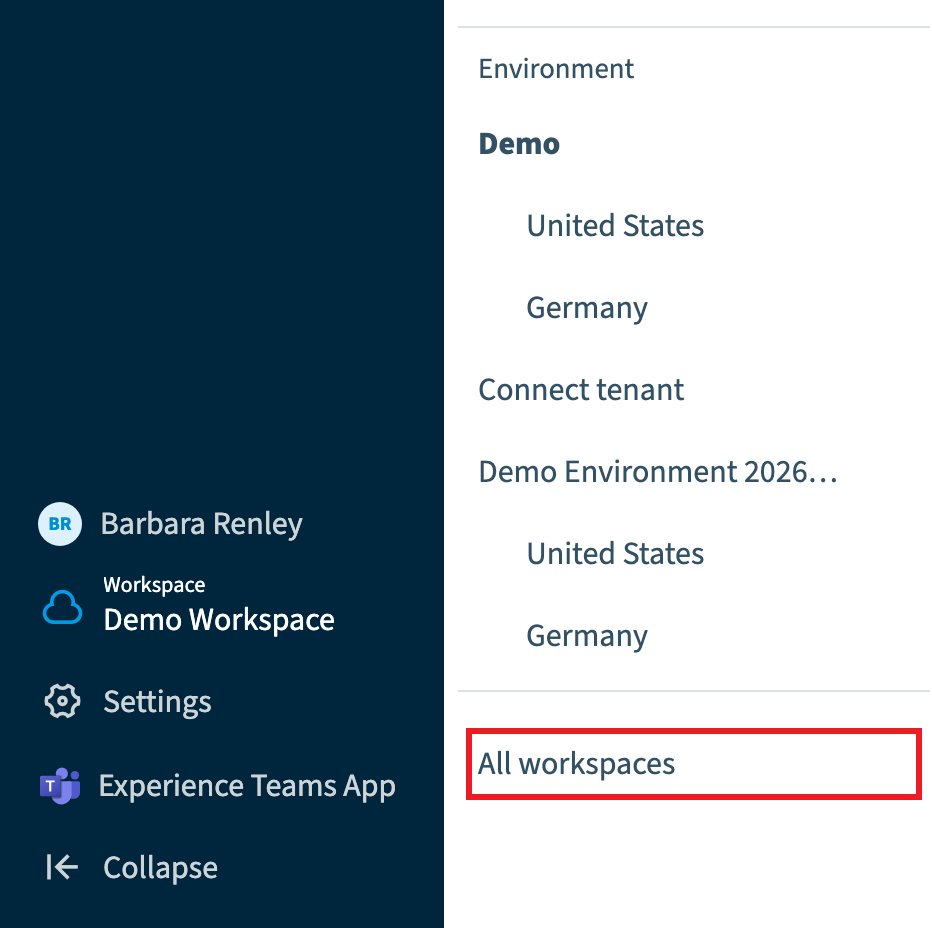
Click the Workspace & Environment selector.
-
Click All workspaces.
-
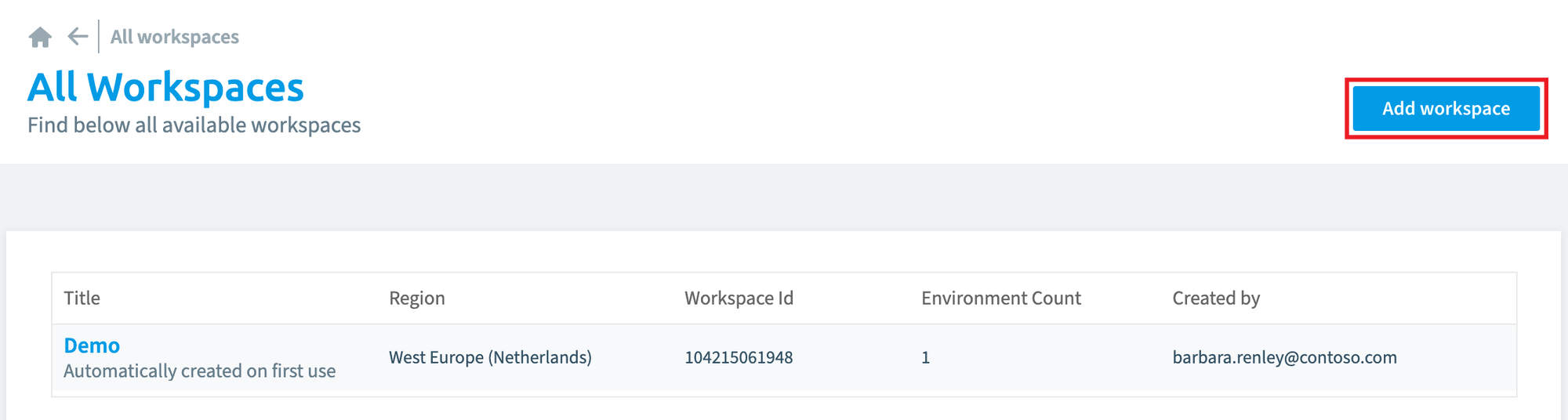
Click Add workspace.
-
Complete the setup wizard as described in the Quick Start.
-
Go to Settings > Users & Roles.
-
Click Invite User.
-
Enter the user’s email address and set the user’s role and team, as described in Invite users to a Workspace.
-
Click Invite.
-
When the organization is ready, connect its M365 tenant. See Connect a tenant to a Workspace.
What you see
Once the M365 tenant is connected and scanned, the organization explores Rencore Governance with its real data.
Frequently asked questions
Why does each customer need their own Workspace in Rencore Governance?
Rencore Governance permits only one M365 tenant per Workspace. A separate Workspace per customer keeps data separate, so each customer sees only its own tenant, which also keeps clients anonymous.
Which role do I need to invite users to a new Workspace?
You need the Owner or Admin role in the Workspace. The person who creates a Workspace is its first Owner, so that person can invite users.
How do I add a new Workspace and invite its users?
Sign in to the Rencore Governance Portal, open the Workspace & Environment selector, click All workspaces, then click Add workspace and complete the setup wizard. Next go to Settings > Users & Roles, click Invite User, enter the user's email, set the role and team, and click Invite.
Was this page helpful?
Thanks for the feedback.
Thanks. What was wrong?