 Restrict Entra ID users to Rencore Governance and Rencore Nova
AI summary
Restrict who can access Rencore Governance and Rencore Nova using Microsoft Entra ID assignment requirements. You configure this in the Entra admin center by enabling the assignment requirement and assigning specific users and groups. All other users will be blocked from signing in or signing up.
Control in Microsoft Entra IDMicrosoft Entra IDMicrosoft Entra ID, formerly Azure Active Directory, is the Microsoft identity service behind every Microsoft 365 tenant.Read more which users can sign in or sign up to Rencore Governance and Rencore Nova. All other users can no longer sign in or sign up.
Before you begin
- You sign in to the Microsoft Entra admin centerAdmin centerAn admin center is the web portal where administrators manage one Microsoft service, such as the Microsoft 365 admin center, the Teams admin center or the Microsoft Entra admin center.Read more with an account that can change the properties and the users and groups of enterprise applicationsEnterprise applicationAn enterprise application is the local instance of an app in a Microsoft Entra tenant, its service principal, where admins control who can sign in and which permissions it holds.Read more.
- This does not give users access to a Rencore Governance Workspace or EnvironmentEnvironmentAn Environment is the connected Microsoft 365 tenant inside a Workspace.Read more. To grant that, invite users to a Workspace or to an Environment.
Steps
Require assignment for Rencore Governance
-
Sign in to the Microsoft Entra admin center.
-
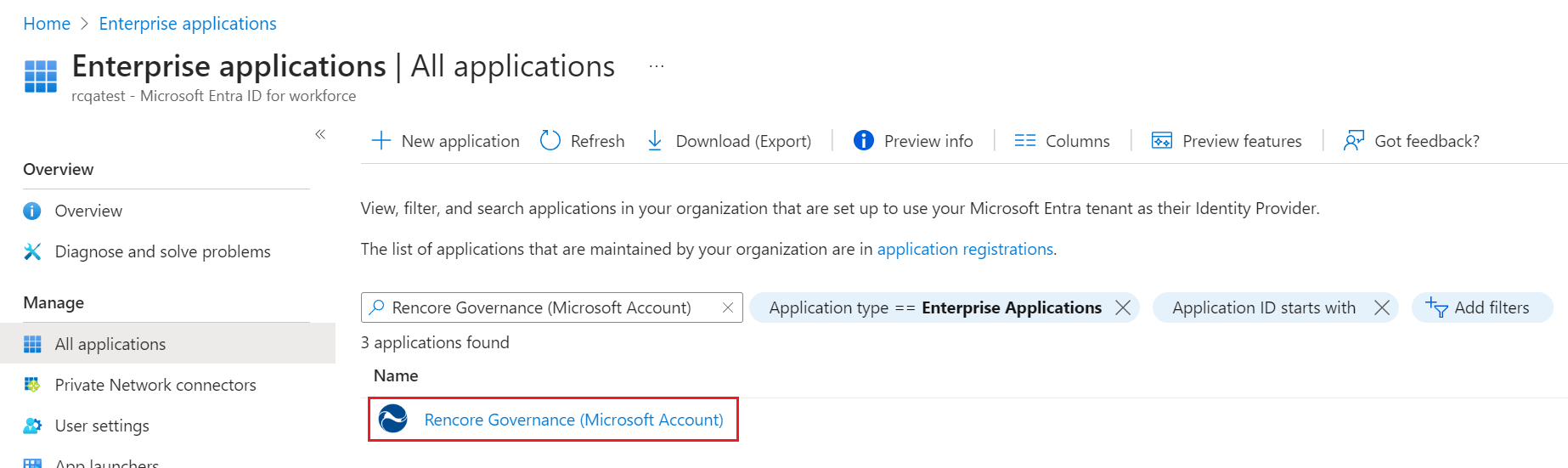
Go to Identity > Applications > Enterprise applications > All applications.
-
In the search, enter Rencore Governance (Microsoft Account) and press Enter.
-
Click the Rencore Governance (Microsoft Account) application.
-
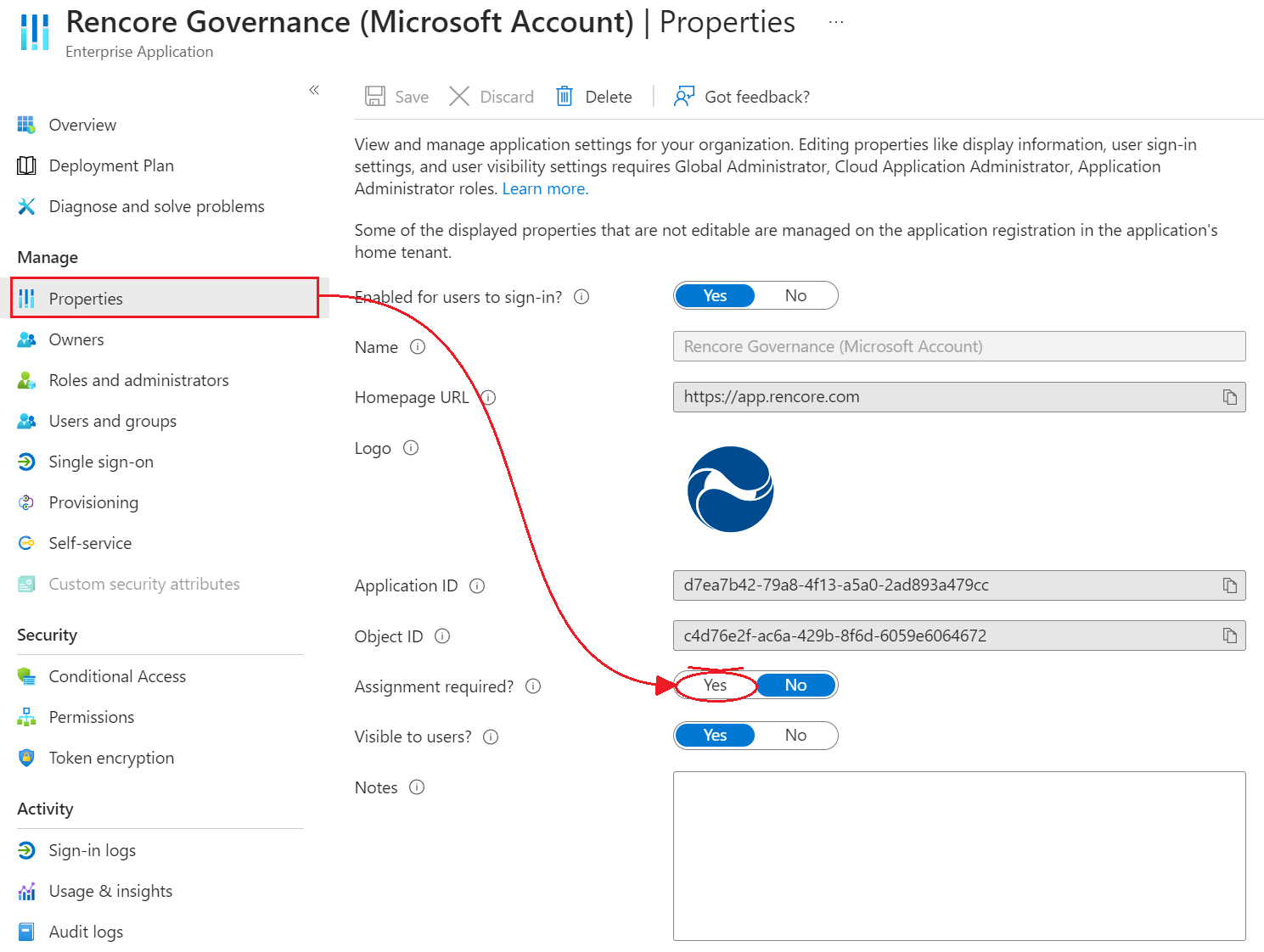
Click Properties.
-
Set Assignment required? to Yes.
-
Click Save.
Assign users and groups to Rencore Governance
With “Assignment required” turned on, users and other apps or services must first be assigned this application before they can access it.
-
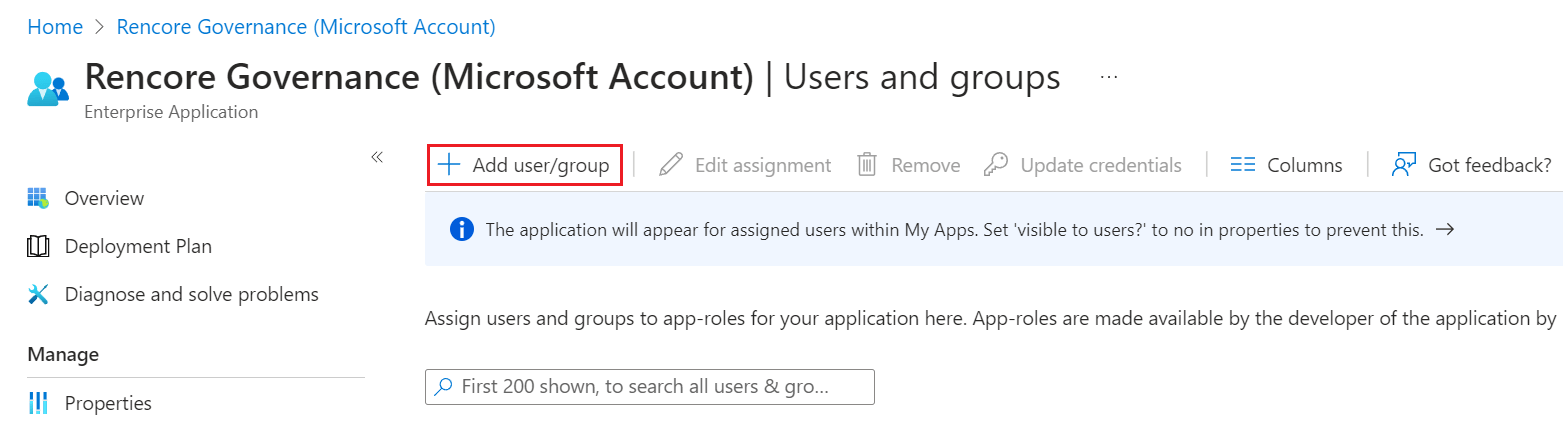
In the application, click Users and Groups.
-
Click +Add user/group.
-
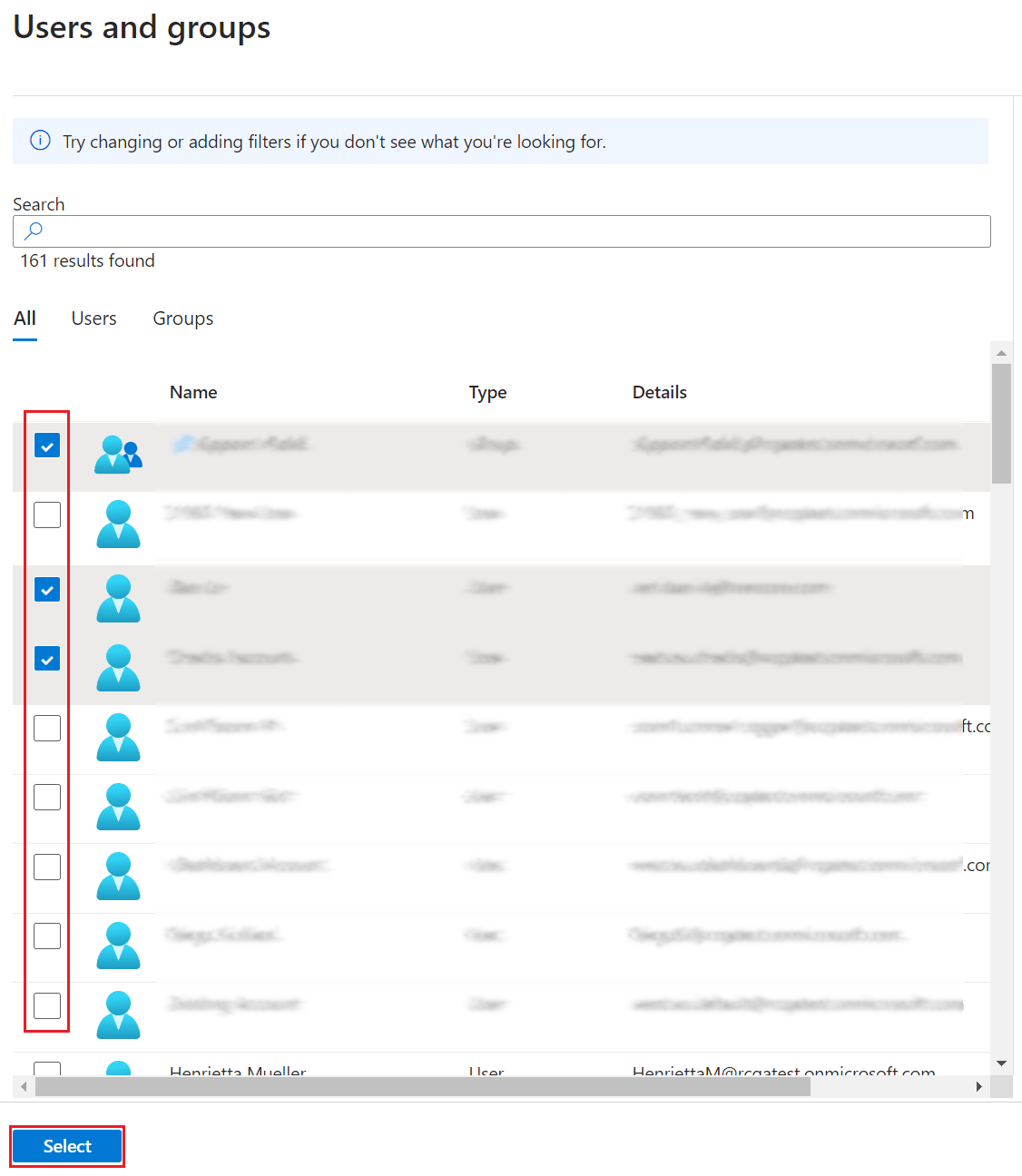
Click None Selected. A list of users and security groupsSecurity groupA security group is a Microsoft Entra group that gives a set of users access to resources.Read more appears, with a search at the top.
-
Select the users and groups that get access to Rencore Governance.
-
Click Select at the bottom.
-
Click Assign at the bottom of the page.
Rencore Nova
This restricts which Azure users can access Rencore NovaRencore NovaRencore Nova is a deprecated end-user app, replaced by the Rencore Teams App, that shuts down on 31 December 2026.Read more, both the TeamsMicrosoft TeamsMicrosoft Teams is the Microsoft 365 app for chat, meetings and team collaboration.Read more application and Web access. The authentication needs direct assignment from the Entra ID appApp registrationAn app registration is the global definition of an application in Microsoft Entra ID.Read more.
- Follow Require assignment for Rencore Governance, but search for Rencore Nova instead of Rencore Governance. The steps are the same.
- Follow Assign users and groups to Rencore Governance for the Rencore Nova application.
What you see
All Azure users other than those you assigned can no longer sign in to Rencore Governance or sign up to it.
Frequently asked questions
How do I limit which Entra ID users can sign in to Rencore Governance?
How do I limit which Entra ID users can sign in to Rencore Governance?In the Microsoft Entra admin center, open the Rencore Governance (Microsoft Account) enterprise application, go to Properties, set Assignment required? to Yes, and click Save. Then assign the users and groups that should have access.
What happens to users who are not assigned to the Rencore Governance application?
All Azure users other than those you assigned can no longer sign in to Rencore Governance or sign up to it.
Does assigning a user in Entra ID give them access to a Workspace or Environment?
Does assigning a user in Entra ID give them access to a Workspace or Environment?No. The assignment in Entra ID only controls sign in and sign up. To grant access to a Rencore Governance Workspace or Environment, invite the user to that Workspace or Environment.
How do I assign users and groups to the Rencore Governance application in Entra ID?
How do I assign users and groups to the Rencore Governance application in Entra ID?Open the application, click Users and Groups, then click +Add user/group. Click None Selected, choose the users and security groups, click Select, and then click Assign at the bottom of the page.
 How do I restrict access to Rencore Nova for Teams and web users?
How do I restrict access to Rencore Nova for Teams and web users?Follow the same steps as for Rencore Governance, but search for Rencore Nova in Enterprise applications. This restricts both the Teams application and Web access. Use this only while your users still open Rencore Nova, which will be shut down on 31 December 2026.
Was this page helpful?
Thanks for the feedback.
Thanks. What was wrong?