Add tiles to a dashboard
AI summary
Add tiles to your Dashboard to display the reports, policies, and inventory figures you need to monitor. You can use preconfigured tiles filtered by service, category, or type, or create custom tiles for inventory, policies, or reports. You need the Edit Dashboard permission to add tiles.
Add tiles to a built-in DashboardDashboardA dashboard groups reports, policies and KPIs on one page as tiles, so each stakeholder sees the governance data that matters to them.Read more or to one you created, so it shows the reports, policies and inventory figures you need. You can pick a preconfigured tile or build a custom one.
Before you begin
- Your Rencore role includes the Edit Dashboard permission. Owner, Admin and Contributor have it. See Rencore roles.
Steps
- Open the Dashboard selector and choose the Dashboard you want to add a tile to.
- Click Add tile.
- Add a preconfigured tile or create a custom tile, as described below.
Add a preconfigured tile
-
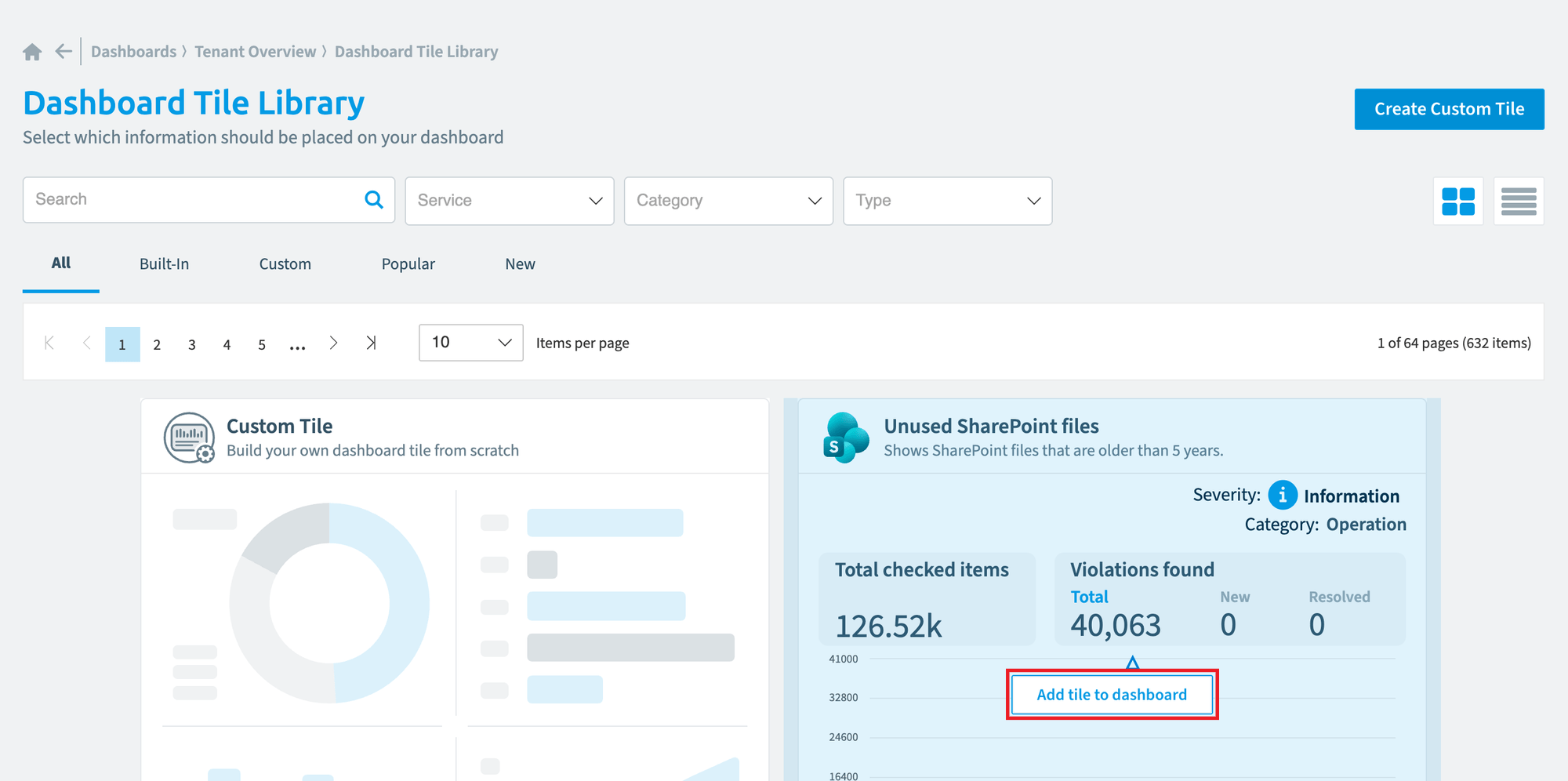
Narrow down the list of tiles with any of these fields:
- Search: search by name.
- Services: Microsoft 365Microsoft 365Microsoft 365 is the Microsoft cloud suite of Teams, SharePoint, OneDrive, Exchange and the Office apps.Read more, TeamsMicrosoft TeamsMicrosoft Teams is the Microsoft 365 app for chat, meetings and team collaboration.Read more, Power AutomatePower AutomatePower Automate, formerly Microsoft Flow, is the Microsoft low-code tool for automated workflows called flows.Read more, Power AppsPower AppsPower Apps is the Microsoft low-code tool for building business apps. Rencore Governance covers it with the Power Apps connector, part of the Apps, Automation & BI module.Read more, SharePoint, OneDriveOneDriveOneDrive is the personal file storage of each Microsoft 365 user. The OneDrive connector of Rencore Governance, part of the Digital Workplace module, inventories every OneDrive with its files, folders and file sharing.Read more, ExchangeExchange OnlineExchange Online is the Microsoft 365 mail and calendar service. Rencore Governance covers it with the Exchange connector, part of the Digital Workplace module.Read more, Viva EngageViva EngageViva Engage, formerly Yammer, is the Microsoft 365 app for company-wide communities.Read more or Entra IDMicrosoft Entra IDMicrosoft Entra ID, formerly Azure Active Directory, is the Microsoft identity service behind every Microsoft 365 tenant.Read more.
- Category: Security, Costs, Operation, Sprawl, External Access, Adoption, User OffboardingLeaverA leaver is someone who has left your organization but whose account may still hold licenses, workspaces, ownership and OneDrive content.Read more or Response Accuracy.
- Type: Report, Policy or Inventory tiles.
-
Hover over the tile you want and click Add tile to dashboard.
-
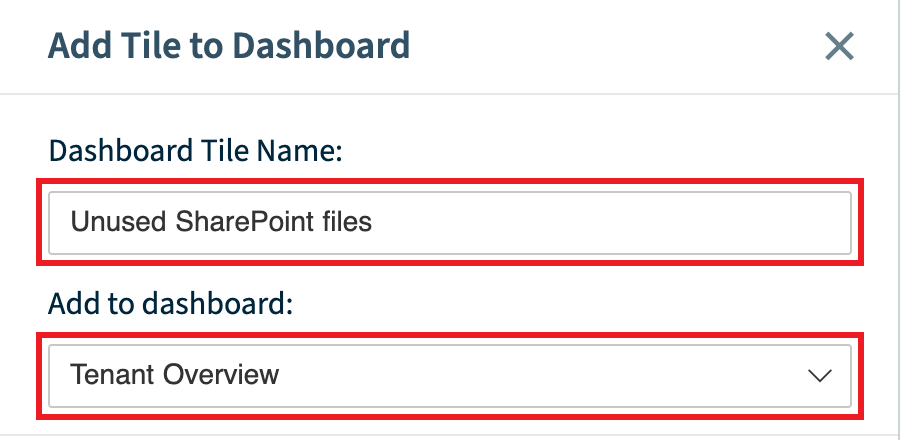
Update the tile name if you want to, then click Save.
-
Repeat these steps for every other tile you want to add.
Add a custom inventory tile
A Tile shows inventory figures or policies, on their own, as a summary or as a list.
-
Click Create Custom Tile.
-
Select Tile, then select InventoryInventoryThe inventory is the record of every object Rencore Governance scans from your tenant, with their properties and the relations between them.Read more.
-
Enter a title and a description for the tile.
-
Select
 to show a single inventory item with a trend graph, or
  to show several inventory items.
 -
Choose the inventory items, then click Save.
Add a custom policy tile
- Click Create Custom Tile.
- Select Tile, then select Policy.
- Enter a title and a description for the tile.
- Choose the visual: Donut, Bar or List. These show a summary of all policies that match the Service, Category or SeveritySeveritySeverity is the impact level a policy assigns to its violations. A policy has one of five severities, from highest to lowest: Critical, High, Medium, Low and Information.Read more you pick, or of the policies you pick under Manual. Selecting lets you pick only one policy, but the tile then shows that policy’s details.
- Select the policy or policies, then click Save.
Add a custom report tile
A Report tile shows one or more inventories as charts or lists.
- Click Create Custom Tile.
- Select Report. The report builderReportA report is a saved query over the inventory that Rencore Governance shows as a chart, list, table or KPI, for example unused SharePoint site collections larger than 1 GB.Read more opens.
- Build the report for the tile. See Create a custom report.
- Click Save.
Frequently asked questions
Which Rencore roles can add tiles to a dashboard?
Owner, Admin and Contributor can add tiles. Your Rencore role must include the Edit Dashboard permission, and these three roles have it.
How do I add a preconfigured tile to a dashboard?
Choose the Dashboard in the Dashboard selector and click Add tile. Hover over the tile you want, click Add tile to dashboard, change the tile name if you like, then click Save.
How can I filter the list of preconfigured tiles?
Use Search to find a tile by name. You can also filter by Services, Category or Type (Report, Policy or Inventory tiles).
What visuals can I choose for a custom policy tile?
You can choose Donut, Bar or List. These show a summary of all policies that match the Service, Category or Severity you pick, or of the policies you pick under Manual.
Can a custom inventory tile show a trend graph?
Yes. When you create a custom inventory tile, you can choose to show a single inventory item with a trend graph, or show several inventory items.
Was this page helpful?
Thanks for the feedback.
Thanks. What was wrong?