Review template configuration
AI summary
Configure review templates in the Review Builder using three stages: the trigger (when reviews run and what they cover), review settings (reviewer assignment, duration, communication, and review scope), and details (title, description, and category). Each stage sets specific options that control how reviews function and what reviewers see in Microsoft Teams.
Every review template is set up in the Review BuilderReviewA Review is a recurring or one-off check in which workspace owners confirm who has access to their Microsoft 365 workspaces, directly in the Rencore Teams App.Read more. The builder has three stages: the trigger, the review settings and the details. This page walks through each stage and shows where the values on a review template page are set.
To see what reviewers see in Microsoft TeamsMicrosoft TeamsMicrosoft Teams is the Microsoft 365 app for chat, meetings and team collaboration.Read more, see End user experience.
Before you begin
- Your Rencore role includes the Create Review permission. Owner, Admin and Contributor have it. See Rencore roles.
- Reviews are part of the Premium and Enterprise PlansPlanA Plan is the edition of Rencore Governance in your Subscription: Professional, Premium or Enterprise.Read more.
- Reviewers complete their reviews in the Rencore Teams AppRencore Teams AppThe Rencore Teams App (formerly Rencore Nova) brings Rencore Governance into Microsoft Teams for the people who own and use workspaces.Read more.
Where the template values are set
Template value | Builder stage | Field |
|---|---|---|
Scope | Trigger | Reviewed Object and filters |
Start | Trigger | Manual or Schedule |
Reviewers | Review settings | Reviewer assignment |
Due after | Review settings | Review duration |
Comment needed to approve | Review settings | Require a comment on completion |
Reminders | Review settings | Communication tab |
Open the review builder
Go to Review > Add Review.
Stage 1: Trigger
The trigger sets when a review runs and what it covers.
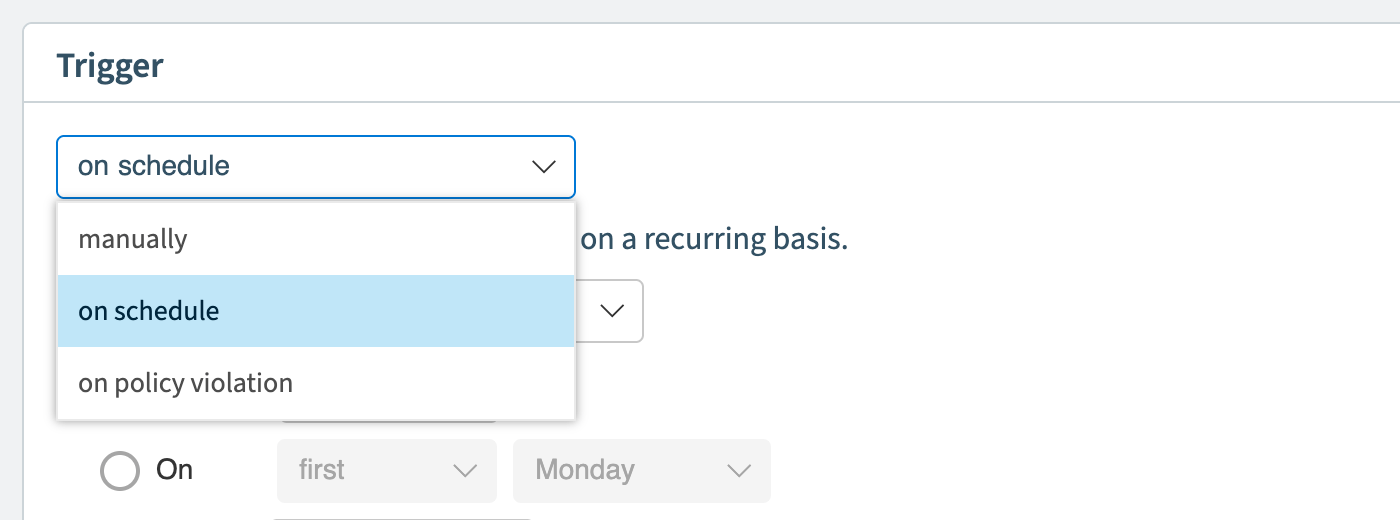
- Manual: you start each cycle yourself from the dashboard.
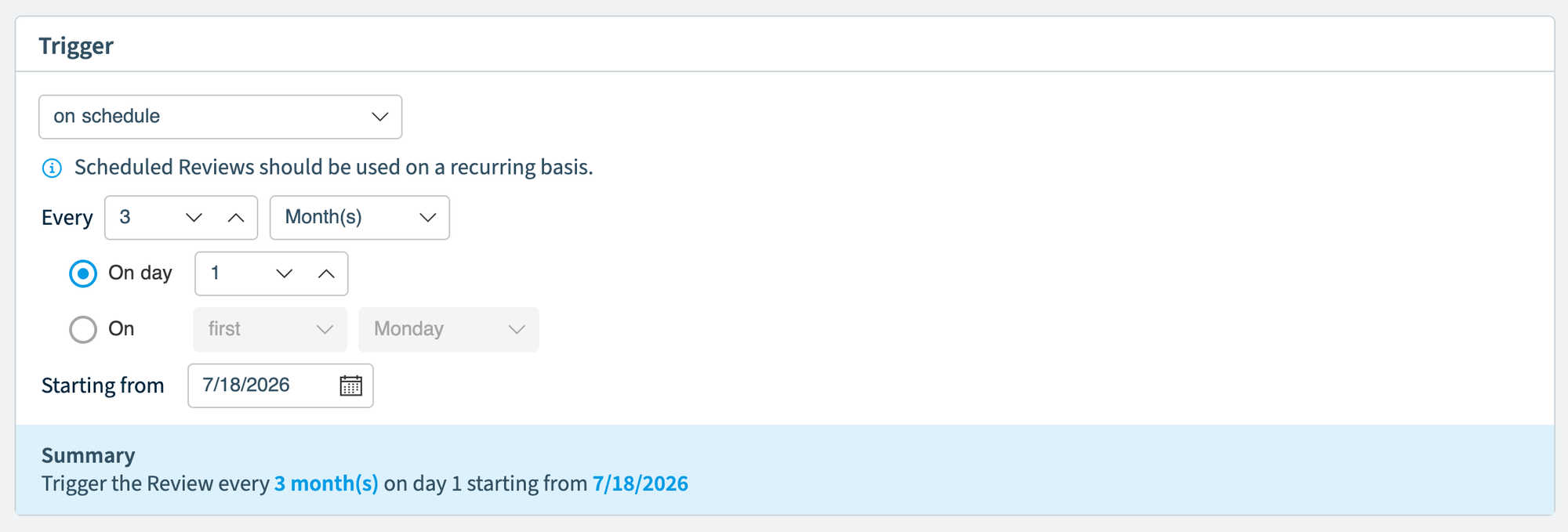
- Schedule: cycles start on a recurring schedule. Set the Frequency, Day selection and Start date. A summary line shows the result.
- Reviewed Object: Teams (together with the connected SharePoint site), SharePoint sites, Microsoft 365 groupsMicrosoft 365 groupA Microsoft 365 Group is the membership object behind many Microsoft 365 workspaces.Read more or Viva Engage communitiesViva Engage communityA Viva Engage community is a group in Viva Engage where people share posts, files and events around a team, project or interest.Read more. This matches the four review templates.
- + Add Filter: narrows the scope. Without filters, every workspace of the selected type is included.
Click Next.
Stage 2: Review settings
This stage has four tabs: Review Settings, Communication, Guidelines and AutomationsAutomationAn automation is a workflow Rencore Governance runs on inventory objects when a trigger fires.Read more.
Review settings
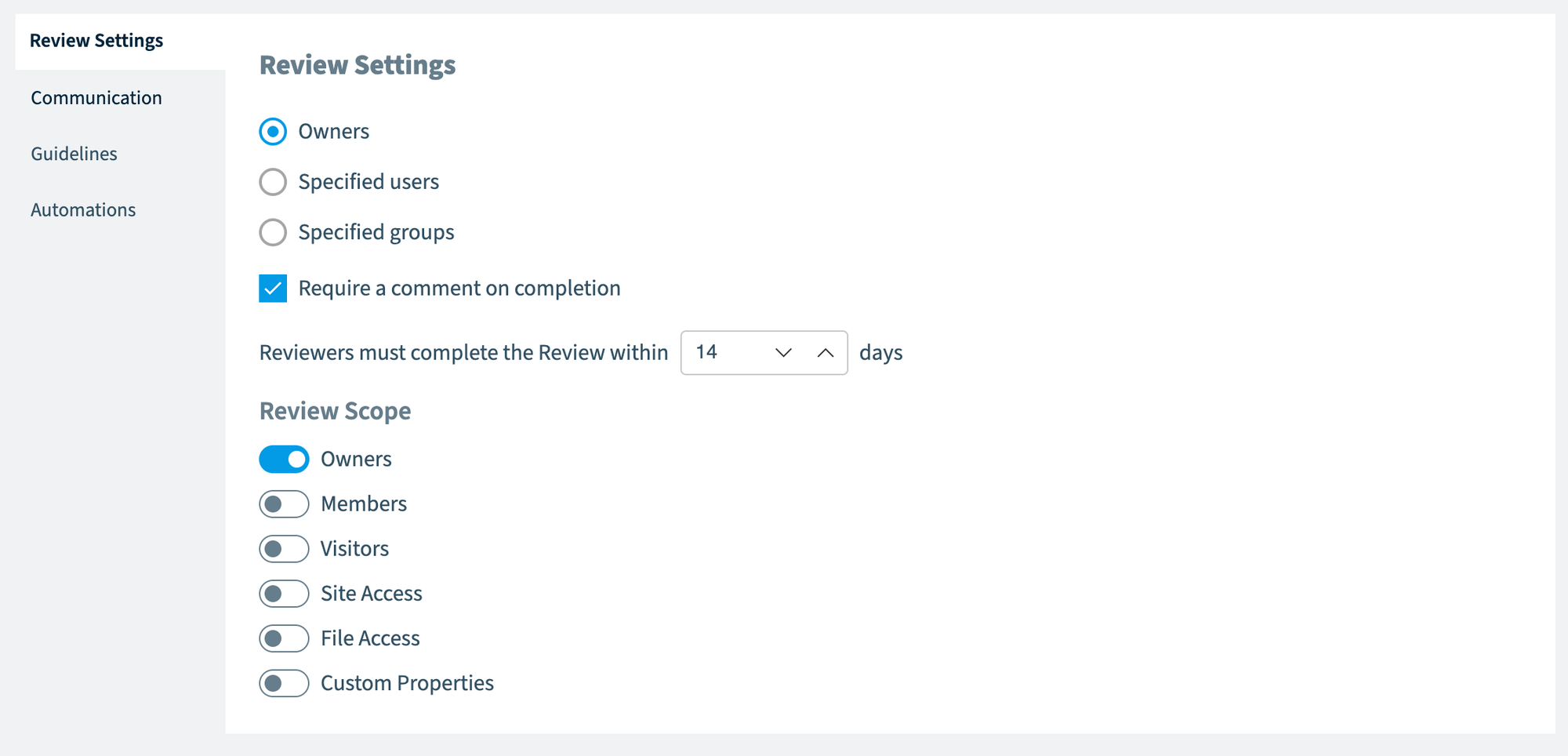
- Reviewer assignment: Owners (the workspace ownersWorkspace ownerA workspace owner is an owner of a Microsoft 365 workspace, such as a Team, a SharePoint site or a group.Read more, the default) or Specified users (internal users you search for).
- Require a comment on completion: reviewers must enter a comment when they complete the review.
- Review duration: 1 to 30 days. For scheduled reviews, the trigger frequency limits it so cycles do not overlap.
- Review scope: the steps reviewers see. Turn on at least one of Owners, Members, Visitors, Site Access and File Access. Site Access and File Access have sub-toggles for the kinds of access they include.
Communication
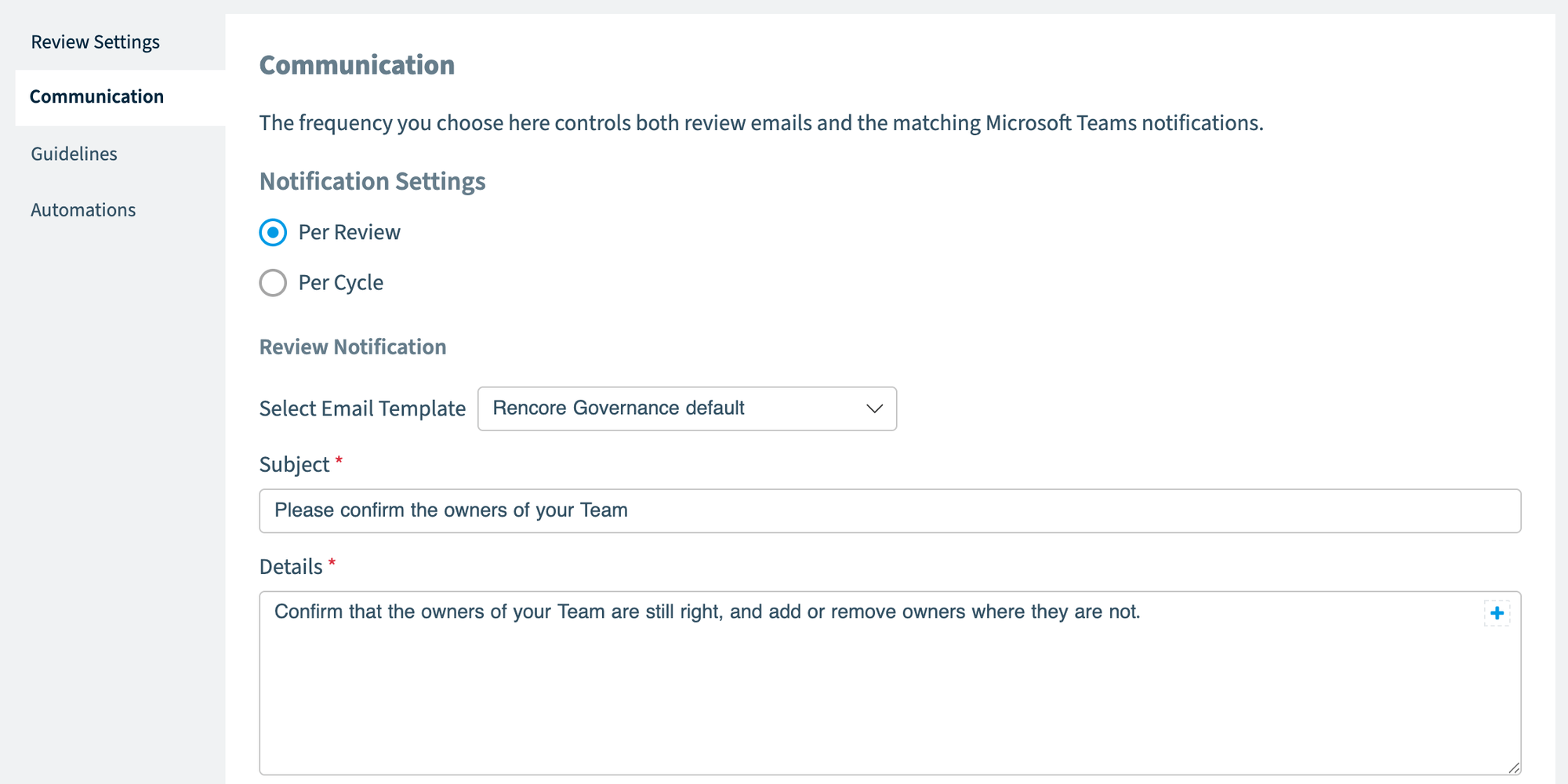
- Email template, Subject and Details: the email reviewers get when a cycle starts. The details support placeholders such as {{reviewers.names}}.
Guidelines
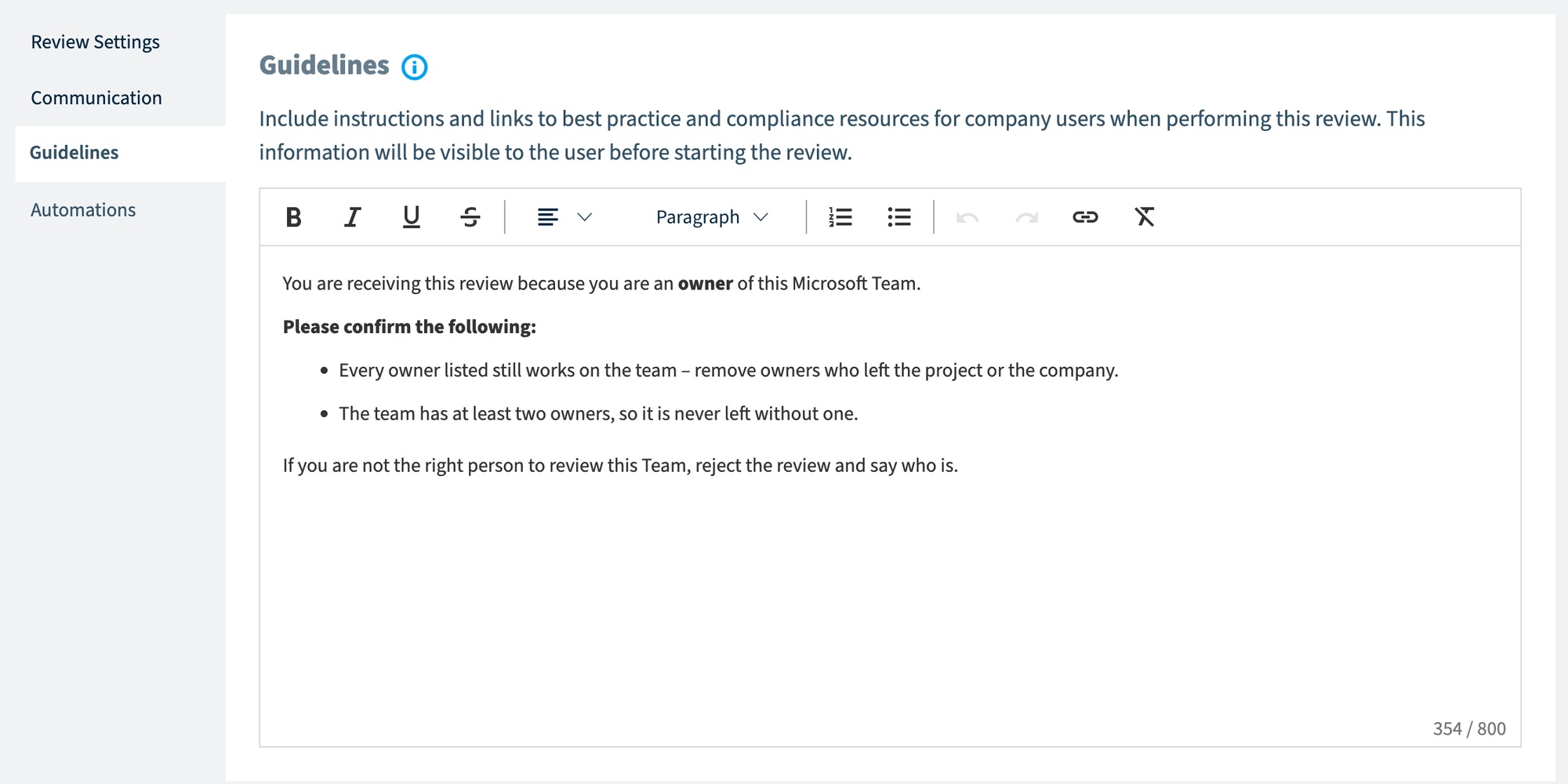
- The instructions reviewers see in the Rencore Teams App before they start. If the field is empty, reviewers see no guidelines.
Automations
- What happens automatically during and after the review, such as on rejection or expiry. See Review automations.
Click Next.
Stage 3: Details
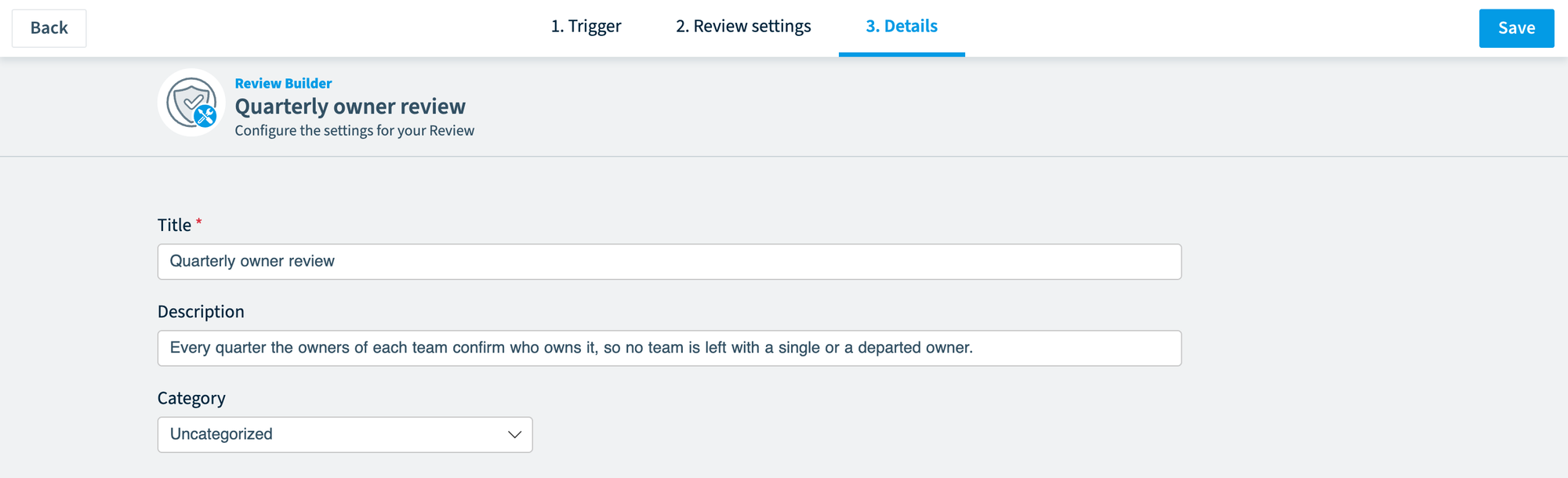
- Title: required, at most 50 characters.
- Description: optional, at most 250 characters.
- Category: required, groups your reviews.
Click Save, then save the review as a draft or save it and turn it on. Turning a review on can send emails to reviewers right away, so check the communication settings first. For a manual review, a cycle starts immediately.
Frequently asked questions
What Rencore roles can create review templates?
Owner, Admin, and Contributor roles have the Create Review permission needed to create templates.
What types of workspaces can I review?
Teams (together with the connected SharePoint site), SharePoint sites, Microsoft 365 groups, or Viva Engage communities.
How do I limit which workspaces are reviewed?
Use the Add Filter option in the Trigger stage.
Who reviews workspaces by default?
Workspace owners are the default reviewers, or you can specify individual internal users.
What happens when I turn a manual review on?
A cycle starts immediately, which may send emails to reviewers based on your communication settings.
Was this page helpful?
Thanks for the feedback.
Thanks. What was wrong?