Built-in actions, automations and automation actions
AI summary
Rencore Governance makes changes in three ways: built-in actions you run manually on selected objects, automations triggered by events like policy violations, and automation actions that form the steps within automations. Built-in actions handle immediate changes while automations respond automatically and repeatedly to conditions. Both types have criticality levels that determine which roles can run high-impact operations.
Rencore Governance changes objects in your tenant in three ways: built-in actions you run yourself, automations that run when a trigger fires, and automation actions, the steps inside an automation.
How they differ
| Built-in action | Automation | Automation action | |
|---|---|---|---|
| What it is | A ready-made operation | A workflow with a trigger and steps | One step in an automation |
| Who starts it | You, by hand | A trigger: manually, on a schedule, on a policy violationViolationA violation is an inventory object that matches the rule of an active policy, such as a Team with no owner.Read more, on form values or on a review | The automation it belongs to |
| Where you find it | On an object’s details page, or under “Actions” in an inventory datagrid | ”Automation” on the navigation bar | Inside the automation builder |
| How many objects | The object or objects you select | Every object the trigger finds | The object the automation runs on |
| Example | Add user to a Team | Archive unused teams | Send email, Archive or unarchive a Team, Trigger webhookWebhookA webhook is a URL another system listens on, so that a call to it starts something there.Read more |
| Reference | Built-in actions | Automation templates | Automation actions |
How it works
Built-in actions
A built-in actionBuilt-in actionA built-in action is a ready-made operation you run directly on inventory objects without building an automation, for example adding a user to a Team.Read more runs straight away on objects you pick. You open an object and click the action on its details page, or select several objects in a datagrid and choose the action under “Actions”. A dialog asks you to confirm or to fill in details, such as which Team to add a user to. Some actions need extra permissions in your tenant the first time you use one. An administrator gives consent, or you send them a consent link.
Automations
An automationAutomationAn automation is a workflow Rencore Governance runs on inventory objects when a trigger fires.Read more has one trigger and one or more steps:
- Manually runs it on the object you start it from.
- On Schedule runs it periodically on policy violations or inventory items.
- On Policy Violation runs it after the next scan for every violation of a policy, and again for each object as long as it stays a violation.
- On form values runs it from a form, as provisioning templatesProvisioning templateA provisioning template defines how a new Microsoft 365 workspace is created through Rencore Governance.Read more do.
- On review runs it from a Review, for example when a reviewer chooses an action.
Steps can hold conditions, branches and approvals, so an automation can ask someone to approve before it archives or deletes anything. A threshold limitAutomation thresholdAn automation threshold, or threshold limit, caps how many objects an automation processes in one day.Read more stops an automation after a number or a percentage of objects. You start from the “Automations Template LibraryTemplate libraryA template library is the catalog of prebuilt items you start from when you add something new in Rencore Governance.Read more” or build a custom automation. Every run that started from the same trigger at the same time is grouped in an automation batchAutomation batchAn automation batch is the group of automation runs that started from the same trigger at the same time.Read more, which is where you look when a run fails.
The automation page
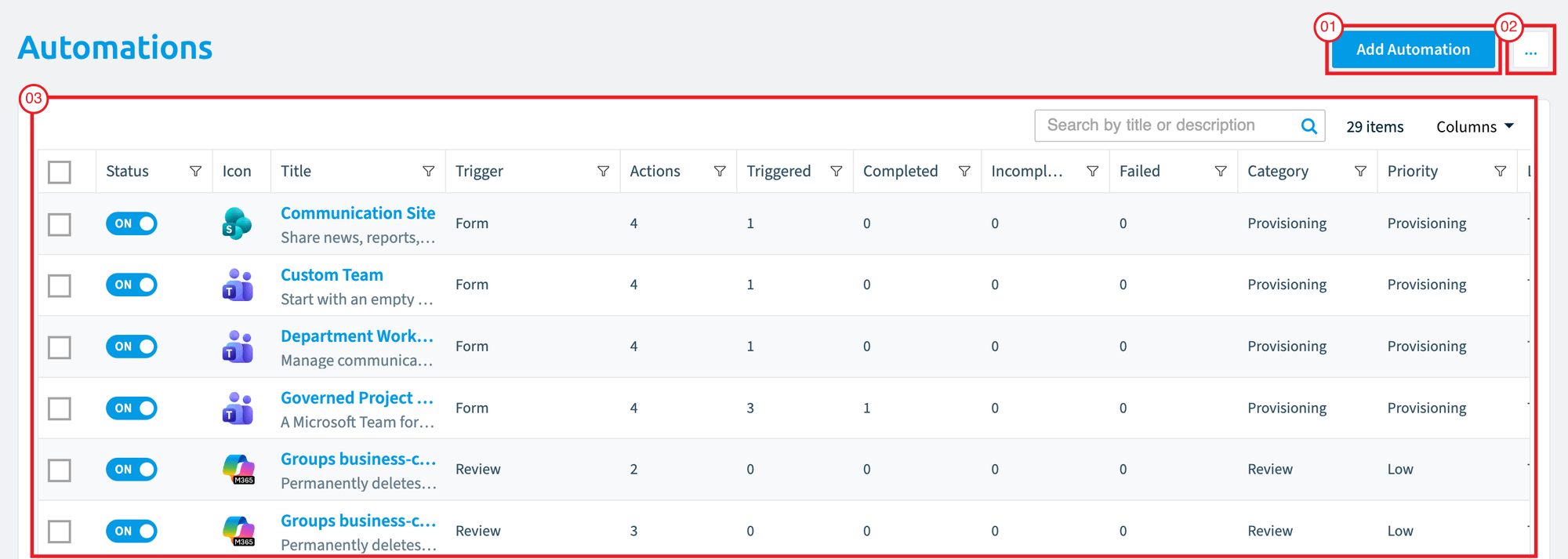
- Add Automation: opens the “Automations Template Library”, where you add a new automation.
- Automation options ([…]): import an automation, or set the Automation page as your homepage.
- Automations: the list of every configured automation. You can filter it by whether it is active, connector, name, trigger type, number of actions, number of times triggered, completed, incomplete or failed, category, owner and last update.
Automation actions
An automation actionAutomation actionAn automation action is a single operation an automation step performs, such as sending an email or archiving a Team.Read more is what one step does. The actions available depend on the connector of the objects the automation runs on. Some work for every connector, such as sending an email or posting to a Teams channelChannelA channel is a section inside a Microsoft Teams team where members hold conversations and share files on one topic.Read more. Send HTTP request, Trigger webhook and Trigger Azure Function connect an automation to other systems, such as Power AutomatePower AutomatePower Automate, formerly Microsoft Flow, is the Microsoft low-code tool for automated workflows called flows.Read more or ServiceNow.
Criticality
Built-in actions and automations each have a criticality levelCriticality levelA criticality level, Low, Medium or High, rates how much impact an automation or built-in action has on your tenant.Read more: Low, Medium or High. Sending an email to a site ownerWorkspace ownerA workspace owner is an owner of a Microsoft 365 workspace, such as a Team, a SharePoint site or a group.Read more is Low, and deleting a SharePoint site collectionSite collectionA site collection is the top-level SharePoint container that holds a root site, its subsites, lists, libraries and files.Read more is High. Roles carry separate permissions to run actions of each level, so you decide who may make high-impact changes.
Example
The policy “TeamsMicrosoft TeamsMicrosoft Teams is the Microsoft 365 app for chat, meetings and team collaboration.Read more with very few owners” lists three Teams that have one owner or none.
- For one urgent Team, you open it in the inventory and run the built-in action “Add or remove owner to/from a Team” to add a second owner.
- For the others, and for every Team that matches in future, you add the automation template “Send one email per Team owner” with the trigger On Policy Violation. Its automation action, Send email, writes to each owner, and you edit the message to ask for a second owner. It runs again after each scan until the Team has enough owners.
How it relates to other concepts
- Automations most often start from policy violations, and run after the next scan of the policy’s connector.
- Reviews can run automations when all reviewers reject a review, when it expires, or when a reviewer picks a custom action.
- Provisioning templates run automations on form values. See Provisioning.
- Automations are not available in a Virtual Environment.
- Who may run which action is set in roles.
Frequently asked questions
What is the difference between a built-in action and an automation?
A built-in action is a ready-made operation that you start by hand on the objects you select. An automation is a workflow with a trigger and one or more steps, and it runs on every object the trigger finds.
Which triggers can start an automation?
An automation can start manually, on a schedule, on a policy violation, on form values or on a review. On Policy Violation runs after the next scan for every violation of a policy, and again for each object as long as it stays a violation.
Can an automation ask for approval before it archives or deletes objects?
Yes. Steps in an automation can hold conditions, branches and approvals, so someone can approve before the automation archives or deletes anything. A threshold limit can also stop an automation after a number or a percentage of objects.
How do I control who can run high-impact actions?
Built-in actions and automations each have a criticality level: Low, Medium or High. Roles carry separate permissions to run actions of each level, so you decide who may make high-impact changes, such as deleting a SharePoint site collection.
Can I use automations in a Virtual Environment?
No. Automations are not available in a Virtual Environment.
Was this page helpful?
Thanks for the feedback.
Thanks. What was wrong?
Learn more
- Executing an action and Action permissions
- Create an automation from a template
- Create a custom automation
- What are the available triggers for automations
- Automation batch page and Troubleshooting automation errors
- Built-in actions reference, Automation templates reference, Automation actions reference