Run a built-in action
AI summary
Run built-in actions on objects in your inventory to change them. You can run an action on one or multiple objects at once, either from an object's details view or from a data grid. You will need the appropriate permissions and some actions may require consent the first time you use them.
Run a built-in actionBuilt-in actionA built-in action is a ready-made operation you run directly on inventory objects without building an automation, for example adding a user to a Team.Read more to change an object in the EnvironmentEnvironmentAn Environment is the connected Microsoft 365 tenant inside a Workspace.Read more straight from the inventory. You can run an action on one object or on several objects at once.
Before you begin
- Your Rencore role includes the Execute actions permission for the action’s criticality (low, medium or high). Owner, Admin and Contributor have them. Your role must also be allowed to use the action. See Rencore roles and Restrict built-in actions for a role.
- Some actions need an extra permission the first time you use them. An administrator gives this consent. See Give consent on first use below.
Steps
Run the action from an object’s details view or from a data gridDatagridA datagrid is the table view Rencore Governance uses for lists of items, such as the objects of an inventory or the violations of a policy.Read more.
From the details view
-
Click InventoryInventoryThe inventory is the record of every object Rencore Governance scans from your tenant, with their properties and the relations between them.Read more on the Nav Panel.
-
Open the inventory: click the segment, or hover over the desired Service and click Go to Inventory, or click Inventory Options ([…]) and select Go to Inventory.
-
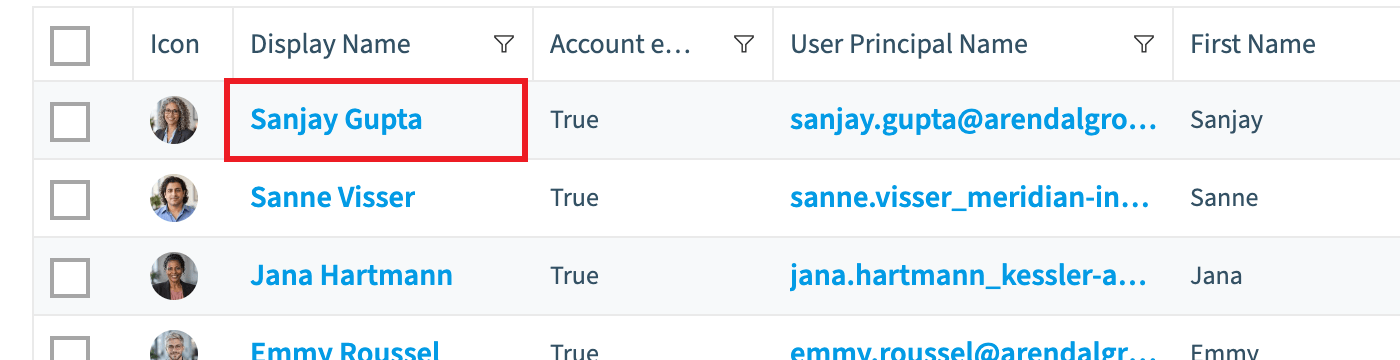
Click the desired object.
-
Click Go to Object.
-
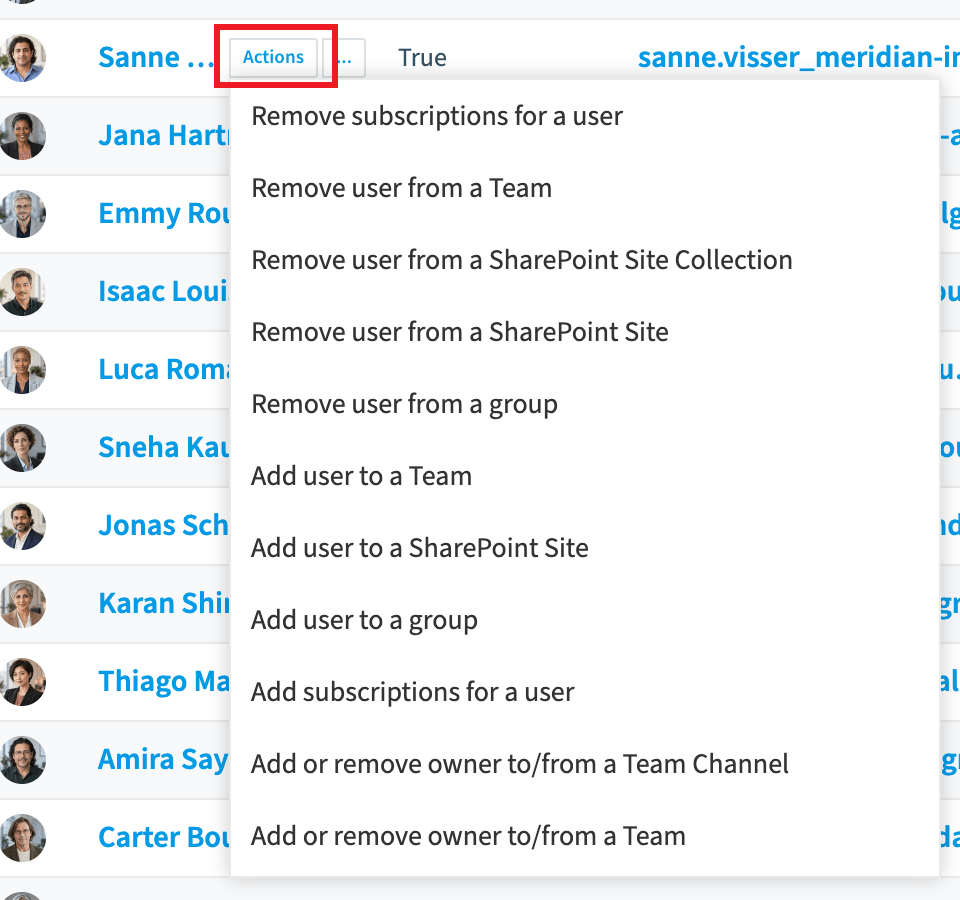
On the details page, click the desired action on the right side of the screen.
-
In the dialog, add the information the action asks for, or confirm the action.
From a data grid
-
Click Inventory on the Nav Panel.
-
Open the inventory: click the segment, or hover over the desired Service and click Go to Inventory, or click Inventory Options ([…]) and select Go to Inventory.
-
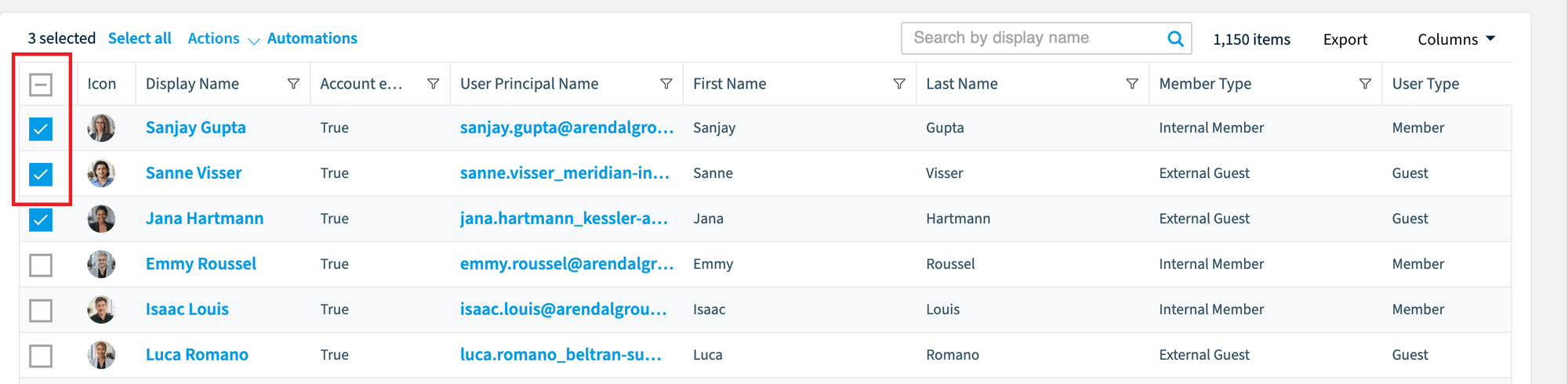
Select the desired object or objects.
-
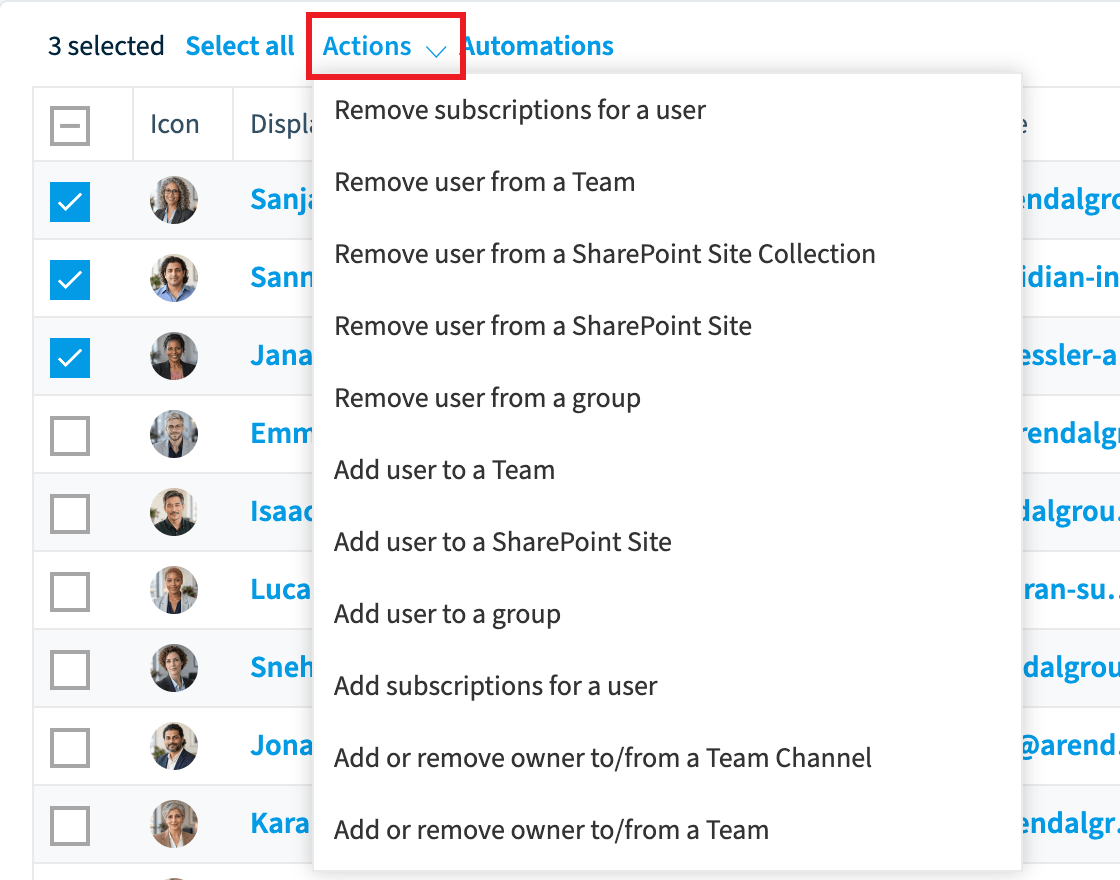
Click Actions.
-
In the menu, select the desired action.
-
In the dialog, add the information the action asks for, or confirm the action.
Give consent on first use
Depending on the action, an extra permission may be required the first time you use it. For example, the first time you select “Add user to a Team”, Rencore Governance asks for these permissions:
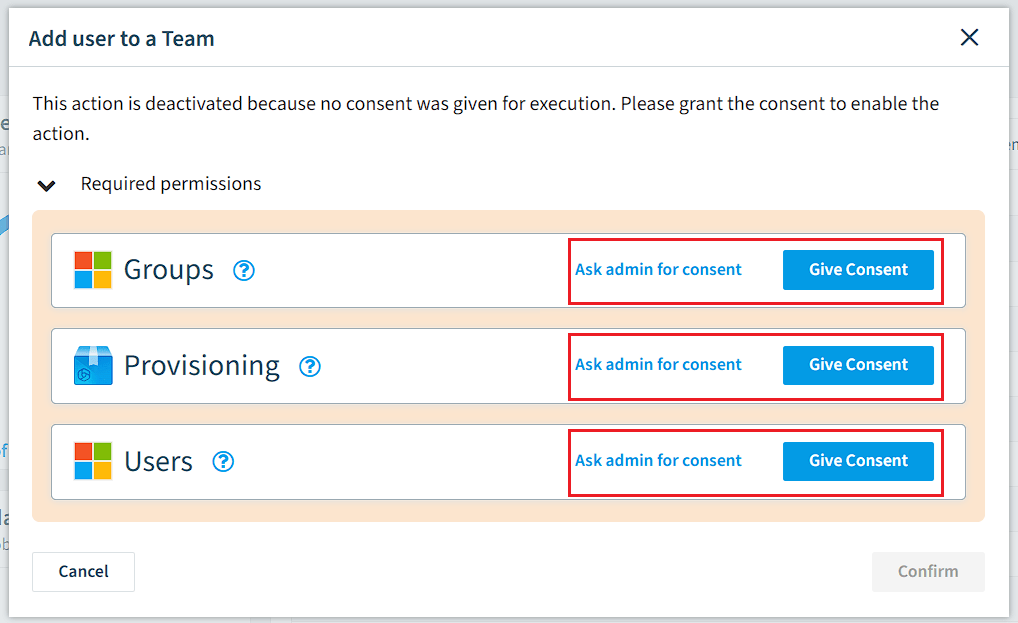
Click the ”?” to open the contextual help and documentation, which shows the required permissions. Then:
-
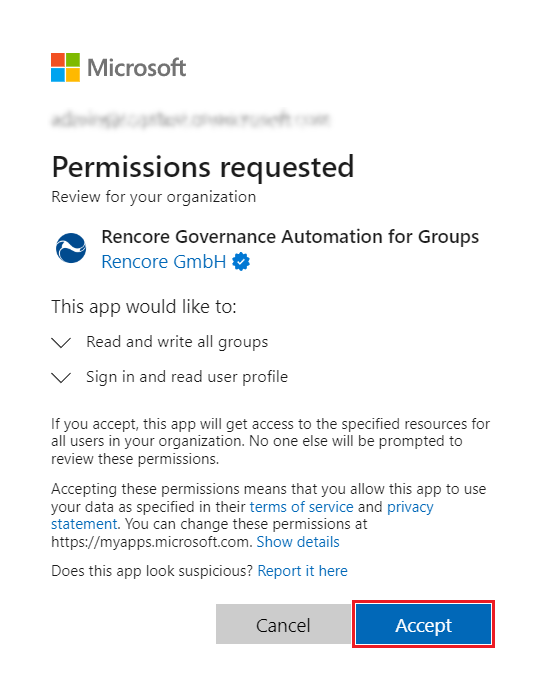
If you have Administrator credentials, click Give Consent. Otherwise, go to step 4.
-
Enter your username and password.
-
In the dialog that lists the required permissions, click Accept at the bottom.
-
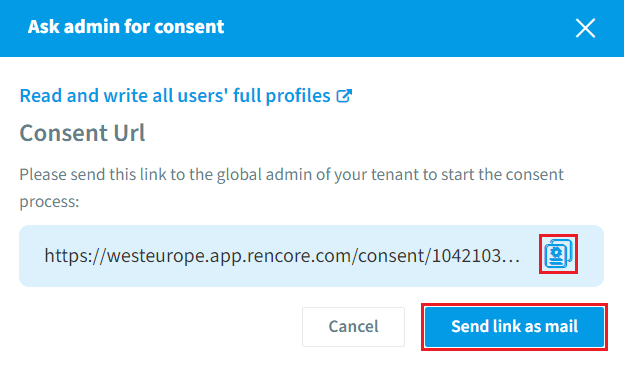
Without Administrator credentials, click Ask admin for consent. Rencore Governance creates a URL.
-
Click the copy icon and give the URL to the admin, or click Send link as mail, which writes an email with the URL. Add the admin’s email and send it.
What you see
After you select an action, a dialog asks you to confirm it or to add more information. For example, the action “Add user to a Team” opens this dialog:
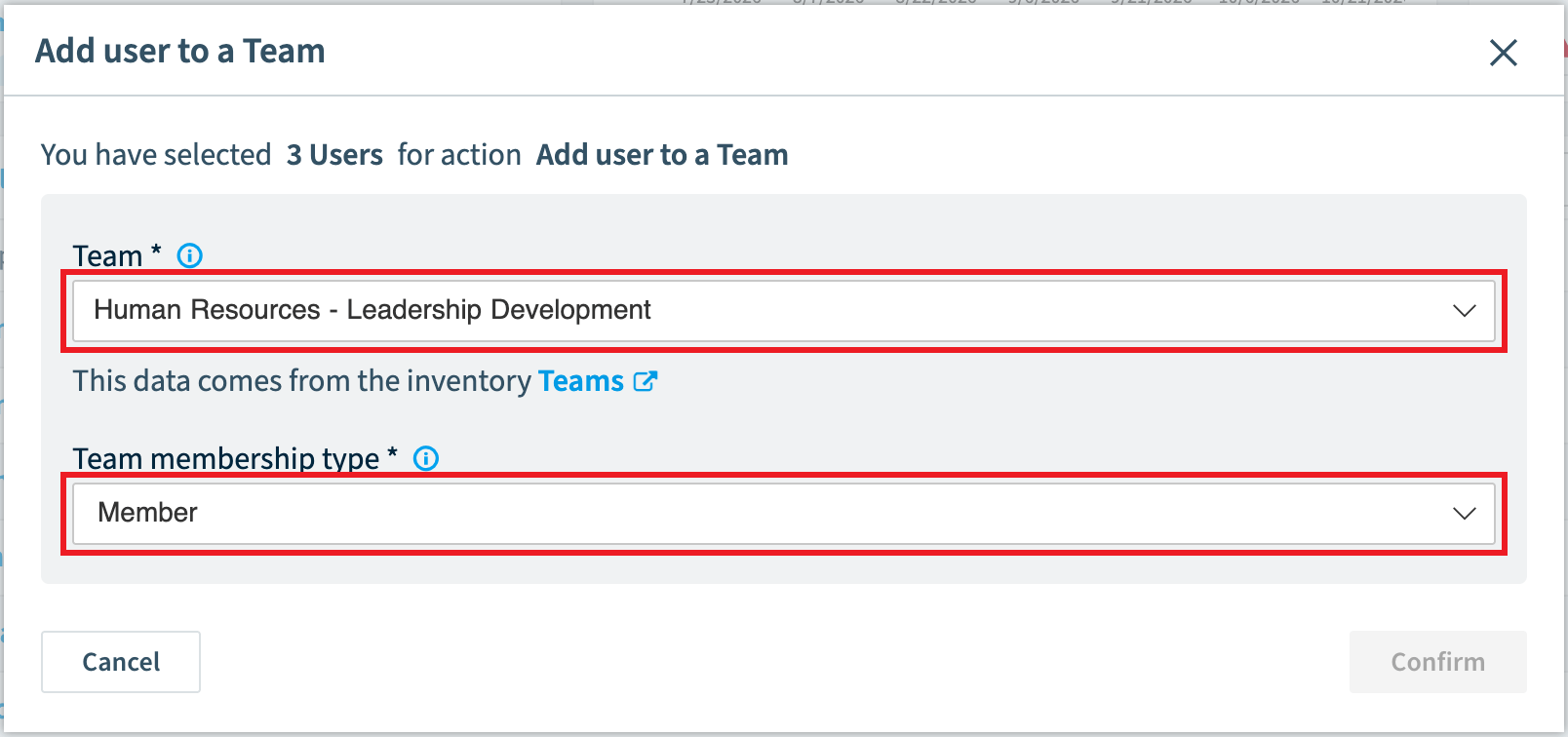
- Team: enter a TeamID or select the team.
- Team membership type: select the membership type (Owner/Member).
Hover over the “i” next to a field to see a tooltip that helps you fill it in.
Frequently asked questions
Which permission do I need to run a built-in action?
Your Rencore role needs the Execute actions permission for the action's criticality (low, medium or high). Owner, Admin and Contributor have these permissions. Your role must also be allowed to use the action.
Can I run a built-in action on several objects at once?
Yes. Select several objects in the inventory data grid, click Actions, and select the action from the menu. You can also run an action on a single object from its details view.
How do I run a built-in action from an object's details page?
Open the inventory from the Nav Panel, click the object, and click Go to Object. On the details page, click the action on the right side of the screen, then add the requested information or confirm the action in the dialog.
What do I do if an action asks for consent the first time I use it?
With Administrator credentials, click Give Consent, sign in, and click Accept in the permissions dialog. Without them, click Ask admin for consent, then copy the URL or click Send link as mail and send it to an admin.
What information does the add user to a team action ask for?
The action asks for a Team, where you enter a TeamID or select the team. It also asks for the Team membership type, where you select Owner or Member.
Was this page helpful?
Thanks for the feedback.
Thanks. What was wrong?