Approvals
AI summary
Review pending approval requests on the Active tab, which include workspace provisioning requests and decisions from automation rules. Each card displays submitter information, due dates sorted by urgency, and you can search for specific approvals.
The Approvals pageApprovalAn approval is a decision Rencore Governance asks a person to make before it goes ahead.Read more shows requests that need your decision. You may receive approval requests from two sources:
- Provisioning requestsProvisioning requestA provisioning request is a request to create a new Microsoft 365 workspace, such as a Team, from a provisioning template.Read more - When someone in your organization requests a new workspace that requires approval before creation
- Automation-triggered approvals - When a governance automation in your organization routes a decision to you
Viewing pending approvals
The Active tab lists all approval requests waiting for your action. Each card shows:
- Service type icon
- Request or approval title
- Who submitted the request (with profile picture).
- Other approvers assigned to the same request.
- Due date (shown as relative time, e.g., “Today”, “Tomorrow”, “In 3 days”)
- A “View Details” button
Cards are sorted by urgency - approvals due soonest appear first.
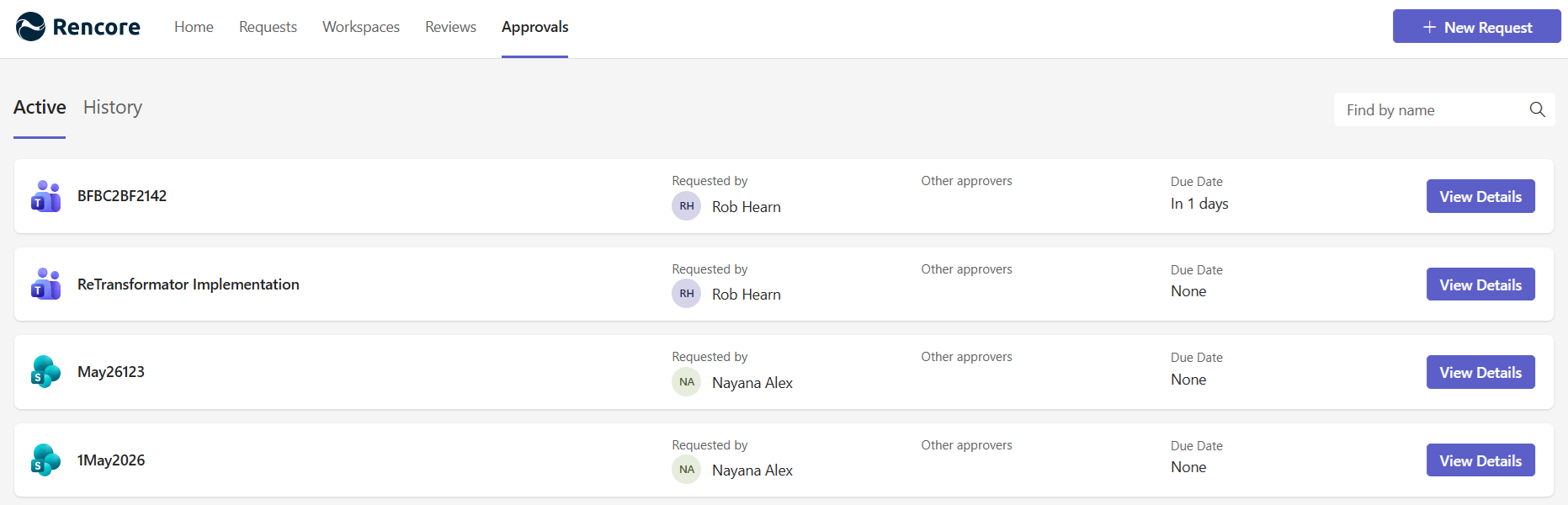
Use the search bar at the top to find a specific approval by name.
When you have no pending approvals, the page shows a confirmation that nothing requires your attention.
Start with
All guides in approvals
-
Approve or decline a workspace request that waits for you.
Before you begin: No Rencore Governance role is needed: you act on requests where you are set as an approver in the template.
-
See every request you approved or declined before.
Before you begin: No Rencore Governance role is needed: you see the approvals that were sent to you as an approver in the Rencore Teams…
Frequently asked questions
Which kinds of approval requests show up on the approvals page?
The Approvals page shows two kinds of requests. These are provisioning requests, when someone asks for a new workspace that needs approval before creation, and automation-triggered approvals, when a governance automation routes a decision to you.
What information does each card on the active tab show?
Each card shows a service type icon, the request or approval title, and who submitted the request with a profile picture. It also shows the other approvers assigned to the same request, the due date as relative time, and a View Details button.
In what order are pending approvals listed, and how can I find a specific one?
Cards are sorted by urgency, so approvals due soonest appear first. To find a specific approval, use the search bar at the top of the Approvals page and search by name.