View your approval history
AI summary
Use the History tab in Approvals to review past approval decisions you have made and their final states. Each entry shows the request name, requester, other approvers, due date, and outcome: Approved, Declined, Pending, or Expired.
See every approval you have decided on before, with its final state. Use this when you need to check what you or other approvers decided.
Before you begin
- No Rencore Governance role is needed: you see the approvals that were sent to you as an approver in the Rencore Teams AppRencore Teams AppThe Rencore Teams App (formerly Rencore Nova) brings Rencore Governance into Microsoft Teams for the people who own and use workspaces.Read more.
Steps
-
Click Approvals on the navigation bar.
-
Switch to the History tab. Each entry shows the request name, requester, other approvers, due date and the final state.
-
Click any row to open a summary with the full approval details and each approver’s decision.
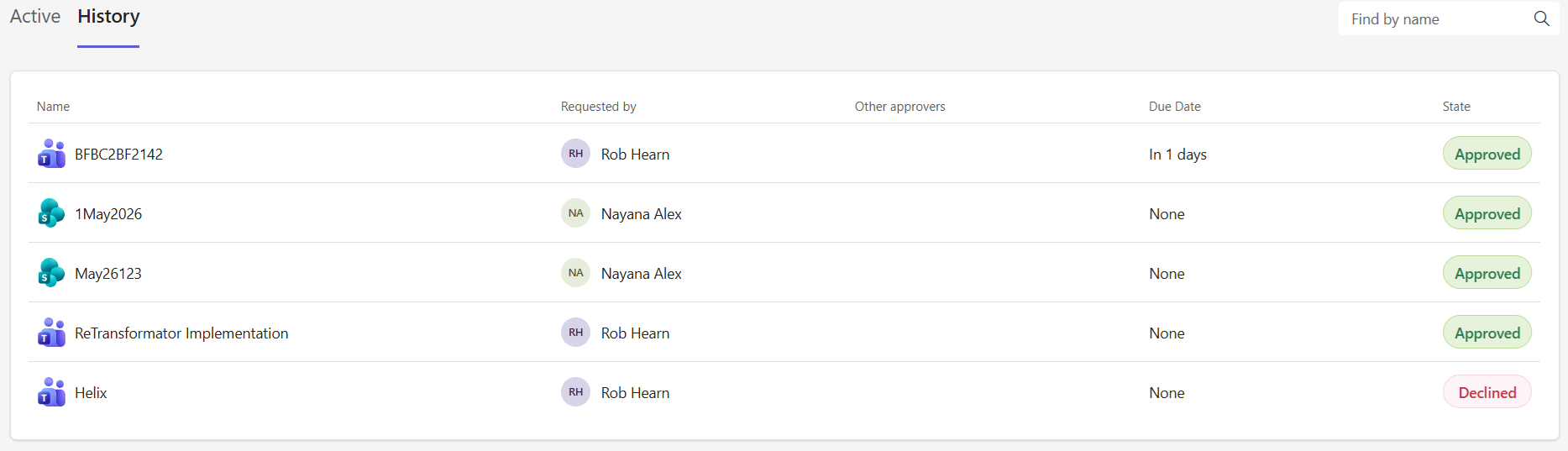
What you see
Each approval has one of these states:
State | Meaning |
|---|---|
Approved | You (or another approver) approved the request |
Declined | The request was declined |
Pending | Still waiting for other approvers (you have already decided) |
Expired | The due date passed without a decision |
Frequently asked questions
Do I need a Rencore Governance role to see my approval history?
No. You do not need a Rencore Governance role. You see the approvals that were sent to you as an approver in the Rencore Teams App.
How do I find out what other approvers decided on a past request?
Click Approvals on the navigation bar, switch to the History tab, and click the row of the request. The summary shows the full approval details and each approver's decision.
What does the pending state mean in my approval history?
Pending means the approval is still waiting for other approvers, and you have already decided. Other states are Approved, Declined, and Expired (the due date passed without a decision).
Was this page helpful?
Thanks for the feedback.
Thanks. What was wrong?