Update monthly license costs
AI summary
Specify the monthly license costs for your organization so they appear in governance reports and policies. You export a CSV file, add the costs, and import it back. After import, your data updates when the next connector scan runs.
Set your own monthly license costs so reports and policies can show what licenses cost you. You export the editable column as a CSV file, fill it in and import it again. Today the one editable column is Monthly License CostLicense cost and currencyLicense cost and currency are the values Rencore Governance uses to show Microsoft 365 license costs in the inventory, reports and policies.Read more.
Before you begin
- Your Rencore role gives you access to the inventory that holds the license data, for example Subscriptions. See Rencore roles.
- The costs are shown in the Environment currency. See Change an Environment currency.
Steps
Export the column template
-
Go to InventoryInventoryThe inventory is the record of every object Rencore Governance scans from your tenant, with their properties and the relations between them.Read more.
-
Open the inventory that holds the column (e.g. Subscriptions under Microsoft 365Microsoft 365Microsoft 365 is the Microsoft cloud suite of Teams, SharePoint, OneDrive, Exchange and the Office apps.Read more).
-
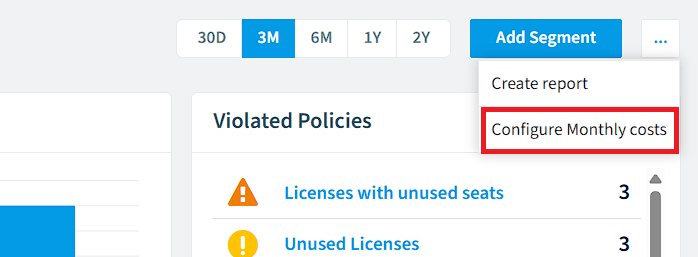
Click the Action Menu in the upper right panel.
-
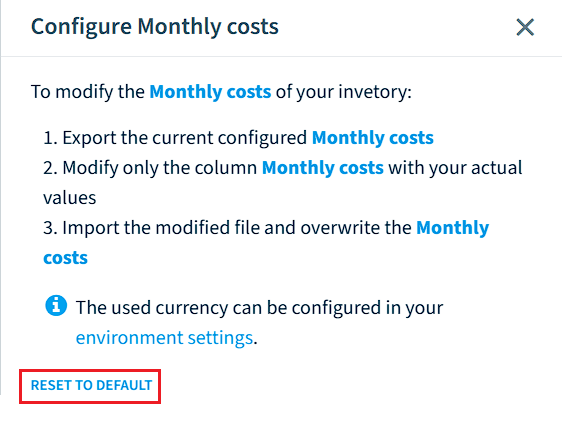
Click Configure <name of the column> (e.g. Configure Monthly costs).
-
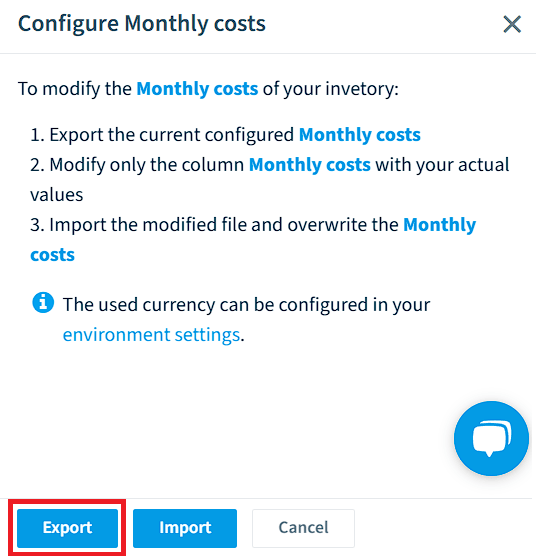
Click Export in the dialog.
Edit the file
-
Open the exported (.csv) file.

-
Change only the recommended column, as the dialog suggests.
-
Use ”.” as the decimal separator, not ”,”.
-
Do not put the values in quotation marks (”).
-
Save the file over the exported one.
Import the column
-
Go to Inventory.
-
Open the inventory that holds the column (e.g. Subscriptions under Microsoft 365).
-
Click the Action Menu in the upper right panel.
-
Click Configure <name of the column> (e.g. Configure Monthly costs).
-
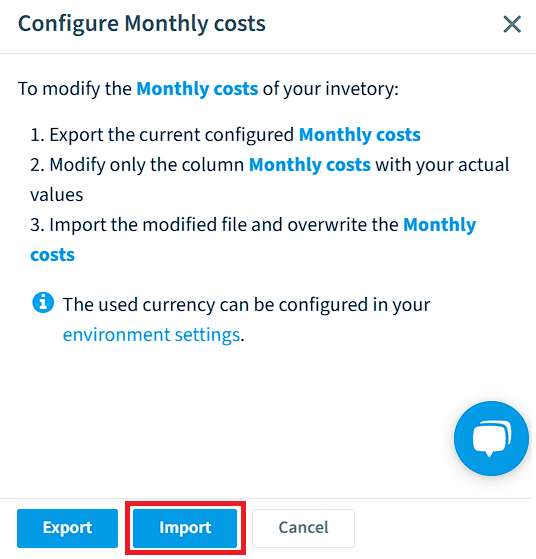
Click Import in the dialog.
-
Click Browse and select the edited (.csv) file.
-
Click Open.
-
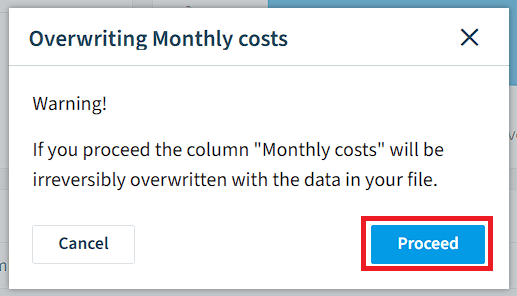
A warning explains that the data in the editable column is overwritten and cannot be retrieved. Click Proceed to import the values.
Reset the column to the default
-
Go to Inventory.
-
Open the inventory that holds the column (e.g. Subscriptions under Microsoft 365).
-
Click the Action Menu in the upper right panel.
-
Click Configure <name of the column> (e.g. Configure Monthly costs).
-
Click RESET TO DEFAULT in the dialog.
What you see
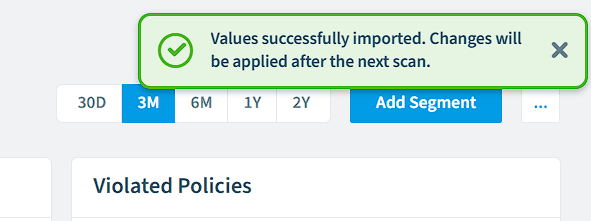
After an import, a message confirms that the changes are applied after the next scan of the connector. After a reset, the default values come back after the next scan of the connector.
Frequently asked questions
How do I change the monthly license costs in Rencore Governance?
Export the editable column as a CSV file from the Action Menu of the inventory, fill in the values, and import the file again. In the inventory, click Configure for the column, then click Export or Import in the dialog.
What format must the CSV file have for the license cost import?
Use "." as the decimal separator, not ",". Do not put the values in quotation marks. Change only the recommended column, as the dialog suggests, and save the file over the exported one.
What happens to existing values when I import the edited CSV file?
The data in the editable column is overwritten and cannot be retrieved. A warning explains this before you click Proceed to import the values.
When do imported license costs take effect?
The changes are applied after the next scan of the connector. After an import, a message confirms this.
How do I go back to the default license costs?
Open the inventory, click the Action Menu, click Configure for the column, and then click RESET TO DEFAULT. The default values come back after the next scan of the connector.
Was this page helpful?
Thanks for the feedback.
Thanks. What was wrong?