Create an access review report
AI summary
Create an access review to audit user access to Microsoft 365 objects like SharePoint sites and Flows through the Access Review Builder. The three-step process involves choosing a trigger (manual or scheduled), selecting reviewers and setting deadlines, and adding details such as name and description. Access is deprecated and will be shut down on December 31, 2026; migrate to Reviews before then.
Add an Access ReviewAccess reviewAn access review is a report in the deprecated Access feature that shows who has access to content, for owners to approve.Read more Report to your governance from the Access Review Template Library. The Access Review Builder takes you through three screens: the trigger, the review settings and the details.
Before you begin
- Your Rencore role needs the Create Access Review permission. The Admin, Contributor and Owner roles have it. See Rencore roles.
- All changes made by users during the Access Review are replicated to the Microsoft 365Microsoft 365Microsoft 365 is the Microsoft cloud suite of Teams, SharePoint, OneDrive, Exchange and the Office apps.Read more environment during the night after the Access Review has been finished.
Steps
-
Click on Access on the Nav Panel.
-
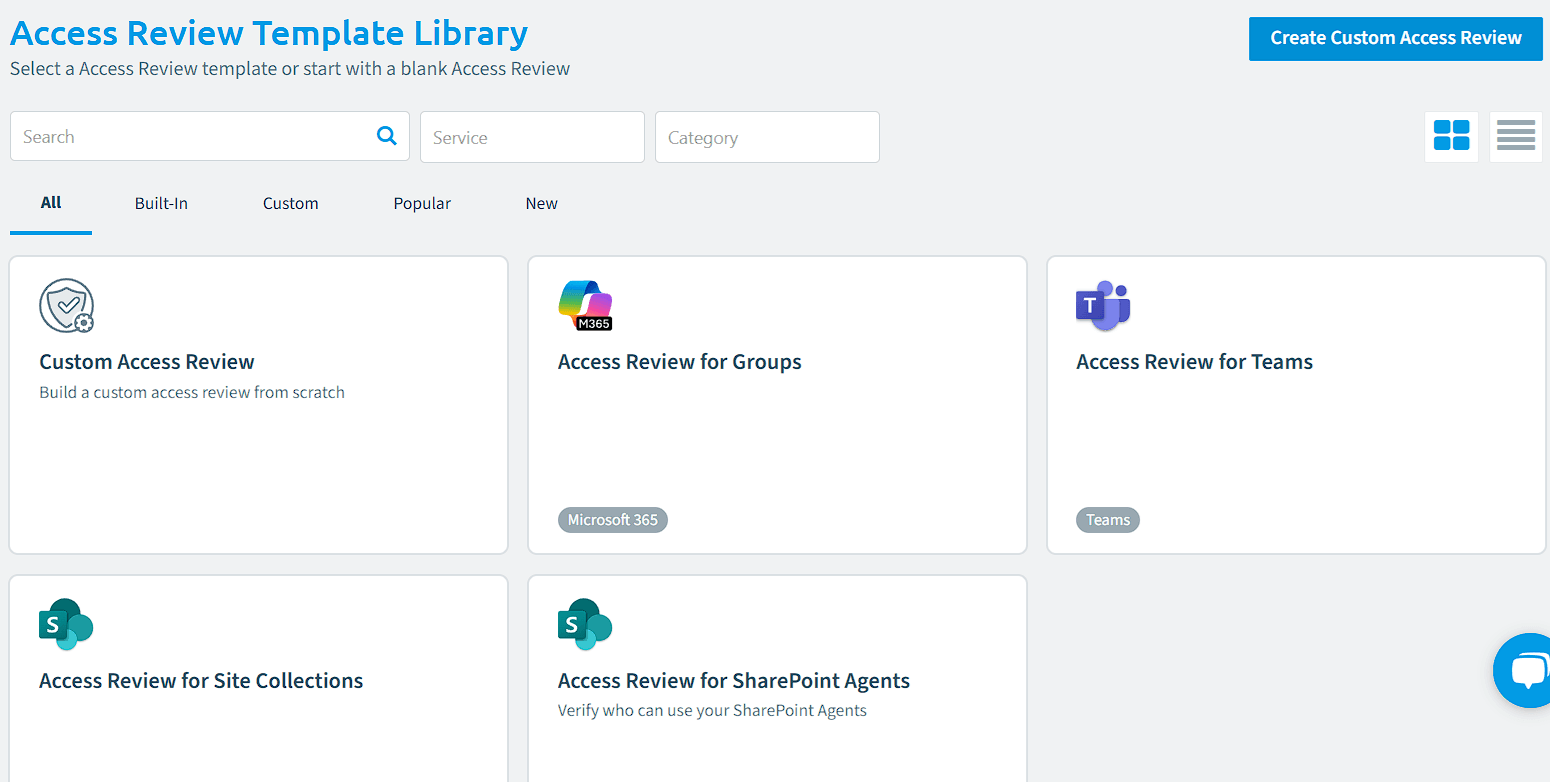
Click on Add Access Review. This takes you to the Access Review Template LibraryTemplate libraryA template library is the catalog of prebuilt items you start from when you add something new in Rencore Governance.Read more. To narrow down the list of templates, filter by Service and Category.
-
Choose the template that you want to use. This loads the Access Review Builder screen.
-
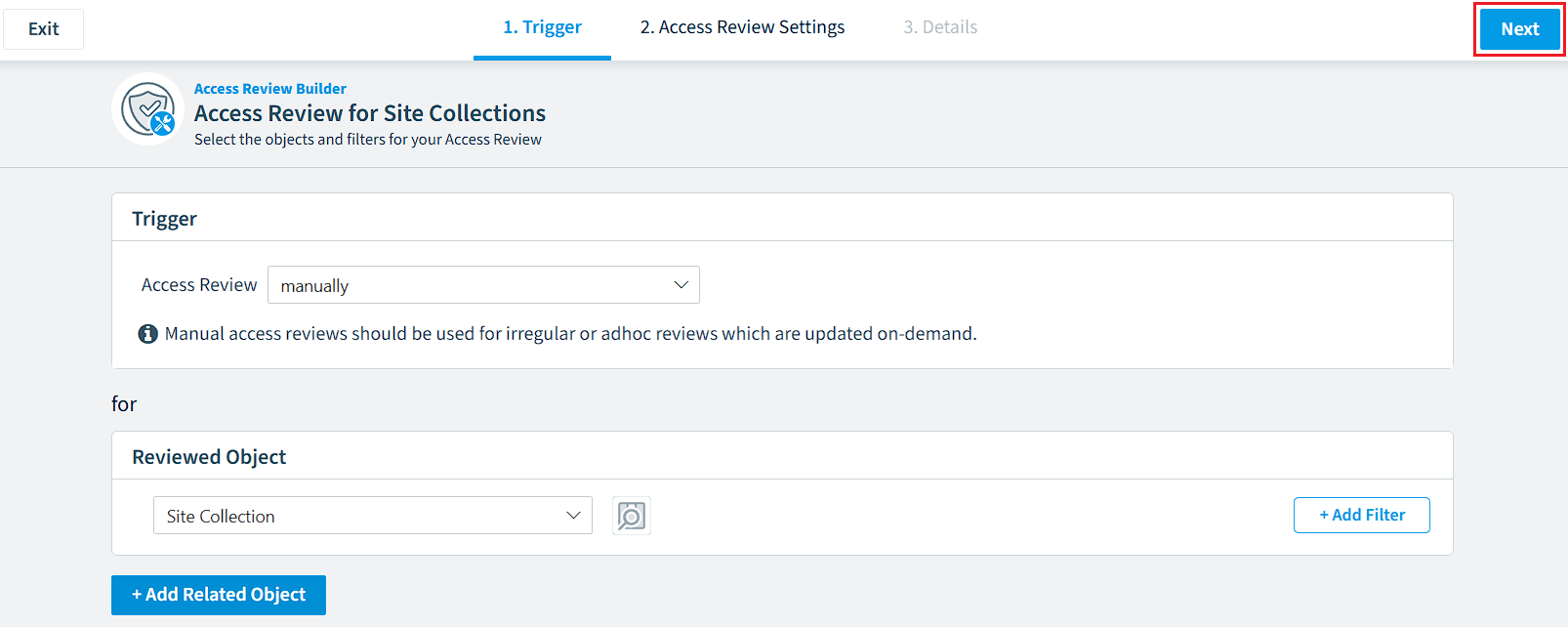
On the trigger screen, select the type of trigger the Review will use: Manually or On Schedule. Manually lets you refresh the access review directly in the object, as a one-time review. On Schedule checks the data periodically, as a recurring review of objects.
Choosing either of these options will start the Access Review based on the "Reviewed Object" logic. The difference is whether the review is refreshed manually or on schedule. -
Select the object to be reviewed from the drop-down list.
-
Once happy with the selection and filters, click Next in the top right of the screen.
-
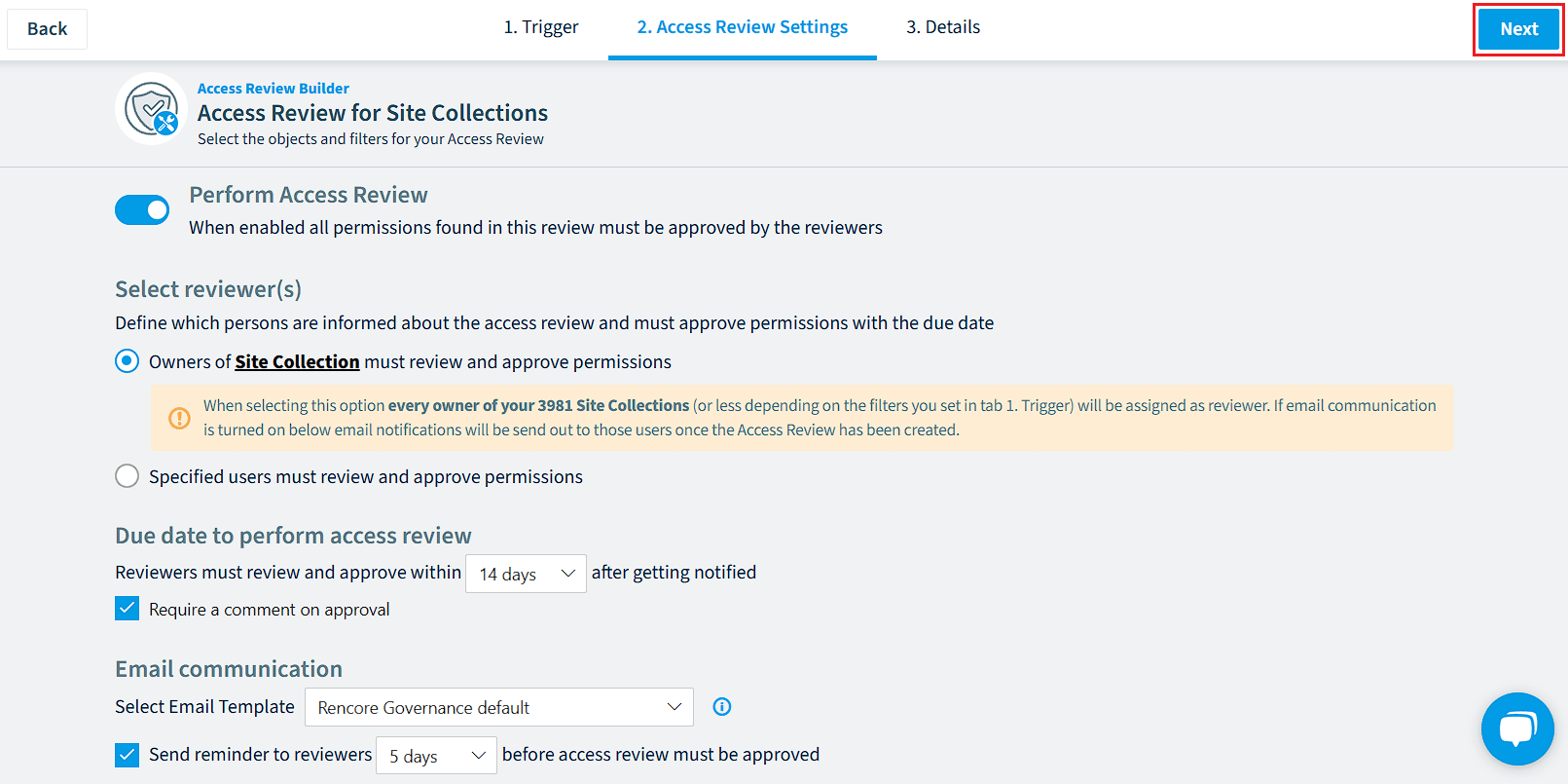
On the access review settings screen, choose who reviews the access. The object you selected sets the default (i.e. if you select SharePoint Site CollectionSite collectionA site collection is the top-level SharePoint container that holds a root site, its subsites, lists, libraries and files.Read more, the Owners are selected, and if you select FlowsFlowA flow is a Power Automate workflow, made of a trigger and actions, that runs a task automatically across apps and services.Read more, the owners of the Flows are selected). To choose other reviewers, select Specified users must review and approve permissions and enter the users in the new box.
Enabling "Perform Access Review" requires approval of all permissions found. Disabling this option skips reviewer approval and email notifications. -
Under Due date to perform the access review, select how many days the reviewers have after being notified, between 2 and 60 days.
-
To make reviewers add a comment, check Require a comment on approval.
-
Under Email communication, select how many days before the review deadline a reminder is sent, between 1 and 14 days. This option can be toggled on or off.
-
Click Next in the top right of the screen.
-
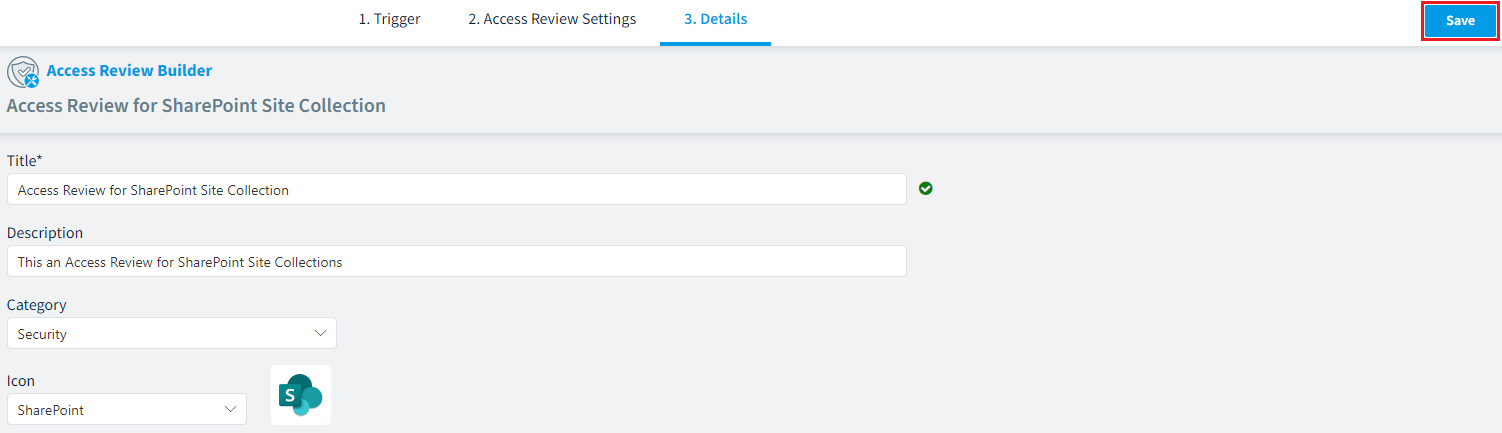
On the details screen, enter a unique name in the Title field (e.g. Access Review for SharePoint Site Collections). A green tick appears when the title is unique.
-
In the Description field, enter a description (e.g. This is an Access Review for SharePoint Site Collections).
-
Select the desired Category from the drop-down.
-
Select the Icon from the drop-down. This is usually the connector the object belongs to.
-
Click Save in the top right corner.
What you see
After you click Save, the Access Review gathers data.
Frequently asked questions
Which Rencore role permission do I need to create an access review report?
You need the Create Access Review permission. The Admin, Contributor and Owner roles have it.
What is the difference between a manual and a scheduled access review trigger?
Manually runs a one-time review that you refresh directly in the object. On Schedule checks the data periodically, as a recurring review of objects. Both options start the review based on the Reviewed Object logic.
How many days can I give reviewers to complete an access review?
You can set the due date between 2 and 60 days after reviewers are notified. You can also send a reminder between 1 and 14 days before the deadline, and this option can be toggled on or off.
 When are changes made during an access review applied to Microsoft 365?
When are changes made during an access review applied to Microsoft 365?Changes made by users during the Access Review are replicated to the Microsoft 365 environment during the night after the Access Review has been finished.
Is access still supported for access reviews?
No. Access is deprecated and will be shut down on 31 December 2026. Reviews replaces it, so you should migrate your access review processes to Reviews before then.
Was this page helpful?
Thanks for the feedback.
Thanks. What was wrong?