Use the Rencore Teams App home page
AI summary
The Home page is your main dashboard in the Rencore Teams App, displaying pending approvals and access reviews due within 30 days, shortcuts to the provisioning templates you use most often, and the status of workspace requests you have submitted. Your organization may also display announcement banners and helpful resources here.
The Home page is your personal dashboard in the Rencore Teams AppRencore Teams AppThe Rencore Teams App (formerly Rencore Nova) brings Rencore Governance into Microsoft Teams for the people who own and use workspaces.Read more. It gives you a quick overview of what needs your attention and provides shortcuts to your most-used actions.
Before you begin
- No Rencore Governance role is needed: every user of the Rencore Teams App has a Home page.
Steps
-
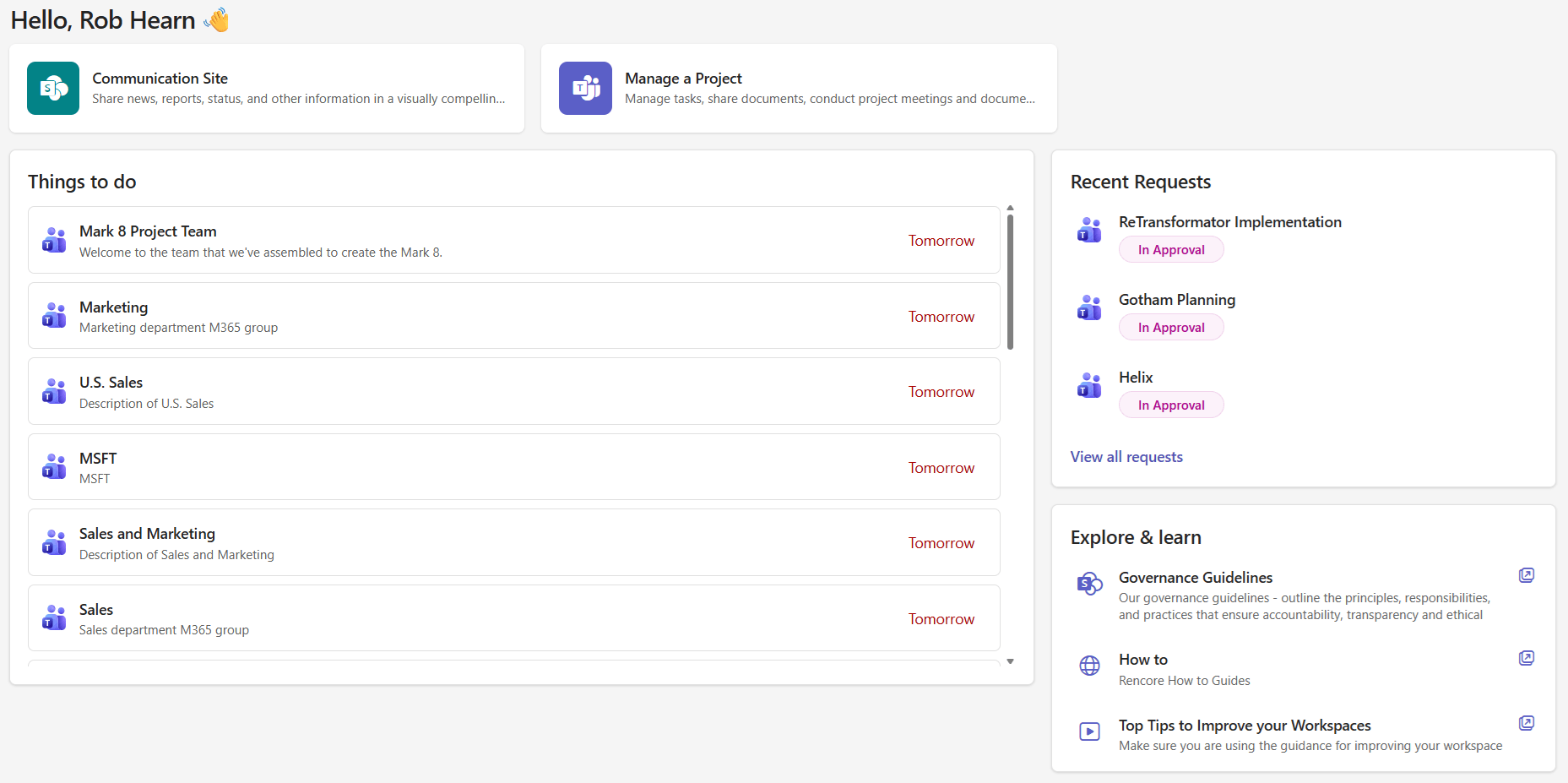
Open the Rencore Teams App in Microsoft TeamsMicrosoft TeamsMicrosoft Teams is the Microsoft 365 app for chat, meetings and team collaboration.Read more. You land on your Home page.
-
If an announcement banner is shown below the greeting, click Got it or the X to dismiss it.
-
Click an item under Things to do to go straight to the approval or review.
-
Click a template card under the most-used templates to start a request with that template.
What you see
Announcement banner
Your organization may show an announcement banner below the greeting. Once dismissed, it stays hidden until your IT admin shows it to everyone again. Your IT admin configures the banner in Teams App Settings.
Most-used templates
At the top of your Home page, you see up to three shortcut cards for the provisioning templatesProvisioning templateA provisioning template defines how a new Microsoft 365 workspace is created through Rencore Governance.Read more you use most frequently. These are determined automatically based on your usage history. Click a template card to jump straight into the request workflow for that template.

This section only appears if you have previously submitted provisioning requestsProvisioning requestA provisioning request is a request to create a new Microsoft 365 workspace, such as a Team, from a provisioning template.Read more. New users see this section populate over time as they use the app.
Things to do
This section is filtered to show tasks due in the next 30 days that require your action:
- Pending approvals: requests waiting for your approval decision
- Active reviews: access reviewsReviewA Review is a recurring or one-off check in which workspace owners confirm who has access to their Microsoft 365 workspaces, directly in the Rencore Teams App.Read more assigned to you that need to be completed
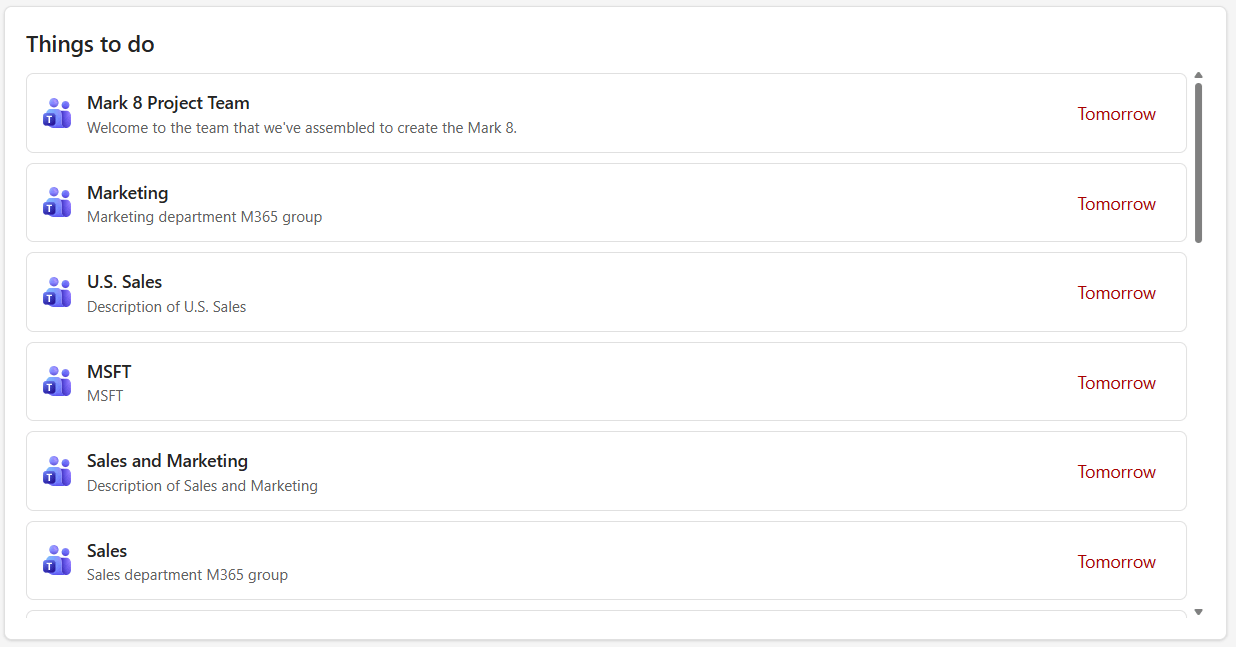
When you have no pending tasks, you see a “You’re all caught up” message. Only tasks with no due date or a due date within 30 days are listed. Approvals due more than 30 days in the future do not appear under Things to do.
Ongoing requests
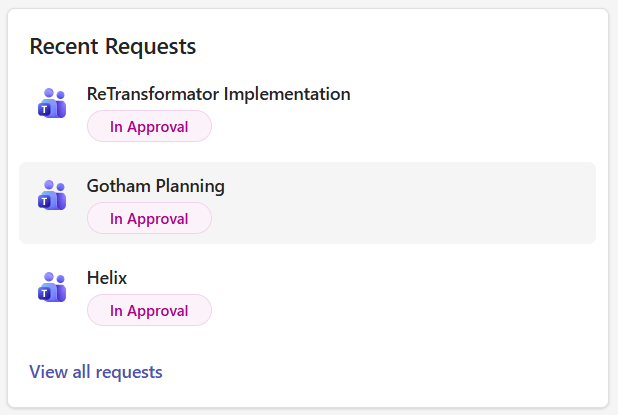
Track the status of workspace requests you have submitted. Each entry shows the request name and its current status, so you can check progress without opening the Requests page.
Explore and learn
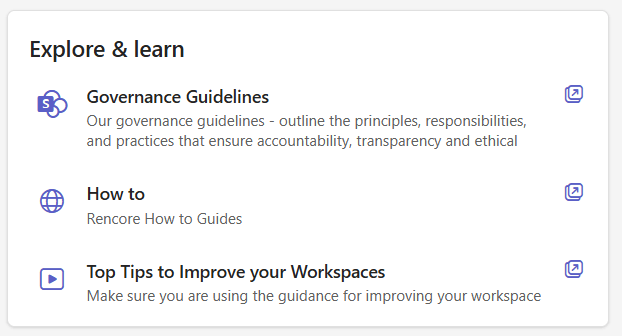
Your organization may provide helpful resources, guides or training materials in this section. Your IT admin configures content here and may include links to internal documentation, onboarding guides or governance policies.
Frequently asked questions
Do I need a Rencore Governance role to see the home page in the Rencore Teams App?
No. Every user of the Rencore Teams App has a Home page, and no Rencore Governance role is needed.
Which tasks are listed under things to do on the home page?
Things to do lists pending approvals and active reviews that need your action. Only tasks with no due date or a due date within the next 30 days appear. Approvals due more than 30 days in the future are not shown.
Why do I not see any most-used templates on my home page?
The most-used templates section only appears if you have previously submitted provisioning requests. It is based on your usage history, so new users see it fill up over time as they use the app.
How do I dismiss the announcement banner on the home page?
Click Got it or the X on the banner. Once dismissed, it stays hidden until your IT admin shows it to everyone again. Your IT admin configures the banner in Teams App Settings.
How can I check the status of a workspace request I submitted?
Look at the Ongoing requests section on the Home page. Each entry shows the request name and its current status, so you do not need to open the Requests page.
Was this page helpful?
Thanks for the feedback.
Thanks. What was wrong?
Next steps
- Interactive guide: Home Page Walkthrough