Track your requests
AI summary
View the status of workspace requests you submitted in the Rencore Teams App as they move through processing, approval, and completion. Use the Requests page to check if your workspace was created and see details like owners, members, and submission date.
Follow the workspace requestsProvisioning requestA provisioning request is a request to create a new Microsoft 365 workspace, such as a Team, from a provisioning template.Read more you submitted in the Rencore Teams AppRencore Teams AppThe Rencore Teams App (formerly Rencore Nova) brings Rencore Governance into Microsoft Teams for the people who own and use workspaces.Read more, from processing and approval to done or declined. Use this to check whether your workspace has been created.
Before you begin
- No Rencore Governance role is needed: you see the requests you submitted yourself.
Steps
-
Click Requests on the navigation bar.
-
Switch to the History tab to see all your submitted requests.
-
Use the search bar and service filter chips to find specific requests.
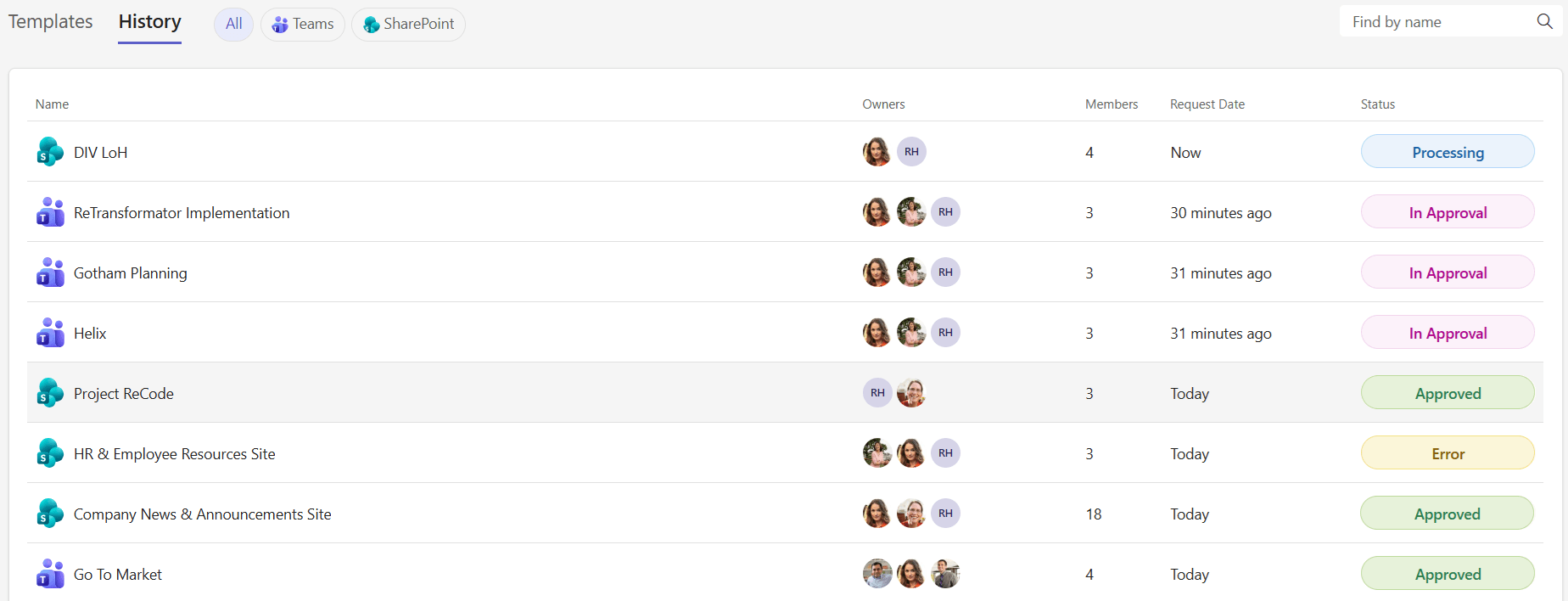
What you see
The table shows:
Column | Description |
|---|---|
Name | Workspace name with service icon |
Owners | Profile pictures of designated owners |
Members | Number of members added |
Request Date | When you submitted the request (shown as relative time, for example "2 days ago") |
Status | Current state of the request (Processing, In Approval, Approved, Declined, Error) |
Frequently asked questions
How do I check whether my workspace request has been created?
Click Requests on the navigation bar, then switch to the History tab. The table lists all the requests you submitted, and the Status column shows the current state of each one.
Do I need a Rencore Governance role to see my submitted requests?
No. No Rencore Governance role is needed to track requests. You see the requests that you submitted yourself.
Which statuses can a workspace request have in the history tab?
A request can have the status Processing, In Approval, Approved, Declined, or Error. The Status column in the table shows the current state of each request.
Was this page helpful?
Thanks for the feedback.
Thanks. What was wrong?