Troubleshoot Rencore Nova
AI summary
Rencore Nova is deprecated and will shut down on December 31, 2026; migrate to the Rencore Teams App before that date. When Nova error messages appear, check your Environment and Teams App settings in Rencore Governance; you need the Owner role to make changes. Common problems include missing environment connections, duplicate connections through another environment, or disabled Nova settings.
Fix the messages Rencore NovaRencore NovaRencore Nova is a deprecated end-user app, replaced by the Rencore Teams App, that shuts down on 31 December 2026.Read more shows when it is not connected to your EnvironmentEnvironmentAn Environment is the connected Microsoft 365 tenant inside a Workspace.Read more or not turned on for your users. Most of them come from the Rencore Nova Integration settings.
Before you begin
- You need the Owner role to change the Rencore Nova Integration settings. Only the Owner role has the Manage Nova integration permission. See Rencore roles.
Steps
- In Rencore Governance, go to Settings > Environment Settings > Rencore Nova Integration.
- Check that Environment Connected to Rencore Nova and Rencore Nova Teams App enabled for all users of the connected Microsoft 365 tenantMicrosoft 365 tenantA Microsoft 365 tenant is the dedicated instance of Microsoft 365 that holds an organization's users, groups, data and settings.Read more are both on. See Integrate Rencore Nova.
- Find the message you see below.
If it does not work
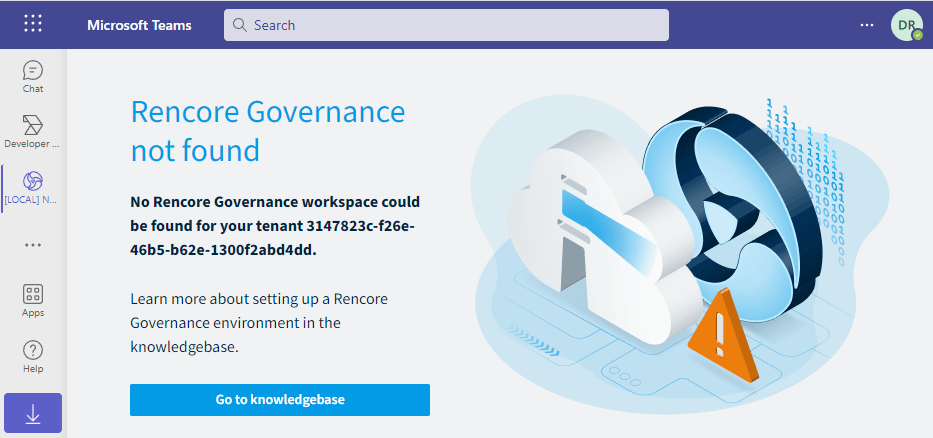
Rencore Governance not found
This message is displayed in the Nova app for users of the given tenant if the Environment Connected to Rencore Nova feature is not enabled. See Integrate Rencore Nova to turn it on.
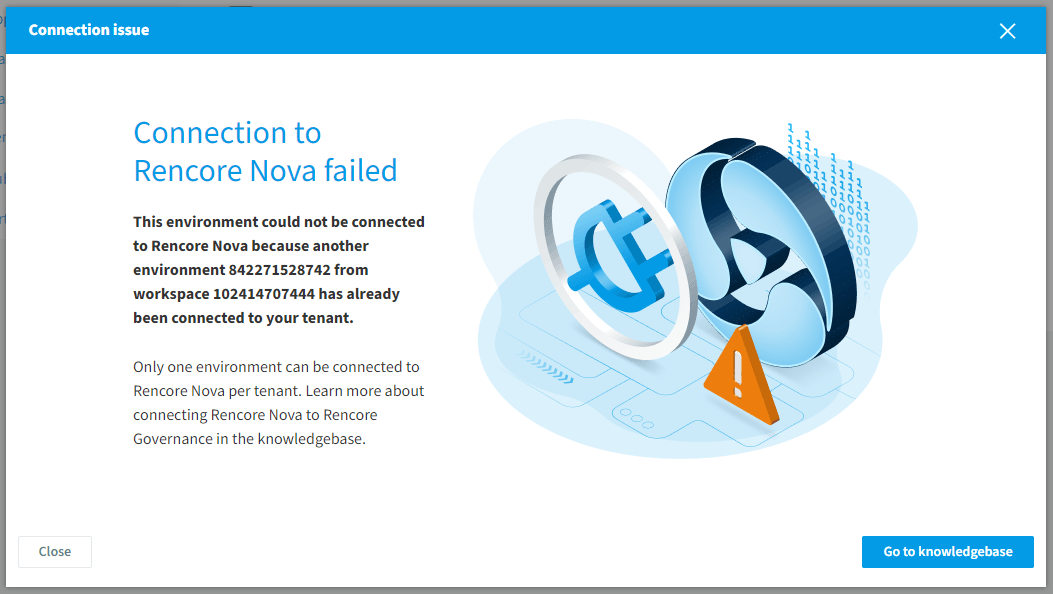
Connection to Rencore Nova failed
If the tenant is already connected to Rencore Nova via a different Environment, this message is displayed. A tenant can only be connected to Rencore Nova through a single Environment at a time.
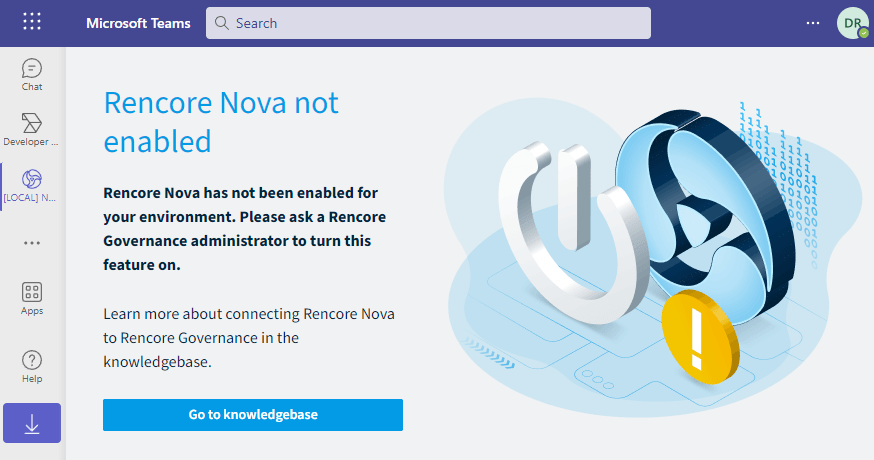
Rencore Nova not enabled
This message is displayed in the Nova app for users of the given tenant if the Rencore Nova Teams App enabled for all users of the connected Microsoft 365 tenant feature is not enabled. See Integrate Rencore Nova to turn it on.
This option can only be enabled if Nova is connected to the given Environment (the Environment Connected to Rencore Nova feature is enabled, the first switch button).
Download Teams App manifest button inactive
The button becomes inactive only when Rencore Nova is not connected to the Environment.
Frequently asked questions
Why does Rencore Nova show the message Rencore Governance not found?
The Environment Connected to Rencore Nova feature is not turned on. Users of the tenant see this message in the Nova app until you switch that feature on in the Rencore Nova Integration settings.
Why does the message connection to Rencore Nova failed appear?
The tenant is already connected to Rencore Nova through a different Environment. A tenant can only be connected to Rencore Nova through a single Environment at a time.
 Why can I not turn on Rencore Nova for all users of the connected Microsoft 365 tenant?
Why can I not turn on Rencore Nova for all users of the connected Microsoft 365 tenant?This option can only be turned on if Rencore Nova is connected to the Environment. Switch on Environment Connected to Rencore Nova (the first switch) first, then turn on the option for all users.
Why is the download Teams App manifest button inactive?
The button becomes inactive only when Rencore Nova is not connected to the Environment. Connect the Environment to Rencore Nova to make the button active again.
Who can change the Rencore Nova integration settings?
Only users with the Owner role can change them. The Owner role is the only role with the Manage Nova integration permission. The settings are under Settings > Environment Settings > Rencore Nova Integration.
Was this page helpful?
Thanks for the feedback.
Thanks. What was wrong?