Workspace introduction
AI summary
Your workspace holds your Environments, inventory, dashboards and policies. Find guides for everyday tasks like searching, filtering, exporting and checking the audit log.
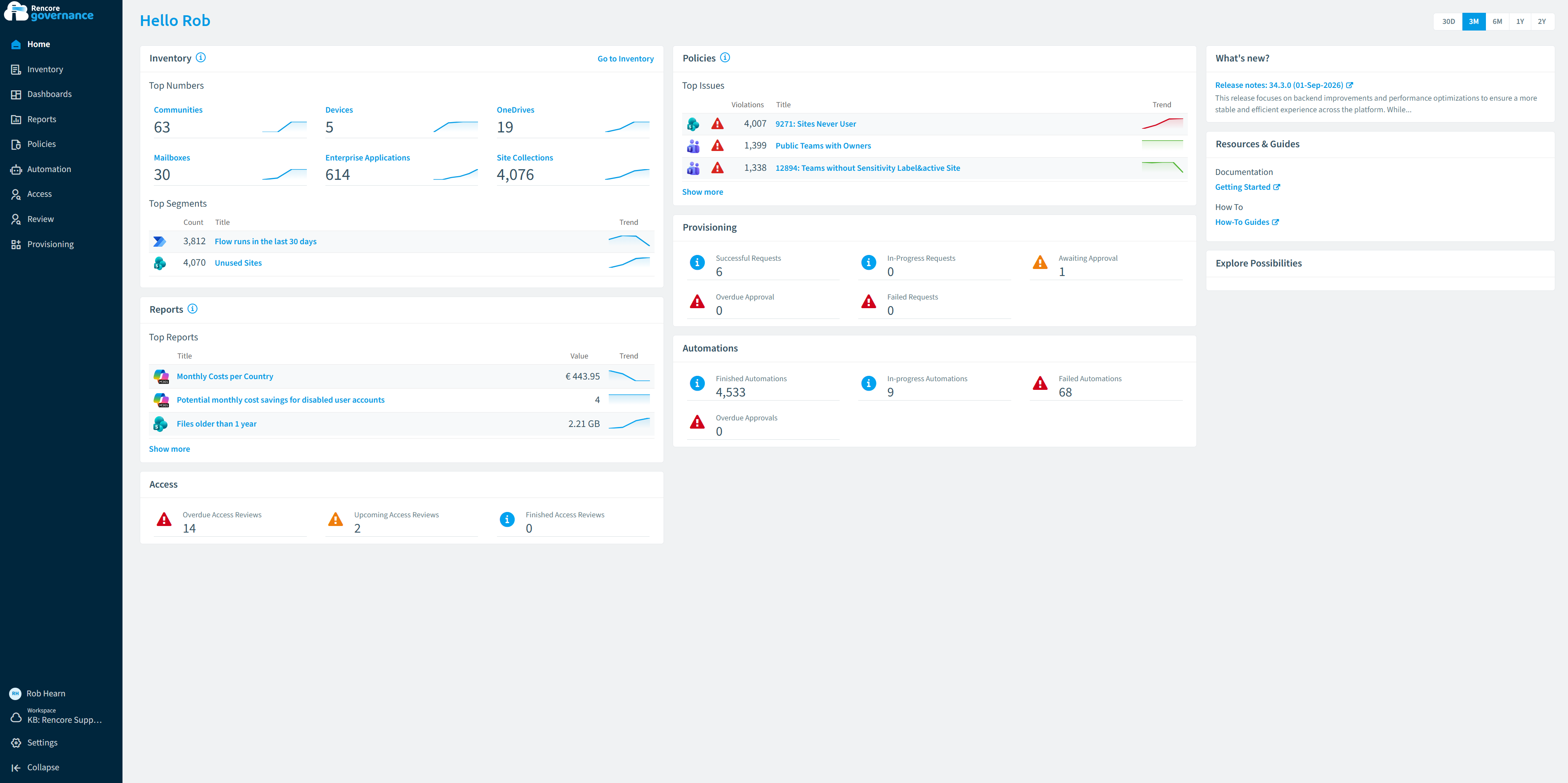
Your workspace is where you work in Rencore Governance: it holds your EnvironmentsEnvironmentAn Environment is the connected Microsoft 365 tenant inside a Workspace.Read more, their inventory, dashboards and policies, and the users who can see them. These guides cover the everyday basics, such as searching, filtering and exporting grids, switching between workspaces and Environments, and checking the audit logAudit logThe audit log records the actions performed in a Rencore Governance Workspace, with who did it and when.Read more. If you are new, start with the basic guide to your workspace.
Start with
- Learn the basics of your Workspace A curated set of workspace basics guides spanning dashboards, checks, automation, and settings.
- Search Rencore Governance Use Search in the left navigation to find inventories, segments, reports, policies, automations, reviews and provisioning templates in your current Environment by title or description.
- Switch between Environments Move between the Environments and virtual environments of a workspace.
- View audit logs See who did what in your workspace.
All guides in Workspace introduction
Get to know your workspace 3 guides
A tour of the product, a trial, and a demo modeDemo environment and Demo ModeA demo environment is an Environment filled with demo data instead of tenant data.Read more for showing it to others.
-
Learn the basics of your Workspace
A curated set of workspace basics guides spanning dashboards, checks, automation, and settings.
Before you begin: Each linked guide names the role it needs.
-
Rencore Lite is a 14-day, self-serve trial of a focused edition of Rencore Governance.
Before you begin: You do not need a Rencore role yet. (+1 more)
-
Hide setup and subscription banners when you show Rencore Governance to others.
Before you begin: Your Rencore role needs the Edit Workspace permission to turn on Demo Mode for the Workspace, or the Edit Environment…
Find and export data 3 guides
Search everything in an Environment, filter a grid, and download it as PDF or Excel.
-
Use Search in the left navigation to find inventories, segments, reports, policies, automations, reviews and…
Before you begin: Search only shows items your role already has permission to see.
-
Filter a grid to the rows you need by searching its columns.
Before you begin: Any Rencore role that can open the Datagrid can search it.
-
Export data grids to PDF or Excel
Download any inventory or report grid as a PDF or Excel file.
Before you begin: Your Rencore role needs the Export data permission.
Workspaces, Environments and audit log 3 guides
Move between workspaces and Environments, and see who changed what.
-
Move between the Environments and virtual environments of a workspace.
Before you begin: Any Rencore role can switch between the Environments it has access to in the Workspace.
-
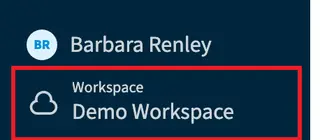
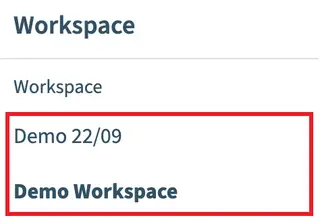
Move between workspaces when your account belongs to more than one.
Before you begin: You have a role in each Workspace you want to open.
-
See who did what in your workspace.
Before you begin: Only the Owner role and custom roles with the Workspace: View Audit Log permission can open the Audit Log. (+1 more)
Frequently asked questions
What can I find with search in Rencore Governance?
Search in the left navigation finds inventories, segments, reports, policies, automations, reviews and provisioning templates in your current Environment, by title or description. It only shows items your role already has permission to see.
Which permission do I need to export a data grid to PDF or Excel?
Your Rencore role needs the Export data permission. With it, you can download any inventory or report grid as a PDF or Excel file.
Who can open the audit log?
Only the Owner role and custom roles with the Workspace: View Audit Log permission can open the Audit Log. It shows who did what in your workspace.
Which permission do I need to turn on demo mode?
Your Rencore role needs the Edit Workspace permission to turn on Demo Mode for the Workspace. Demo mode hides setup and subscription banners when you show Rencore Governance to others.
Can I switch between Environments without a special role?
Yes. Any Rencore role can switch between the Environments it has access to in the Workspace. You can also move between virtual environments of a workspace.