Trigger a manual automation
AI summary
Manually trigger an automation on any inventory object by selecting it from the data grid or opening the object page. You need the Trigger Automation permission.
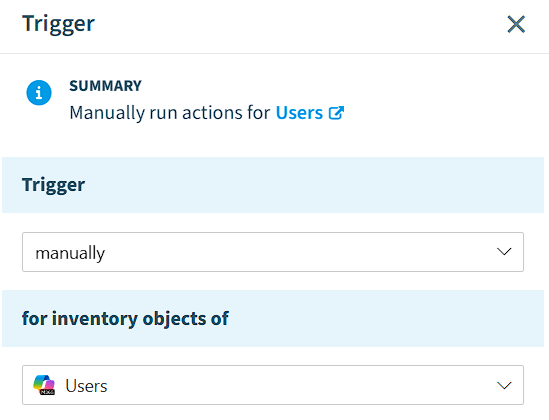
Run an automation that has a “Manually” trigger on an object from the inventory. You can start it from the data gridDatagridA datagrid is the table view Rencore Governance uses for lists of items, such as the objects of an inventory or the violations of a policy.Read more or from the object’s page.
Before you begin
- Your Rencore role includes the Trigger AutomationAutomationAn automation is a workflow Rencore Governance runs on inventory objects when a trigger fires.Read more permission. Owner, Admin and Contributor have it. See Rencore roles.
- The automation uses the “Manually” trigger.
Steps
-
Click InventoryInventoryThe inventory is the record of every object Rencore Governance scans from your tenant, with their properties and the relations between them.Read more on the Nav Panel.
-
Hover over the service and click Go to Inventory, or click Inventory Options ([…]) and select Go to Inventory.
-
Go to the object typeInventory objectAn inventory object is one item Rencore Governance has scanned from a connector, such as a single Team, SharePoint site collection, user or Power App.Read more the automation is configured for (e.g. Users, TeamsMicrosoft TeamsMicrosoft Teams is the Microsoft 365 app for chat, meetings and team collaboration.Read more).
-
Trigger the automation from the data grid or from the object, as described below.
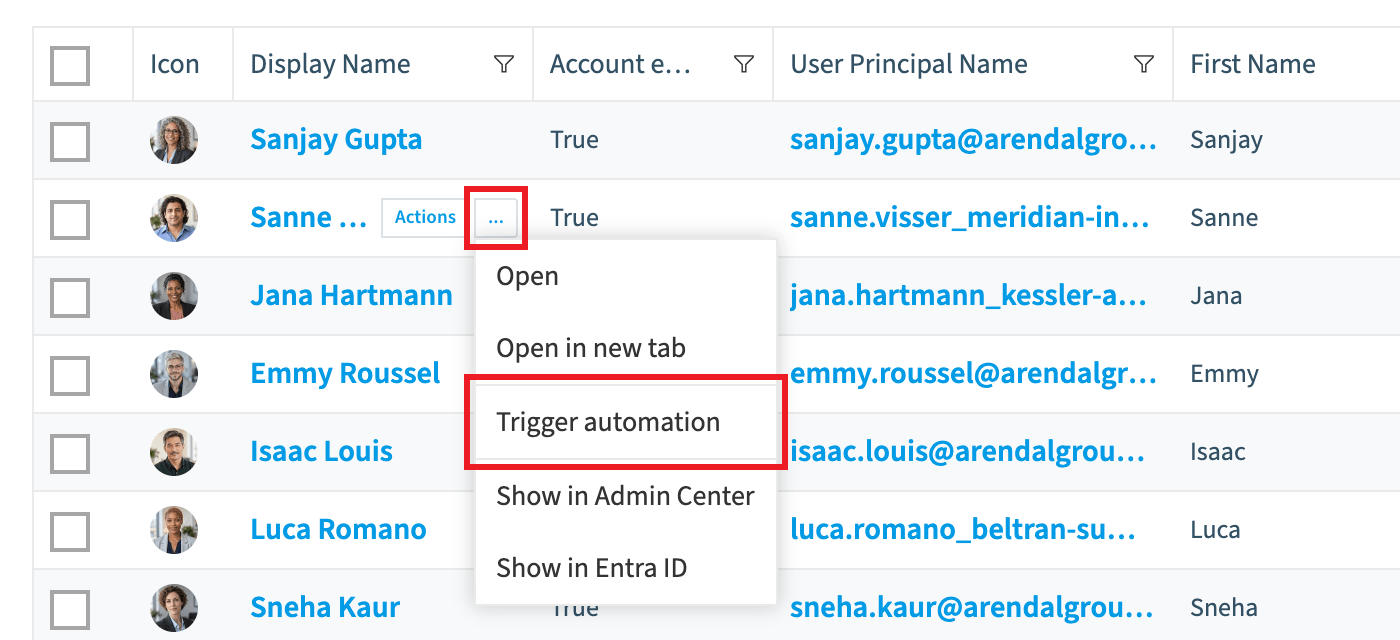
From the data grid
-
Click the Ellipses Menu […] next to the object.
-
Select Trigger Automation.
-
Select the automation from the drop-down.
-
Click Trigger.
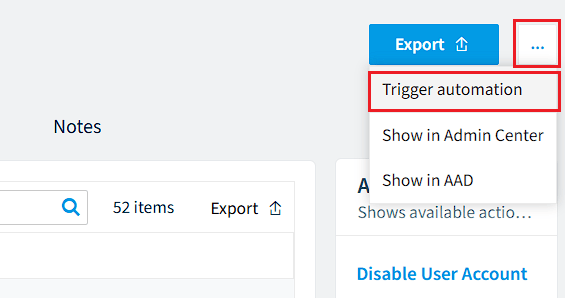
From the object’s page
-
Click the object.
-
Click the Ellipses Menu […].
-
Click Trigger automation.
-
Select the automation from the drop-down.
-
Click Trigger.
Frequently asked questions
Which Rencore roles can trigger a manual automation?
Owner, Admin and Contributor can trigger a manual automation. Your Rencore role must include the Trigger Automation permission, and these three roles have it.
Which trigger type must an automation use to be started by hand from the inventory?
The automation must use the "Manually" trigger. Only automations with that trigger can be run on an object from the inventory data grid or the object's page.
How do I trigger an automation from the data grid in the inventory?
Open the inventory for the object type the automation is configured for, such as Users or Teams. Click the Ellipses Menu next to the object and select Trigger Automation. Then select the automation from the drop-down and click Trigger.
Was this page helpful?
Thanks for the feedback.
Thanks. What was wrong?