Workspaces and Environments
AI summary
A Workspace is the top-level container holding one Microsoft 365 tenant (your Environment), settings, users and roles. Virtual Environments let you divide a single tenant logically by department or region, each with its own dashboards, inventory views and permissions. The Workspace interface shows navigation options for Inventory, Reports, Policies, Automation and other governance functions, with Settings for configuring workspace-level and environment-level options.
A Workspace is the top-level container you work in, with the settings, users, roles and connected apps for exactly one Environment. The Environment is the Microsoft 365 tenant you connect.
How it works
When you sign in for the first time, you create a WorkspaceWorkspaceA Workspace is the top-level container in Rencore Governance. It holds the settings, users, roles and connected apps for exactly one Environment, the connected Microsoft 365 tenant.Read more. You choose its data centerData centerThe data center is the Microsoft Azure region where Rencore Governance stores all data of a Workspace.Read more, and all data of the Workspace is stored in that data center and in the same storage container. To explore the product with demo dataDemo environment and Demo ModeA demo environment is an Environment filled with demo data instead of tenant data.Read more first, get a demo environment through try.rencore.com. A demo environment cannot connect a real tenant. To try Rencore Governance on your own tenant first, see Start a Rencore Lite trial.
You then connect your Microsoft 365 tenantMicrosoft 365 tenantA Microsoft 365 tenant is the dedicated instance of Microsoft 365 that holds an organization's users, groups, data and settings.Read more. It becomes the EnvironmentEnvironmentAn Environment is the connected Microsoft 365 tenant inside a Workspace.Read more of the Workspace. A Workspace has one Environment, and an Environment belongs to one Workspace. Settings that apply to the tenant, such as connectors, consent, currency, notifications and mail settings, live under Environment Settings. Settings for the Workspace live under Workspace Settings: its name and description, with the Workspace ID and data center shown under General Settings, its Environment, and its Appearance, the branding and the features available in the Workspace and its Environment. Users, roles and teamsRoles and teamsRoles and teams control what each user can do and see in a Workspace. Each user is assigned a role, which grants permissions, and a team, which grants access to inventory objects.Read more are managed under Users & Roles.
If you need separate views of one tenant, you add Virtual EnvironmentsVirtual EnvironmentA Virtual Environment is a logical segment of the data in one Microsoft 365 tenant, for example a department, region or subsidiary.Read more. Each one carries its own selection of inventory objectsInventory objectAn inventory object is one item Rencore Governance has scanned from a connector, such as a single Team, SharePoint site collection, user or Power App.Read more, dashboards, policies and reports, and its own permissions. Creating them is called tenant segmentation and is included in the Enterprise PlanPlanA Plan is the edition of Rencore Governance in your Subscription: Professional, Premium or Enterprise.Read more.
| Term | What it is | How many |
|---|---|---|
| Workspace | The container for settings, users, roles and one Environment | One per organization you govern |
| Environment | The connected Microsoft 365 tenant and its scanned data | One per Workspace |
| Virtual Environment | A logical part of one Environment, such as a department or region | As many as you set up |
| Demo environment | An Environment filled with demo data instead of tenant data | Created through try.rencore.com, with its own 14-day trial period |
Example
A company with offices in Germany and the United States connects its tenant to one Workspace. The central IT team works in the Environment and sees everything. Each country team gets a Virtual Environment that shows only its own users, sites and TeamsMicrosoft TeamsMicrosoft Teams is the Microsoft 365 app for chat, meetings and team collaboration.Read more, with its own dashboards and policies.
A partner who governs several customers creates one Workspace per customer instead, so each customer sees only its own tenant.
Finding your way around
Every page in an Environment has the same frame: the navigation bar on the left and the page on the right. This is the home page.
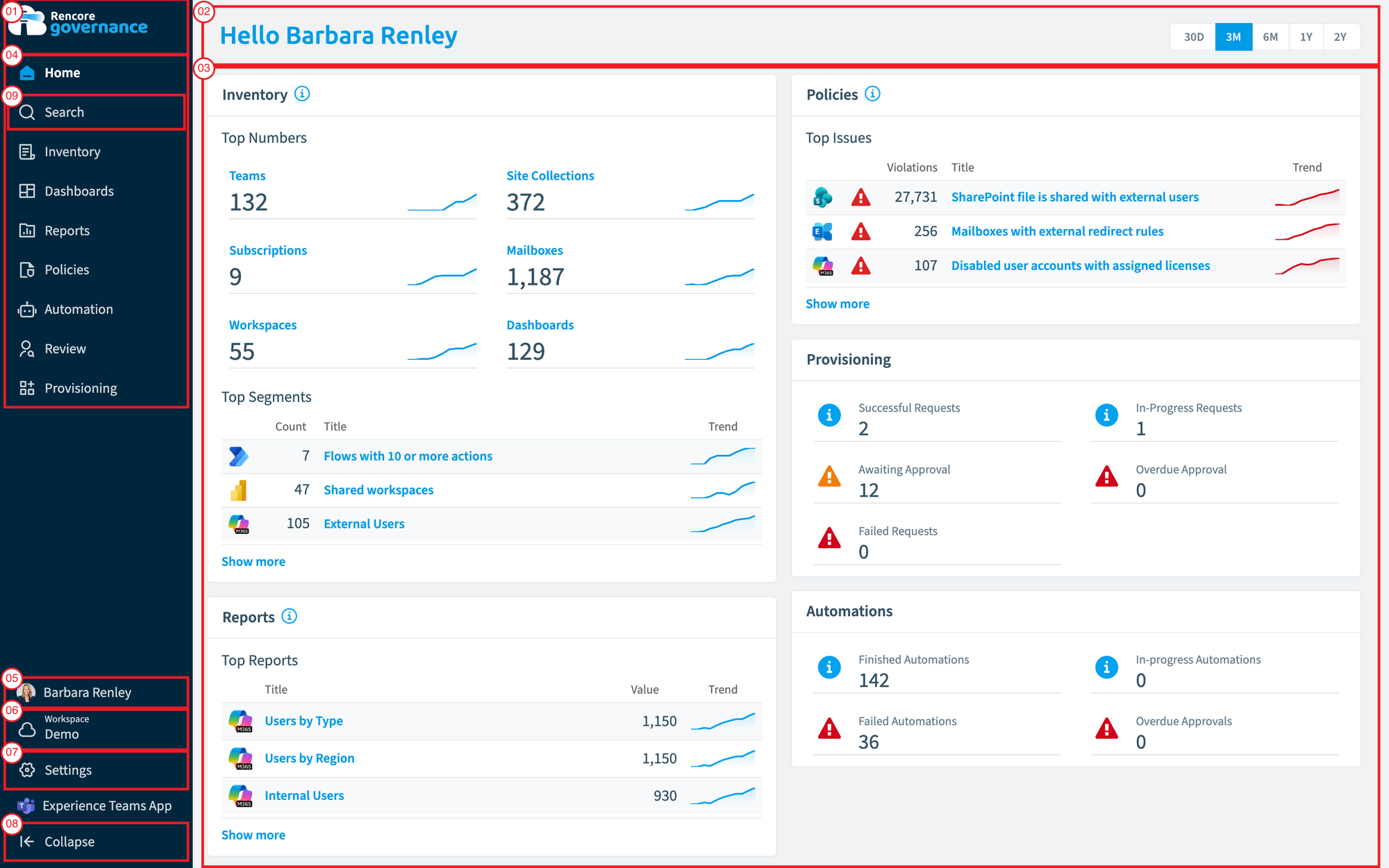
- Logo: opens the home page of the current Environment. Your Workspace can show its own logo instead, see Change appearance.
- Page header: the title of the page. On the home page, a greeting and a time period filter: 30 days, 3 months, 6 months, 1 year or 2 years.
- Page content: on the home page, tiles with the top numbers and items for InventoryInventoryThe inventory is the record of every object Rencore Governance scans from your tenant, with their properties and the relations between them.Read more, Reports, Policies, Provisioning, AutomationsAutomationAn automation is a workflow Rencore Governance runs on inventory objects when a trigger fires.Read more and access reviewsAccess reviewAn access review is a report in the deprecated Access feature that shows who has access to content, for owners to approve.Read more.
- Navigation bar: Home, Search, Inventory, DashboardsDashboardA dashboard groups reports, policies and KPIs on one page as tiles, so each stakeholder sees the governance data that matters to them.Read more, Reports, Policies, Automation, Review and Provisioning. It shows only the areas your role can open and your Subscription includes.
- User menu: your name and email, “Profile & Preferences” (your photo, time zone, date, time and number formats, and your default Workspace) and “Sign out”.
- Workspace selector: shows the current Workspace. Use it to switch to another Workspace, to the Environment or to one of its Virtual Environments, or to open All workspaces.
- Settings: Feedback, Workspace Settings, Environment Settings, Users & Roles and Account & Billing, plus links to the terms, terms of service, copyrights, privacy policy and third-party licenses.
- Collapse: collapses the navigation bar to icons, or expands it again.
- Search: directly below Home, finds inventories, reports, policies, automations, reviews and provisioning templatesProvisioning templateA provisioning template defines how a new Microsoft 365 workspace is created through Rencore Governance.Read more by title or description. See Search Rencore Governance.
Between Settings and Collapse, “Experience Teams App” takes you to the Rencore Teams App.
How it relates to other concepts
- Everything else works inside one Environment: the inventory is scanned from it, and policies, reports and dashboards run on its data.
- Connectors and consent are set per Environment, and add-on modulesAdd-on moduleAn add-on module extends Rencore Governance with a group of connectors.Read more are activated per Environment.
- Roles and teams are assigned per Workspace. You can invite users to the Workspace or to a single Environment.
- Automations are not available in a Virtual Environment, and Search there covers only Inventory, Reports and Policies.
- A Rencore Workspace is not the same as a Microsoft 365 workspace. The Rencore Teams AppRencore Teams AppThe Rencore Teams App (formerly Rencore Nova) brings Rencore Governance into Microsoft Teams for the people who own and use workspaces.Read more uses “workspaces” for the Teams, SharePoint sites, Viva Engage communitiesViva Engage communityA Viva Engage community is a group in Viva Engage where people share posts, files and events around a team, project or interest.Read more and Microsoft 365 GroupsMicrosoft 365 groupA Microsoft 365 Group is the membership object behind many Microsoft 365 workspaces.Read more people own or belong to.
Frequently asked questions
How many Environments can one Workspace have?
A Workspace has exactly one Environment, and an Environment belongs to one Workspace. The Environment is the Microsoft 365 tenant you connect to the Workspace.
How can I give each country or department its own view of one tenant?
Add Virtual Environments. Each one has its own selection of inventory objects, dashboards, policies and reports, and its own permissions. Creating them is called tenant segmentation and is included in the Enterprise Plan.
Where do I find connector, consent and mail settings?
Connectors, consent, currency, notifications and mail settings are under Environment Settings. Workspace name, description, Workspace ID, data center and Appearance are under Workspace Settings. Users, roles and teams are under Users & Roles.
Can I use automations and full search in a Virtual Environment?
No. Automations are not available in a Virtual Environment, and Search there covers only Inventory, Reports and Policies.
How do I govern several customers as a partner?
Create one Workspace per customer. Each customer then sees only its own tenant.
Was this page helpful?
Thanks for the feedback.
Thanks. What was wrong?
Learn more
- Connect a tenant to a Workspace
- Create a new Workspace to onboard a new organization
- Switch between Workspaces and Switch between Environments
- Add a Virtual Environment
- Get a demo environment
- Delete a Workspace
- Data residency