Install Rencore Nova
AI summary
Rencore Nova is deprecated and will be shut down on December 31, 2026; migrate to the Rencore Teams App instead. To install Rencore Nova for your users, download a manifest from Rencore Governance settings and upload it to the Teams Admin Center, then users can add the app to Teams or you can roll it out with a Teams setup policy.
Install the Rencore Nova Teams app in the Teams admin centerAdmin centerAn admin center is the web portal where administrators manage one Microsoft service, such as the Microsoft 365 admin center, the Teams admin center or the Microsoft Entra admin center.Read more so the users of your tenant can add it in Microsoft TeamsMicrosoft TeamsMicrosoft Teams is the Microsoft 365 app for chat, meetings and team collaboration.Read more. Users can then install it themselves, or you roll it out with a Teams setup policy.
Before you begin
- To install Rencore Nova in MS Teams, you must be a Workspace Owner. Only the Owner role has the Manage Nova integration permission. See Rencore roles.
- You need an admin account for the Teams Admin Center.
- Rencore Governance is integrated with Rencore NovaRencore NovaRencore Nova is a deprecated end-user app, replaced by the Rencore Teams App, that shuts down on 31 December 2026.Read more. See Integrate Rencore Nova.
Steps
 Install the Rencore Nova Teams app in the Teams admin center
-
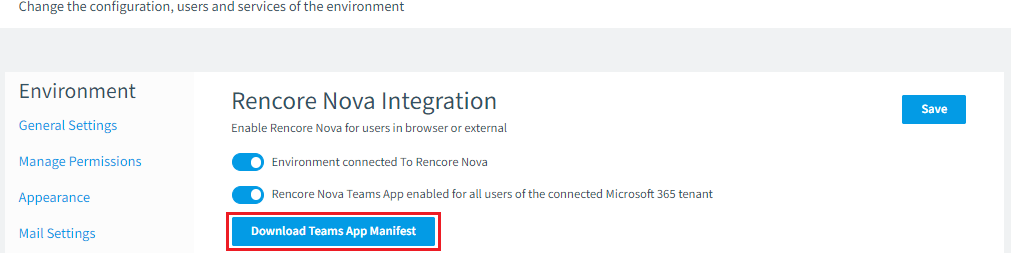
In Rencore Governance, go to Settings > Environment Settings > Rencore Nova Integration.
-
Turn on EnvironmentEnvironmentAn Environment is the connected Microsoft 365 tenant inside a Workspace.Read more connected To Rencore Nova.
-
Click Download Teams App ManifestTeams app manifestA Teams app manifest is the file in a Teams app package that describes the app, its icons and its permissions.Read more.
-
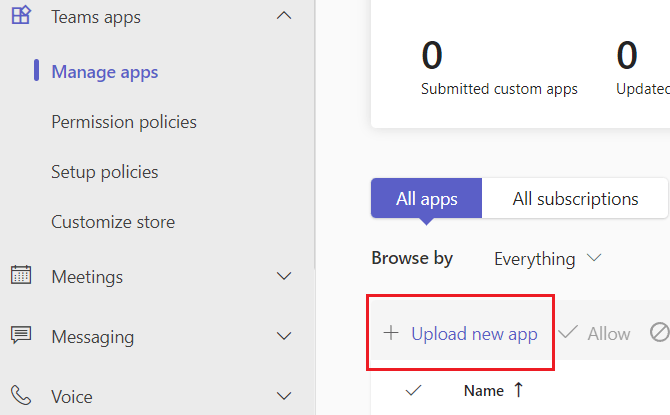
Go to the Teams Admin Center and log in with your admin account.
-
Go to Teams apps > Manage apps > + Upload new app.
-
Click Upload.
-
Select the zip file you downloaded and click Open.
Install Rencore Nova as an end user
After Rencore Nova has been installed in the Teams admin center, users can install it manually as below. You can also roll it out automatically for your users with a Teams setup policy (see this article for more information).
-
Go to the Teams web app.
-
Go to Apps > Built for your org.
-
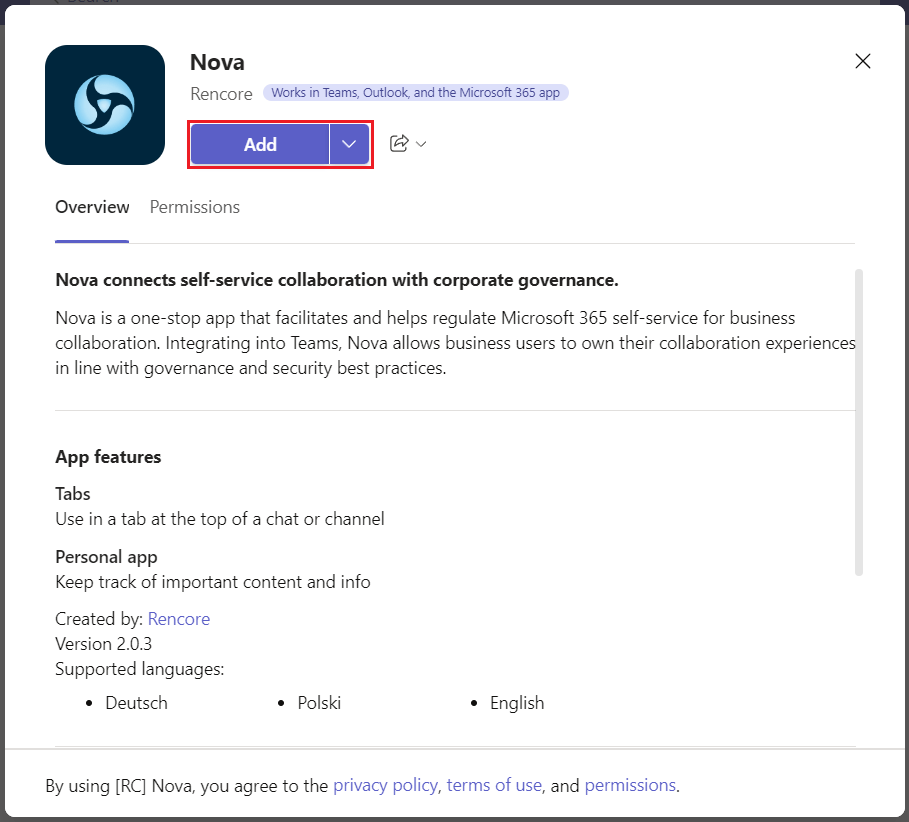
Search for “Rencore Nova”.
-
Click Add on the app.
-
Go to Apps > Nova.
-
Click Continue.
-
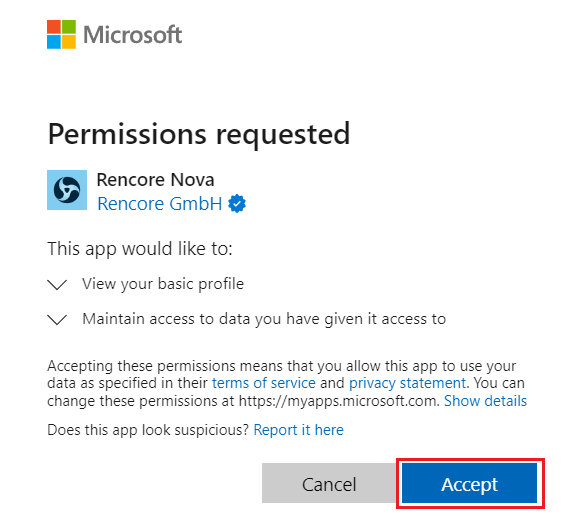
Check the required permissions and click Accept.
Frequently asked questions
What replaces Rencore Nova, and when will Rencore Nova be shut down?
The Rencore Teams App replaces Rencore Nova. Rencore Nova is deprecated and will be shut down on 31 December 2026, so migrate before that date.
How do I turn on the Rencore Teams App in Rencore Governance?
Click Settings, then Teams App Settings. On the General Settings tab, turn on the Rencore Teams App for test users and groups first, or for the entire organization.
Which role do I need to install Rencore Nova in Microsoft Teams?
Which role do I need to install Rencore Nova in Microsoft Teams?You must be a Workspace Owner. Only the Owner role has the Manage Nova integration permission. You also need an admin account for the Teams Admin Center.
How do I get the Rencore Nova app into the Teams admin center?
How do I get the Rencore Nova app into the Teams admin center?In Rencore Governance, go to Settings > Environment Settings > Rencore Nova Integration, turn on Environment connected To Rencore Nova, and click Download Teams App Manifest. Then in the Teams Admin Center, go to Teams apps > Manage apps > + Upload new app and upload the zip file.
How can users add Rencore Nova in Microsoft Teams after it is installed in the admin center?
How can users add Rencore Nova in Microsoft Teams after it is installed in the admin center?Users can install it themselves in the Teams web app under Apps > Built for your org by searching for Rencore Nova and clicking Add. You can also roll it out automatically with a Teams setup policy.
Was this page helpful?
Thanks for the feedback.
Thanks. What was wrong?