Create a review
AI summary
Create a review schedule to have workspace owners or specified users confirm who should keep access to their workspaces. The Review Builder takes you through setting a trigger (manual or scheduled), configuring review settings including reviewer assignment, scope, communication templates and guidelines, then adding title and category. Reviewers complete their reviews in the Rencore Teams App, and you can set automations for actions that happen during and after reviews.
Create a review scheduleReviewA Review is a recurring or one-off check in which workspace owners confirm who has access to their Microsoft 365 workspaces, directly in the Rencore Teams App.Read more to have workspace ownersWorkspace ownerA workspace owner is an owner of a Microsoft 365 workspace, such as a Team, a SharePoint site or a group.Read more, or users you pick, confirm who should keep access to their workspaces. The Review Builder takes you through three stages: the trigger, the review settings and the details.
Before you begin
- Your Rencore role includes the Create Review permission. Owner, Admin and Contributor have it. See Rencore roles.
- Reviews are part of the Premium and Enterprise PlansPlanA Plan is the edition of Rencore Governance in your Subscription: Professional, Premium or Enterprise.Read more.
- Reviewers complete their reviews in the Rencore Teams AppRencore Teams AppThe Rencore Teams App (formerly Rencore Nova) brings Rencore Governance into Microsoft Teams for the people who own and use workspaces.Read more.
Steps
Open the review builder
- Click Review in the navigation.
- Click Add Review.
Set the trigger
The trigger defines when a review runs and what it covers.
-
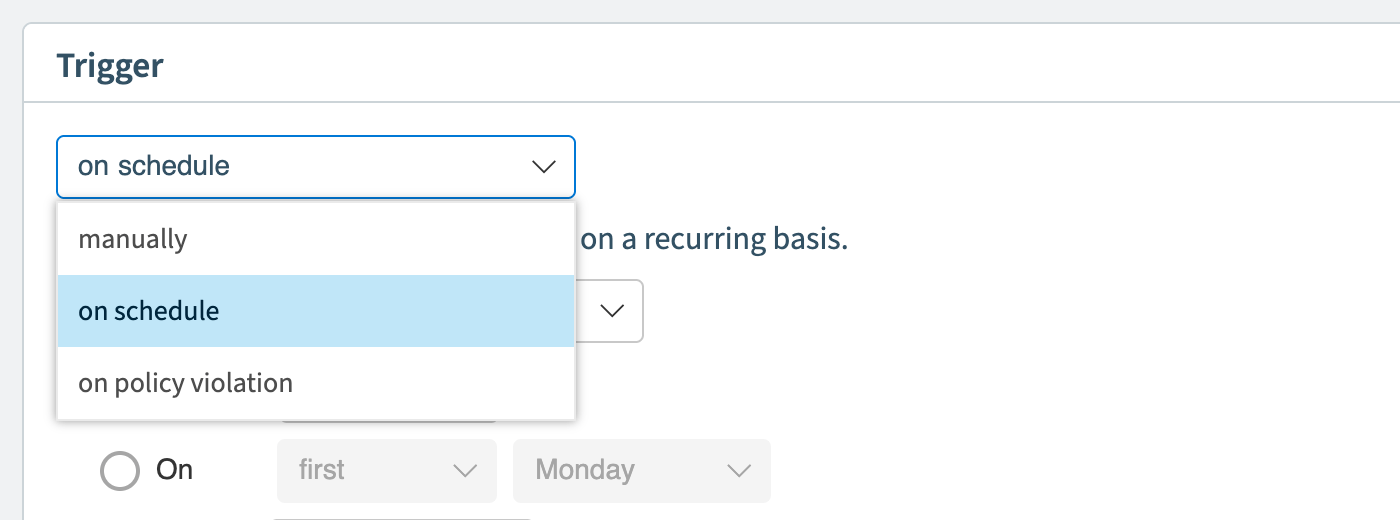
Choose the trigger type:
- Manual: you start each cycle yourself from the dashboard. Best for one-time or ad hoc reviews.
- Schedule: cycles start automatically on a recurring schedule. Best for ongoing governance.
-
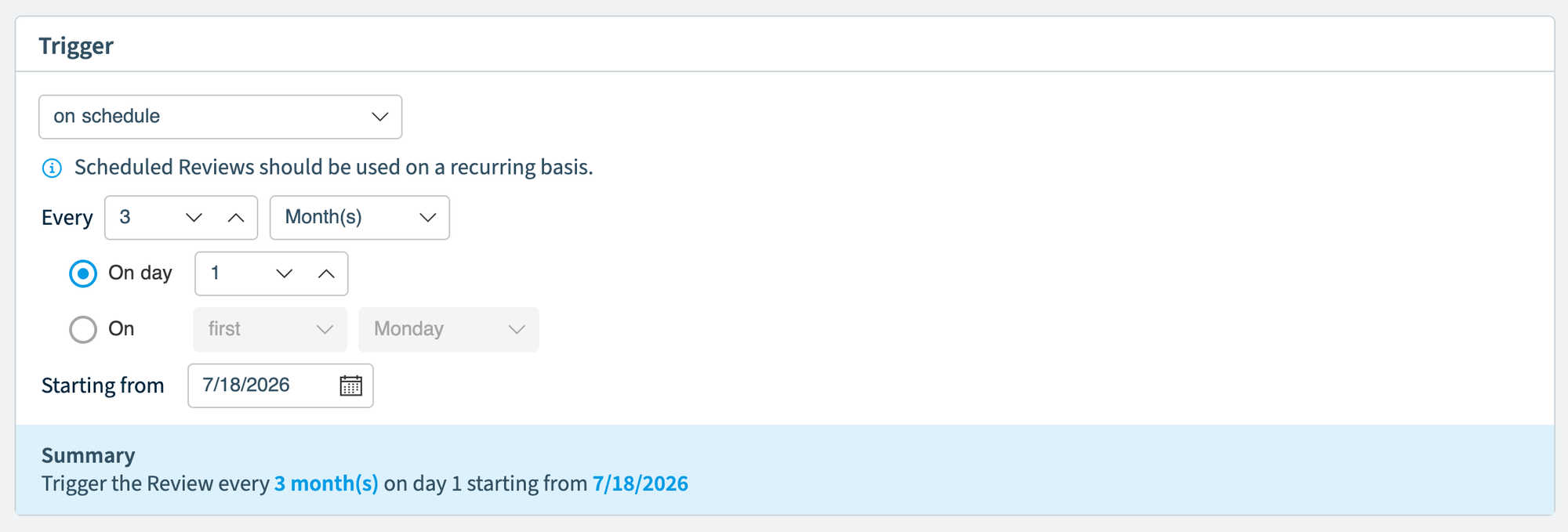
If you chose Schedule, set the Frequency, Day selection and Start date (see the table below). A summary line updates as you go (e.g. “Trigger the Review every 1 month(s) on day 1 starting from 01/05/2026”).
-
In Reviewed Object, select the type of workspace to review:
- TeamsMicrosoft TeamsMicrosoft Teams is the Microsoft 365 app for chat, meetings and team collaboration.Read more, together with the SharePoint site connected to each team
- SharePoint sites
- Microsoft 365 groupsMicrosoft 365 groupA Microsoft 365 Group is the membership object behind many Microsoft 365 workspaces.Read more
- Viva Engage communitiesViva Engage communityA Viva Engage community is a group in Viva Engage where people share posts, files and events around a team, project or interest.Read more
-
Optionally, click + Add Filter to narrow the scope to specific workspaces. Without filters, all workspaces of the selected type are included.
-
Click Next.
Field | Description |
|---|---|
Frequency | How often: every 1 to 99 days, 1 to 4 weeks, 1 to 12 months, or 1 to 10 years |
Day selection | Choose one: a specific day of the month (1 to 28), or a positional day (e.g. "First Monday", "Third Friday") |
Start date | When the schedule begins (defaults to today) |
Configure the review settings
The second stage has four tabs: Review Settings, Communication, Guidelines and AutomationsAutomationAn automation is a workflow Rencore Governance runs on inventory objects when a trigger fires.Read more.
-
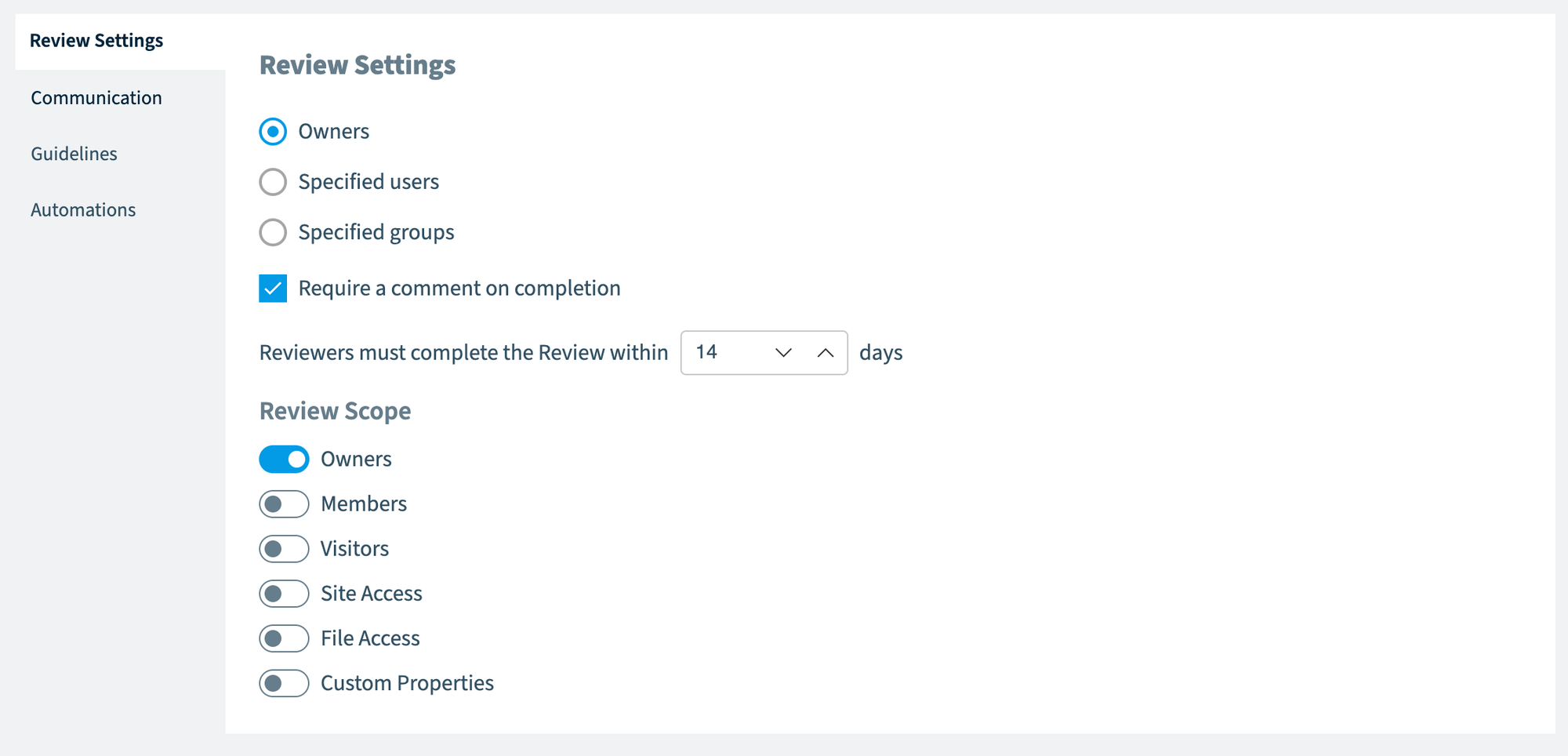
On the Review Settings tab, choose who reviews the workspaces under Reviewer assignment: Owners (default, the workspace owners are assigned automatically) or Specified users (you search for individual users, internal users only).
-
Turn on Require a comment on completion if reviewers must enter a comment when they complete their review in the Rencore Teams App.
-
Set the Review duration: the number of days reviewers have to complete their reviews (1 to 30 days, default: 30). For scheduled reviews, the maximum duration is limited by the trigger frequency so cycles do not overlap. For example, a weekly schedule allows a maximum of 6 days. The builder shows a warning if your duration exceeds the allowed maximum.
-
Under Review scope, turn on the review steps reviewers see. Turn on at least one (see the table below). When Site Access or File Access is on, sub-toggles let you limit it: Site Access Scope (External, Internal, Organization-wide) and File Access ReviewAccess reviewAn access review is a report in the deprecated Access feature that shows who has access to content, for owners to approve.Read more Scope (Anonymous Links, External Links, Organization-wide Links, Internal Links).
-
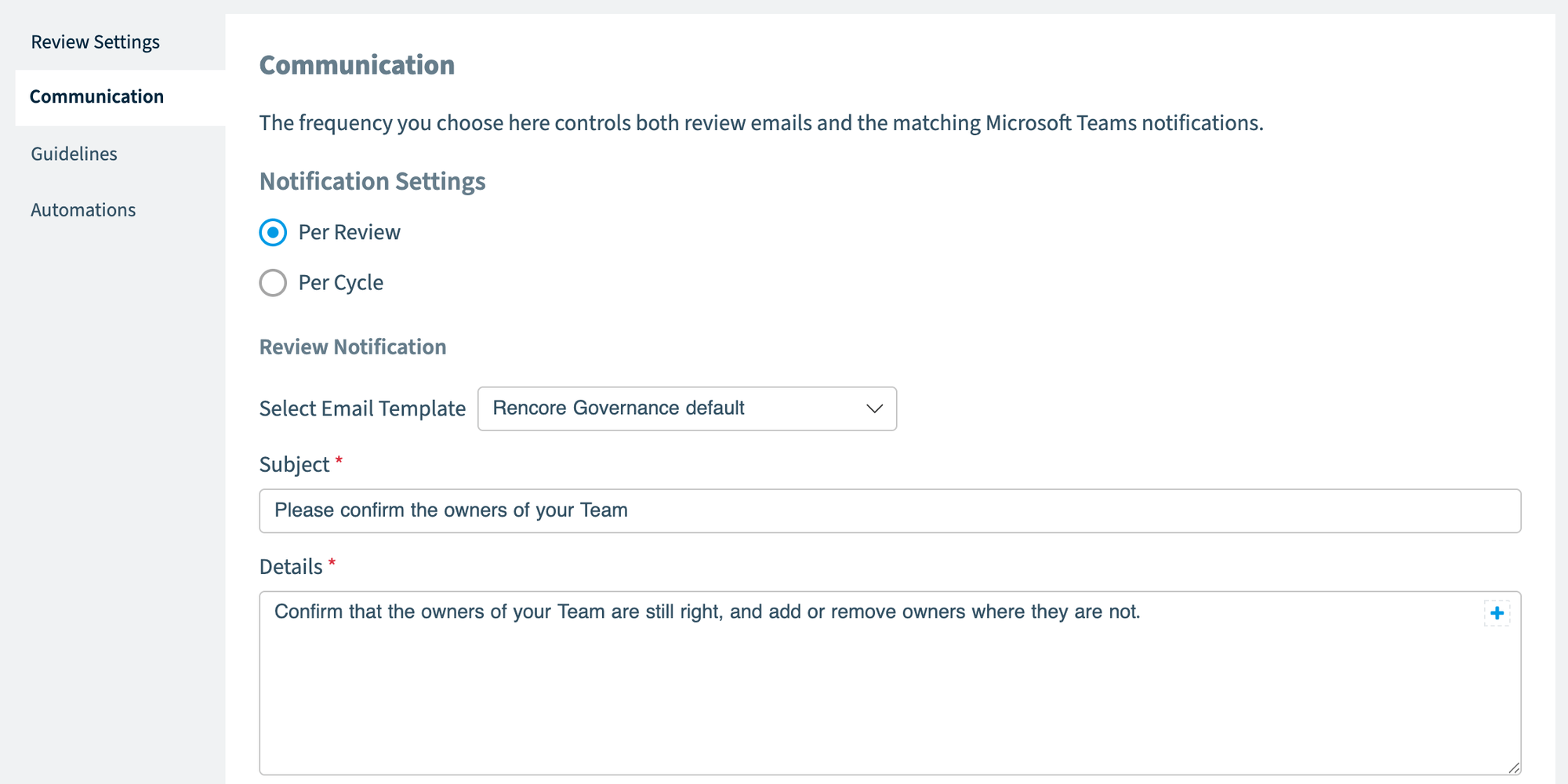
On the Communication tab, set the notification email sent to reviewers when a cycle starts: select an Email template, then enter the Subject and the Details (both required). The details support dynamic placeholdersData placeholderA data placeholder is a field in double curly braces, such as {{reviewers.names}}, that Rencore Governance fills with real data when it sends a message.Read more such as {{reviewers.names}}.
-
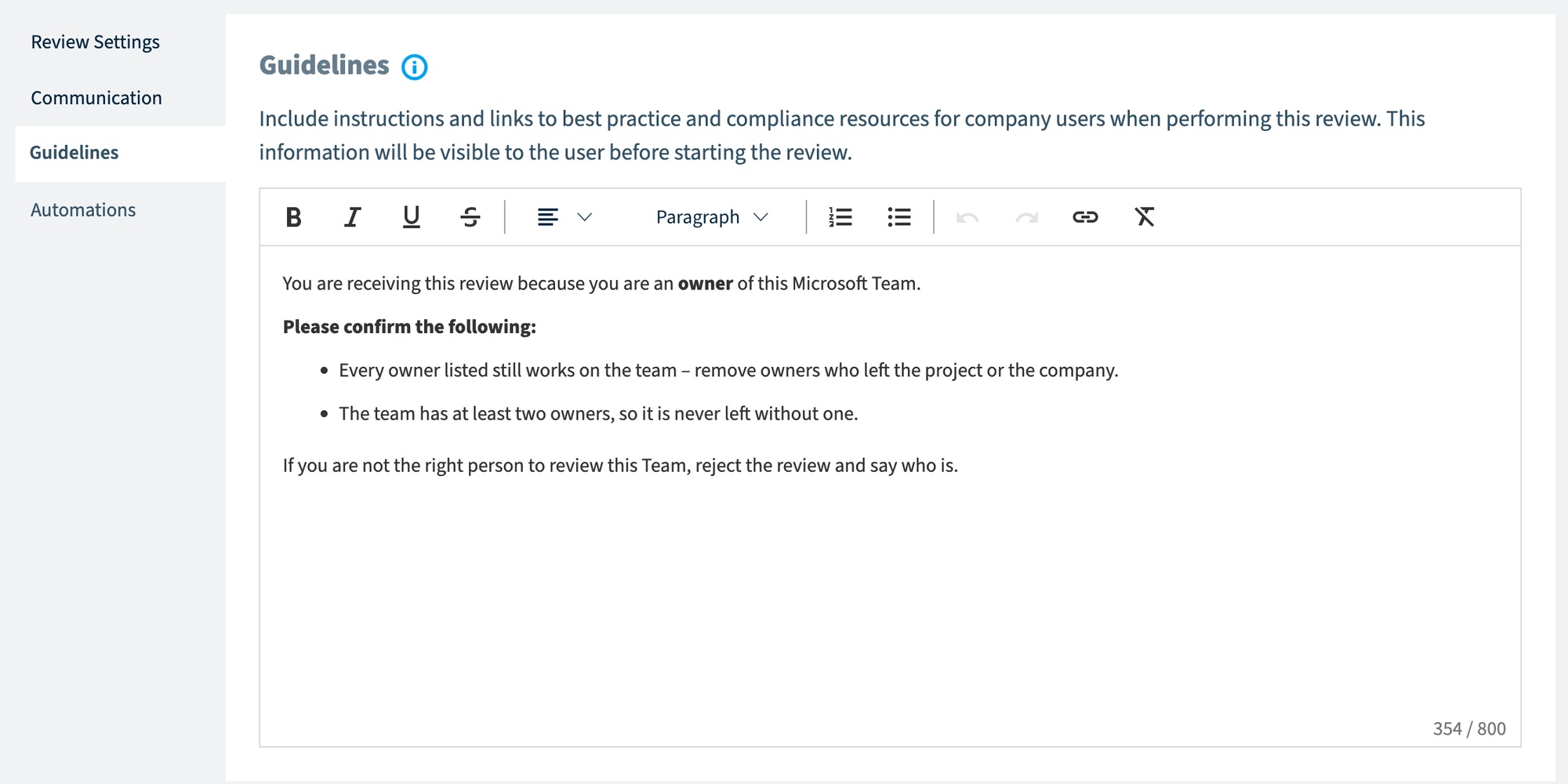
On the Guidelines tab, optionally enter the instructions reviewers see in the Rencore Teams App before they start, for example your governance policies, compliance requirements or review best practices. The field supports rich text: bold, italic, underline, alignment, block type (Headings, Paragraph, Quote and Code), lists and links. If you leave it empty, reviewers see no guidelines section.
-
On the Automations tab, set what happens automatically during and after reviews. See Review automations.
-
Click Next.
Scope | What reviewers see |
|---|---|
Owners | List of workspace owners. Reviewers can add, remove, or change roles. |
Members | List of workspace members. Reviewers can add, remove, or promote to owner. |
Visitors | Visitors with site access (SharePoint only). Reviewers can remove them. |
Site Access | Groups and users with site permissions (SharePoint only), organized by type |
File Access | File and folder sharing linksSharing linkA sharing link is a link in SharePoint or OneDrive that grants access to a file or folder, sometimes to people outside your organization.Read more and direct access permissions |
Add the details and save
-
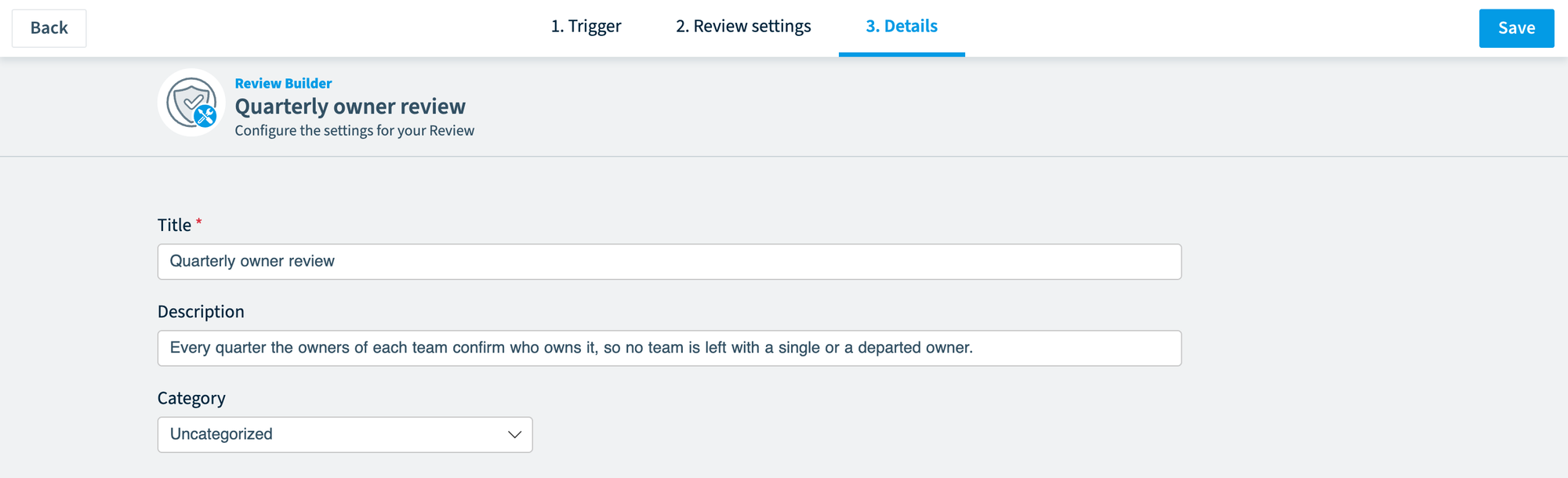
Enter a Title (required, at most 50 characters).
-
Optionally enter a Description of the review’s purpose (at most 250 characters).
-
Select a Category (required) to group your reviews.
-
Click Save.
-
In the dialog, save the schedule as a draft, or save it and turn it on (see the table below). Turning a review on can send notifications and emails to reviewers, depending on your communication settings, so check your settings before you switch it on.
Option | What happens |
|---|---|
Save as draft | The schedule is saved in a disabled state. No cycle is triggered, and no notifications are sent. You can enable it later from the dashboard. |
Save and enable | The schedule is saved and enabled. For scheduled reviews, the first cycle starts on the next scheduled date. For manual reviews, a cycle starts immediately. |
What you see
The review schedule appears on the Reviews dashboard. Open it to follow its cycles, see Monitoring reviews.
Frequently asked questions
What is the difference between a manual and a schedule trigger for a review?
With a Manual trigger, you start each cycle yourself from the dashboard, which suits one-time or ad hoc reviews. With a Schedule trigger, cycles start automatically on a recurring schedule, which suits ongoing governance.
How long can reviewers have to complete a review?
The Review duration can be 1 to 30 days, and the default is 30. For scheduled reviews, the maximum is limited by the trigger frequency so cycles do not overlap. For example, a weekly schedule allows a maximum of 6 days.
Who can I assign as reviewers?
You can assign the workspace Owners, which is the default and happens automatically, or Specified users. For Specified users, you search for individual users, and only internal users can be selected.
What happens when I save a review as a draft instead of turning it on?
The schedule is saved in a disabled state. No cycle is triggered and no notifications are sent. You can turn it on later from the dashboard.
Why can I only pick days 1 to 28 for a monthly review schedule?
Day selection for the month is capped at 28 to avoid issues with shorter months such as February. As an alternative, you can choose a positional day, for example First Monday or Third Friday.
Was this page helpful?
Thanks for the feedback.
Thanks. What was wrong?