Clone a report
AI summary
Clone a report to create a new one based on an existing report. The cloned copy opens in the Report Builder with its logic, visualization, and details filled in, so you only change what differs.
Clone a report to make a new report from an existing one. The copy opens in the Report BuilderReportA report is a saved query over the inventory that Rencore Governance shows as a chart, list, table or KPI, for example unused SharePoint site collections larger than 1 GB.Read more with its logic, visualization and details filled in, so you only change what differs.
Before you begin
- Your Rencore role includes the Create Report permission. Owner, Admin and Contributor have it. See Rencore roles.
Steps
-
Click Reports.
-
Find the report you want to clone.
-
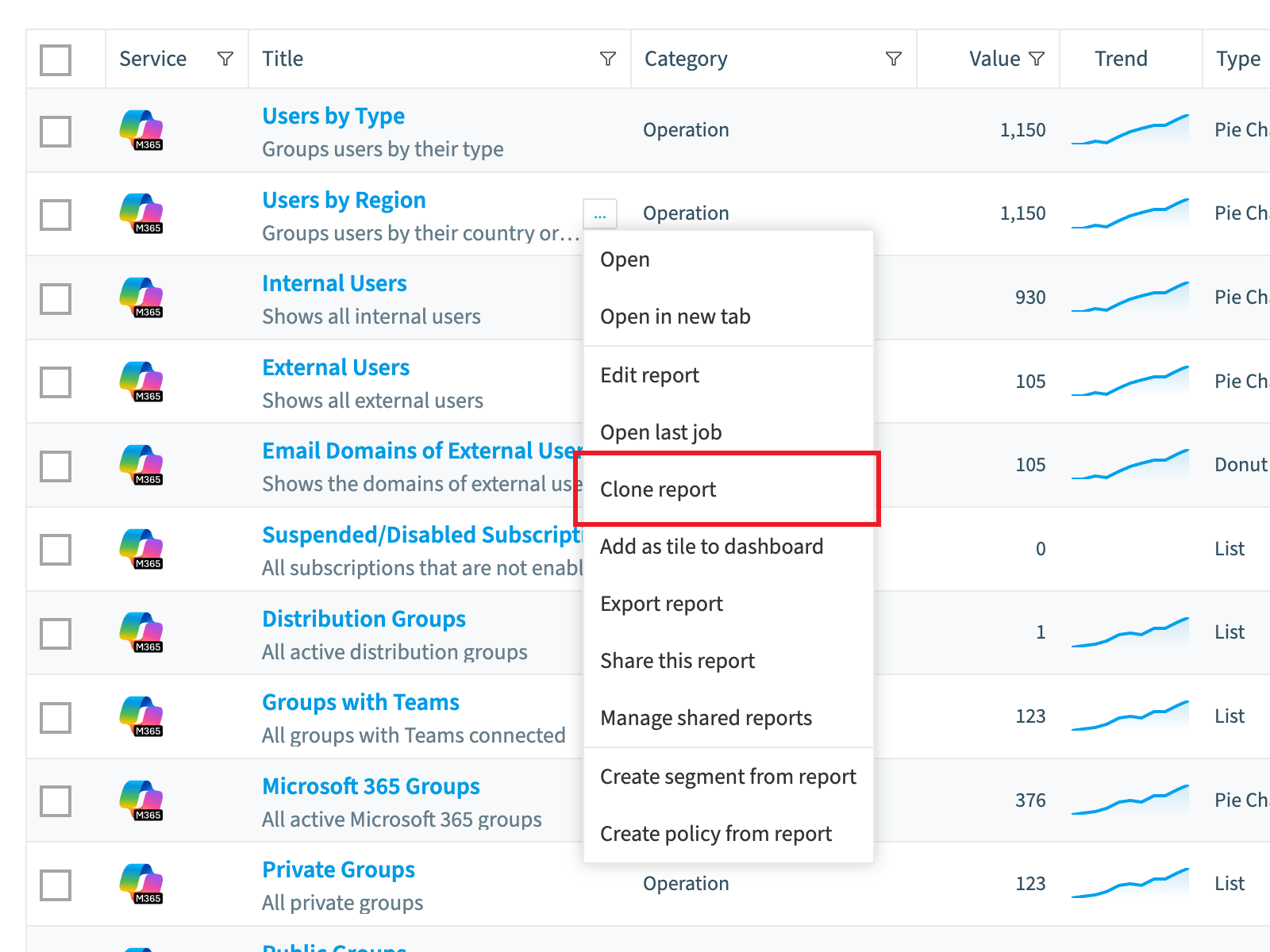
Hover over the report and click the ellipses menu ([…]) to the right of its title.
-
Click Clone report. The Report Builder opens with Logic, Visualization and Details filled in.
-
On Logic, change the logic for the new report.
-
On Visualization, select the chart style, the Color Theme and the break down for the report. See Create a custom report.
-
On Details, change the Title and Description of the new report.
-
Click Save.
What you see
Rencore Governance creates the report and gathers the data for it.
Frequently asked questions
How do I clone an existing report in Rencore Governance?
Click Reports, find the report, hover over it and click the ellipses menu to the right of its title, then click Clone report. The Report Builder opens with Logic, Visualization and Details filled in. Change what differs and click Save.
Which permission do I need to clone a report?
You need the Create Report permission. The Owner, Admin and Contributor roles include it.
What can I change when I clone a report?
You can change the logic on Logic, and the chart style, Color Theme and break down on Visualization. On Details, you can change the Title and Description of the new report.
Was this page helpful?
Thanks for the feedback.
Thanks. What was wrong?