Create a segment
AI summary
Create a segment to filter a subset of your inventory, such as all users in a specific country. The Segment Builder helps you define filters on object properties and related objects, with an option to preview results before saving.
Create a segmentSegmentA segment is a saved, rule-based filter over inventory objects, for example every user whose country is the United States.Read more to work with a filtered part of an inventory, for example all users in one country. You build it in the Segment Builder.
Before you begin
- Your Rencore role includes the Create Segment permission. Owner, Admin and Contributor have it. See Rencore roles.
Steps
-
Go to InventoryInventoryThe inventory is the record of every object Rencore Governance scans from your tenant, with their properties and the relations between them.Read more.
-
Hover over the Service and click Go to Inventory, or click Inventory Options ([…]) and select Go to Inventory.
-
Click the Object Menu ([…]).
-
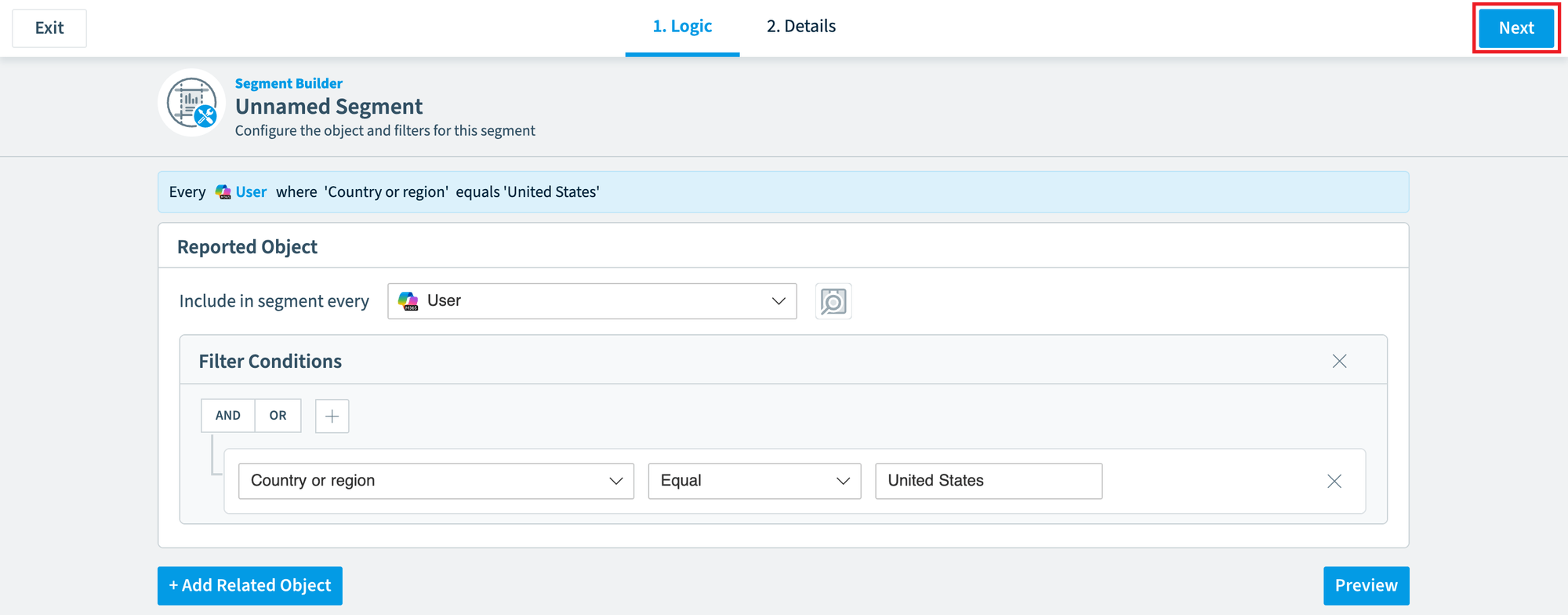
Click Add Segment. The Segment Builder opens on the Logic screen.
-
Under Segment of, choose the object you want to create a segment for (e.g. User).
-
Click Add Filter.
-
Select the property for the filter (e.g. Country or Region).
-
Select the logic (e.g. Equal).
-
Enter the value (e.g. United States).
-
Repeat steps 6 to 9 for every other filter. To filter on related objectsRelationA relation links one inventory object to another, such as a Team to its owners, members and channels.Read more, click Add Related Object and add filters for them the same way.
At any time, you can preview the results by clicking Preview at the bottom of the screen. -
Click Next in the top right.
-
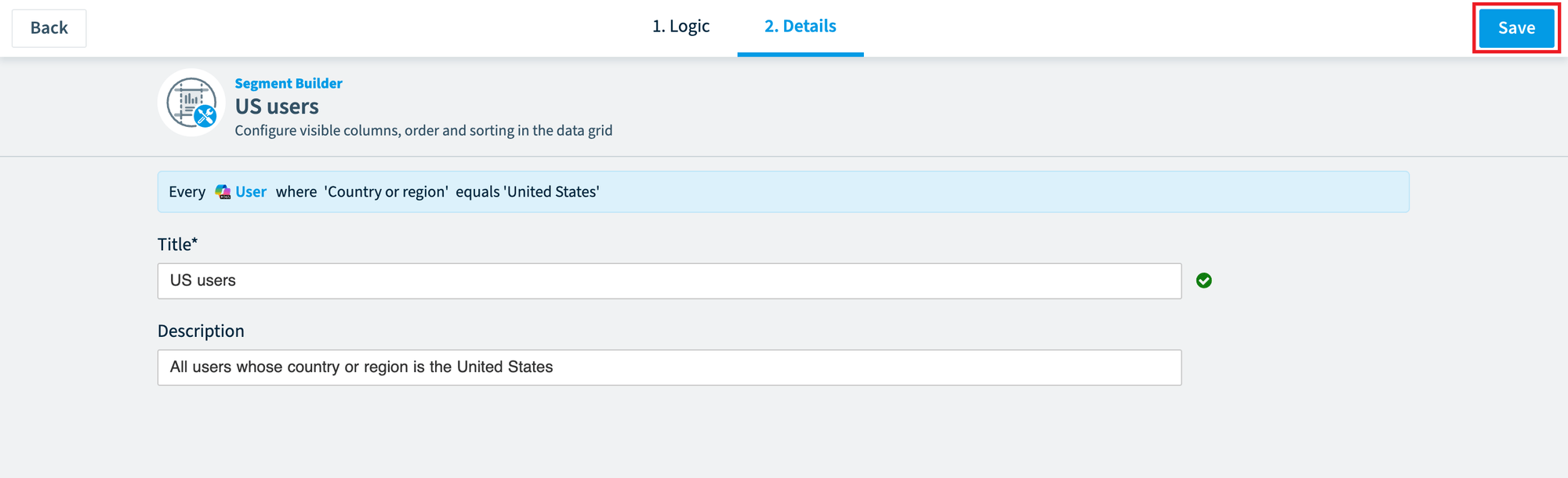
On the Details screen, enter a name for the segment in Title.
-
Enter a description in Description.
-
Click Save in the top right.
Frequently asked questions
Which Rencore roles can create a segment?
Owner, Admin and Contributor can create a segment. Your Rencore role must include the Create Segment permission.
How do I open the segment builder to start a new segment?
Go to Inventory, click the Object Menu ([…]), and click Add Segment. The Segment Builder opens on the Logic screen. To reach Inventory, hover over the Service and click Go to Inventory, or click Inventory Options ([…]) and select Go to Inventory.
Can I filter a segment on related objects and check the results before saving?
Yes. Click Add Related Object and add filters for it the same way as other filters. At any time, click Preview at the bottom of the screen to see the results.
Was this page helpful?
Thanks for the feedback.
Thanks. What was wrong?