Create a custom automation
AI summary
Build automations to automatically enforce your governance policies. You configure a trigger such as manual, scheduled, or policy violation, add actions including Power Automate flows or notifications, and set details like priority and threshold limits before enabling the automation.
Build an automation from scratch when no template fits. AutomationsAutomationAn automation is a workflow Rencore Governance runs on inventory objects when a trigger fires.Read more let you enforce your governance plan: they can trigger flows built with Power AutomatePower AutomatePower Automate, formerly Microsoft Flow, is the Microsoft low-code tool for automated workflows called flows.Read more, Azure Functions or Logic Apps, or send notifications by email or TeamsMicrosoft TeamsMicrosoft Teams is the Microsoft 365 app for chat, meetings and team collaboration.Read more, for example whenever a policy is violated.
Before you begin
- Your Rencore role includes the Create Automation permission. Owner, Admin and Contributor have it. See Rencore roles.
Steps
Open the builder
-
Click Automation on the Nav Panel.
-
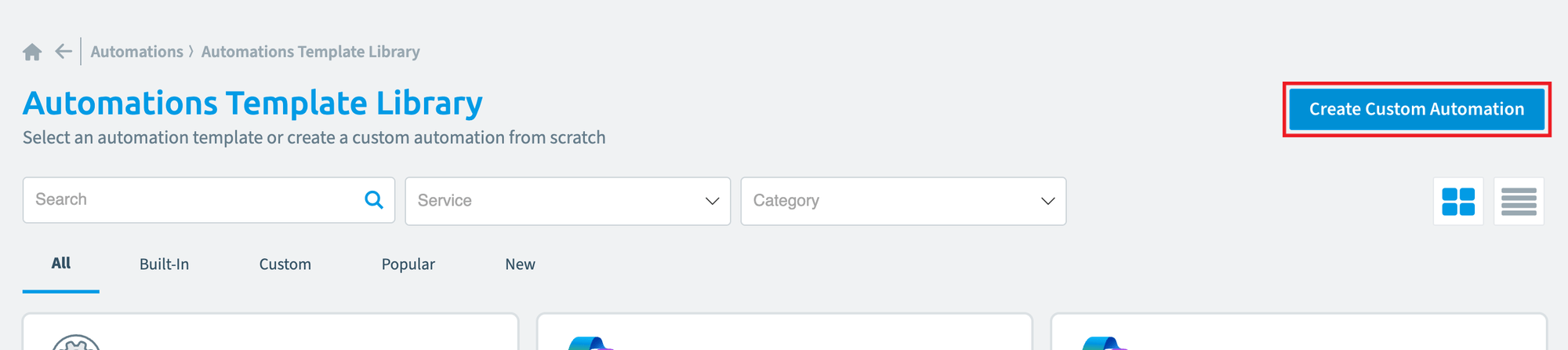
Click Add Automation on the right. The Automation Template Library opens.
-
Click Create Custom Automation.
Set the trigger
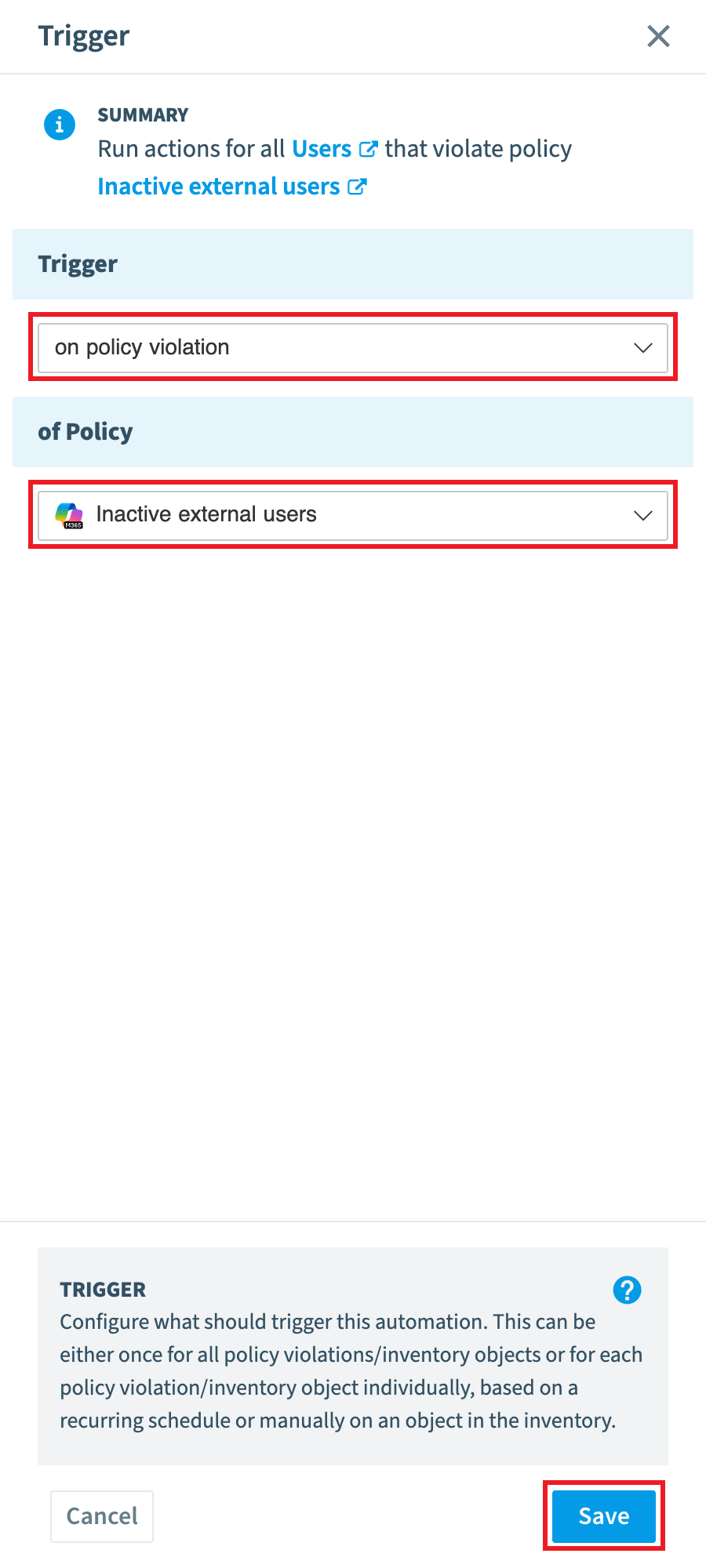
Decide which trigger the automation uses: “Manually”, “On Schedule” or “On Policy ViolationViolationA violation is an inventory object that matches the rule of an active policy, such as a Team with no owner.Read more”. See the available triggers.
-
Click the trigger in the flow and choose the trigger in the dialog.
-
Depending on the trigger, select:
- the inventory objectInventory objectAn inventory object is one item Rencore Governance has scanned from a connector, such as a single Team, SharePoint site collection, user or Power App.Read more, if you chose “manually”
- a Policy for the trigger to run, if you chose “on policy violation”
- a Policy or Inventory object and the recurrence, if you chose “on schedule”
-
Click Save to save the trigger.
Add the actions
-
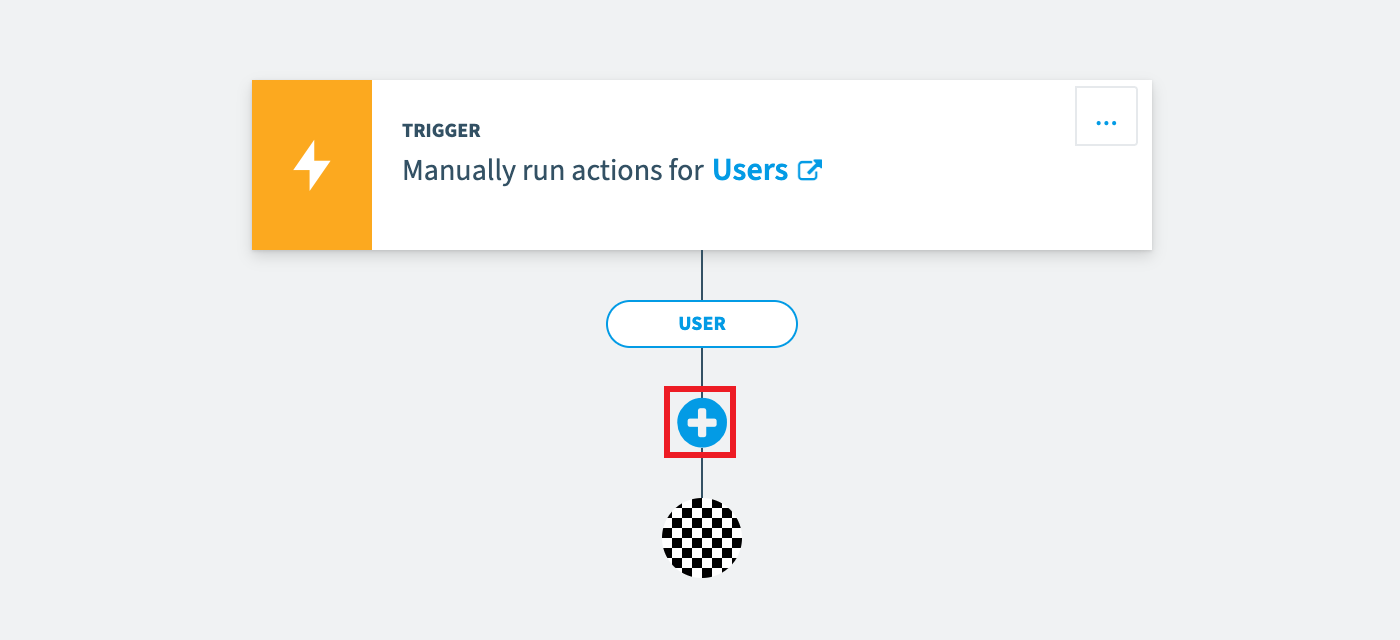
In the automation flow, click + to add the next action.
-
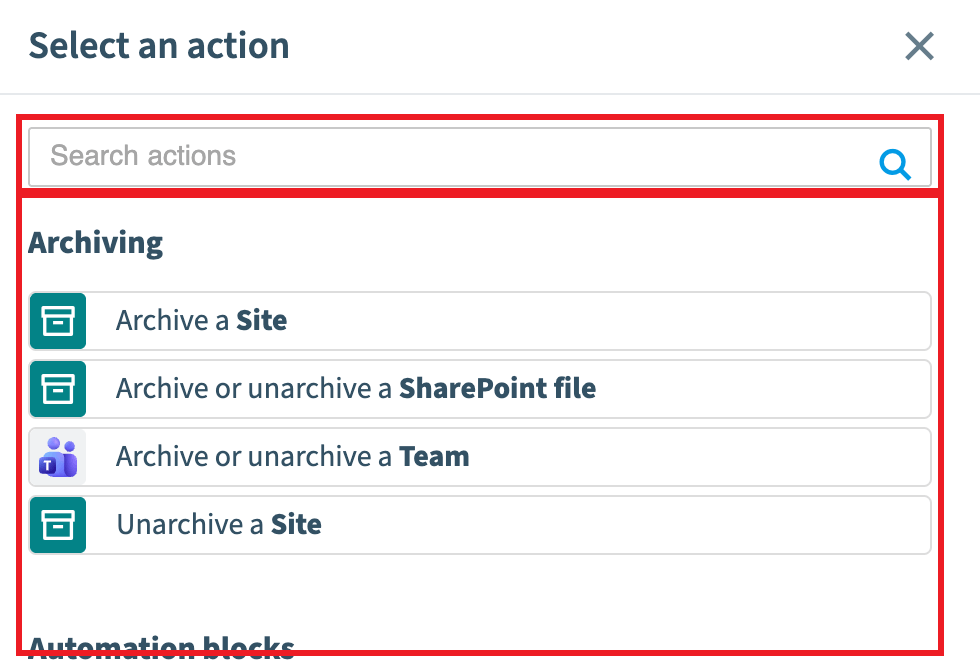
Select the action from one of these categories: ArchivingArchivingArchiving puts a Team or SharePoint site into a read-only state when it is no longer in active use, without deleting it.Read more, Automation blocks, Change property, Change relation, Delete content, Invoke, Request, Modify relation, Notification, Provisioning, Restore, Content, Schedule, Sharing.
-
Fill in the fields of the action (e.g. for a Condition, the filters) and click Save.
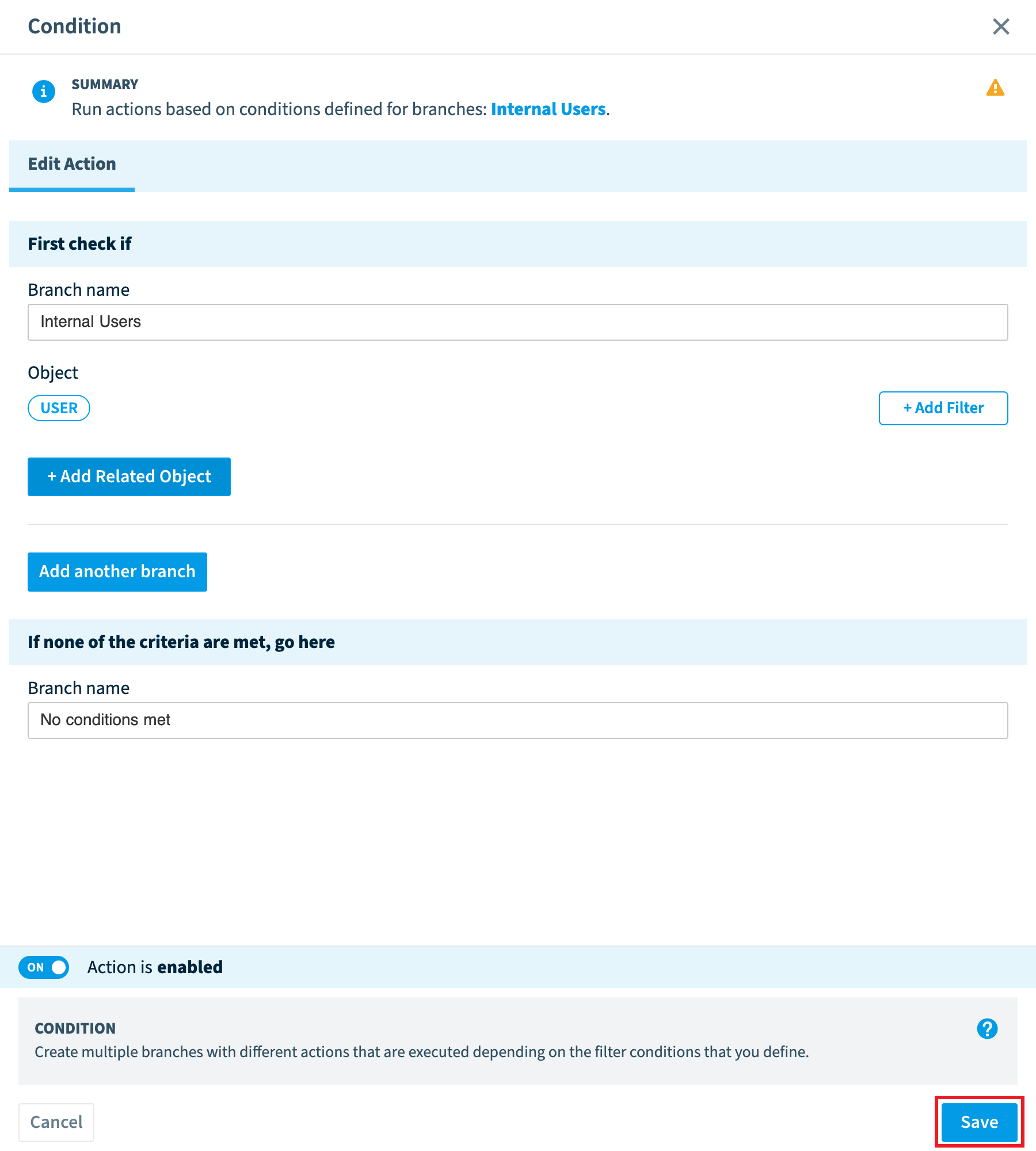
-
For a condition, click + in each branch to add an action to it (e.g. sending an email). Enter the criteria of each action and save it. Repeat as many times as needed.
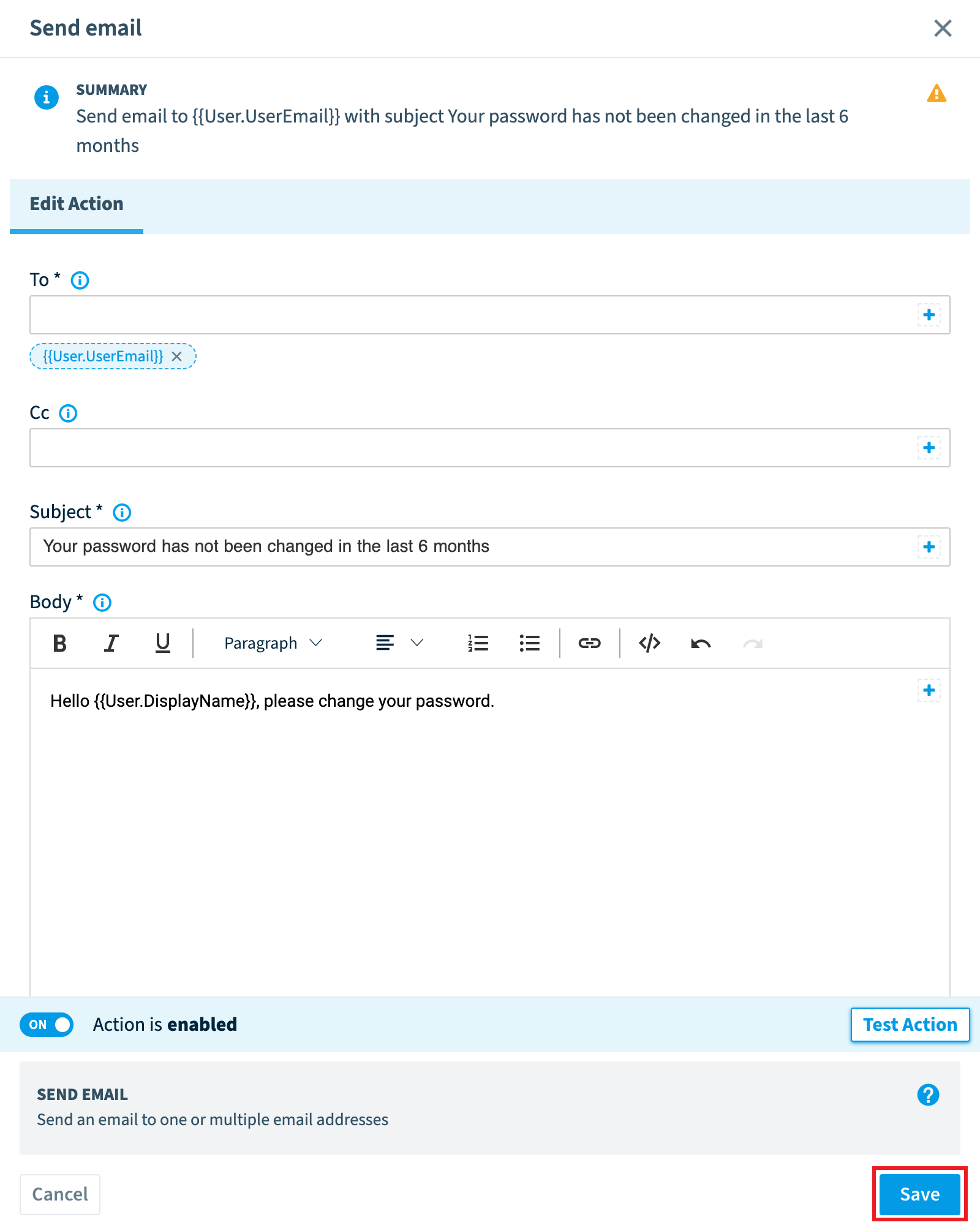
-
When all actions are configured, click Next in the top right.
Add the details
-
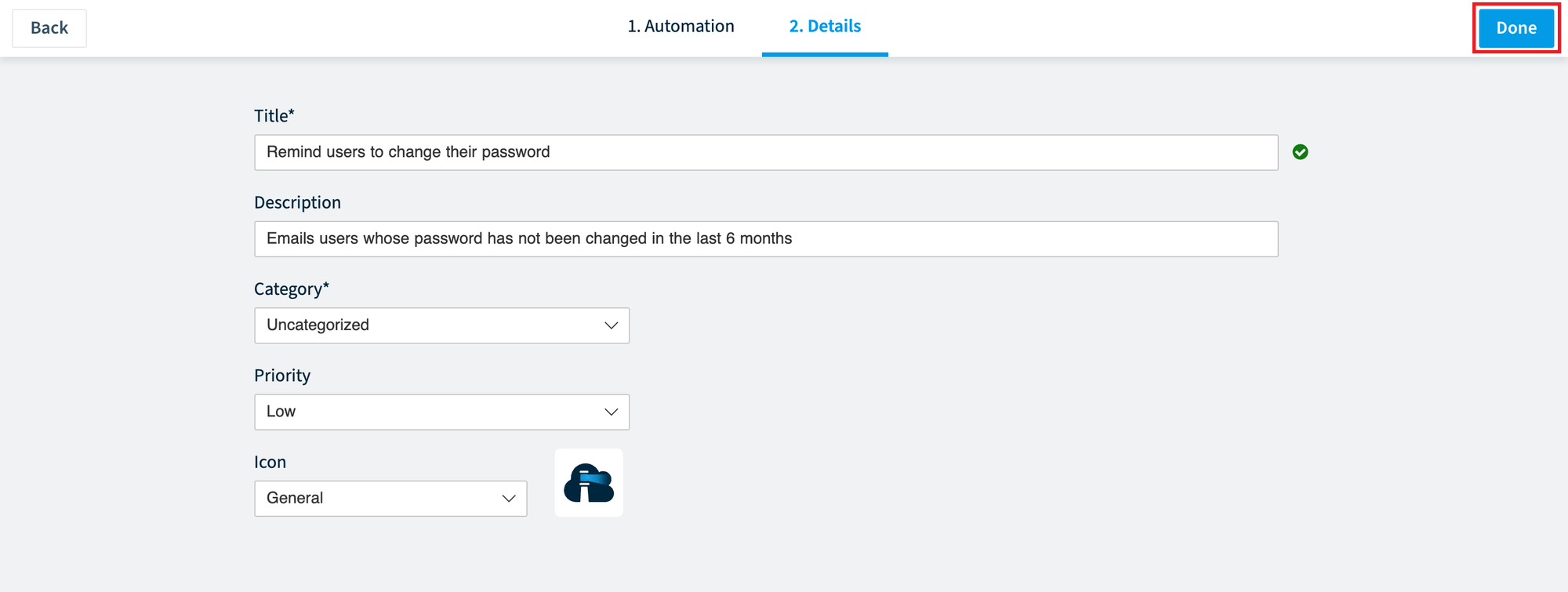
In the Title field, enter a unique name for the automation.
A green tick appears when the title is unique, so you can save. The title is limited to 50 characters and the description to 250 characters. -
In the Description field, enter a description for the automation.
-
Review the CategoryCategoryA category groups policies, reports and automations by governance goal, such as Security or Costs.Read more, select a new one from the drop-down, or type a new custom category in the field.
-
Review the Priority: Low, Medium or High. The default is Low. Use it to give some automations a higher priority than others.
Info: Priorities do not block each other (for example, a "Low" priority automation is NOT blocked because a "High" priority automation is scheduled). -
Review the Threshold limitAutomation thresholdAn automation threshold, or threshold limit, caps how many objects an automation processes in one day.Read more. It is shown for automations triggered “On Policy Violation” or “On Schedule”. Enter a value and select ”%” (a percentage of the objects) or “123” (a number). New custom automations start at 20%. Leave the field empty to run the automation without a limit. When the limit is reached, the automation stops processing new objects for that day, and Rencore Governance emails the recipients of the Thresholds in Automation notification.
- With 20%, the automation runsAutomation batchAn automation batch is the group of automation runs that started from the same trigger at the same time.Read more for 20% of your total value. For example, with 100,000,000 file shares it runs up to 20,000,000 and then stops processing more. This is handy if you want the automation to run in bite-sized operations.
- With a value of 110 (“123”), the automation stops processing new items once it reaches 110. This is useful for testing an “on policy violation” automation.
-
Review the Icon or select a new one from the drop-down. This is usually the connector the object belongs to.
-
Click Done in the top right corner.
-
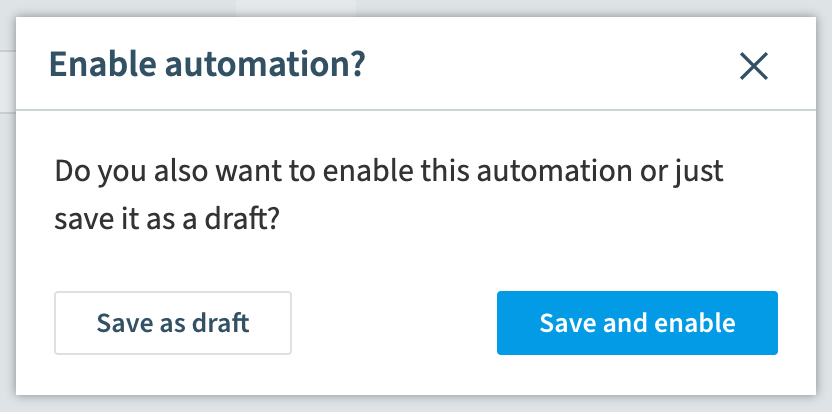
When asked “Do you also want to enable this automation or just save it as a draft?”, click Save and enable to turn it on straight away, or Save as draft to save it without turning it on.
What you see
Rencore Governance opens the details page of the automation.
Frequently asked questions
Which permission do I need to create a custom automation?
Your Rencore role must include the Create Automation permission. The Owner, Admin and Contributor roles have it.
Which triggers can I choose for a custom automation?
You can choose "Manually", "On Schedule" or "On Policy Violation". Depending on the trigger, you select an inventory object, a Policy, or a Policy or Inventory object together with the recurrence.
What happens when an automation reaches its threshold limit?
The automation stops processing new objects for that day, and Rencore Governance emails the recipients of the Thresholds in Automation notification. New custom automations start at 20%, and you can leave the field empty to run without a limit.
Does a high priority automation block a low priority one?
No. Priorities do not block each other. A Low priority automation is not blocked because a High priority automation is scheduled. The default priority is Low.
What are the length limits for the title and description of an automation?
The title is limited to 50 characters and the description to 250 characters. A green tick appears next to the Title field when the title is unique, so you can save.
Was this page helpful?
Thanks for the feedback.
Thanks. What was wrong?