Review
AI summary
Reviews is the successor to Access Review and lets you set up periodic governance reviews of Microsoft 365 workspaces. Workspace owners verify who has access and remove unnecessary users through Rencore Teams App, while you create review schedules, configure what reviewers see, and monitor progress.
Reviews created within the Reviews module cannot be referenced, reused, or managed through Access Reviews. Likewise, reviews created within Access Reviews are exclusive to that feature and cannot be accessed, converted, or utilized within the Reviews module.
As a result, any review activity must be created and managed within the specific feature where it is intended to be used. Data, configurations, and review instances are not shared between the two modules.
Reviews let you set up periodic governance reviews of the Microsoft 365 workspaces in your tenant: teams with their connected SharePoint sites, SharePoint sites, Microsoft 365 groupsMicrosoft 365 groupA Microsoft 365 Group is the membership object behind many Microsoft 365 workspaces.Read more and Viva Engage communitiesViva Engage communityA Viva Engage community is a group in Viva Engage where people share posts, files and events around a team, project or interest.Read more. Workspace ownersWorkspace ownerA workspace owner is an owner of a Microsoft 365 workspace, such as a Team, a SharePoint site or a group.Read more verify who has access, remove people who no longer need it, and confirm that sharing permissions are appropriate - directly from the Rencore Teams AppRencore Teams AppThe Rencore Teams App (formerly Rencore Nova) brings Rencore Governance into Microsoft Teams for the people who own and use workspaces.Read more.
As an admin, you create review schedulesReviewA Review is a recurring or one-off check in which workspace owners confirm who has access to their Microsoft 365 workspaces, directly in the Rencore Teams App.Read more, configure what reviewers see and can do, and monitor progress in Rencore Governance.

Before you begin
To use Reviews, your organization needs:
- Premium or Enterprise PlanPlanA Plan is the edition of Rencore Governance in your Subscription: Professional, Premium or Enterprise.Read more - Reviews are part of the Premium and Enterprise Plans.
- Permissions - Your role must include Review permissions (read, create, edit, delete, enable/disable, trigger). If you can see the Reviews navigation item but certain buttons are grayed out, check your role permissions with your Rencore admin.
Key concepts
Reviews work in a three-level hierarchy:
Level | What it is | Who manages it |
|---|---|---|
Review schedule | The configuration that defines what gets reviewed, how often, and by whom | Admin (Rencore Governance) |
Cycle | A single execution of a review schedule - one review cycle covering all matching workspaces | Automatic (system created based on a schedule) |
Object review | An individual workspace review is assigned to its owner(s) | Reviewer (Rencore Teams App) |
How a review works end-to-end
- Create a review schedule - Define the trigger (manual or recurring), select the service type, choose which review steps to include, and configure automations.
- A cycle starts - Either immediately (manual trigger) or on the next scheduled date. The system identifies all matching workspaces and creates object reviews for each one.
- Reviewers are notified - Workspace owners (or specified users) receive a notification that they have reviews to complete.
- Reviewers complete their reviews - In the Rencore Teams App, reviewers walk through each configured step (owners, members, site access, file access), make changes, and submit.
- You monitor progress - Track completion rates, review decisionsReview decisionA review decision is what happened to a workspace in a Review: Unreviewed, Reviewed, Archived, Deleted, Rejected or a custom action.Read more, and take action on expired or problematic reviews.
Manual vs. scheduled triggers
Trigger type | Behavior |
|---|---|
Manual | You start each cycle explicitly. The schedule auto-disables after the cycle finishes or is canceled. Re-enable to start a new cycle. |
Scheduled | Cycles start automatically on the configured schedule. The schedule stays enabled between cycles. |
Status vs. decision
Reviews track two separate dimensions:
Status is the lifecycle state - where the review is in the process:
- Pending, In Progress, Completed, Expired, Canceled
Decision is the workspace outcome - what happened to the workspace:
- Unreviewed (default), Reviewed, Archived, Deleted, Rejected, or a custom action name
A review can be completed with a Decision of “Reviewed” (reviewer made changes and submitted), or expired with a Decision of “Unreviewed” (nobody acted before the due date). These are independent dimensions.
Reviewer assignment
You choose how reviewers are assigned when creating a review schedule:
- Owners (default) - Workspace owners are automatically assigned as reviewers. This is the most common choice since owners know their workspaces best.
- Specified users - You manually select individual users who will review all workspaces in the scope. Useful for centralized governance teams.
Start with
- Create a review Set up a review schedule: trigger, reviewed objects and steps.
- Use the reviews dashboard See all review schedules and their progress in one place.
- Monitor reviews Follow running review cycles and check single reviews.
- Start a review Open a review assigned to you and work through its steps.
All guides in review
-
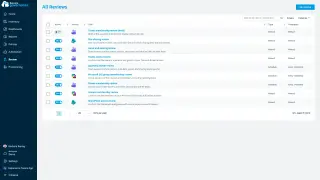
See all review schedules and their progress in one place.
Before you begin: Your Rencore role includes the Read Review permission. (+1 more)
-
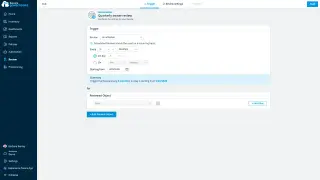
Set up a review schedule: trigger, reviewed objects and steps.
Before you begin: Your Rencore role includes the Create Review permission. (+2 more)
-
How to set what happens automatically during and after a review in Rencore Governance: rejection, expiry follow-up and…
Before you begin: Your Rencore role includes the Create Review or Edit Review permission. (+2 more)
Show 2 guides more
-
Follow running review cycles and check single reviews.
Before you begin: Your Rencore role includes the Read Review permission. (+2 more)
-
Cancel a review cycle that is still running.
Before you begin: Your Rencore role includes the Review permissions to manage a review schedule. (+1 more)
Frequently asked questions
Can I use reviews and access reviews together?
Yes. Access Review continues to work alongside Reviews during the transition, but they are separate features. Data, configurations, and review instances are not shared, so each review must be created and managed in the feature where it is meant to be used.
Which workspace types can I cover with a review schedule?
Reviews cover teams with their connected SharePoint sites, SharePoint sites, Microsoft 365 groups, and Viva Engage communities. Workspace owners check who has access, remove people who no longer need it, and confirm that sharing permissions are appropriate.
What happens to a review schedule with a manual trigger after a cycle ends?
The schedule disables itself after the cycle finishes or is canceled. You turn it on again to start a new cycle. A scheduled trigger works differently: cycles start automatically and the schedule stays enabled between cycles.
Who is assigned as reviewer in a review schedule?
By default, workspace owners are assigned as reviewers automatically. You can instead select specified users who review all workspaces in the scope, which is useful for centralized governance teams.
What is the difference between status and decision in a review?
Status is the lifecycle state: Pending, In Progress, Completed, Expired, or Canceled. Decision is the workspace outcome, such as Unreviewed (the default), Reviewed, Archived, Deleted, Rejected, or a custom action name. The two are independent.