Update Explore & Learn links
AI summary
Configure up to 5 external links on your Rencore Teams App home page that point users to resources like SharePoint sites, documents, or videos. Go to Settings > Teams App Settings > HomePage, enter each link's title, description, and URL, select an icon, then save.
Update the Explore & Learn links on the Rencore Teams AppRencore Teams AppThe Rencore Teams App (formerly Rencore Nova) brings Rencore Governance into Microsoft Teams for the people who own and use workspaces.Read more home page, which point users to external sources (outside Rencore) such as an internal SharePoint site with company governance guidelines, documents or YouTube videos. As there is a maximum of 5 links on the home page, you may want to replace an existing link from time to time.
Before you begin
- Your Rencore Governance role needs the Manage Teams App settings permission. The Admin and Owner roles have it.
Steps
-
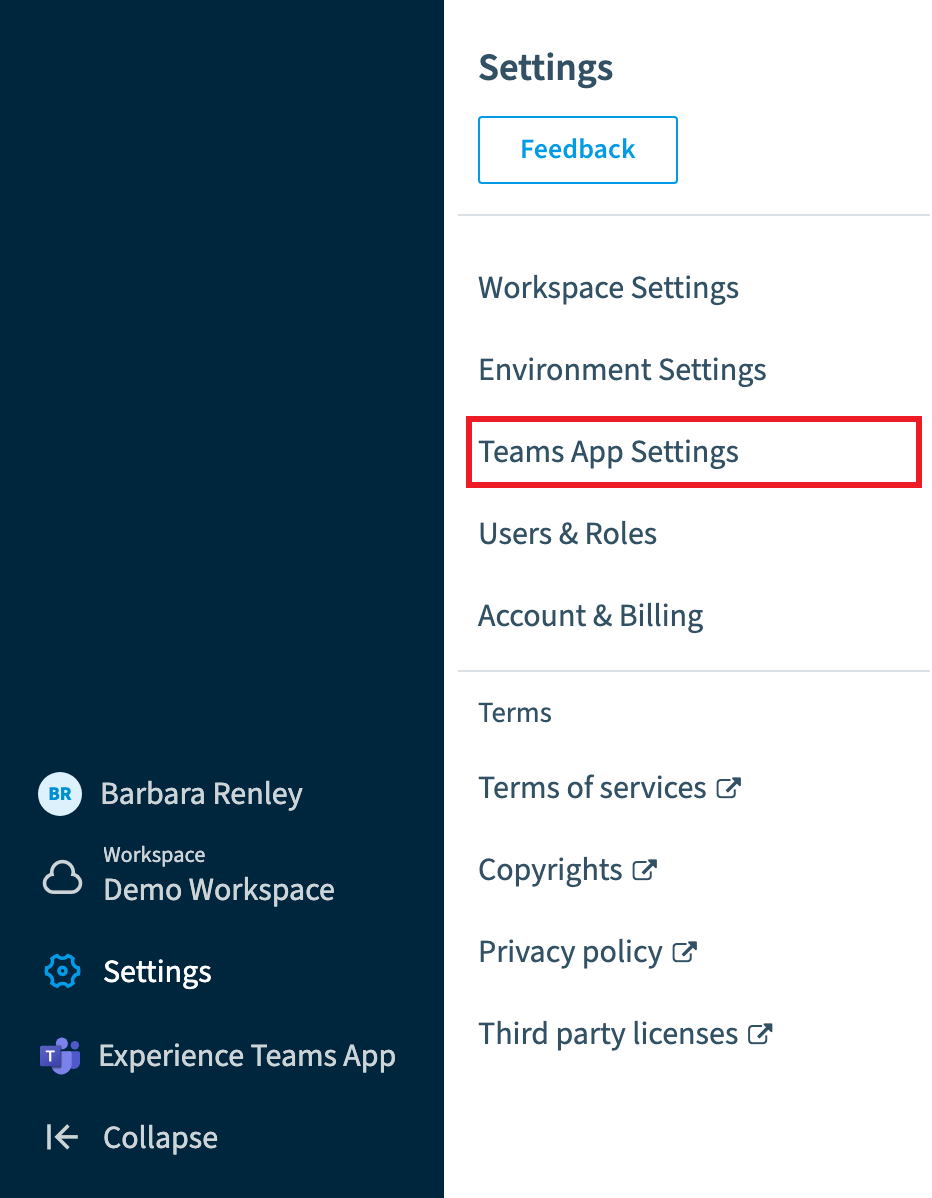
Go to Settings > Teams App Settings > HomePage.
-
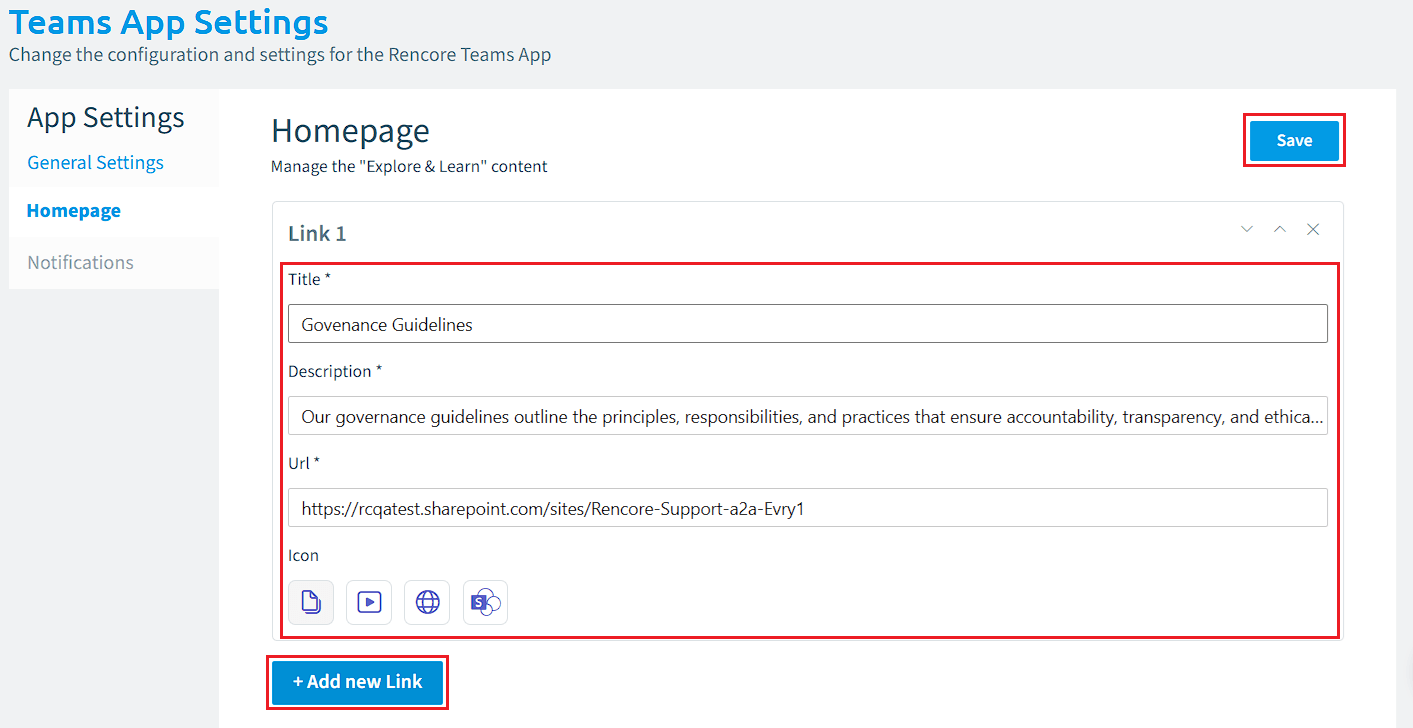
For each link, enter a title, description and URL, and select an icon.
-
Click Save.
Limits
- A maximum of 5 links can be added to the home page of the Rencore Teams App.
Frequently asked questions
How do I change the Explore & Learn links on the Rencore Teams App home page?
Go to Settings > Teams App Settings > HomePage. For each link, enter a title, description and URL, and select an icon. Then click Save.
How many Explore & Learn links can I add to the Rencore Teams App home page?
You can add a maximum of 5 links. If you want a new link after reaching the limit, replace one of the existing links.
Which permission do I need to update the Explore & Learn links?
Your Rencore Governance role needs the Manage Teams App settings permission. The Admin and Owner roles have this permission.
Was this page helpful?
Thanks for the feedback.
Thanks. What was wrong?