Install the Rencore Teams App
AI summary
Turn on the Rencore Teams App in Governance Settings, download its manifest, and upload it to the Teams Admin Center. Users can then add the app to Teams manually or you can install it for them automatically using a Teams setup policy. Complete this once before your organization uses the app.
Connect your EnvironmentEnvironmentAn Environment is the connected Microsoft 365 tenant inside a Workspace.Read more to the Rencore Teams AppRencore Teams AppThe Rencore Teams App (formerly Rencore Nova) brings Rencore Governance into Microsoft Teams for the people who own and use workspaces.Read more in Rencore Governance, upload the app in the Teams admin centerAdmin centerAn admin center is the web portal where administrators manage one Microsoft service, such as the Microsoft 365 admin center, the Teams admin center or the Microsoft Entra admin center.Read more, and then add it for your users. Do this once, before anyone in your organization uses the app.
Before you begin
- To set up the Rencore Teams App in Rencore Governance, you need the Owner or Admin role.
- To upload the app in the Teams admin center, you need a Teams administratorTeams administratorTeams Administrator is a Microsoft Entra admin role that manages Microsoft Teams settings, policies and apps in the Teams admin center.Read more account.
Steps
-
In Rencore Governance, go to Settings > Teams App Settings > Setup.
-
Scroll to the bottom to Enabling Rencore Teams App.
-
Turn on Environment connected to the Rencore Teams App.
-
Turn on Rencore Teams App enabled for all users of connected Microsoft 365 tenantMicrosoft 365 tenantA Microsoft 365 tenant is the dedicated instance of Microsoft 365 that holds an organization's users, groups, data and settings.Read more.
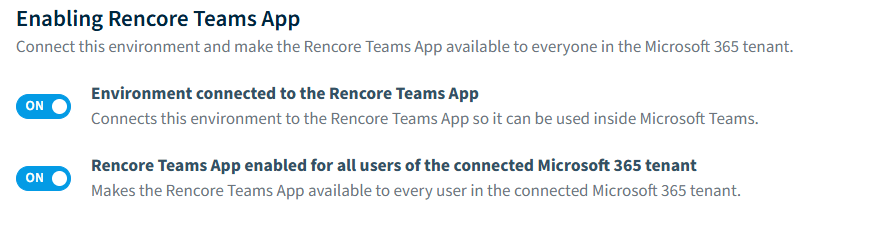
-
Click Save.
-
Optionally, change the appearance of the app. See Change the appearance of the Rencore Teams App.
-
Click Download manifest.
-
Go to the Teams Admin Center and log in with your admin account.
-
Go to Teams apps > Manage apps > Actions > + Upload new app.
-
Click Upload.
-
Select the zip file you downloaded and click Open.
Install the Rencore Teams App for the end user
After the Rencore Teams App has been installed in the Teams admin center, users can install it manually with the steps below. You can also roll it out automatically with a TeamsMicrosoft TeamsMicrosoft Teams is the Microsoft 365 app for chat, meetings and team collaboration.Read more setup policy (see Manage app setup policies in Microsoft Teams). A Teams setup policy can also be assigned to groups, so you can roll the Rencore Teams App out to a group of test users first.
-
Open the Teams web app or the Teams desktop app.
-
Click Apps. The Rencore Teams App you uploaded is listed. If it is not, click See all next to Built for your org.
-
Click Add on the app.
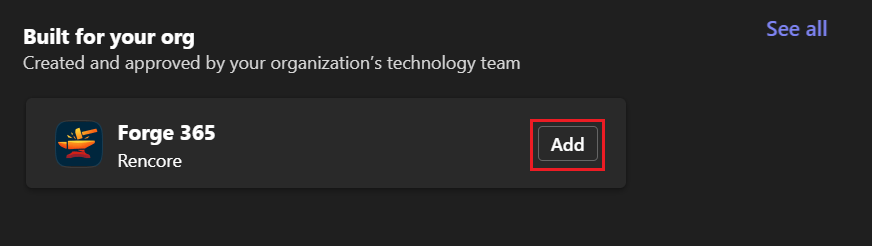
-
Click Add in the new dialog window.
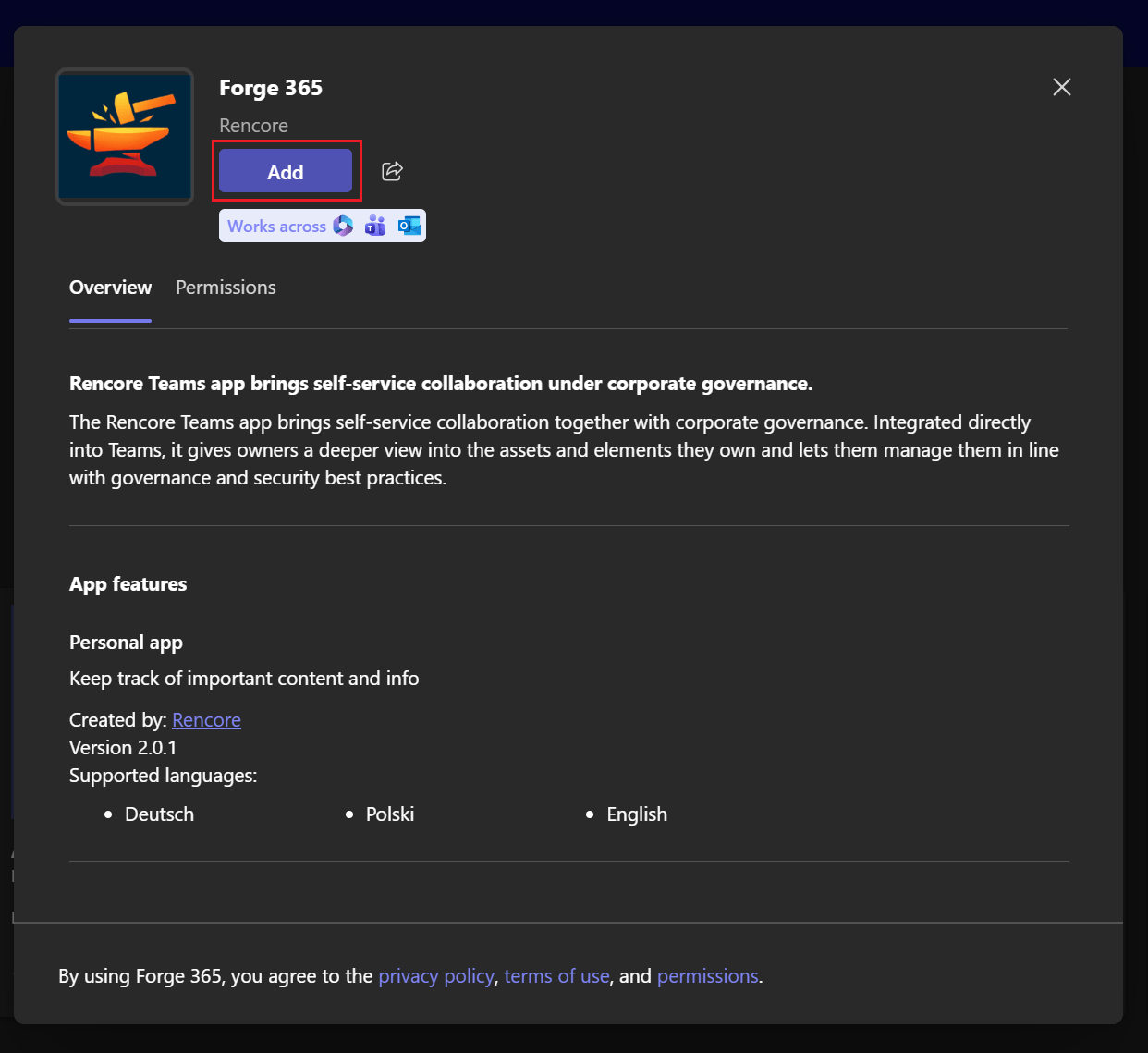
-
In the confirmation window, click Open to open the Rencore Teams App.
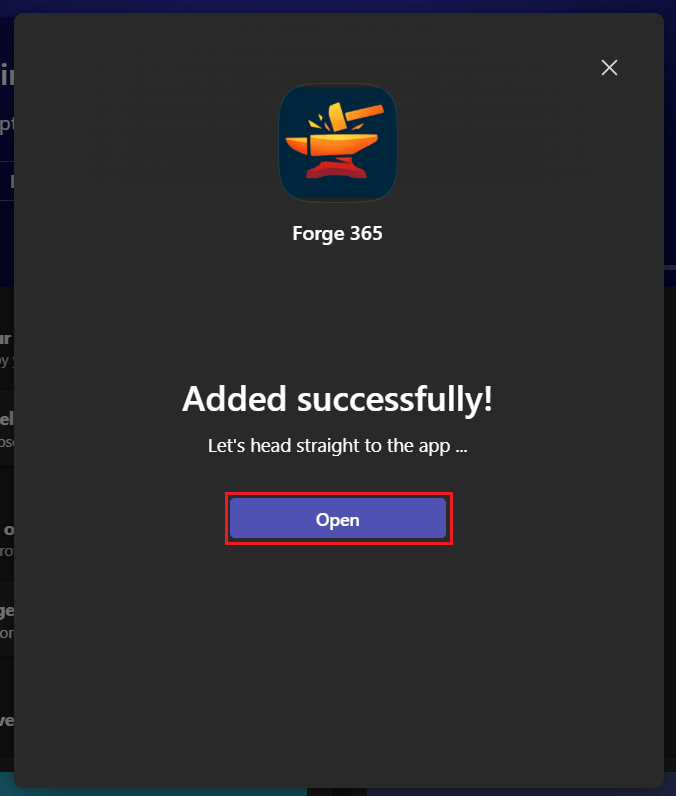
Frequently asked questions
Which role do I need to set up the Rencore Teams App in Rencore Governance?
You need the Owner or Admin role in Rencore Governance. To upload the app in the Teams admin center, you also need a Teams administrator account.
Where do I turn on the Rencore Teams App for my Environment?
Go to Settings > Teams App Settings > Setup and scroll to Enabling Rencore Teams App. Turn on Environment connected to the Rencore Teams App and Rencore Teams App enabled for all users of connected Microsoft 365 tenant, then click Save.
 How do I upload the Rencore Teams App in the Teams admin center?
How do I upload the Rencore Teams App in the Teams admin center?Click Download manifest in Rencore Governance. In the Teams Admin Center, go to Teams apps > Manage apps > Actions > + Upload new app, click Upload, select the downloaded zip file, and click Open.
Can I roll out the Rencore Teams App to a test group before everyone?
Yes. A Teams setup policy can be assigned to groups, so you can roll out the Rencore Teams App to a group of test users first. A setup policy can also roll the app out to users automatically.
How can users install the Rencore Teams App themselves?
After the app is uploaded in the Teams admin center, users open Teams and click Apps. They find the Rencore Teams App, or click See all next to Built for your org, then click Add twice and click Open.
Was this page helpful?
Thanks for the feedback.
Thanks. What was wrong?