Provisioning template configuration
AI summary
Configure provisioning templates using the three-step template builder to control workspace creation. Template Settings sets how the template appears to requesters and who can see it. Provisioning Settings defines governance rules like visibility and naming conventions. Approval sets up approval workflows. Each step contains specific options for Teams and other workspace types.
Every out-of-the-box provisioning templateProvisioning templateA provisioning template defines how a new Microsoft 365 workspace is created through Rencore Governance.Read more is set up in the same template builder. The builder has three steps: Template Settings, Provisioning Settings and Approval. This page walks through each step, using a TeamsMicrosoft TeamsMicrosoft Teams is the Microsoft 365 app for chat, meetings and team collaboration.Read more template, which shows every part of the builder. Templates for other services show only the parts that apply to them.
To see what requesters and approvers see in Microsoft Teams, see End user experience.
Before you begin
- Your Rencore role includes the Create Provisioning permission. Owner, Admin and Contributor have it. See Rencore roles.
- Provisioning is part of the Premium and Enterprise PlansPlanA Plan is the edition of Rencore Governance in your Subscription: Professional, Premium or Enterprise.Read more.
- The first time the feature is used, a Microsoft 365Microsoft 365Microsoft 365 is the Microsoft cloud suite of Teams, SharePoint, OneDrive, Exchange and the Office apps.Read more administrator grants Rencore Governance the permissions to create workspaces. See Consent.
Open the template builder
To open a template in the builder, you will need to:
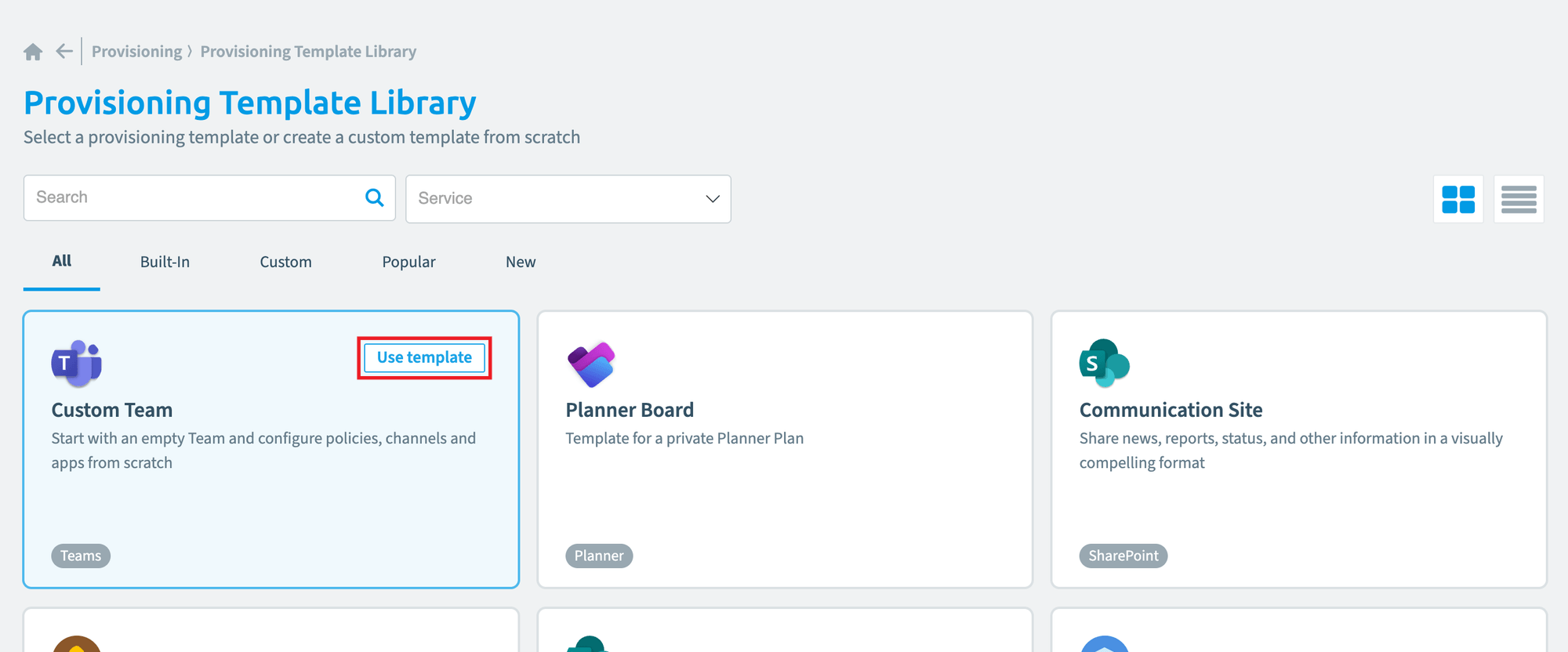
- Go to Provisioning > Manage Provisioning Templates > Create provisioning template. The Provisioning Template Library opens.
- Optionally, filter the library by service.
- Highlight the template you want and click Use this Template. Its predefined settings load into the builder.
Step 1: Template settings
Template Settings sets how the template appears to requesters.
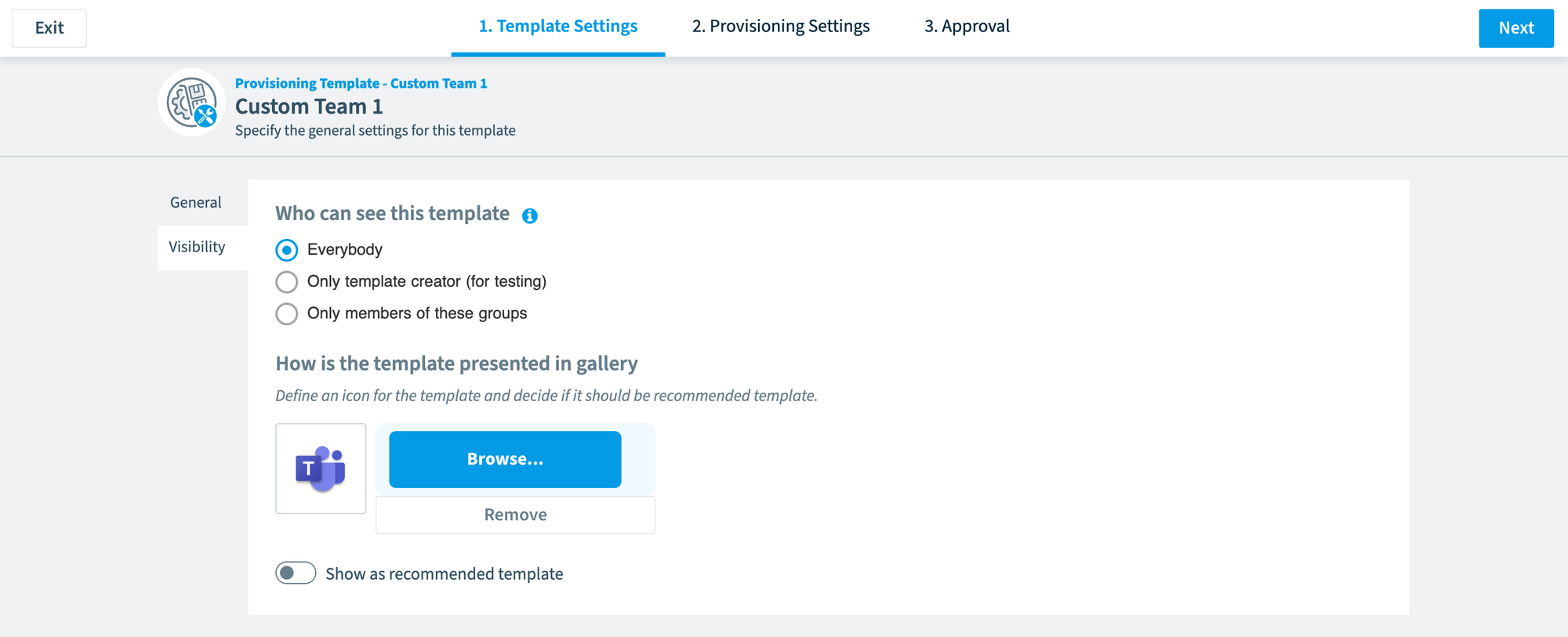
- Title and Description: the name and description requesters see in the template gallery. The title must be unique.
- Who can see this template: Everybody, Only Me (for testing) or Only members of these groups.
- How is the template presented in gallery: the icon, and whether the template is marked as recommended.
- Template Use Company Guidelines: instructions and links that requesters see before they start a request.
Click Next at the top of the page.
Step 2: Provisioning settings
Provisioning Settings holds the governance settings of the workspace the template creates. For most settings, you also choose whether the requester can change the value in the request.
Security
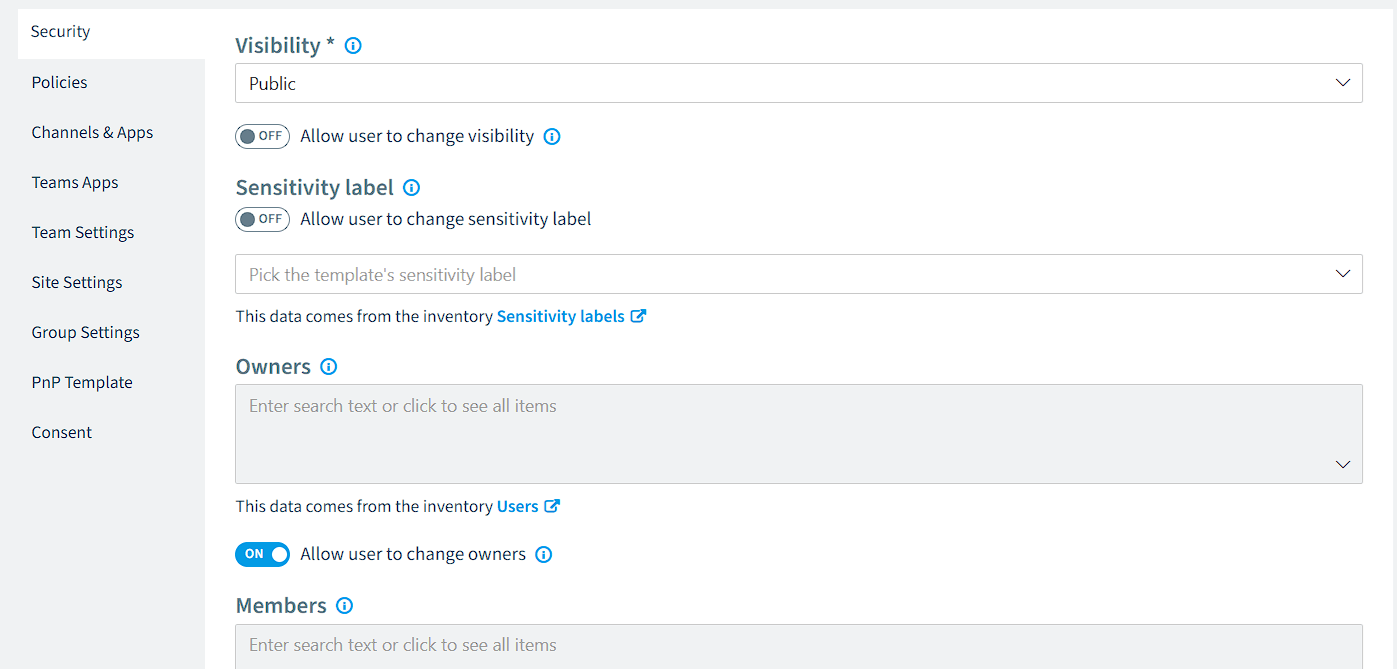
- Visibility: Public or Private.
- Sensitivity LabelSensitivity labelA sensitivity label is a Microsoft Purview classification, such as Confidential or Internal, that an organization applies to content and to containers such as Teams and SharePoint sites.Read more: a label from your tenant, as scanned into Rencore Governance.
- Owners and Members: predefined owners and members.
Policies
- Minimum Owners: how many owners the requester must enter.
- Team Name Prefix and Team Name Suffix: free text or a data placeholderData placeholderA data placeholder is a field in double curly braces, such as {{reviewers.names}}, that Rencore Governance fills with real data when it sends a message.Read more from the request form.
- M365 GroupMicrosoft 365 groupA Microsoft 365 Group is the membership object behind many Microsoft 365 workspaces.Read more mailNickname: the mailNickname property of the Microsoft 365 group.
See Limitations to provisioning naming conventions.
Channels and apps

- ChannelsChannelA channel is a section inside a Microsoft Teams team where members hold conversations and share files on one topic.Read more: the channels the Team starts with. Click Pre-defined Teams channels to see or add the available channels. See Create a suggested Teams channel.

- Installed Apps: the Teams apps installed when the Team is created.
Team settings
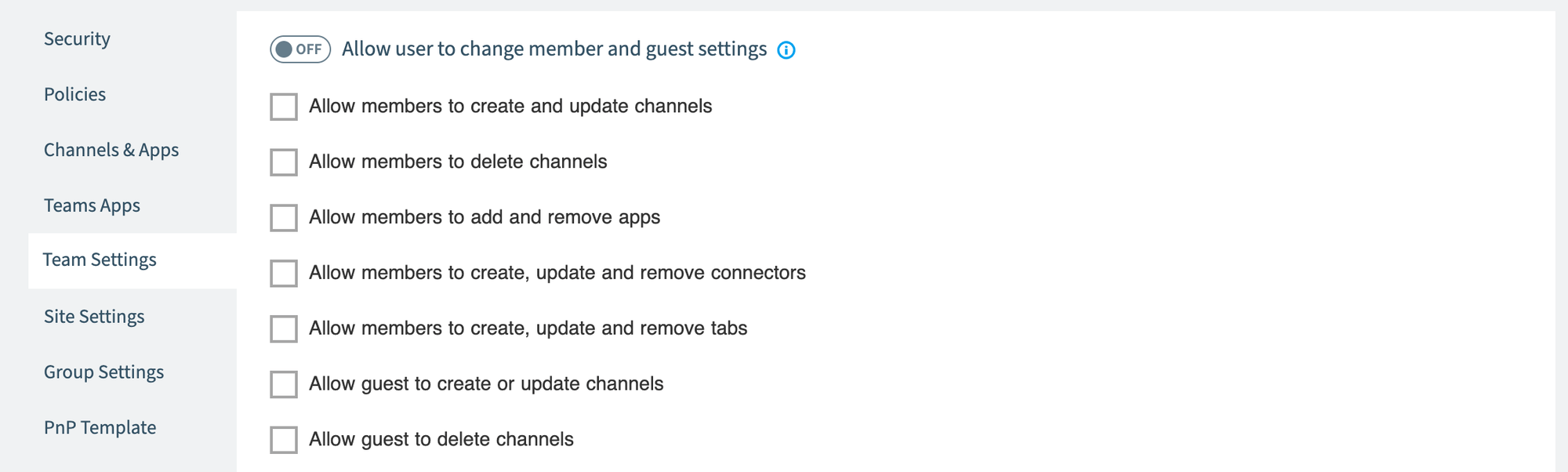
- The member and guest permissions that are turned on in the Team. Team OwnersWorkspace ownerA workspace owner is an owner of a Microsoft 365 workspace, such as a Team, a SharePoint site or a group.Read more can always change these settings in Teams.
Site settings
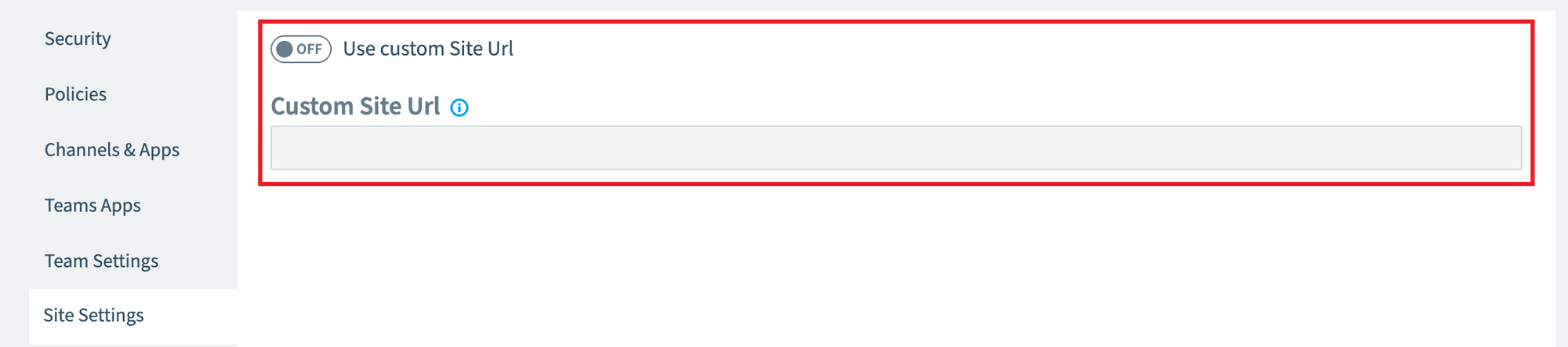
- Use custom Site Url and Custom Site Url: a fixed site URL. If the URL is taken, a number starting with _1 is added.
Group settings
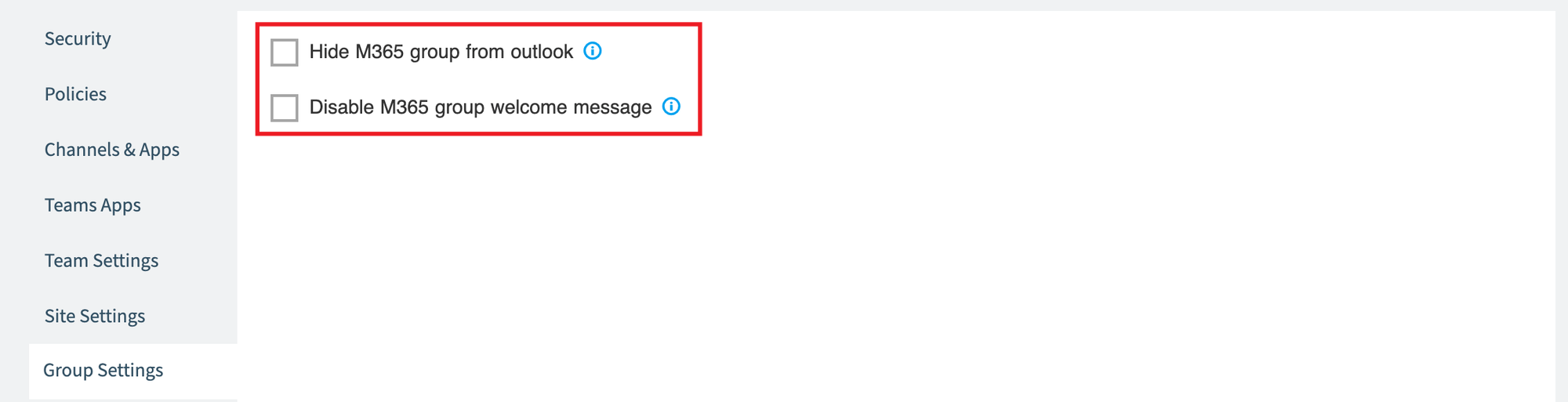
- Hide M365 group from Outlook and Disable M365 group welcome message. Hiding the group also turns off the welcome message.
PnP template
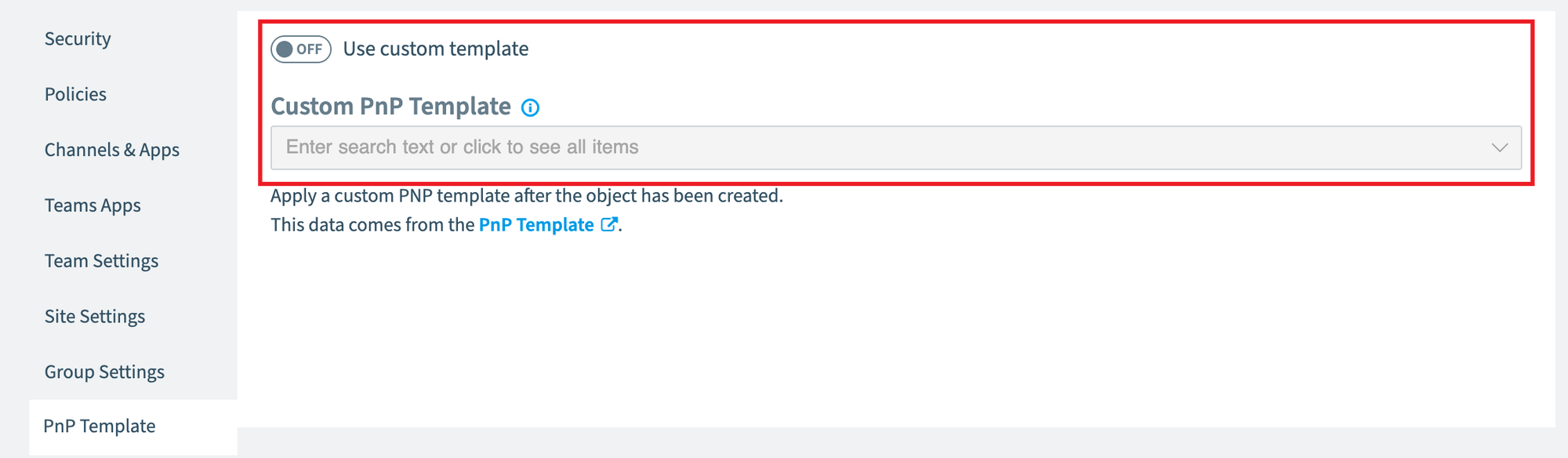
- Use custom template: applies a PnP provisioning template on top of the builder settings. Only team and SharePoint site templates have this setting. See Use a PnP provisioning template.
Consent
Rencore Governance needs these permissions for your Microsoft 365 tenantMicrosoft 365 tenantA Microsoft 365 tenant is the dedicated instance of Microsoft 365 that holds an organization's users, groups, data and settings.Read more the first time the feature is used. An administrator of the tenant grants them:
- Read and write all groups.
- Read all users’ full profiles.
- Have full control of all site collections.
Click Next at the top of the page.
Step 3: Approval
Turn on approvals when someone must approve each request before the workspace is created.
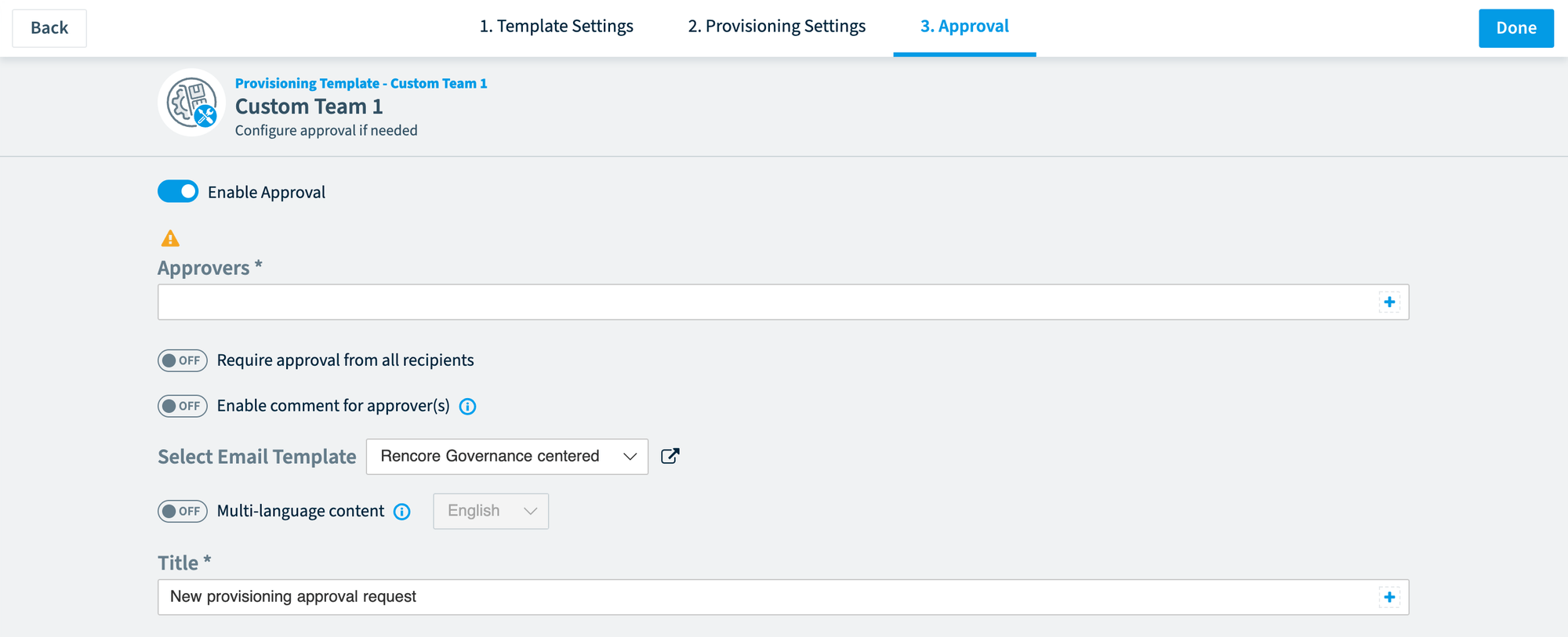
- Approvers: email addresses, or a data placeholder.
- Whether all approvers must approve, or one approval is enough.
- Whether approvers must add a comment.
- Title and Details: the subject and body of the approval email. Both can use data placeholders.
- Whether the email is sent, and whether a reminder follows.
- Send reminder in (days) and Timeout in (days): when the reminder is sent, and when the request times out if Cancel on timeout is on.
Save the template
To save the template, you will need to:
- Click Done at the top right of the screen.
- Turn the template on right away, or click Save as draft to finish it later.
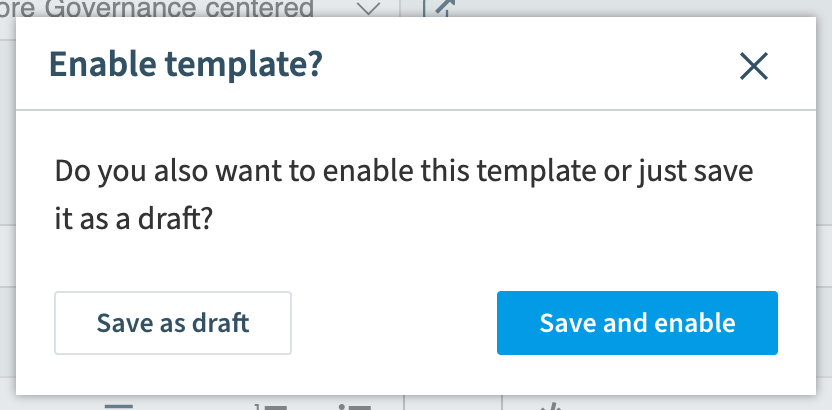
The Provisioning Template Instances screen opens. A template that is turned on appears in the Rencore Teams AppRencore Teams AppThe Rencore Teams App (formerly Rencore Nova) brings Rencore Governance into Microsoft Teams for the people who own and use workspaces.Read more for everyone you made it visible to.
Frequently asked questions
How do I control who can see a provisioning template?
In the Template Settings step, choose who can see the template: Everybody, Only Me for testing, or Only members of these groups.
 What Microsoft 365 permissions does Rencore Governance need to create workspaces?
What Microsoft 365 permissions does Rencore Governance need to create workspaces?Rencore Governance needs these permissions from your Microsoft 365 tenant: Read and write all groups, Read all users' full profiles, and Have full control of all site collections. A tenant administrator grants them the first time provisioning is used.
Can requesters modify the provisioning settings I configure in a template?
For most settings, you choose whether requesters can change the value in their request when they submit it.
How do I set up approval requirements for provisioning requests?
In the Approval step, turn on approvals and specify approvers by email or data placeholder. You set whether all approvers must approve or just one, whether approvers must add a comment, and when reminders are sent.
What happens if the custom site URL I specify is already taken?
If the custom site URL is already taken, a number starting with _1 is added automatically to the URL.
Was this page helpful?
Thanks for the feedback.
Thanks. What was wrong?