Fix Rencore Teams App connection messages
AI summary
The Rencore Teams App shows various connection error messages; some still reference the app's former name Rencore Nova. Each error has a specific fix, such as turning on the feature for your environment or granting user access to a workspace. You need Owner or Admin role in Rencore Governance to apply these fixes.
Fix the messages the Rencore Teams AppRencore Teams AppThe Rencore Teams App (formerly Rencore Nova) brings Rencore Governance into Microsoft Teams for the people who own and use workspaces.Read more and its setup page show when the app cannot connect. Some of these messages still use the app’s former name, Rencore NovaRencore NovaRencore Nova is a deprecated end-user app, replaced by the Rencore Teams App, that shuts down on 31 December 2026.Read more. The fix is the same.
Before you begin
- To change the Teams App settings in Rencore Governance, you need the Owner or Admin role.
- The app is installed as described in Install the Rencore Teams App.
Steps
- Note the exact message the Rencore Teams App or the Setup page shows.
- In Rencore Governance, go to Settings > Teams App Settings > Setup.
- Scroll to the section Enabling Rencore Teams App.
- Apply the fix for your message from the list below.
- Click Save.
If it does not work
Rencore Governance not found
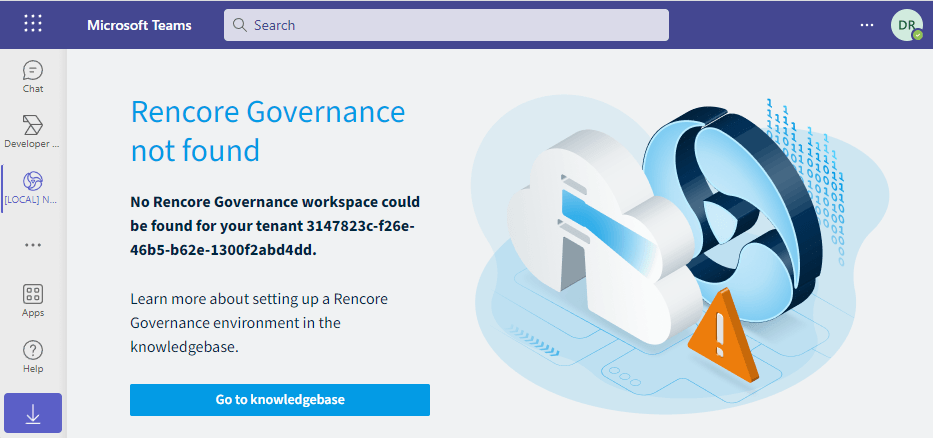
The Rencore Teams App shows “No Rencore Governance workspace could be found for your tenant”, followed by the tenant IDTenant IDThe tenant ID is the GUID that identifies your Microsoft Entra tenant.Read more.
No EnvironmentEnvironmentAn Environment is the connected Microsoft 365 tenant inside a Workspace.Read more is connected to the Rencore Teams App for this tenant. Turn on Environment connected to the Rencore Teams App in the Environment of this tenant and click Save.
Rencore Nova not enabled
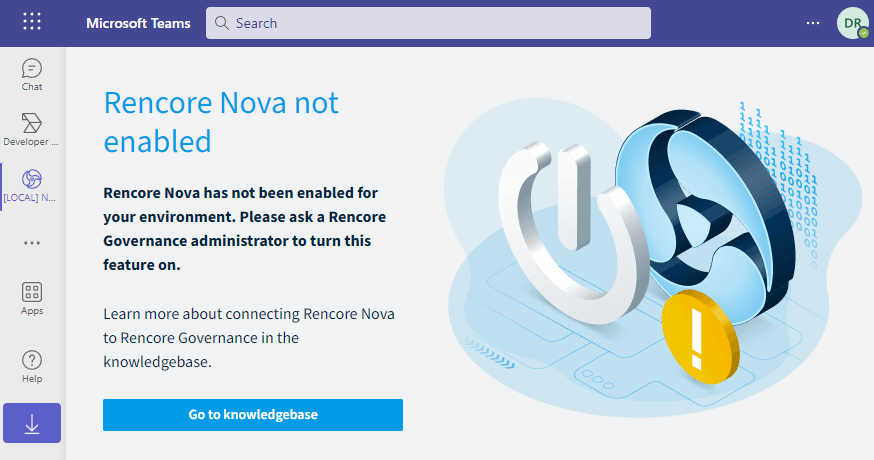
The Rencore Teams App shows “Rencore Nova has not been enabled for your environment. Please ask a Rencore Governance administrator to turn this feature on.”
The Environment is connected, but the app is not turned on for users. Turn on Rencore Teams App enabled for all users of the connected Microsoft 365 tenantMicrosoft 365 tenantA Microsoft 365 tenant is the dedicated instance of Microsoft 365 that holds an organization's users, groups, data and settings.Read more and click Save. You can only turn this on after Environment connected to the Rencore Teams App is on.
Access denied
The Rencore Teams App shows “You do not have permission to access this workspace. Please contact your Rencore Governance administrator to request access.”, followed by the Workspace, Environment and tenant IDs.
The user has no access to the Workspace. A Rencore Governance administrator can give access in Users & Roles.
Connection to the Rencore Teams App failed
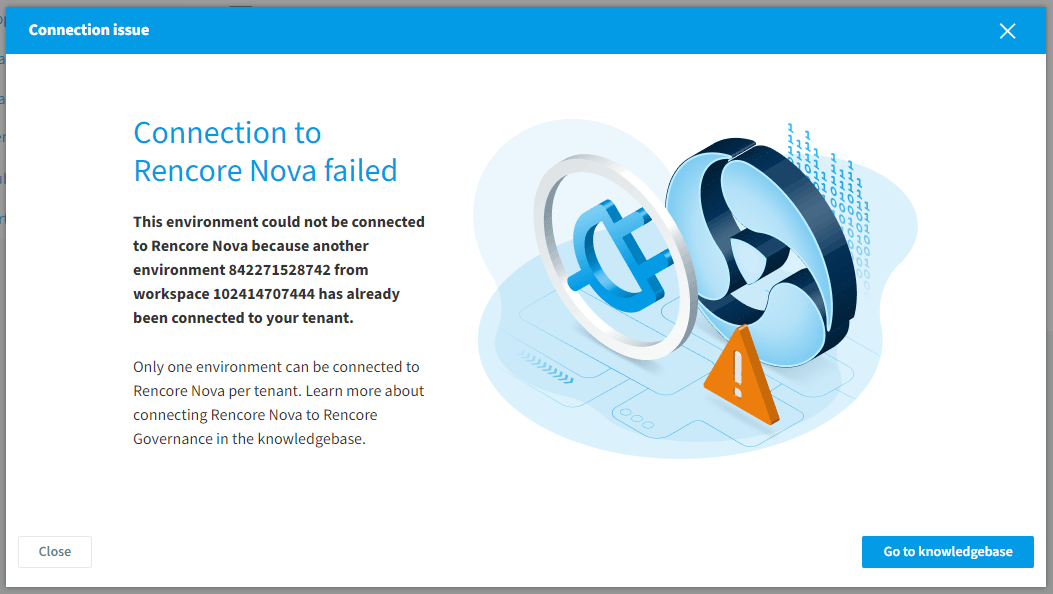
Rencore Governance shows this on the Setup page when you turn on Environment connected to the Rencore Teams App: “Only one environment can be connected to the Rencore Teams App per tenant.”
Another Environment is already connected to the Rencore Teams App for the same Microsoft 365 tenant. Turn the setting off in that Environment first, then turn it on in this one.
Download manifest
Download manifest on the Setup page downloads the Teams app packageTeams app manifestA Teams app manifest is the file in a Teams app package that describes the app, its icons and its permissions.Read more with the name and image settings you last saved. Save your changes before you download it.
Frequently asked questions
Which role do I need to change the Rencore Teams App settings?
You need the Owner or Admin role in Rencore Governance. The settings are under Settings > Teams App Settings > Setup, in the section Enabling Rencore Teams App.
Why does the Rencore Teams App say no Rencore Governance workspace could be found for my tenant?
No Environment is connected to the Rencore Teams App for this tenant. Turn on Environment connected to the Rencore Teams App in the Environment of this tenant and click Save.
How do I fix the message that Rencore Nova has not been enabled for my environment?
Turn on Rencore Teams App enabled for all users of the connected Microsoft 365 tenant and click Save. You can only turn this on after Environment connected to the Rencore Teams App is on.
What do I do when a user gets a permission error for the workspace in the Rencore Teams App?
The user has no access to the Workspace. A Rencore Governance administrator can give access in Users & Roles.
Why do I get an error that only one environment can be connected to the Rencore Teams App per tenant?
Another Environment is already connected to the Rencore Teams App for the same Microsoft 365 tenant. Turn the setting off in that Environment first, then turn it on in the Environment you want to use.
Was this page helpful?
Thanks for the feedback.
Thanks. What was wrong?