Set up Environment notifications
AI summary
Control who receives notifications for Environment issues: lost consent, automation failures, provisioning errors, and subscription limits. In Settings > Environment Settings > Notifications, configure each notification type with recipients from Owners, Admins, or specific mailboxes like shared inboxes or Teams channels.
Choose who Rencore Governance notifies for an EnvironmentEnvironmentAn Environment is the connected Microsoft 365 tenant inside a Workspace.Read more when consent is lost, an automation fails or hits its threshold, provisioning fails, or licensed usersLicensed userA licensed user is a user of the connected tenant that counts toward your Rencore Governance Subscription.Read more near the subscription limit.
Before you begin
- Your role needs the Notifications permission. The Admin and Owner roles have it. See Rencore roles.
Steps
-
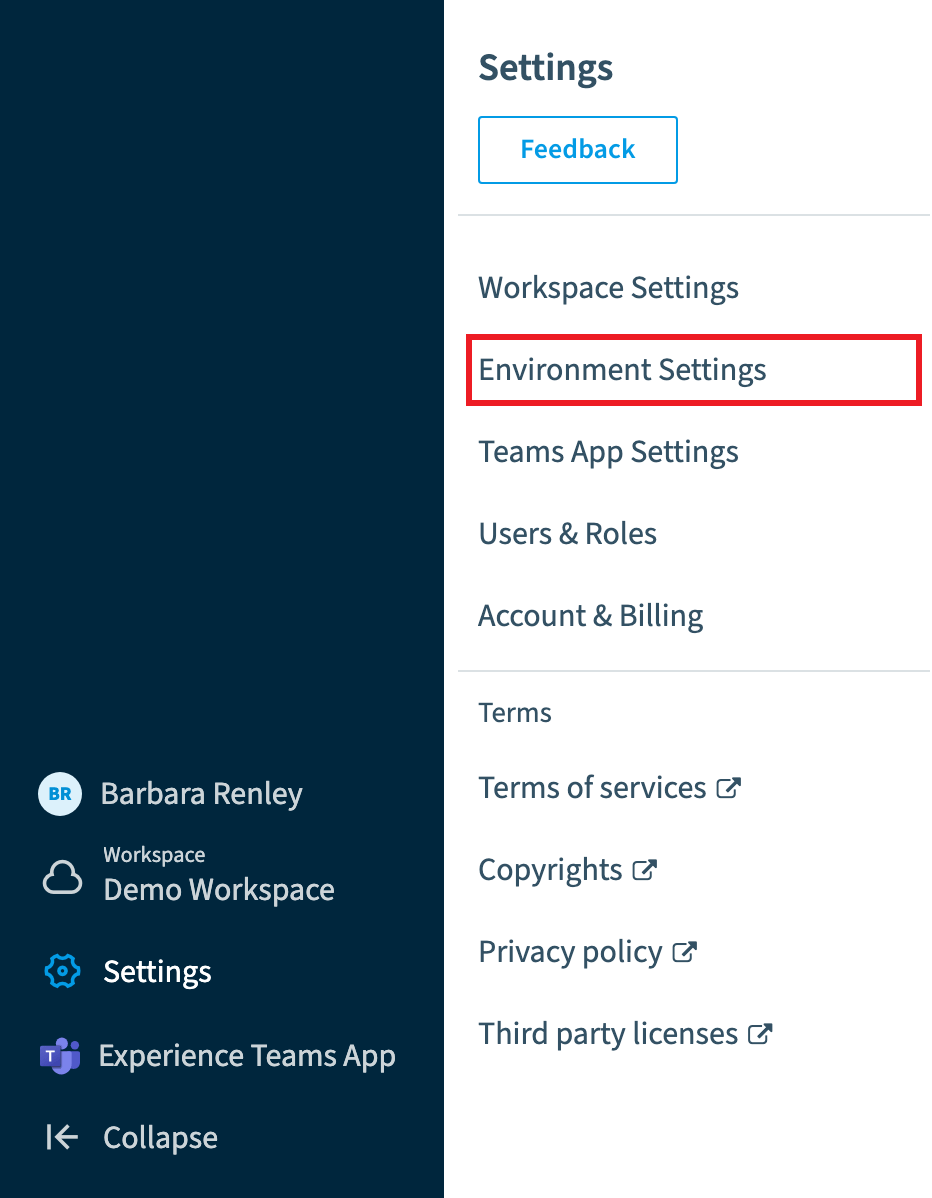
Go to Settings > Environment Settings > Notifications.
-
For each section you need, click the toggle to change it from Off to On. Each section is Off by default.
-
Select who receives the notification. You can choose any combination of All Owners, All Admins and specified email addresses.
Sending notifications to a specified email, such as a shared governance mailbox or a Teams channel email, lets a Workspace route alerts to the right team without granting every recipient an Owner or Admin role. -
Click Save at the top of the screen.
What you see
The Notification SettingsEnvironment notificationsEnvironment notifications are the emails Rencore Governance sends when something in an Environment needs attention.Read more screen has five sections, one for each event Rencore Governance can alert you to:
- Consent Lost: the tenant has withdrawn or lost the consent Rencore Governance needs to run scans and other operations.
- Error in AutomationAutomationAn automation is a workflow Rencore Governance runs on inventory objects when a trigger fires.Read more: an automation has failed to run, including when it stops after reaching a configured threshold limitAutomation thresholdAn automation threshold, or threshold limit, caps how many objects an automation processes in one day.Read more.
- Thresholds in Automation: an automation with a threshold set has exceeded it.
- Error in Provisioning: a Provisioning task has failed to complete.
- Subscription threshold: licensed Rencore Governance users exceed 95% of subscribed user accounts.
Notification types
Consent lost
This section covers consent loss on the tenant connection. For example, when an admin revokes the permissions granted to Rencore Governance, or a certificate or secret used for consent expires. While consent is lost, scans and other operations that rely on that connection cannot run.
Turn on this section so a Workspace Owner or Admin is notified as soon as consent is lost, rather than discovering it days later when data stops updating.
Error in automation
This section covers any automation that fails to run to completion. For example, when an automation actionAutomation actionAn automation action is a single operation an automation step performs, such as sending an email or archiving a Team.Read more is incorrectly configured.
Thresholds in automation
This section applies to any automation with a configured threshold and sends a notification when the threshold limit is met.
For example, an automation configured with a 20% threshold stops processing once that limit is reached. With this notification turned on, an Admin is alerted immediately, rather than noticing the gap only during a later review.
Error in provisioning
This section covers any Provisioning task that fails to complete, for example provisioning a team, a SharePoint site, a Microsoft 365 groupMicrosoft 365 groupA Microsoft 365 Group is the membership object behind many Microsoft 365 workspaces.Read more, a PlannerMicrosoft PlannerMicrosoft Planner is the Microsoft 365 app for task plans and boards. The Planner connector of Rencore Governance, part of the Digital Workplace module, inventories plans.Read more plan or a Viva Engage communityViva Engage communityA Viva Engage community is a group in Viva Engage where people share posts, files and events around a team, project or interest.Read more.
Subscription threshold
This section covers when licensed user consumption reaches 95% or more of the subscribed user limit. No further notifications are sent while usage remains at or above 95%. Notifications only start again after usage falls below the threshold.
The email includes the environment name and subscription usage in the format “Users X of Y” along with the percentage used.
Frequently asked questions
Which permission do I need to set up Environment notifications?
Your role needs the Notifications permission. The Admin and Owner roles have it.
Where do I turn on notifications for an Environment?
Go to Settings > Environment Settings > Notifications. Click the toggle of each section you need to change it from Off to On, choose the recipients, and click Save at the top of the screen. Each section is Off by default.
Who can receive Environment notifications?
You can choose any combination of All Owners, All Admins and specified email addresses. A specified email, such as a shared governance mailbox or a Teams channel email, lets a Workspace route alerts to the right team without granting every recipient an Owner or Admin role.
Which events can Rencore Governance send Environment notifications for?
There are five: Consent Lost, Error in Automation, Thresholds in Automation, Error in Provisioning, and Subscription threshold. Each has its own section on the Notification Settings screen.
Will I keep getting subscription threshold emails while licensed users stay above 95%?
No. No further notifications are sent while usage remains at or above 95%. Notifications only start again after usage falls below the threshold.
Was this page helpful?
Thanks for the feedback.
Thanks. What was wrong?