 Give Power Platform consent with the admin consent workflow


AI summary
Grant Rencore Governance consent for Power Platform when your tenant has the Microsoft admin consent workflow enabled. A Power Platform Administrator requests consent in Rencore Governance, a registered reviewer approves the application in Microsoft Entra ID, and then the administrator completes the consent in an incognito browser. After approval, the Power Platform scan automatically starts.
Give Rencore Governance consent for Power PlatformPower PlatformPower Platform is the Microsoft low-code platform where users build their own apps, flows, reports, agents and websites.Read more when your tenant has the Microsoft admin consent workflowAdmin consent workflowThe admin consent workflow lets users who cannot consent to an app request it.Read more turned on. The process has three parts: request admin consentConsent and reconsentConsent is the permission a Microsoft 365 administrator grants Rencore Governance to scan a tenant.Read more in Rencore Governance, approve the application in Microsoft Entra IDMicrosoft Entra IDMicrosoft Entra ID, formerly Azure Active Directory, is the Microsoft identity service behind every Microsoft 365 tenant.Read more, then complete the consent.
Before you begin
- Your Rencore Governance role needs the Manage consent permission. The Admin and Owner roles have it. See Rencore roles.
- You need a Power Platform Administrator to sign in during the consent, and a registered reviewer of the admin consent workflow in Microsoft Entra ID to approve the application.
- Power Platform is part of the Apps, Automation & BI module, on the Premium and Enterprise plansPlanA Plan is the edition of Rencore Governance in your Subscription: Professional, Premium or Enterprise.Read more.
Steps
Request admin consent
This part is done in Rencore Governance.
-
Go to Settings > Workspace Settings > EnvironmentsEnvironmentAn Environment is the connected Microsoft 365 tenant inside a Workspace.Read more.
-
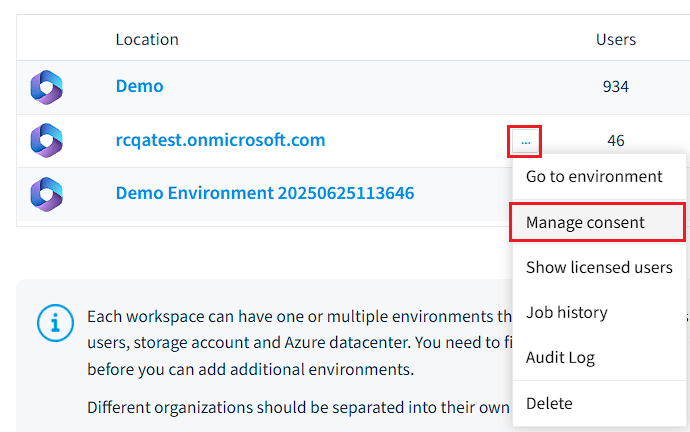
Next to the Environment, click the ellipses menu ([…]) and select Manage consent. You can also go to Settings > Environment Settings, click the ellipses menu ([…]) on General Settings and select Manage consent.
-
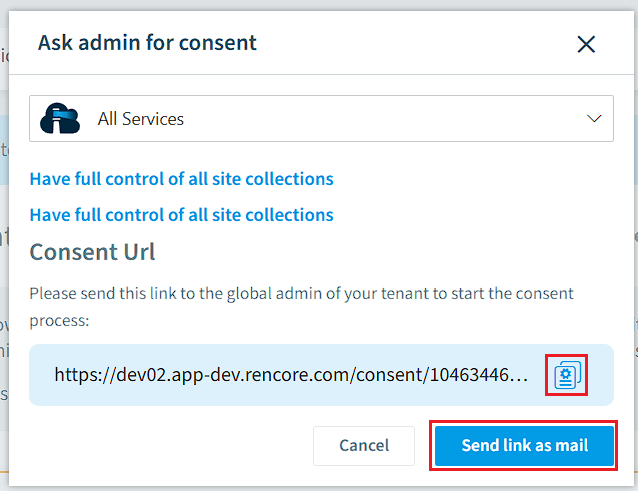
Next to the service, click Ask admin for consent.
-
In the dialog, copy the Consent URL and give it to your administrator, or click Send link as mail.
-
The administrator pastes the URL in an “Incognito” browser window.
-
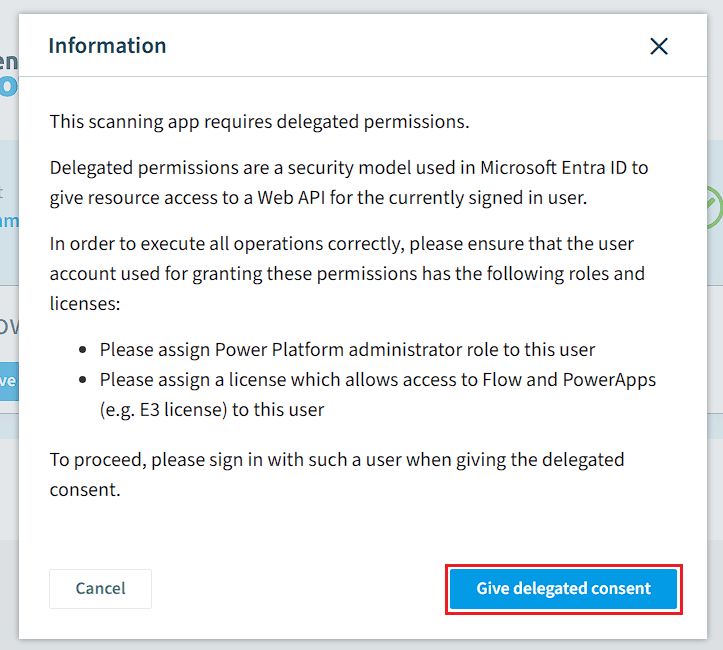
Click Give delegated consent.
-
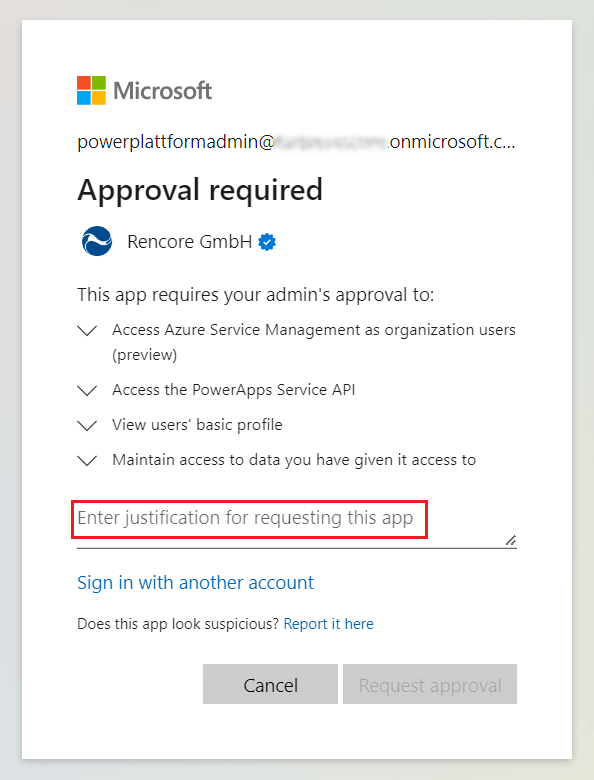
Sign in with a Power Platform Administrator.
-
In the dialog, enter a justification for the permission (e.g. This app consent is necessary to run the Governance Tool: Rencore Governance).
-
Click Request approval. A dialog confirms that your admin has been notified of your request to access this app. Once your admin reviews the request, you will be notified by email.
Approve the application
This part is done in the Microsoft Entra ID admin portal by a registered reviewer of the admin consent workflow.
-
Go to https://entra.microsoft.com/.
-
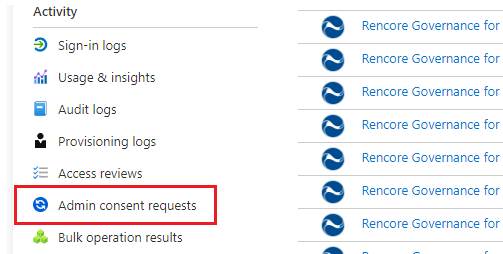
Go to Enterprise applicationsEnterprise applicationAn enterprise application is the local instance of an app in a Microsoft Entra tenant, its service principal, where admins control who can sign in and which permissions it holds.Read more > Admin consent requests.
-
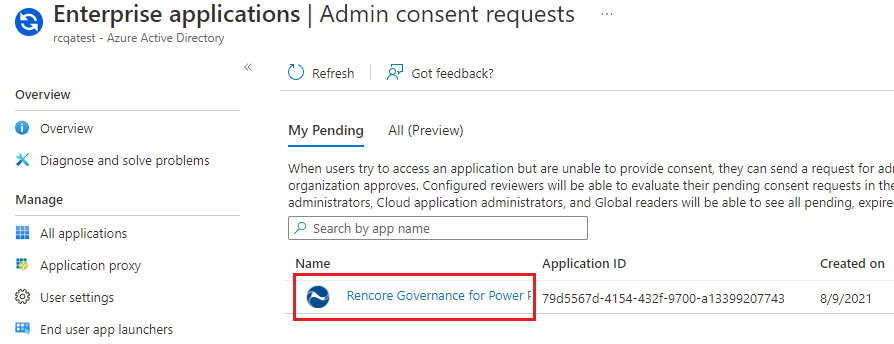
Click the application Rencore Governance for Power Platform.
-
In the Details dialog, click Review permissions and consent.
-
Sign in with the admin user.
-
Review the permissions and click Accept. A notification confirms the app has been approved.
Complete the consent for the service
-
After the registered reviewer of the admin consent workflow confirms the app has been approved, the Power Platform AdministratorPower Platform administratorPower Platform Administrator is a Microsoft Entra admin role that can manage Power Platform environments, Power Apps, flows and data loss prevention policies in the tenant.Read more opens the Consent URL again in an incognito browser window.
-
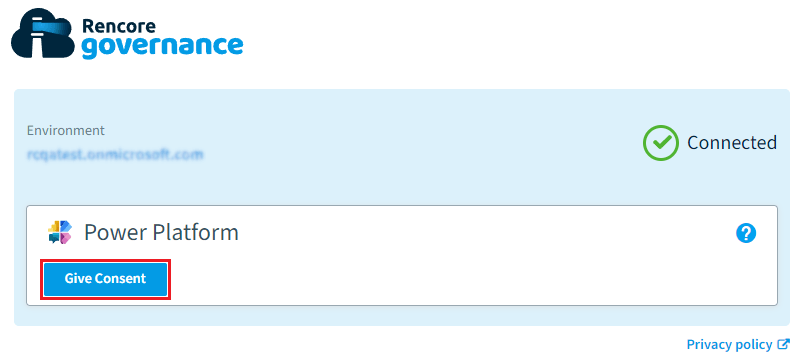
Microsoft knows the app has been allowed on the tenant. Click Grant consent.
-
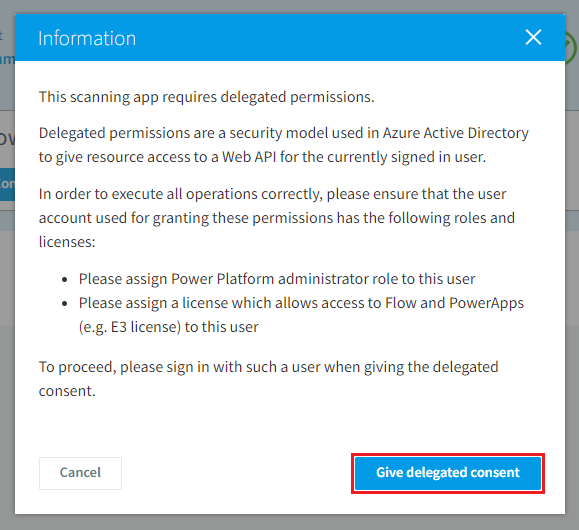
Click Give delegated consent and sign in with the same Power Platform Administrator used in the first part.
-
When the consent is complete, a confirmation dialog appears. Close the incognito browser.
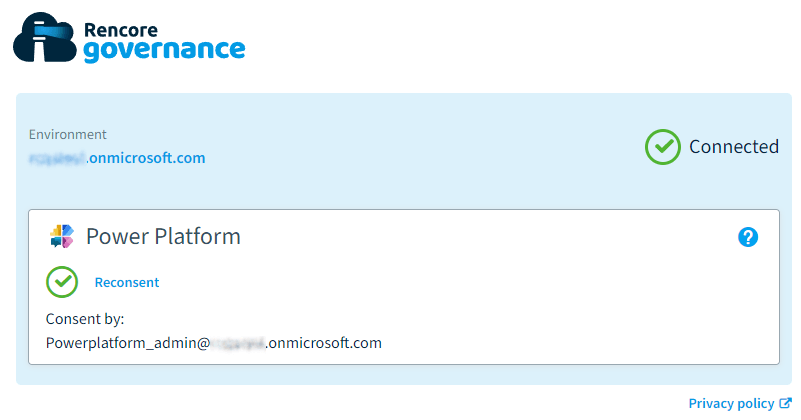
What you see
Return to Rencore Governance. The Power Platform scan is scheduled to start.
Frequently asked questions
Which Rencore Governance role do I need to manage consent for Power Platform?
Which Rencore Governance role do I need to manage consent for Power Platform?Your Rencore Governance role needs the Manage consent permission. The Admin and Owner roles have it.
Who has to be involved when the admin consent workflow is turned on?
You need a Power Platform Administrator to sign in during the consent. You also need a registered reviewer of the admin consent workflow in Microsoft Entra ID to approve the application.
Where do I start the admin consent request for Power Platform in Rencore Governance?
Where do I start the admin consent request for Power Platform in Rencore Governance?Go to Settings > Workspace Settings > Environments, click the ellipses menu next to the Environment, and select Manage consent. Then click Ask admin for consent next to the service and copy the Consent URL or click Send link as mail.
Where does the reviewer approve the Rencore Governance for Power Platform application?
Where does the reviewer approve the Rencore Governance for Power Platform application?The reviewer goes to https://entra.microsoft.com/, opens Enterprise applications > Admin consent requests, and clicks the application Rencore Governance for Power Platform. Then the reviewer clicks Review permissions and consent, signs in, and clicks Accept.
 What do I do after the Microsoft Entra ID reviewer approves the application?
What do I do after the Microsoft Entra ID reviewer approves the application?The Power Platform Administrator opens the Consent URL again in an incognito browser window and clicks Grant consent. Then the administrator clicks Give delegated consent and signs in with the same account used in the first part. After the confirmation dialog appears, the Power Platform scan is scheduled to start.
Was this page helpful?
Thanks for the feedback.
Thanks. What was wrong?