View scan job history
AI summary
View the complete scan job history for your environment, including which inventories and properties were impacted and whether jobs completed or are still running. Click a job ID to see full details or export all jobs to Excel.
View the complete scan jobScanA scan is how Rencore Governance reads metadata from a connected tenant into the inventory.Read more history for an EnvironmentEnvironmentAn Environment is the connected Microsoft 365 tenant inside a Workspace.Read more, including jobs that have completed and ones that are currently running.
Before you begin
- Your role needs the View job history permission. The Admin and Owner roles have it. See Rencore roles.
Steps
-
Click InventoryInventoryThe inventory is the record of every object Rencore Governance scans from your tenant, with their properties and the relations between them.Read more on the Nav Panel.
-
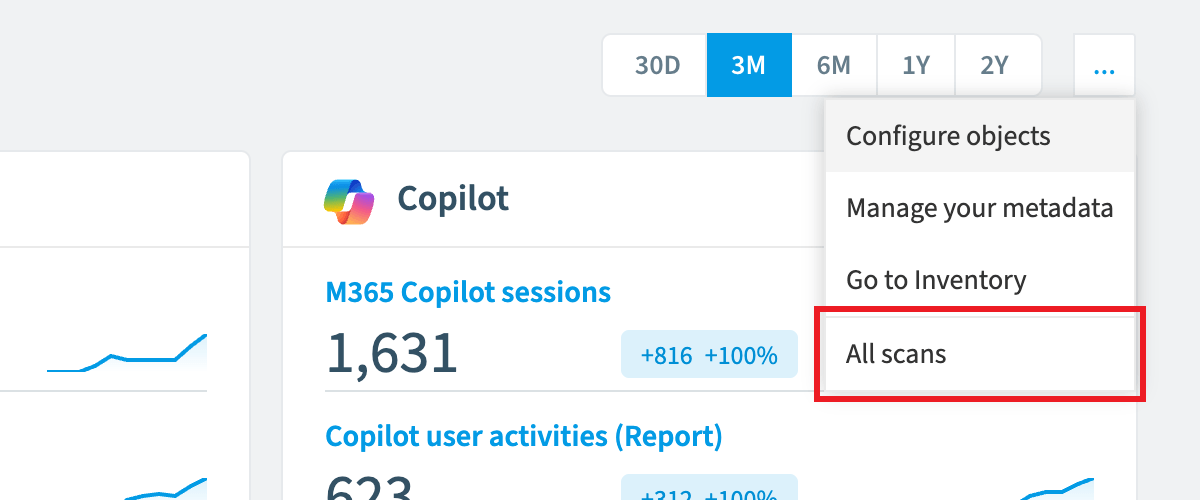
Go to Inventory Options ([…]) > All scans.
-
Click the JobID of a job to see its Impacted Inventories and Properties.
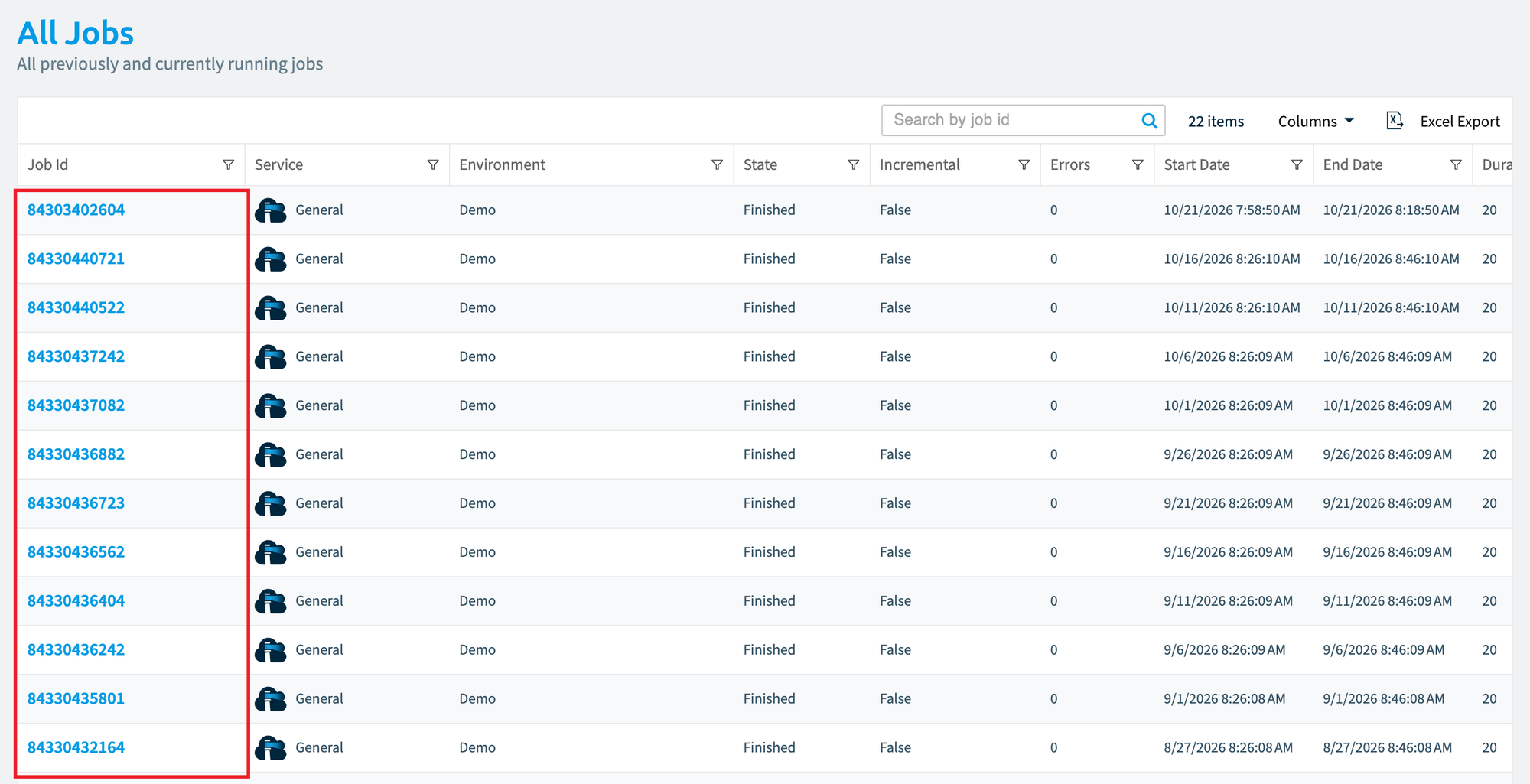 You can export the details of All Jobs by clicking Excel Export in the top right of the screen.
What you see
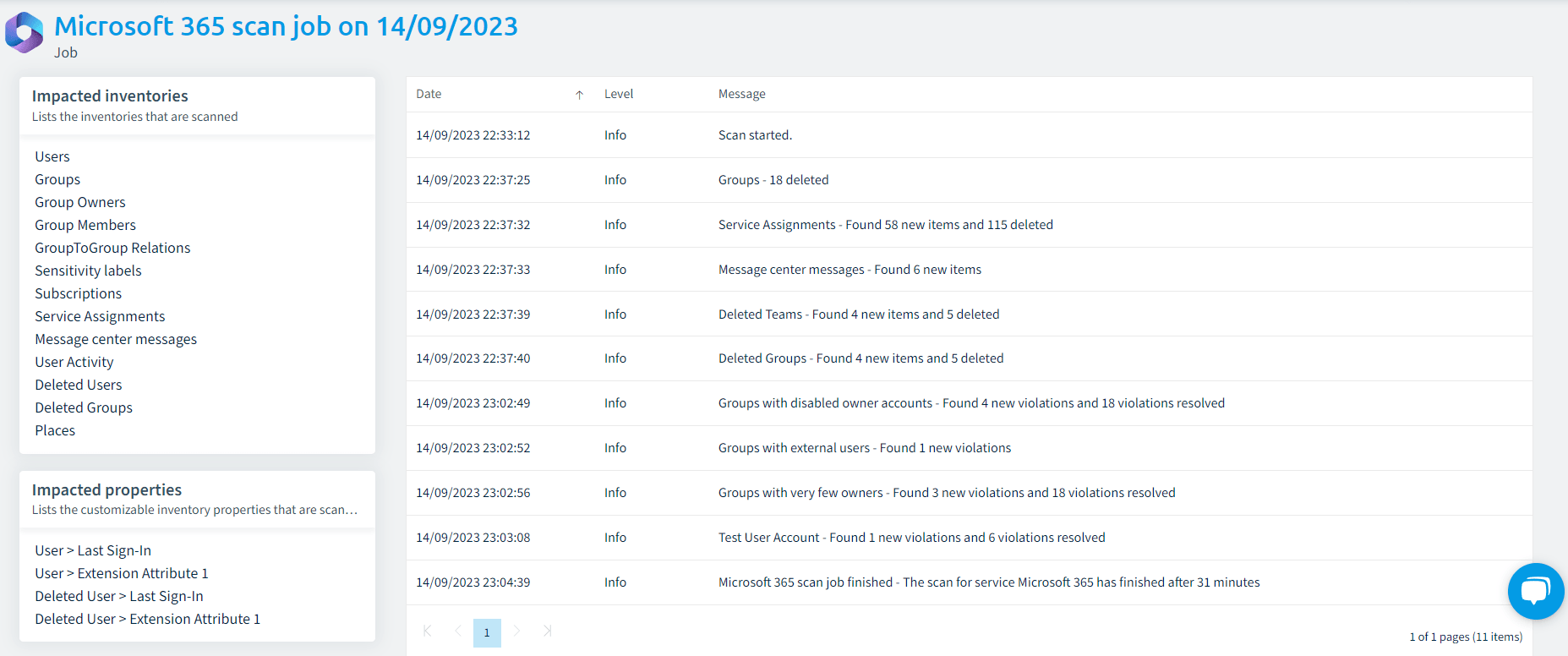
The All scans screen shows all advanced details of the scan jobs. A job shows:
- The Impacted inventories on the top left.
- The Impacted properties on the bottom left.
- The job details on the right.
Frequently asked questions
Which permission do I need to see the scan job history?
You need the View job history permission. The Admin and Owner roles have it.
How do I open the scan job history for an Environment?
Click Inventory on the Nav Panel, then go to Inventory Options ([…]) > All scans. The All scans screen shows the complete history, including jobs that have completed and ones that are currently running.
Can I export the scan job details to Excel?
Yes. Click Excel Export in the top right of the All scans screen to export the details of All Jobs.
Was this page helpful?
Thanks for the feedback.
Thanks. What was wrong?